
Proposals
Turn proposal data from your CRM, spreadsheet, or form into a polished, branded document, then deliver it by email or for signature.
A proposal usually mixes static narrative content (about your company, your approach, your terms) with personalised sections that need to change for every prospect (name, scope, pricing, timelines). Portant keeps the static parts in your template and fills in the personalised parts from a source.
What you'll need
- A source with the deal or prospect data, such as HubSpot, Google Sheets, or Google Forms
- A proposal template in Google Docs, Google Slides, or Word
- Optional: an eSignature step if you want the prospect to accept and sign
Build the workflow
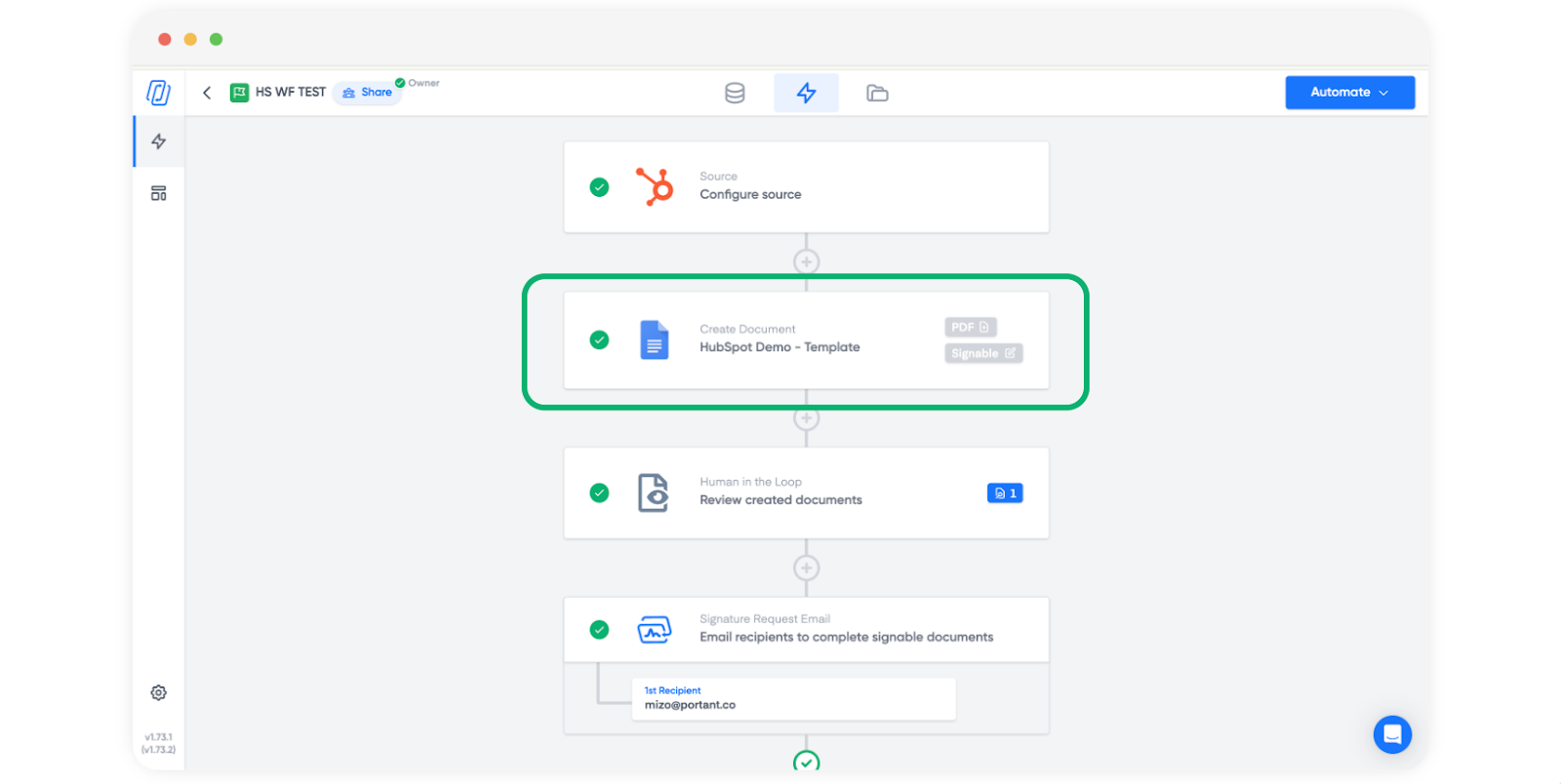
- Create a new workflow and connect your source.
- Add a template block and select your proposal document.
- Drop tags where personalised text needs to appear (client name, project scope, dates, contact details).
- For pricing tables, package options, or scope items that vary by deal, use a repeating table so one row in the template expands to as many rows as the source has line items.
- Use tag formulas for subtotals or grand totals beneath the repeating row.
- If sections of the proposal should only appear for certain deals (for example, optional add-ons or region-specific terms), use conditional logic for documents.
Send the proposal
- For a PDF you'll attach to an email, add a Send via email block.
- For a proposal that needs to be accepted, send it for eSignature and let Portant track when it's been signed.
- Generated documents land on the Outputs tab and can be auto-filed into a Drive or OneDrive folder.