
Google Sheets auto-create
Auto-create runs your workflow automatically when a new row is added to your Google Sheet, or when a row's data changes. This page covers how to turn it on, how it decides what to process, and how to use it with workflow filters.
Auto-create is a Pro feature, available on paid Portant plans.
For the canonical end-to-end automation guide, see auto-create from Google Sheets.
Turn on auto-create
In a workflow that uses Google Sheets as the source, click the Automate button in the top right and toggle auto-create on:
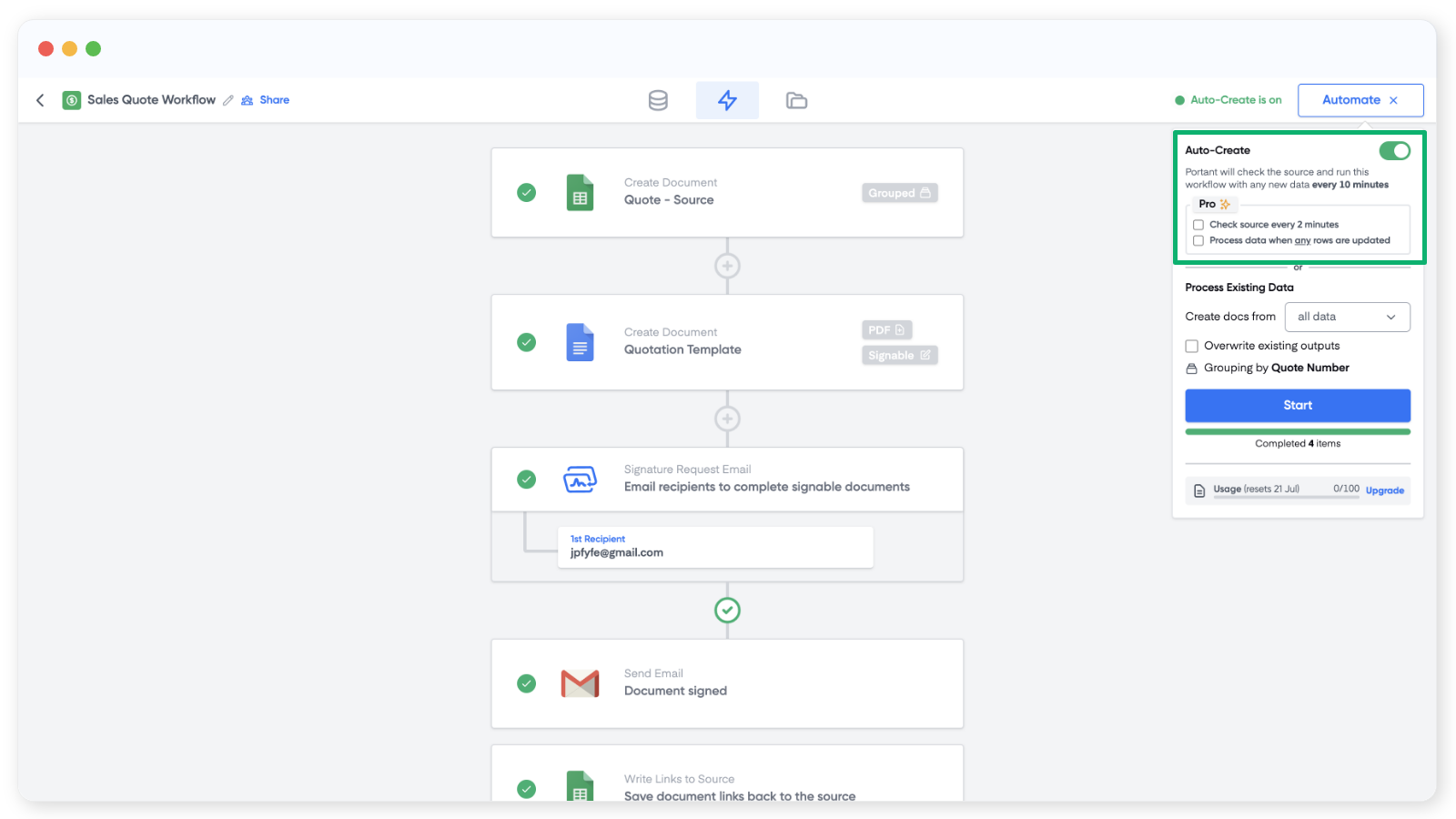
Once it's on, you'll see a status indicator in the top right:
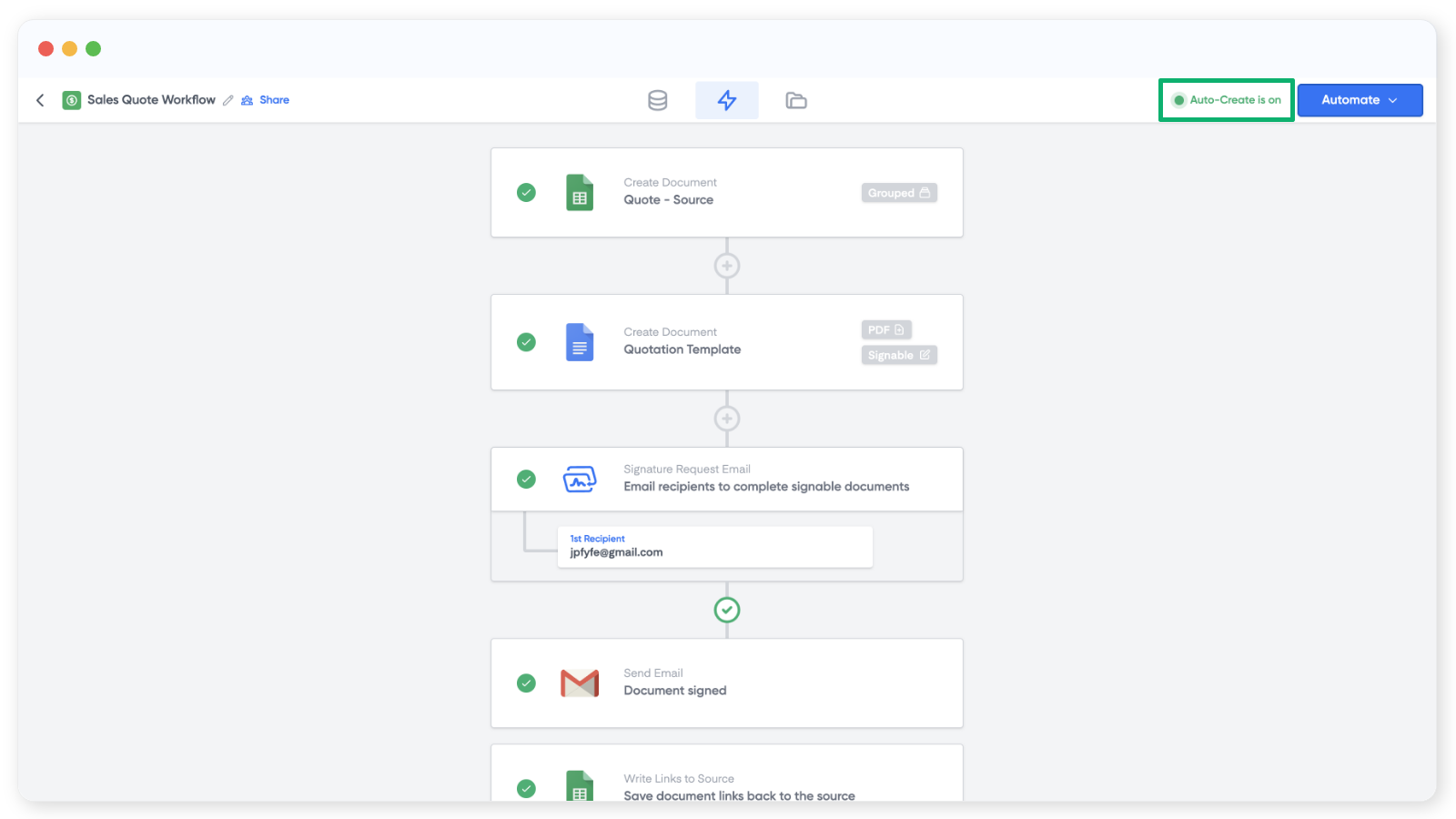
From the moment auto-create is turned on, any new row added to the bottom of your sheet will be processed by the workflow.
Auto-create does not process rows that already exist in the sheet when you turn it on. Only new rows added afterwards are processed.
How auto-create decides what to process
When you turn auto-create on, Portant counts the rows currently in the sheet. From that point on, any row added below the last row is treated as new and runs through the workflow.
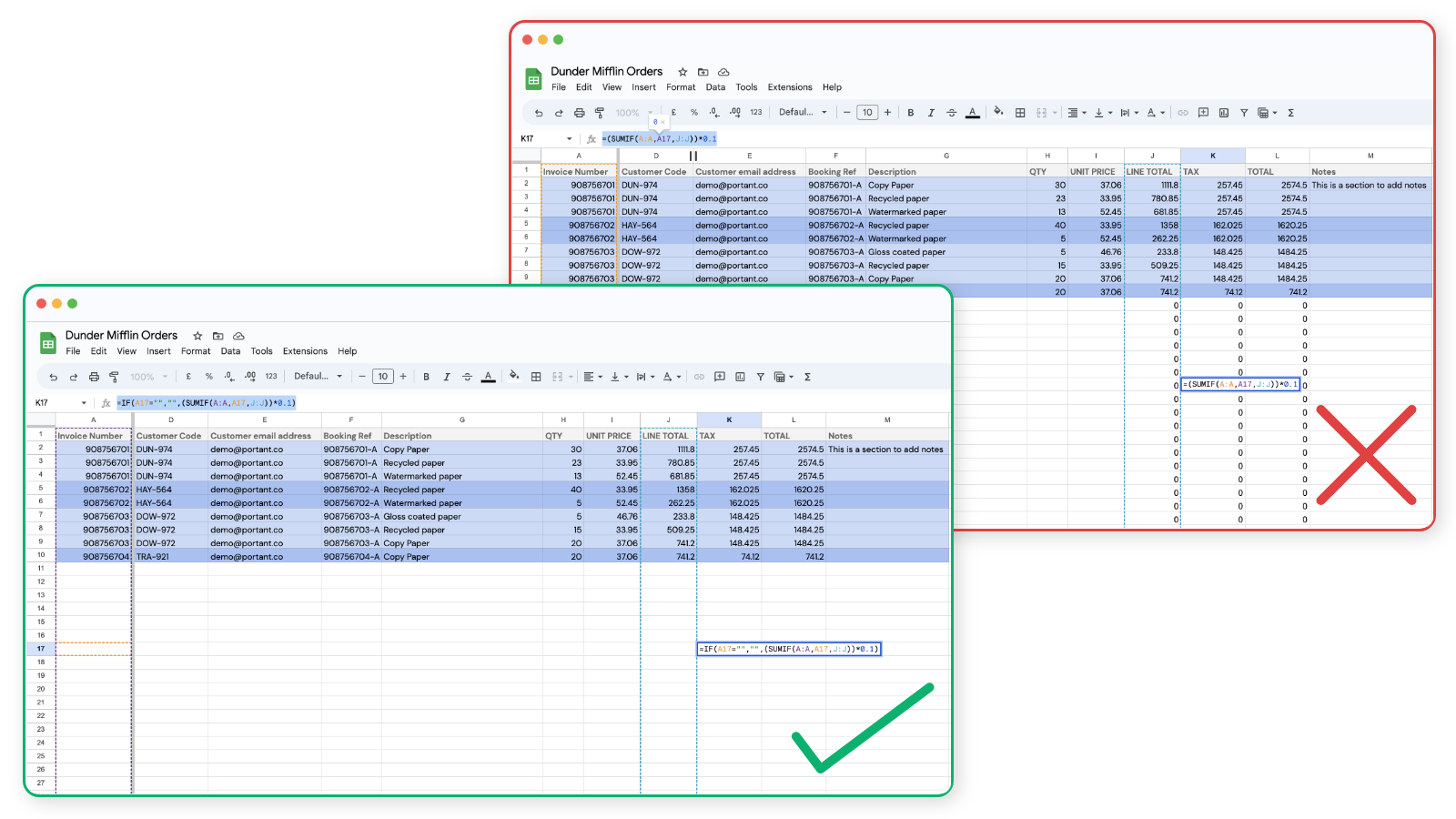
If your sheet has formula columns, wrap each formula in an IF statement so empty rows return a blank instead of a value:
=IF(A17="", "", (your formula))
Without this, Portant treats the row as already populated and stops processing new rows below it. Here's what that looks like:
Auto-create when row data changes
If you also want to run the workflow when an existing row is edited, tick the change-detection checkbox in the automation panel:
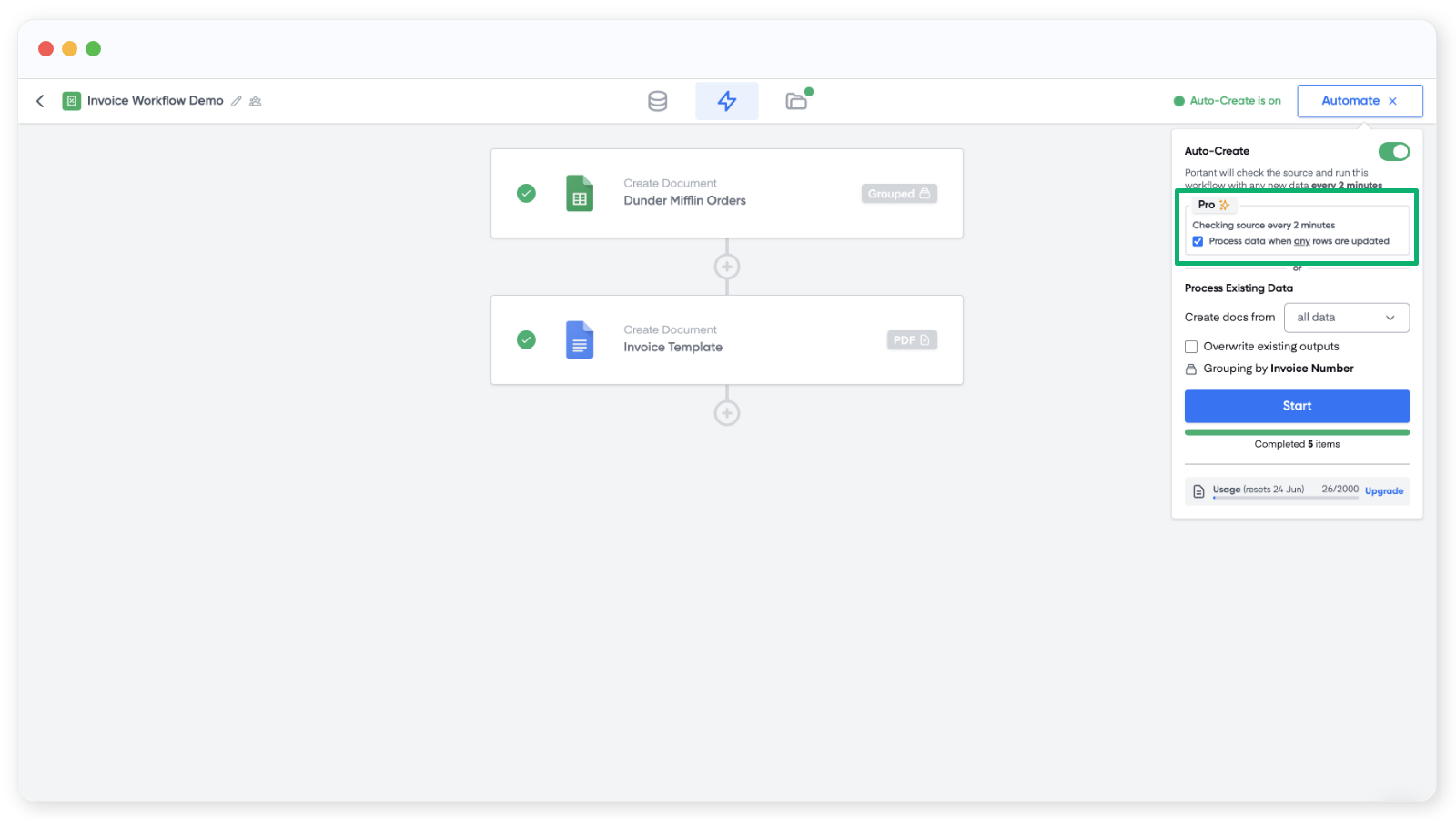
Portant takes a snapshot of the sheet when you turn this on, then re-runs any row whose data changes after that.
Auto-create when a status column changes
You can pair change detection with a workflow filter to only run the workflow when a status column has a specific value. For example, you might have a Status column with Draft and Send, and only want Portant to run the row when the status changes to Send:
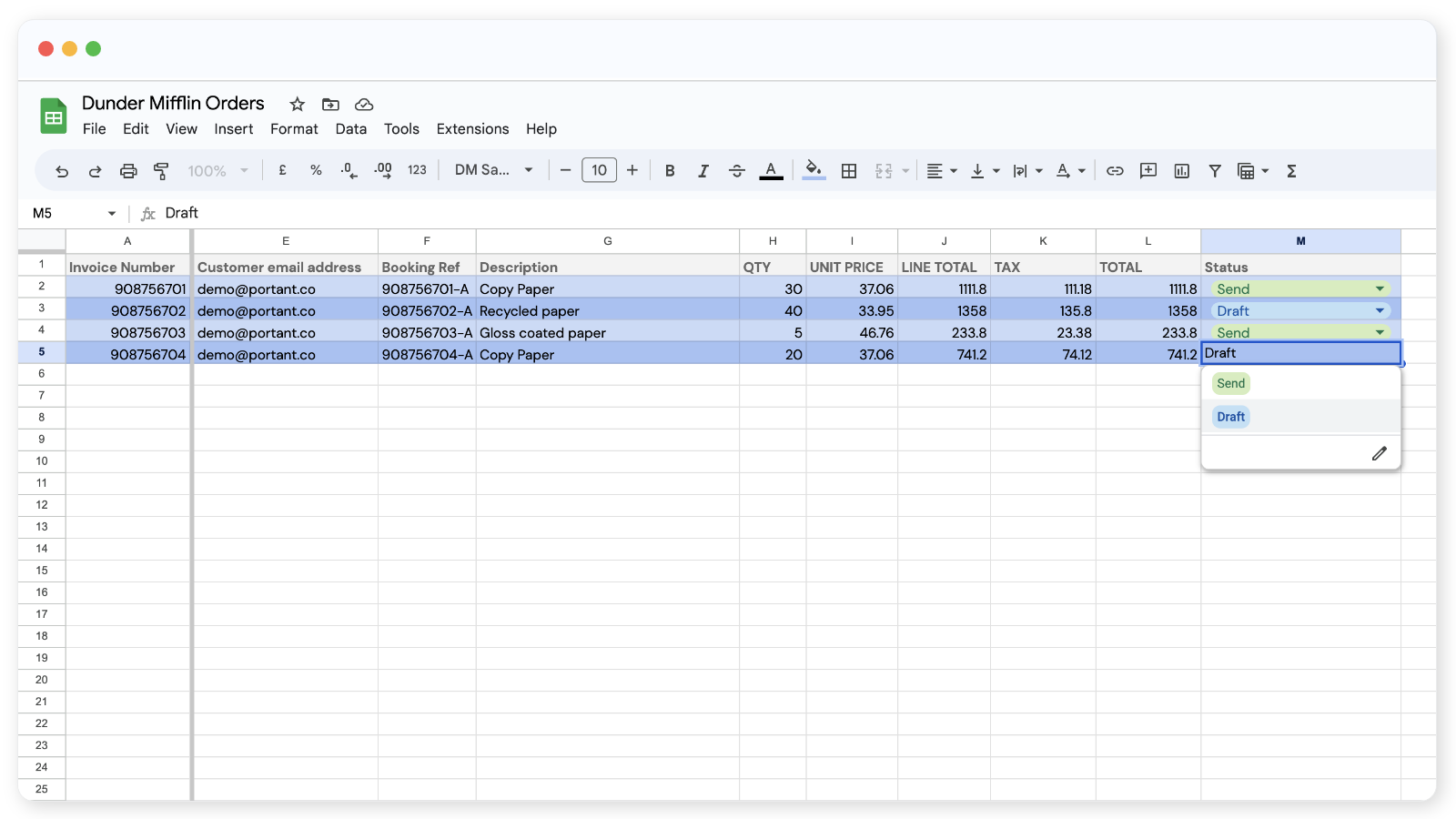
To set this up, turn on auto-create with change detection, then add a workflow filter that only processes rows where Status equals Send.
This is also a good way to stop half-finished rows from being processed before you're ready.