
Review and approve documents in HubSpot
Review, edit and approve generated documents without leaving HubSpot. When a workflow includes a review step, the draft pauses inside HubSpot so the right person can sign off before it moves on. The full review and approval rules live in Review and approve documents.
In this guide:
- How to review and approve drafts from inside HubSpot
Review and approve drafts from HubSpot
If you haven't set up a Review block before, start with Review and approve documents.
When a HubSpot-sourced workflow includes a Review block, every generated draft pauses at the review stage. You can review, edit and approve it directly from the HubSpot modal.
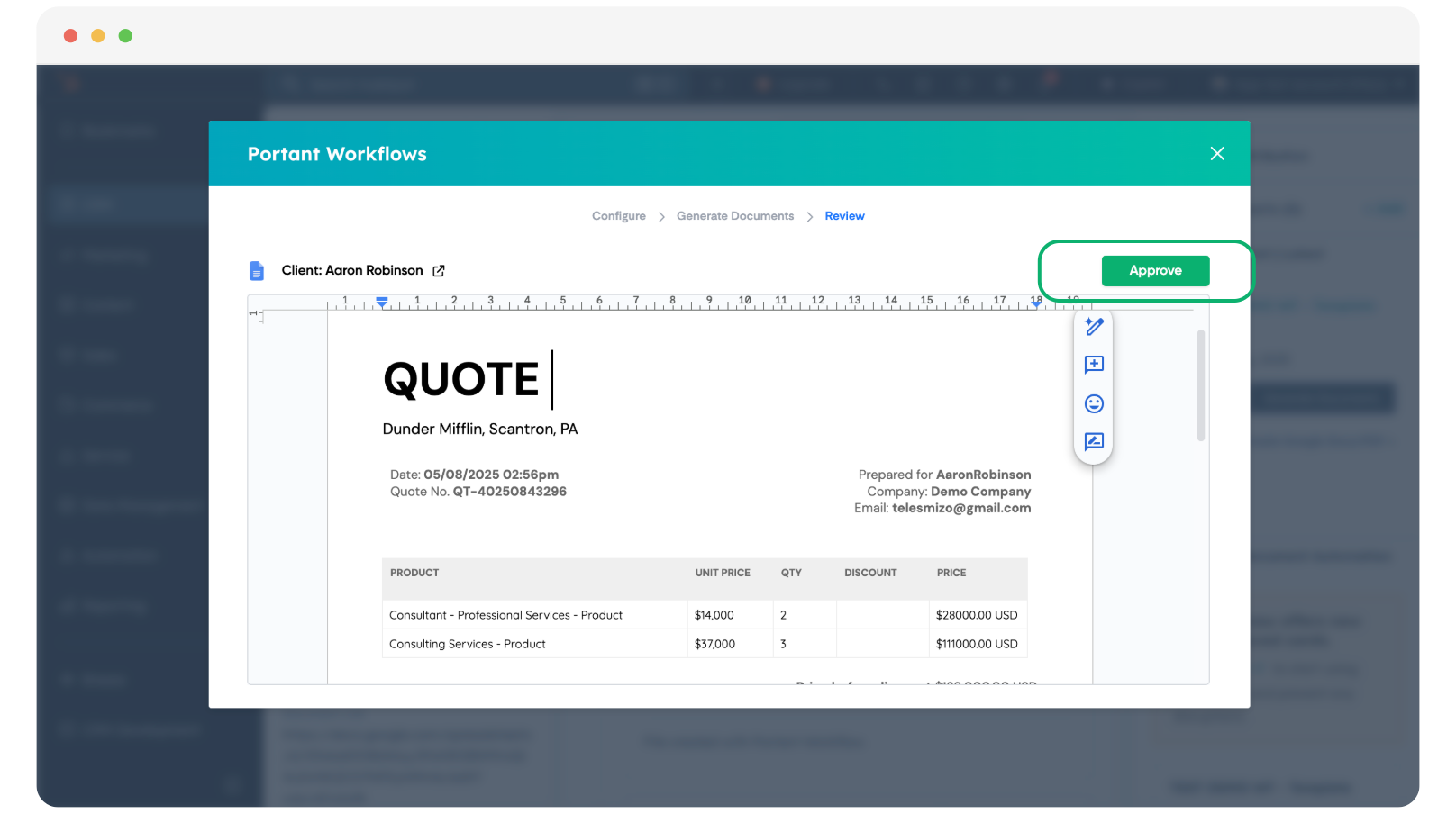
If you're not the approver, or you want to come back to it later, just close the modal. To pick it back up, click the document link in the Portant app card to reopen the modal. You can also approve the draft directly from the app card in the middle section of the HubSpot record.
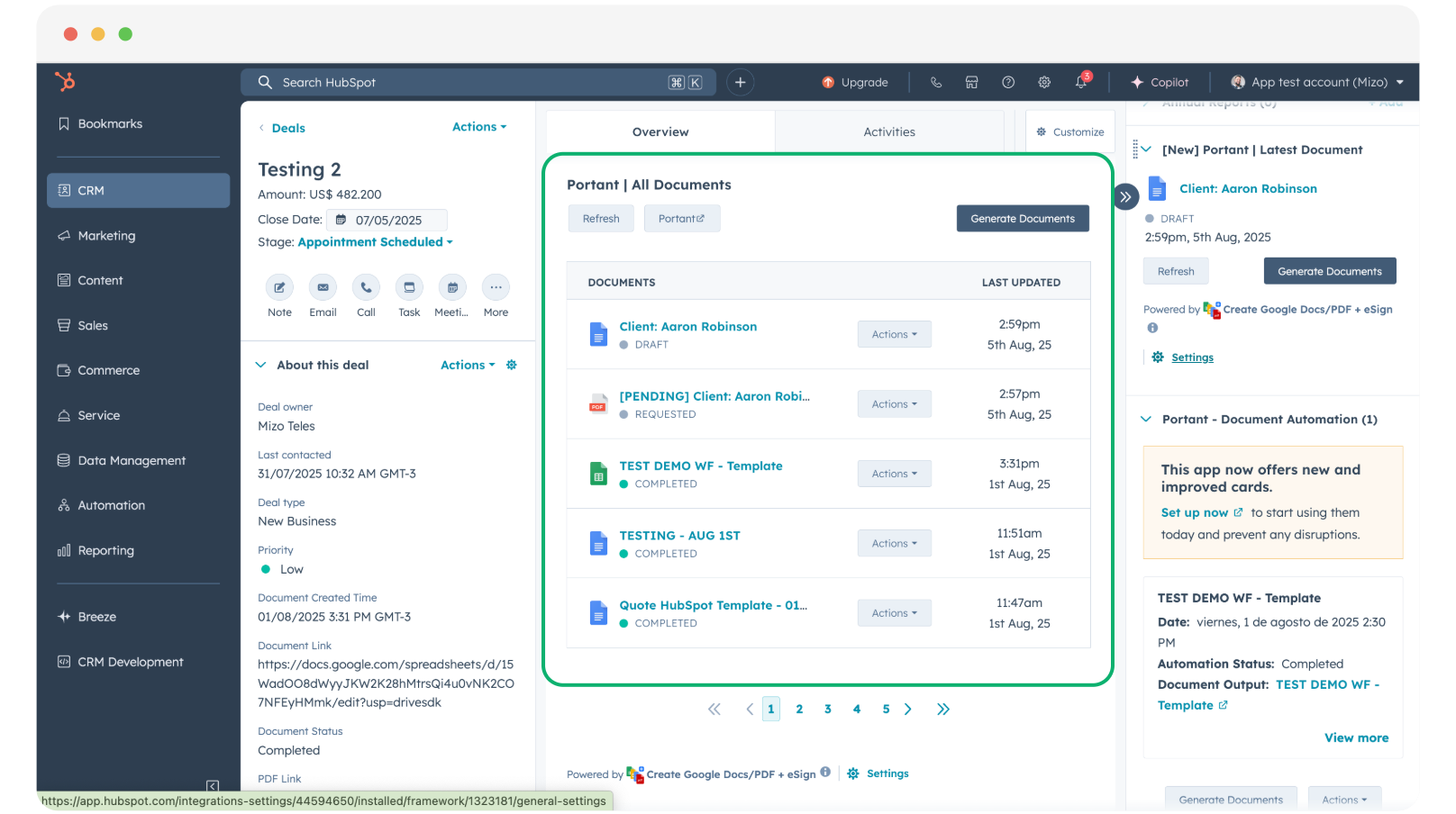
Note: while a document is in the review stage, its status is Draft. That status is also stored on the HubSpot record as a Portant custom property, so you can use it to trigger HubSpot workflows or build reports.
To approve a draft, click Actions in the app card.
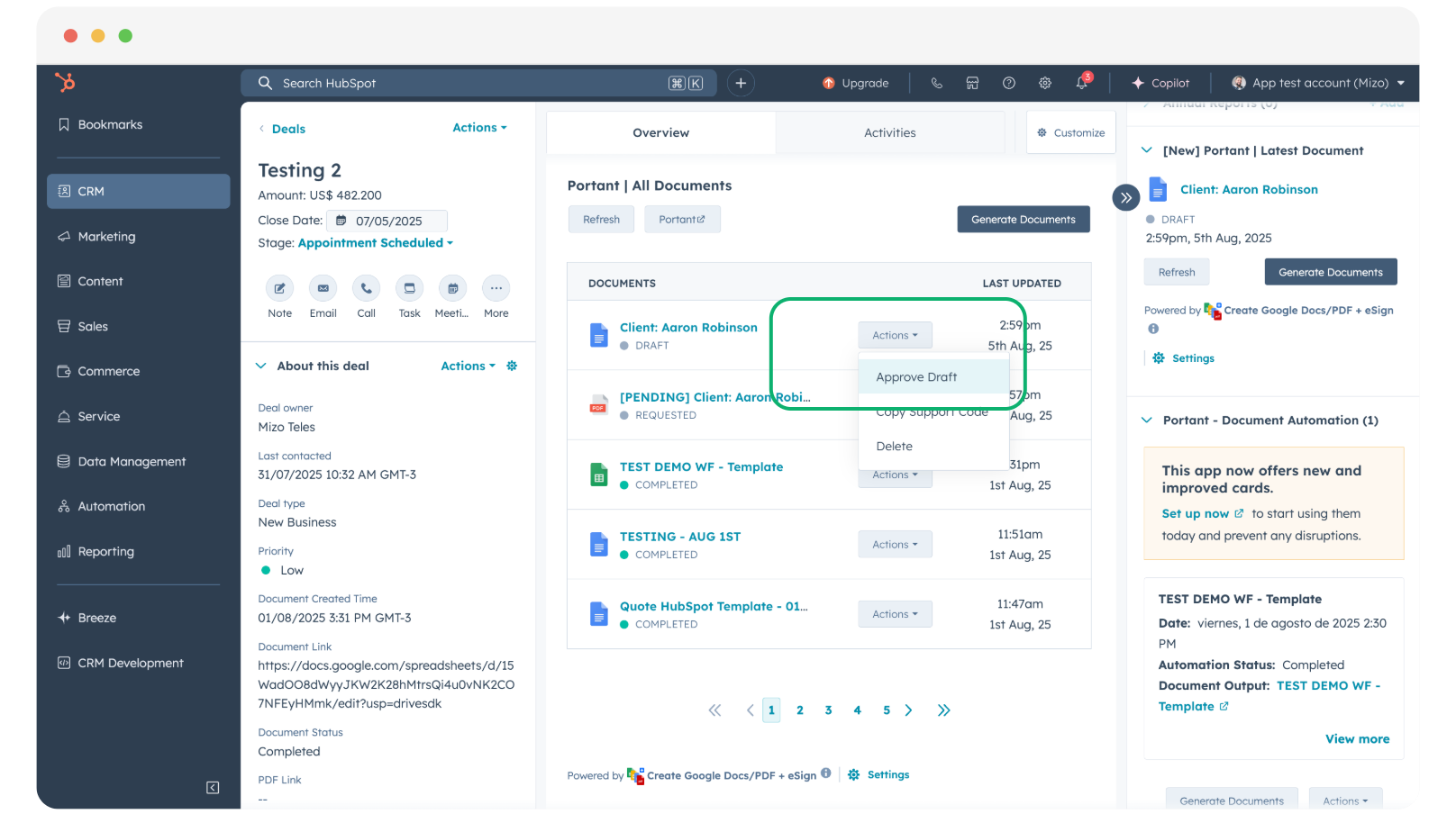
Click Approve Draft (or Approve from the HubSpot modal). The document moves to the next step of the workflow, and the approval is logged on the Portant Output page, the document status property, and the activity feed on the HubSpot deal.
If you don't see the new app cards on your HubSpot records, follow Add Portant app cards to HubSpot to add them.