
Request signatures without a source
Send a document for signature without setting up a source. This is the simplest way to get a signable document out the door when the content doesn't change between recipients.
If you do need to personalise the document with data (different names, prices, line items), use a workflow with a source instead. See Signature requests.
What you'll do
- Create a workflow from a template
- Customise the template
- Add signature and other fillable fields
- Publish the document and share the signing link
- See the signed document in Outputs
1. Create a workflow from a template
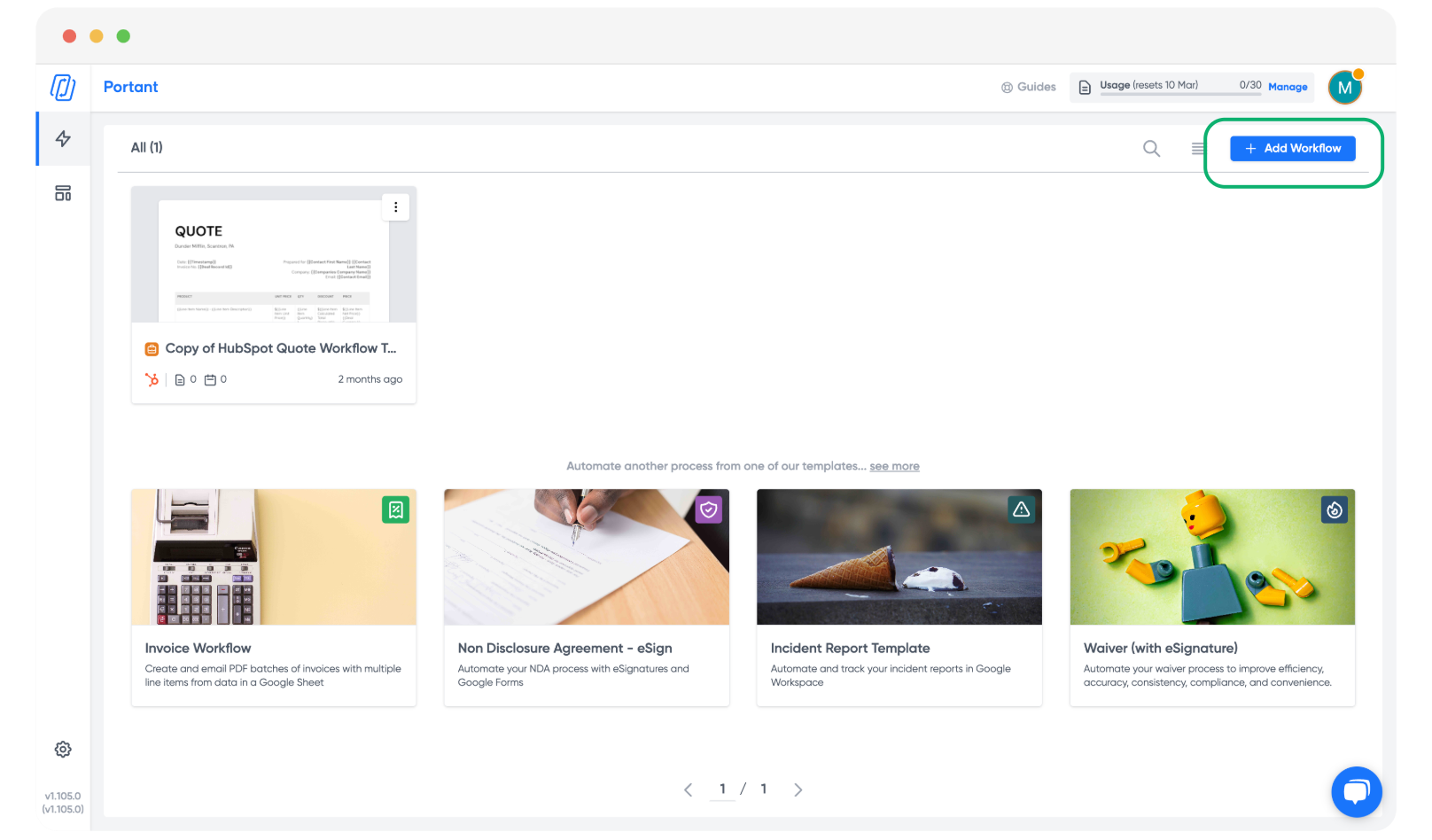
In the Portant app, click + Add Workflow.
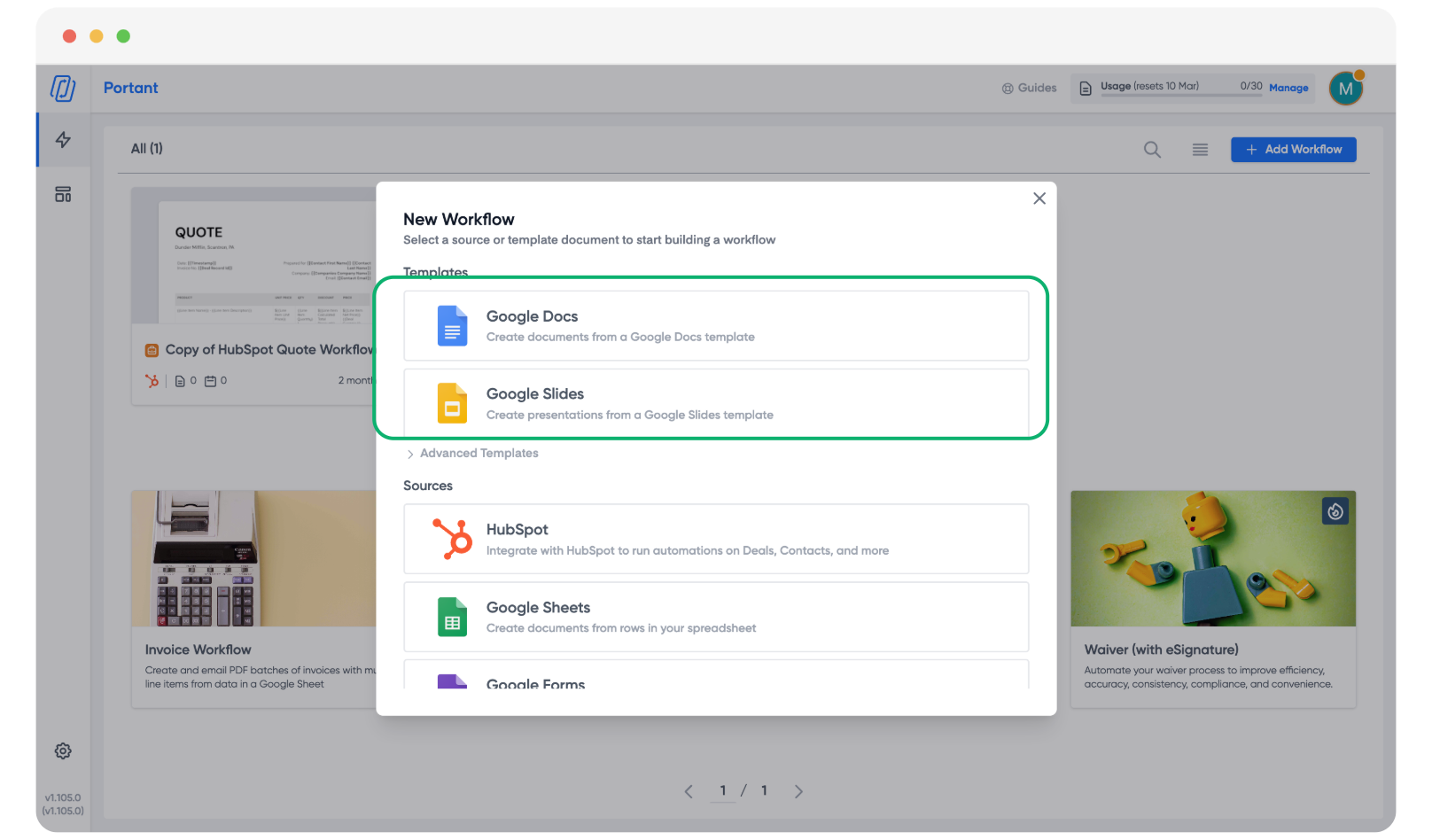
Pick a template type. Google Docs and Google Slides both work.
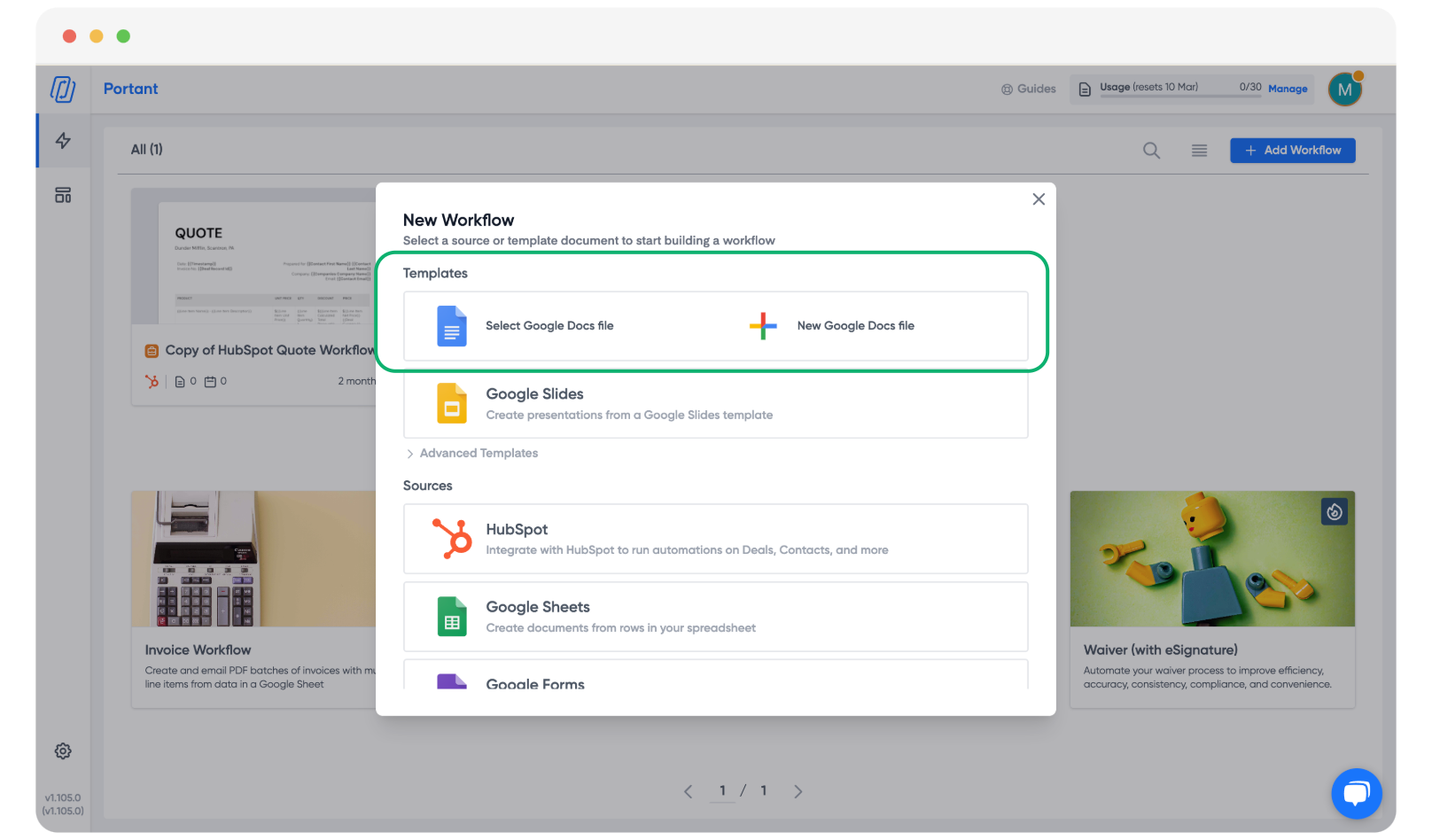
Pick an existing template from your Google Drive, or create one from scratch.
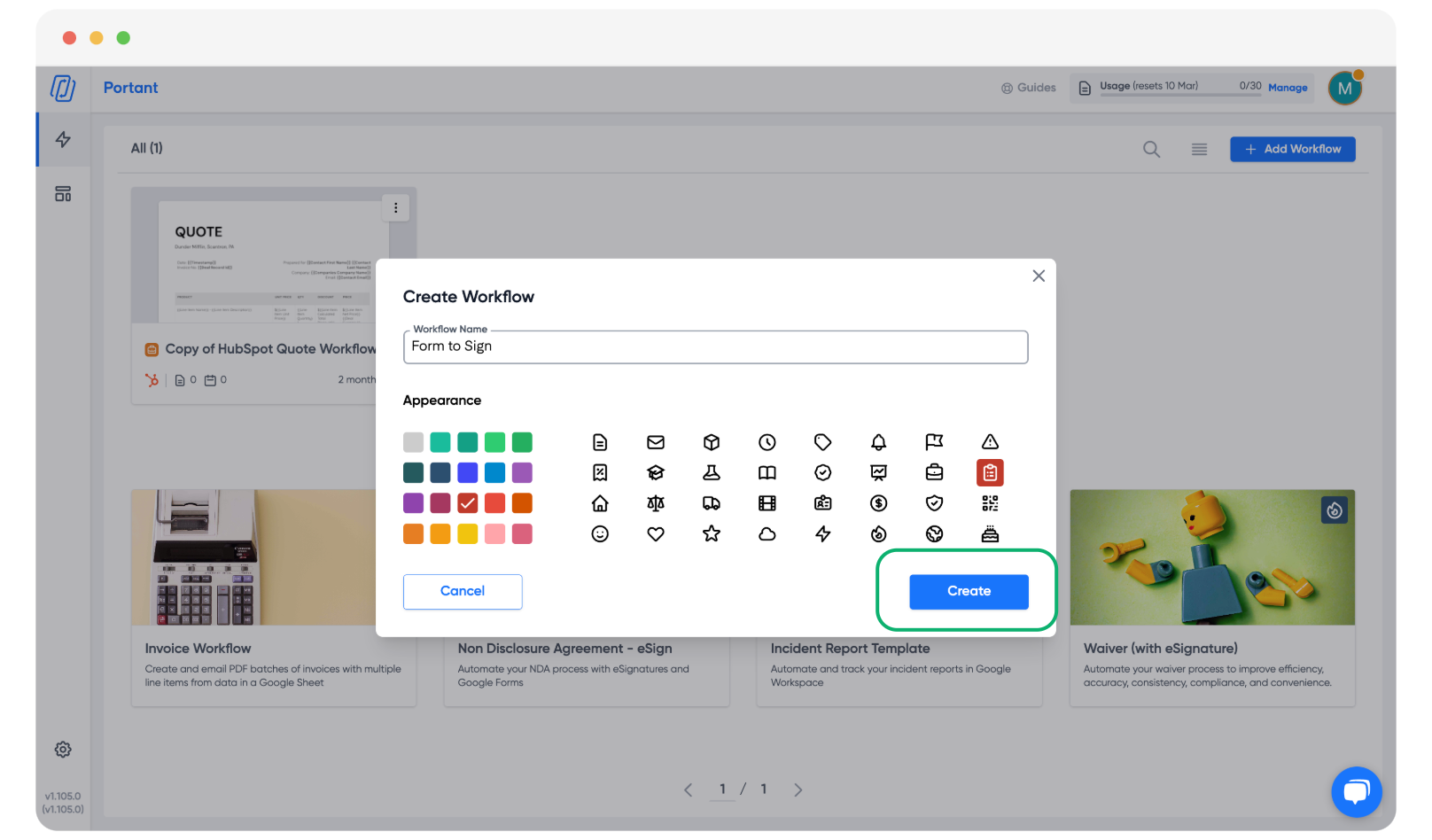
Give the workflow a title, colour, and icon so it's easy to find later.
2. Customise the template
Use the formatting tools to set up the document the way you want it.
When you're done, click Configure to add a signature request.
3. Add signature and fillable fields
The right side of the screen shows the placeholders you can drop into the document: signature, text field, checkbox, date field, initials. Click Insert to place each one wherever you need it.
Note: You can also use plain text boxes if you want recipients to fill in extra information that isn't tied to a placeholder.
4. Publish and share the signing link
Once the document is ready, click Publish.
Pick Publish Latest Version.
You can then Copy to Clipboard to grab the signing link, or Open in a New Tab to review the document yourself first.
When the recipient opens the link, they click Sign Now to start signing.
After signing, they tick the box confirming "I understand that this is a legal representation of my signature", then click Insert to apply it.
To get a copy of the signed document, the signer enters their email and clicks Submit.
A confirmation page appears once the document is submitted.
5. See the signed document in Outputs
The signed document is saved to the Outputs tab in Portant and to your output folder.
Related
- Manual PDF upload: upload a finished PDF and send it for signature.
- Multiple signers: request signatures from up to four people.
- Request info on signing: collect text, initials, or checkboxes alongside the signature.
- Compliance: country-by-country legal positioning.