
Insert images
Portant Data Merge can drop images straight into your template. Mark a source row as an image, place a placeholder where you want it, and Portant will replace it with the right image at run time.
Add an image
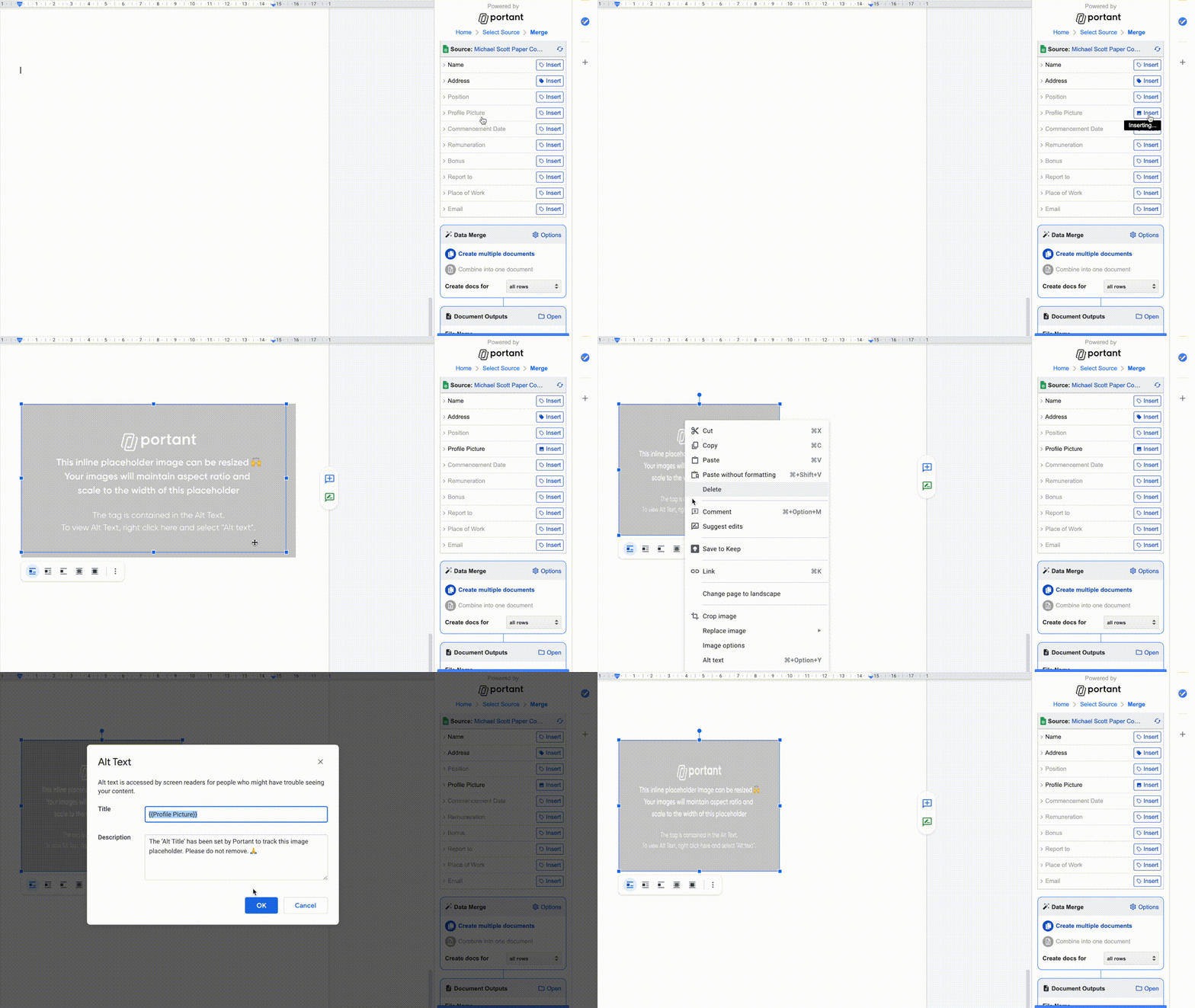
- Click the source row to open its options.
- Tick Insert as image. The tag icon changes to an image icon.
- Click Insert to add a placeholder image to your template.
- Move and scale the placeholder where you want the image to appear. Portant will keep the source image's aspect ratio when it inserts the real image.
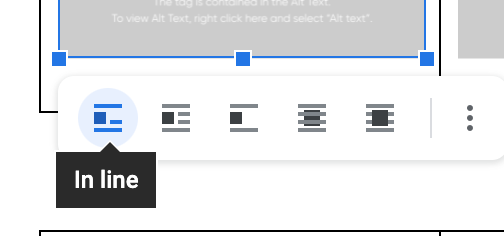
In Google Docs, images can only be placed as in-line images. Wrap, break, behind, and in-front layouts aren't supported in a data merge. If you need layered images, use a Google Slides template instead.
Note: Supported formats are .jpg, .jpeg, .png, and .gif.
How sizing works
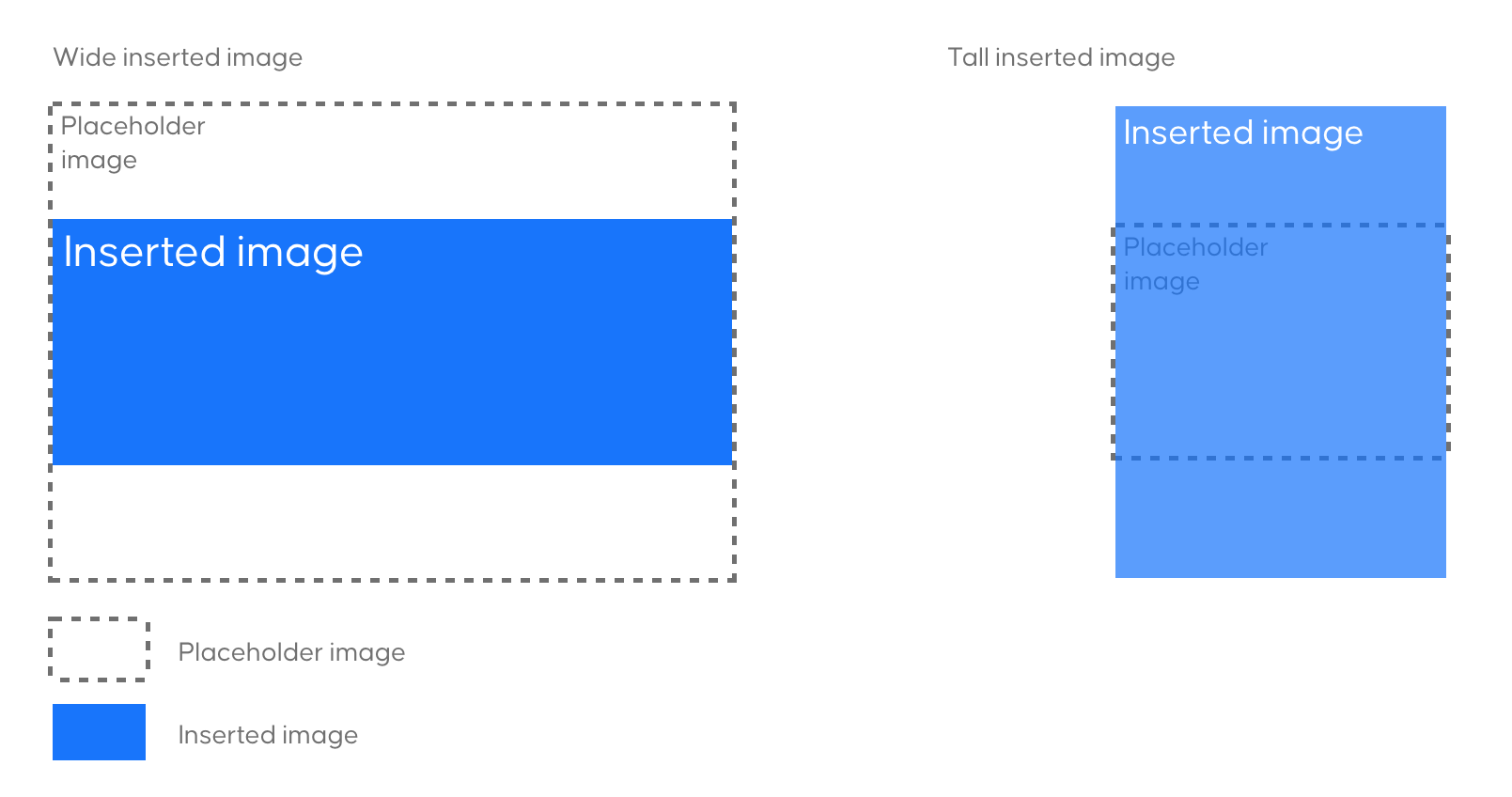
Portant never distorts an image to fit the placeholder. If the source image has a different aspect ratio, Portant scales the height to match the ratio while keeping the placeholder width.
Supported image sources
- Any public image URL
- Any Google Drive image URL you have access to
- Any image uploaded via Google Forms
Note: When using a Google Form to collect images, Portant inserts one image per question. If multiple images are uploaded, only the first is used. You can limit uploads to one in form settings.