
Customise the signature request email
Edit the email that goes to your signers, with full HTML control and the option to attach extra files. This is a Pro and Teams feature.
What you'll do
- Customise the signature request email
- Add extra attachments to the request
If you haven't sent a signature request before, start with Get started with eSignatures.
1. Customise the signature request email
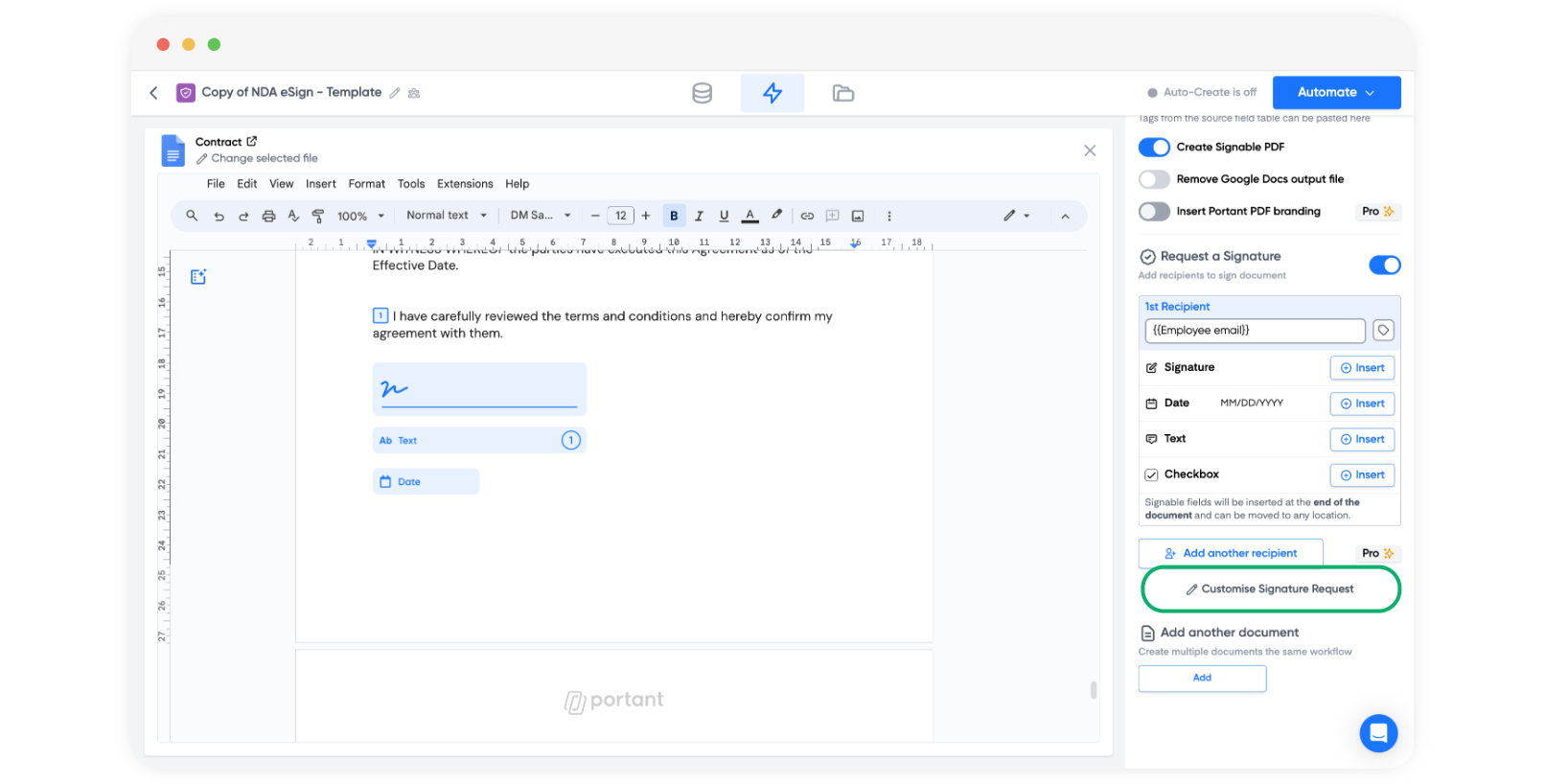
After you've added your signature placeholders to the document, click Customise Signature Request.
Note: This works the same way whether you're using date, text field, or checkbox placeholders.
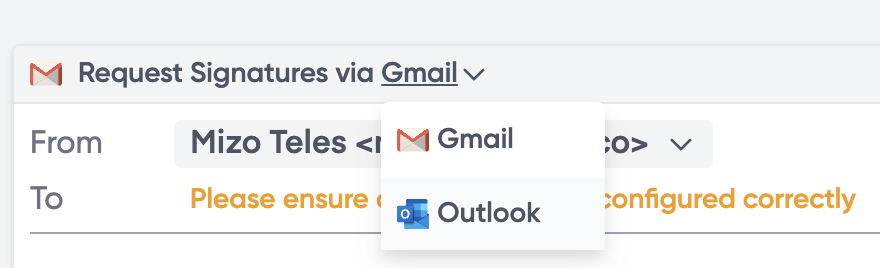
Note: This example sends from Gmail. You can also send from Outlook. See Send Outlook emails.
The default option lets you customise a section of the email's content.
For full control, switch to Custom Formatting:
You can edit every part of the email, and add text before and after the Review and Sign button. Tags from your source table are available to personalise the content.
Note: You can also remove the security warning at the end of the email, but we don't recommend it.
Note: Signature requests expire after 30 days by default. You can change or disable this in the template block. See Signature link expiry.
2. Add extra attachments
Click the attachment icon at the bottom of the email block, then Select from Google Drive, and add as many attachments as you need.
Save the email and finish setting up your workflow.