
Trigger HubSpot workflows from Portant
Use Portant document statuses (like Signed, Sent, or Approved) as the trigger for your HubSpot workflows. This page shows you how to set up an enrolment trigger, lists every status you can use, and gives a few ideas for what to build with them.
In this guide:
- Set up a HubSpot workflow enrolment trigger
- Portant document statuses you can use
- HubSpot workflow ideas
- Advanced HubSpot workflow techniques
Every time Portant runs, it saves details about the document (link, status, workflow name, and more) to a set of custom properties on the HubSpot record. Those properties are added automatically the first time you run a workflow, and HubSpot's enrolment triggers can listen to changes on them.
Looking to do the opposite, run a Portant workflow as a step inside a HubSpot workflow? See Add a Portant action to a HubSpot workflow.
Set up an enrolment trigger
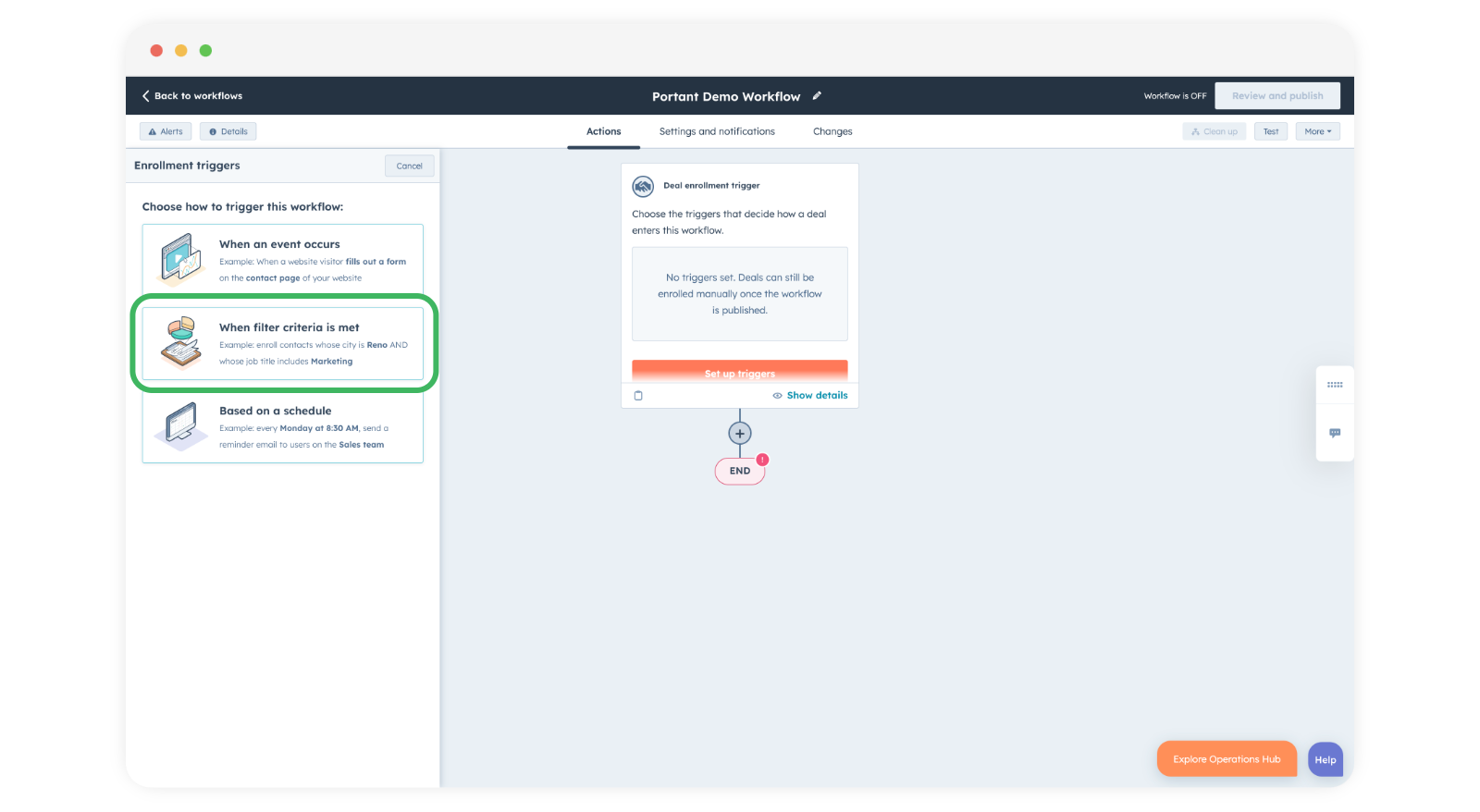
In HubSpot, choose to trigger the workflow When filter criteria is met.
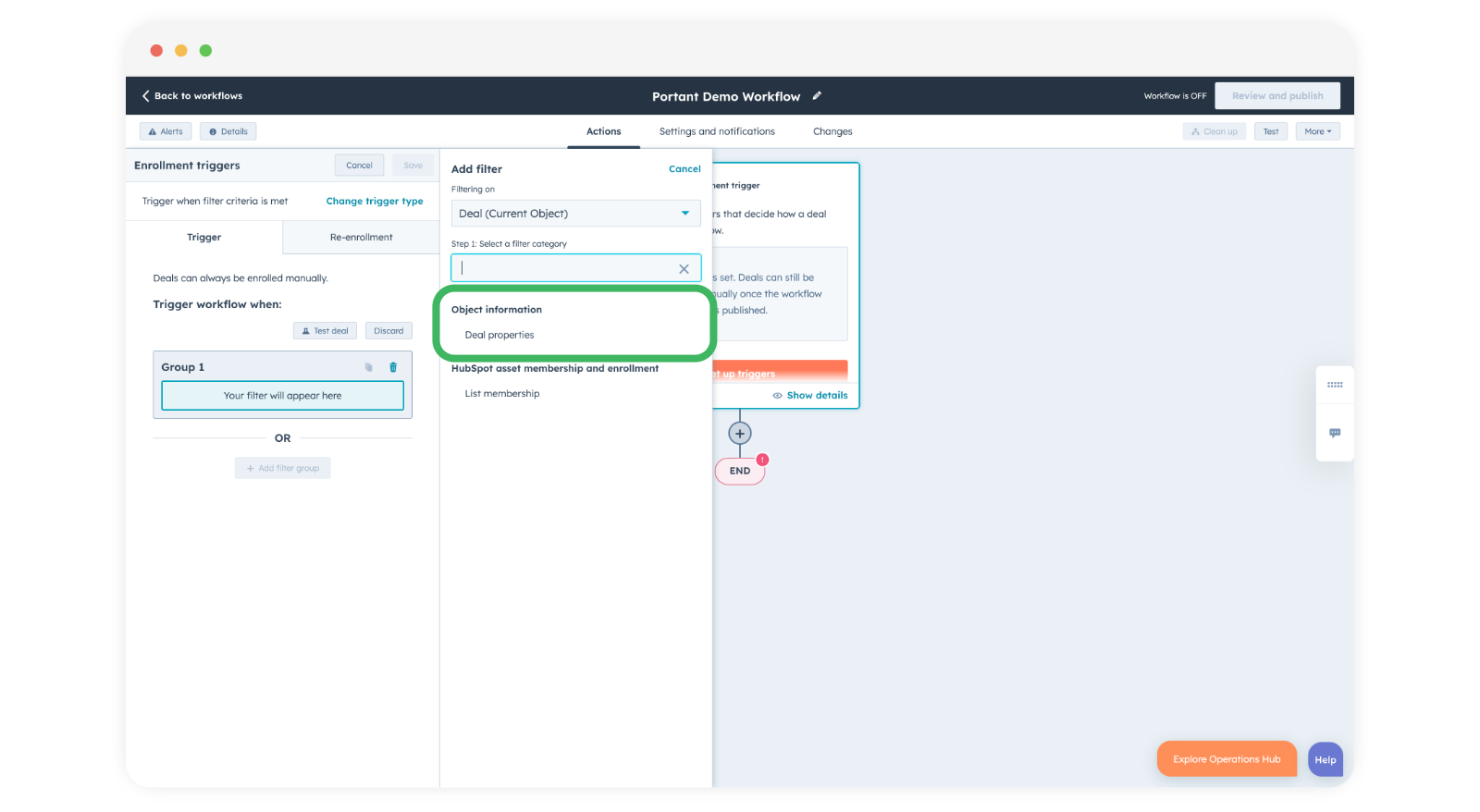
Add a filter based on Deal, Contact, Company or Ticket properties.
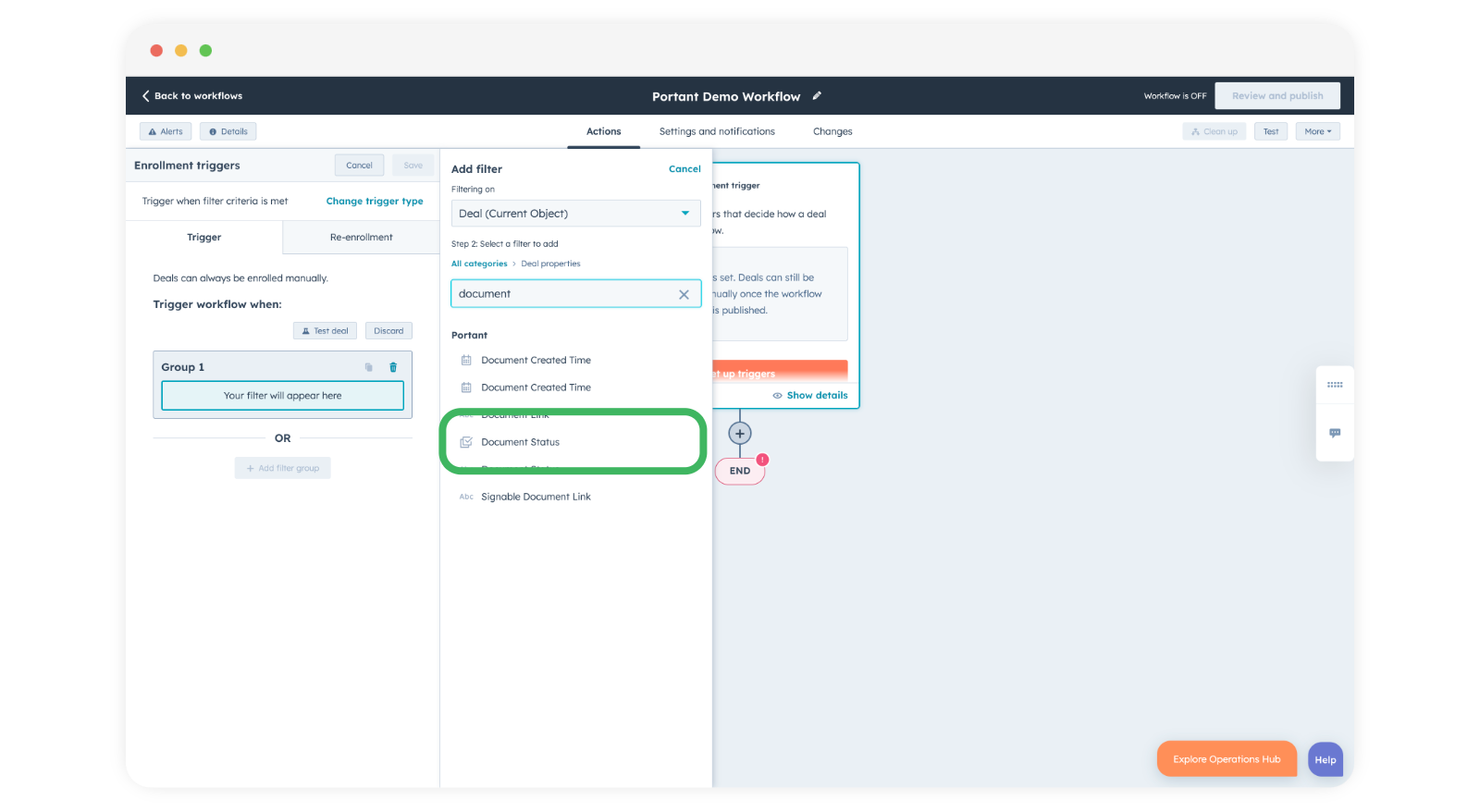
Search for the property you want to trigger on. In this example, it's Document Status, but you can use any of the Portant custom properties.
You can combine filters, for example "Document status = Signed AND Workflow name = NDA" to only trigger the workflow when an NDA is signed.
Pick a condition and a value, then save.
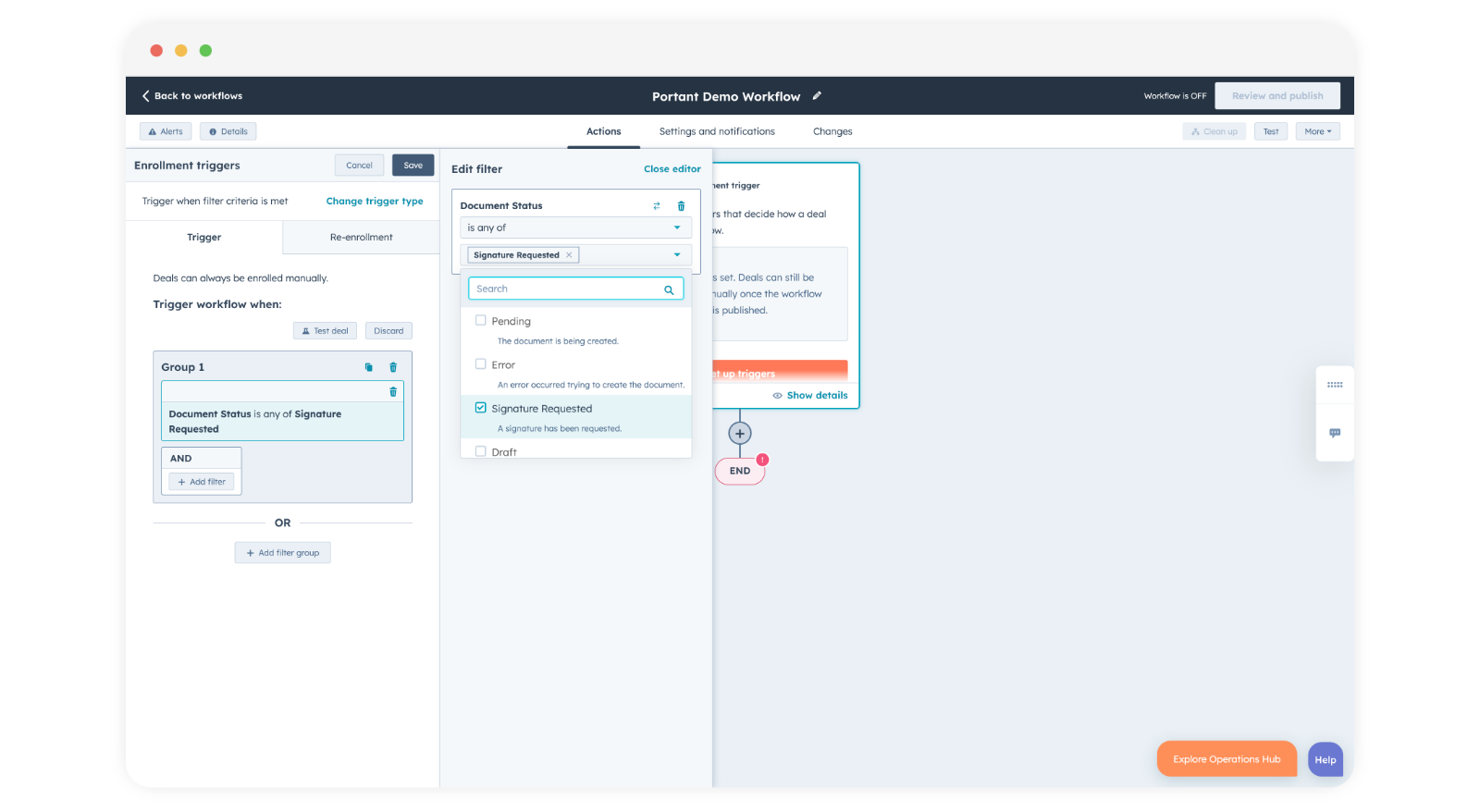
Document statuses you can trigger on
Each status is a value on the Portant Document Status property:
- Pending - the document is being generated. Useful for notifying a team member that a document has been requested.
- Draft - a draft has been created and needs review and approval. Useful for nudging the team to finalise drafts.
- Approved - the draft has been approved. Useful for kicking off the next step in the process.
- Signature Requested - a signature has been requested. Useful for follow-up reminders to clients who haven't signed yet.
- Signed - the document has been signed. Useful for moving the deal to the next stage of the pipeline.
- Sent - an email has been sent. Useful for starting a follow-up sequence after a set time.
- Error - something went wrong generating the document. Useful for alerting your support team.
For more on review and approval, see Review and approve documents.
HubSpot workflow ideas
A few ways you can put these triggers to work:
- Timely follow-ups: use Signature Requested or Sent to remind your team about documents that haven't been actioned by clients.
- Error handling: alert support whenever a document hits Error so it gets resolved fast.
- Progress tracking: post internal notifications or update CRM fields whenever a document changes status, so the whole team has visibility.
Advanced techniques
A couple of patterns to take this further:
- Combine triggers: mix document status with other criteria like deal stage or lead score for more nuanced automations.
- Time-based escalations: escalate a deal if a document has sat in Signature Requested or Draft for too long.
Used well, these triggers can take a lot of manual chasing out of your sales cycle.