
Typeform
Portant connects to Typeform via a webhook, so every time someone submits a Typeform, a Portant workflow runs and a document is generated. This page covers creating the workflow, hooking up the Typeform webhook, sending a test, and finishing the document.
Create a workflow with webhooks as the source
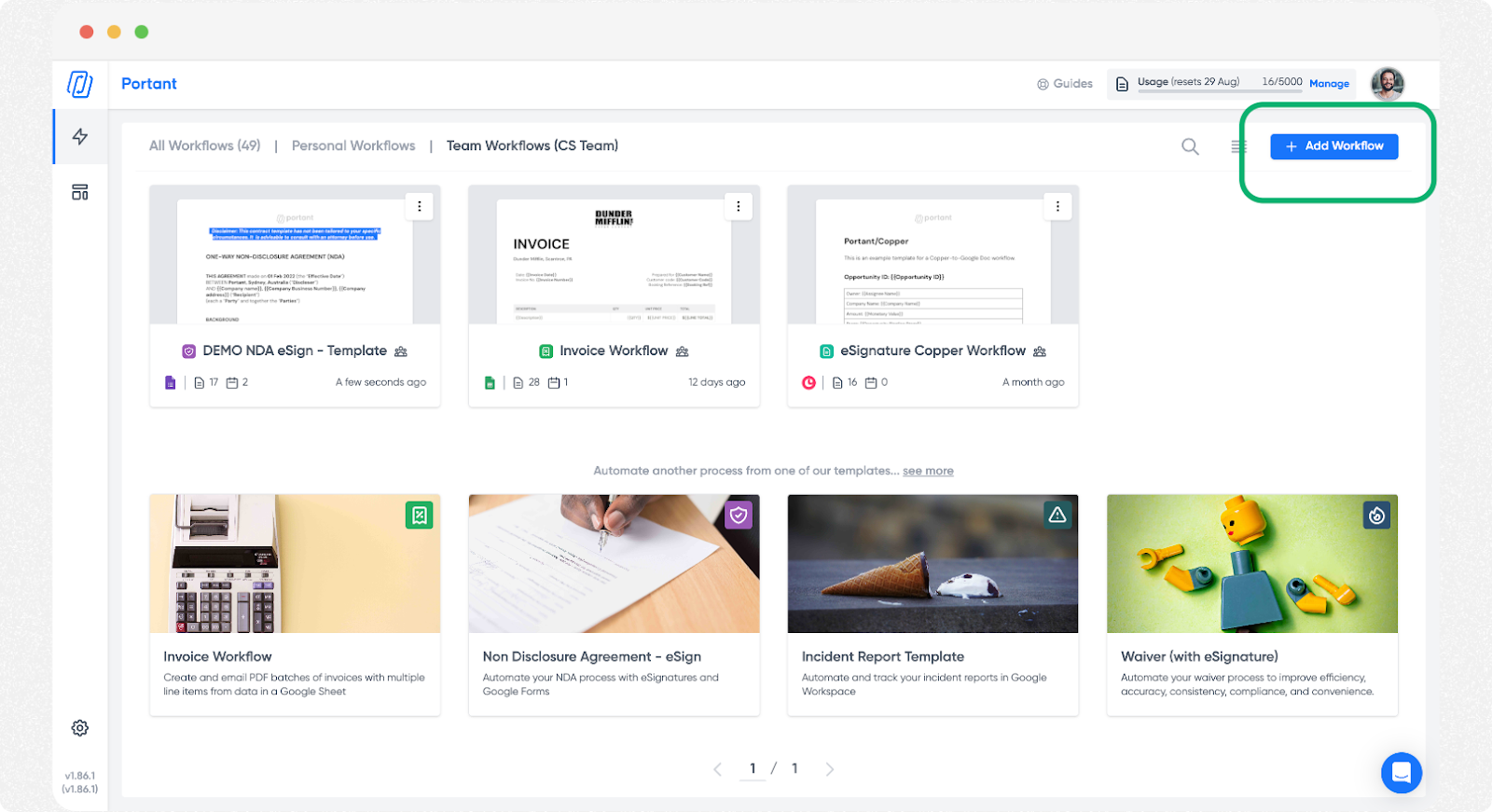
Click + Add Workflow:
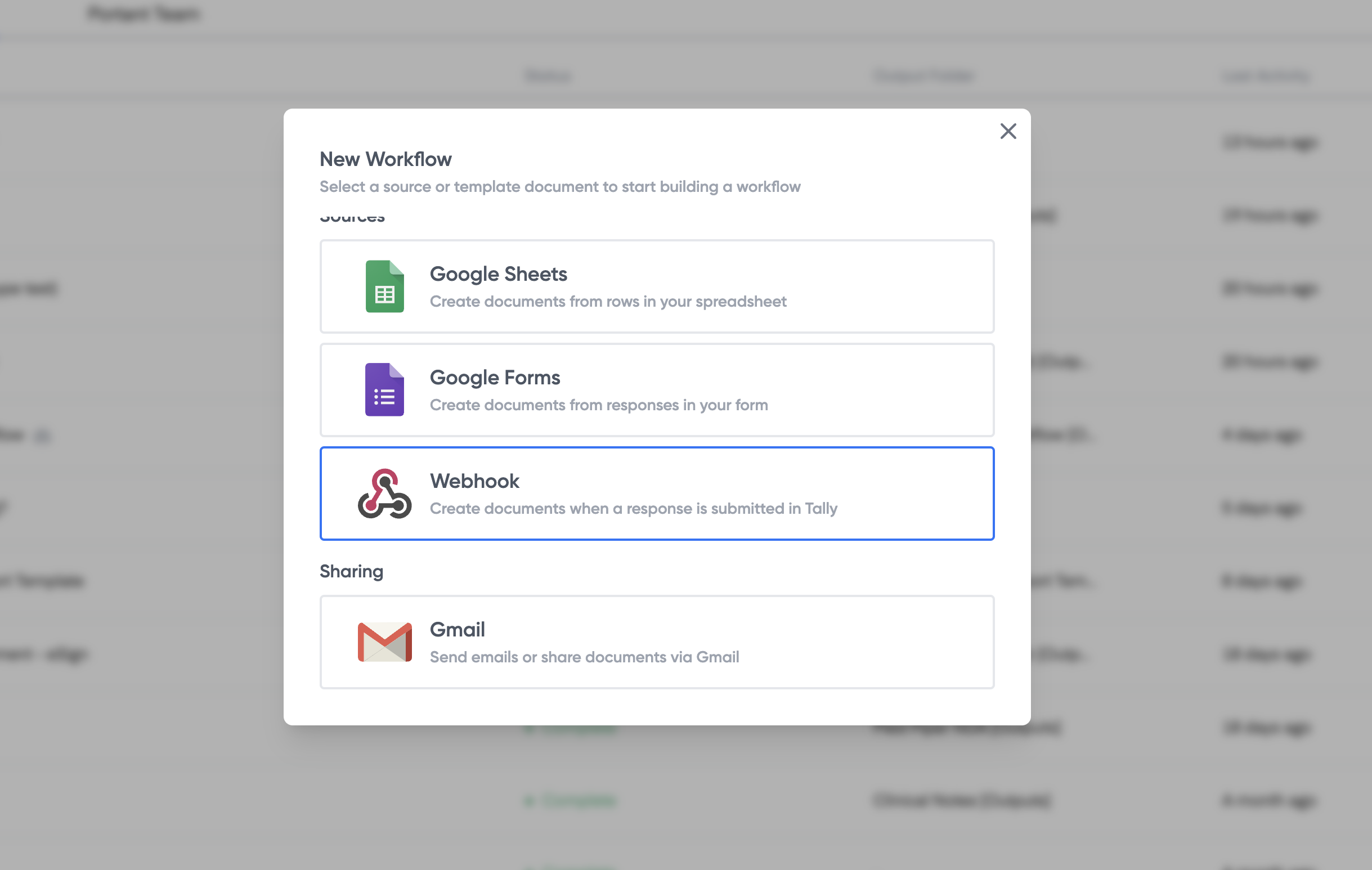
Pick Webhooks as the source:
Get your webhook address
Portant generates a unique webhook URL:
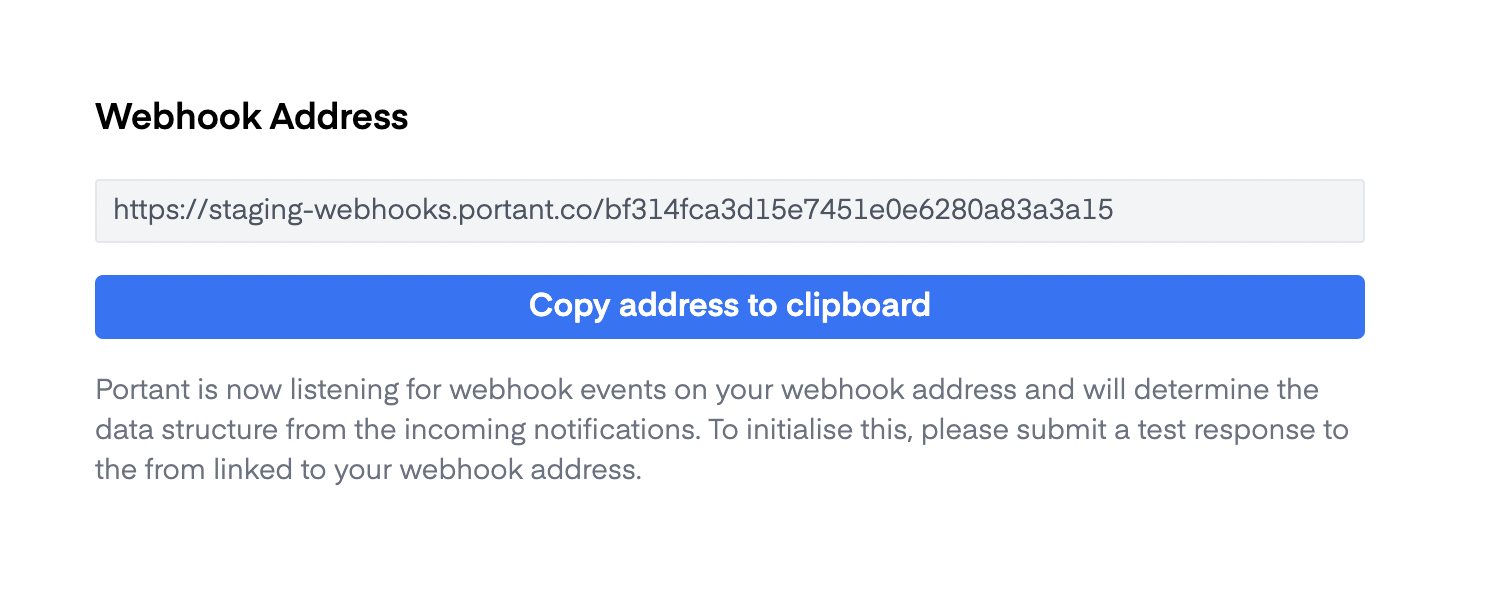
Copy it. You'll paste it into Typeform.
Add the webhook to Typeform
Open your Typeform from your Workspace.
Open the Connect panel and click the Webhooks tab.
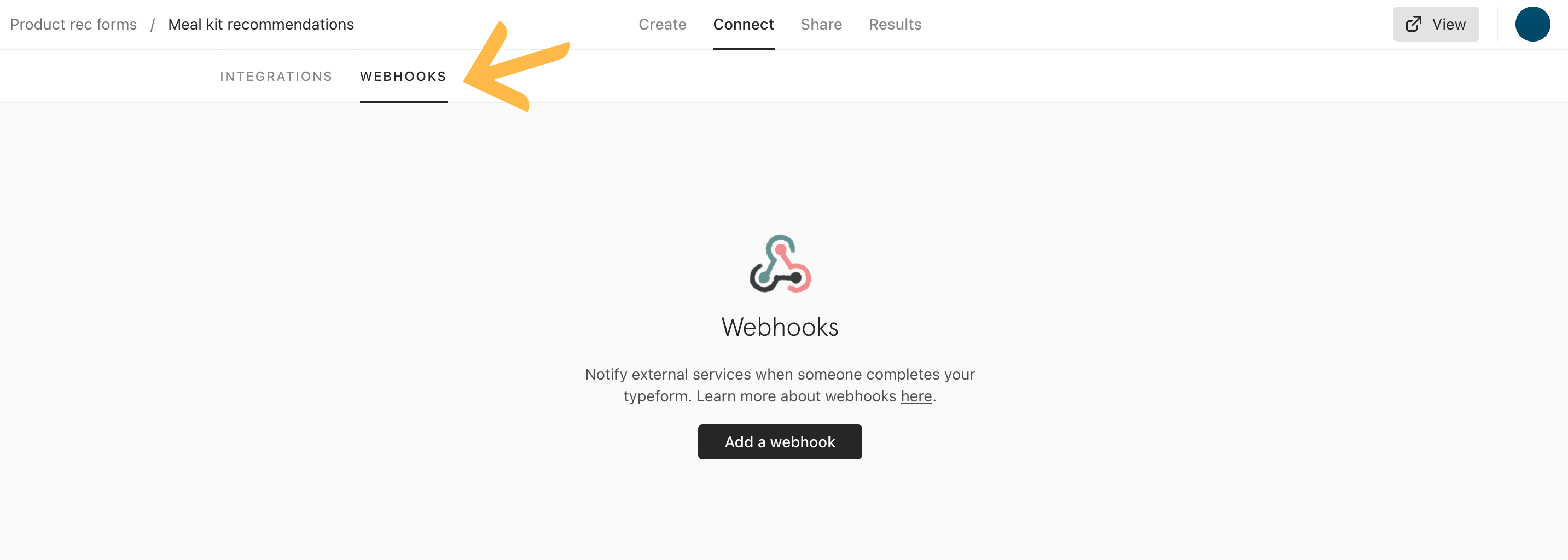
Click Add a webhook.
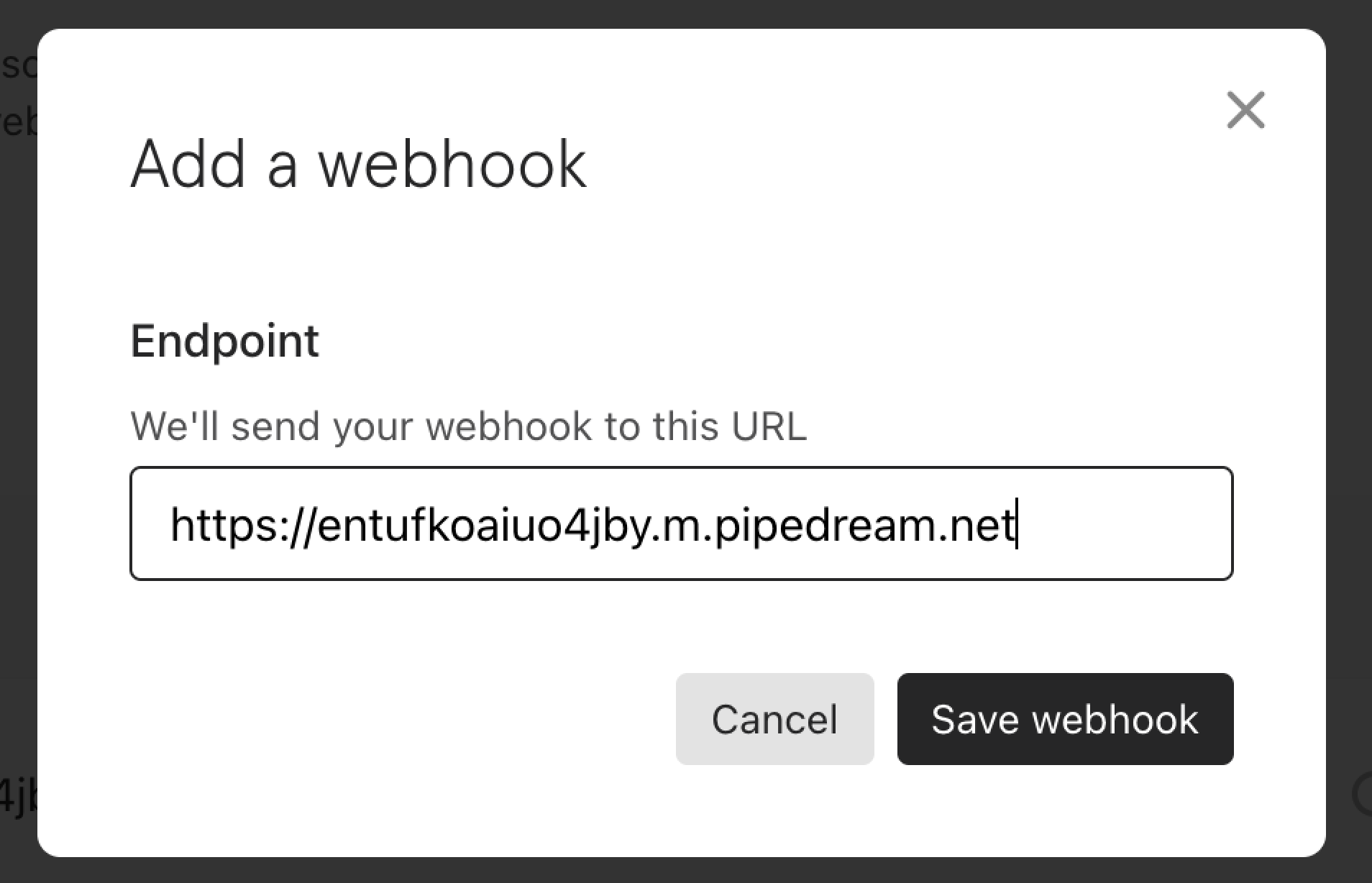
Paste the Portant webhook URL into the Destination URL field, then click Save webhook.
Back on the webhooks tab, your new webhook will be Off by default. Toggle it on.
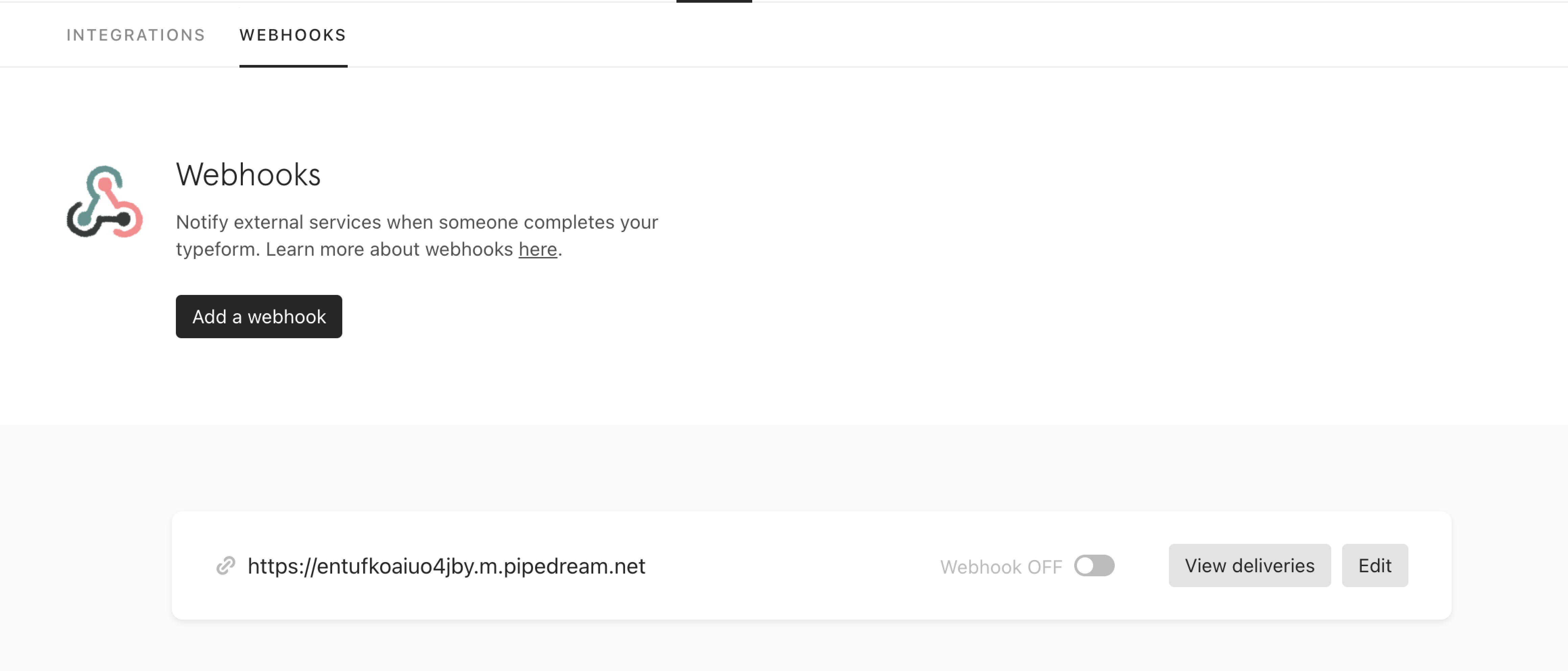
To test, click View deliveries, then Send test request.
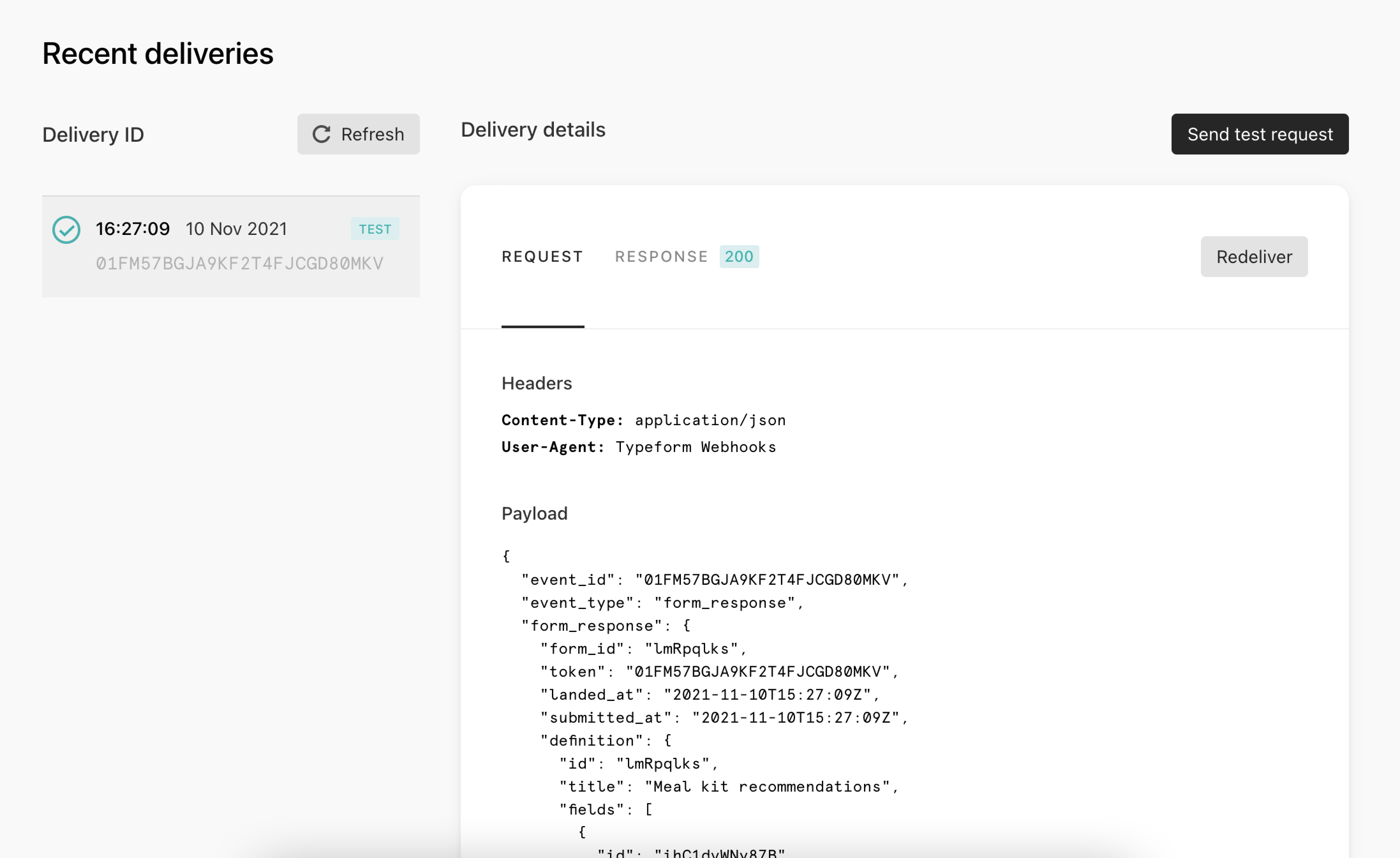
You'll see a list of delivery IDs on the left, with test deliveries marked Test. Click Request or Response to inspect either side.
To redeliver a test, the webhook needs to be set to On.
Click the X in the top right to close the deliveries panel.
To edit the webhook later, click Edit next to it.

From the edit window you can change the endpoint URL, add a secret, toggle SSL verification, change the trigger (completed only, or completed and partial responses), or delete the webhook.
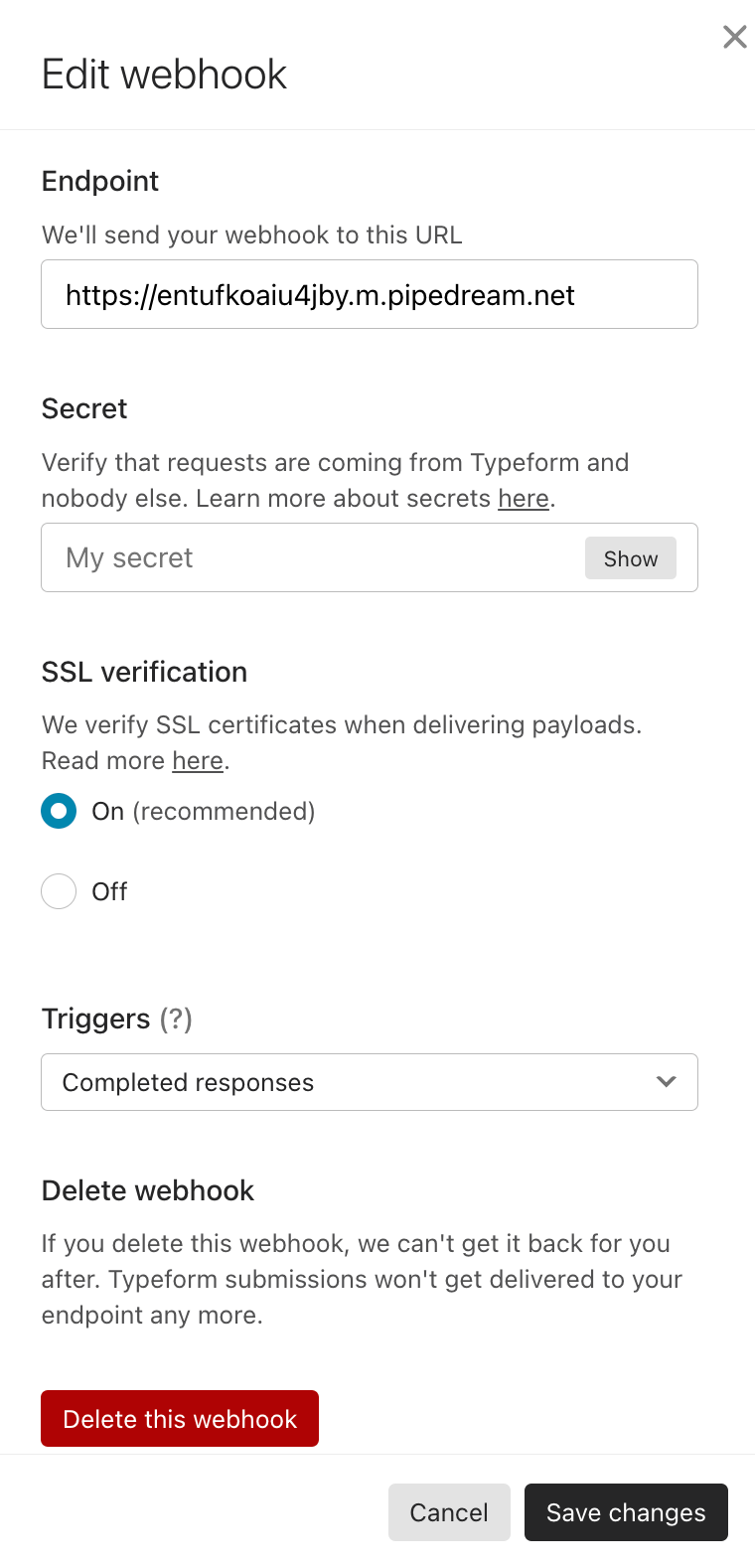
If you delete it, Typeform will ask you to confirm.
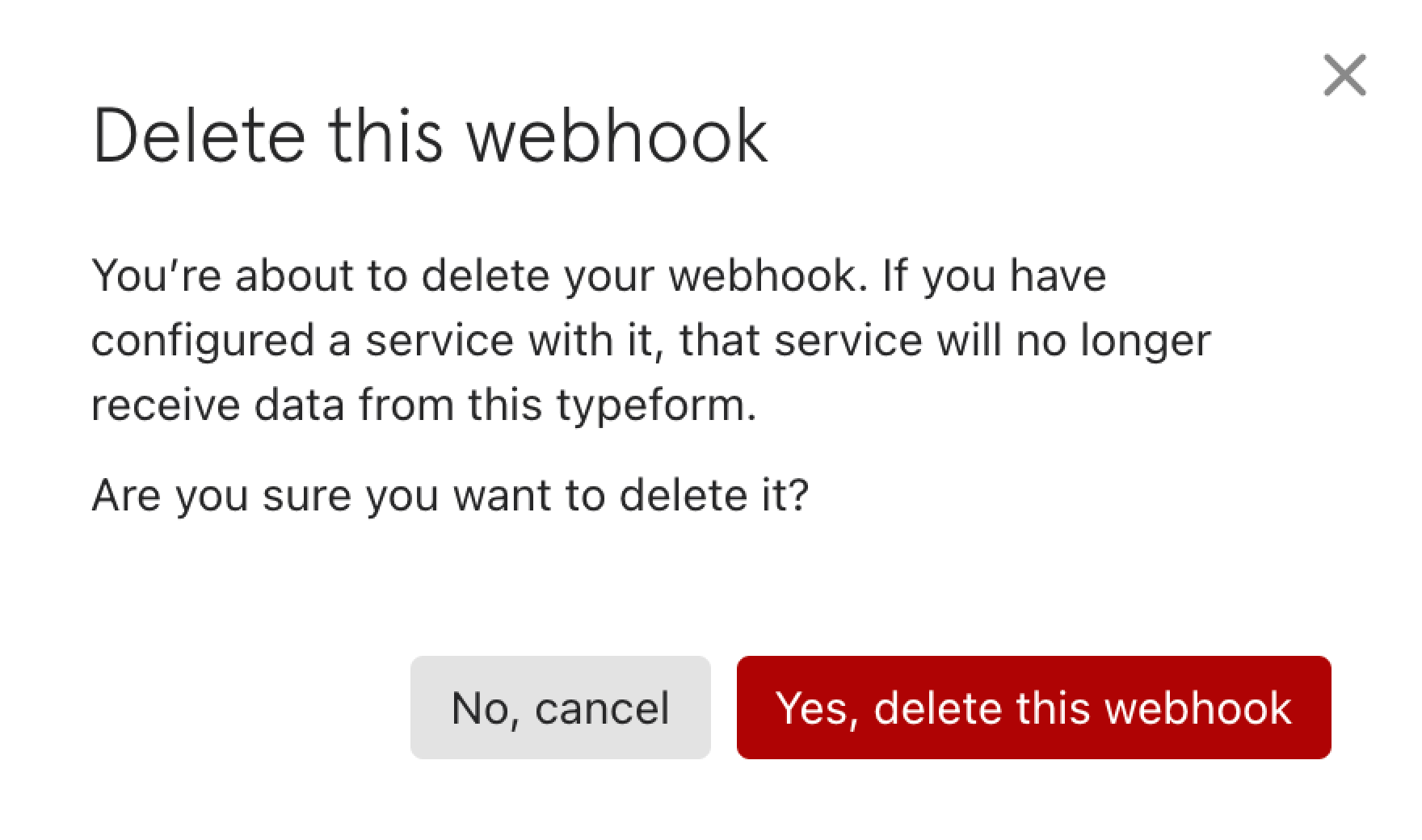
Click Save changes when you're done.
Typeform stores webhook deliveries for 30 days. If your webhook hits errors repeatedly, Typeform may deactivate it and email you so you can fix it.
If you run into trouble, Typeform has a webhooks troubleshooting guide.
Verify the test submission
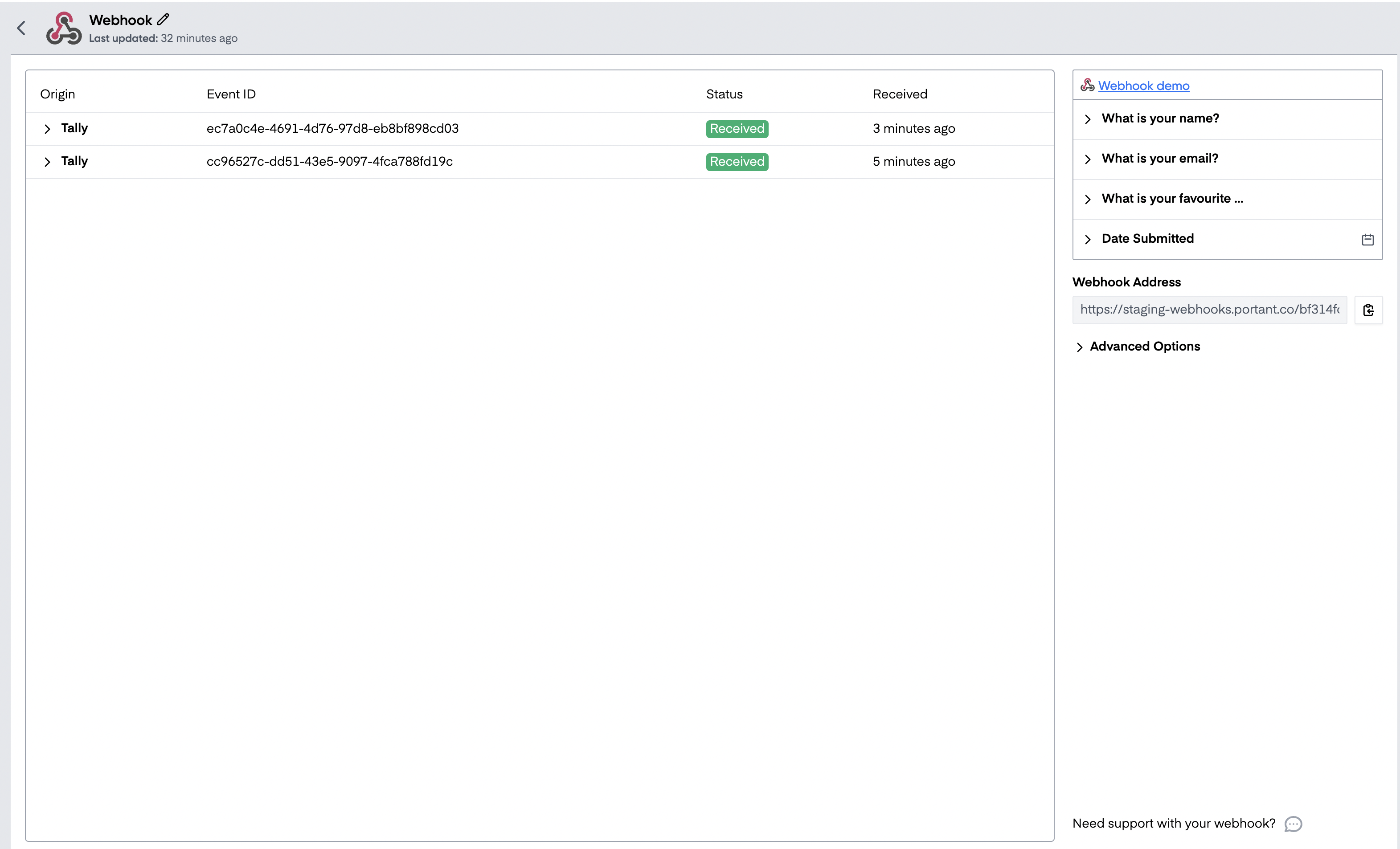
Once a test arrives, Portant's webhook block shows the submission on the left and the parsed fields on the right:
Build your document
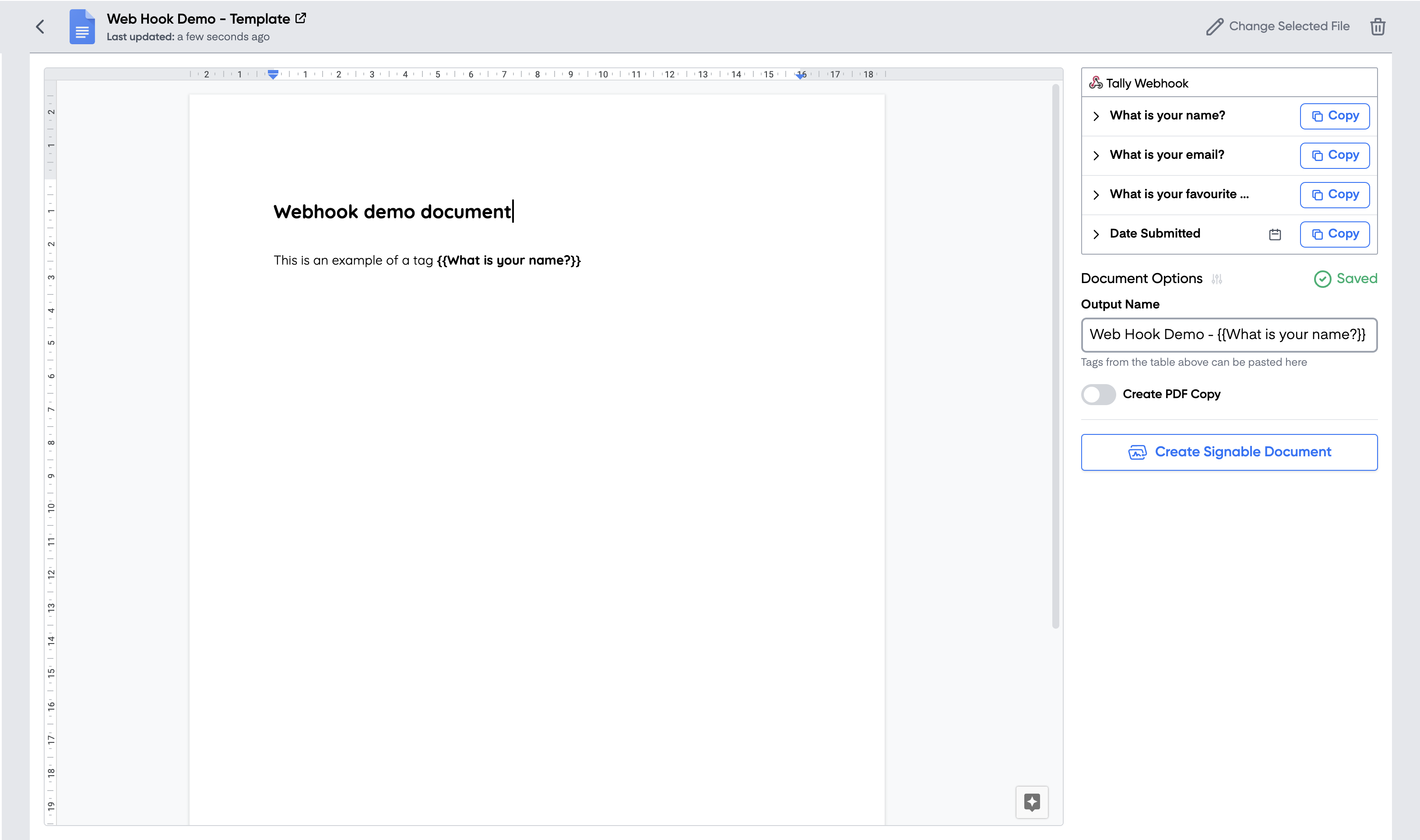
Add a document, presentation or email block. Use the fields from the source table as tags inside the template:
Finish the workflow
Once everything is wired up, send another test submission to confirm the document looks right.
When the workflow is live, you can see incoming submissions in the webhook block and click into one to inspect its data:
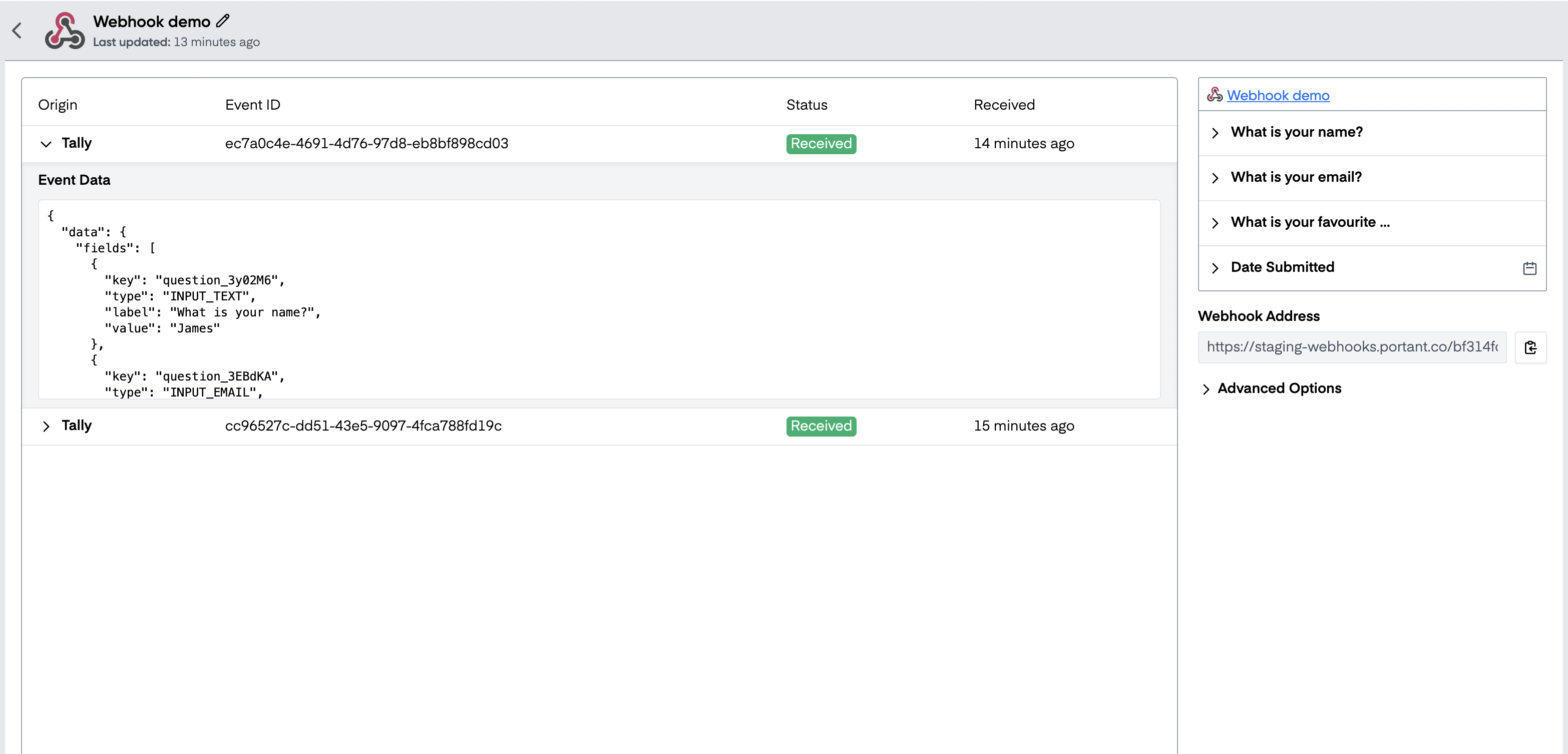
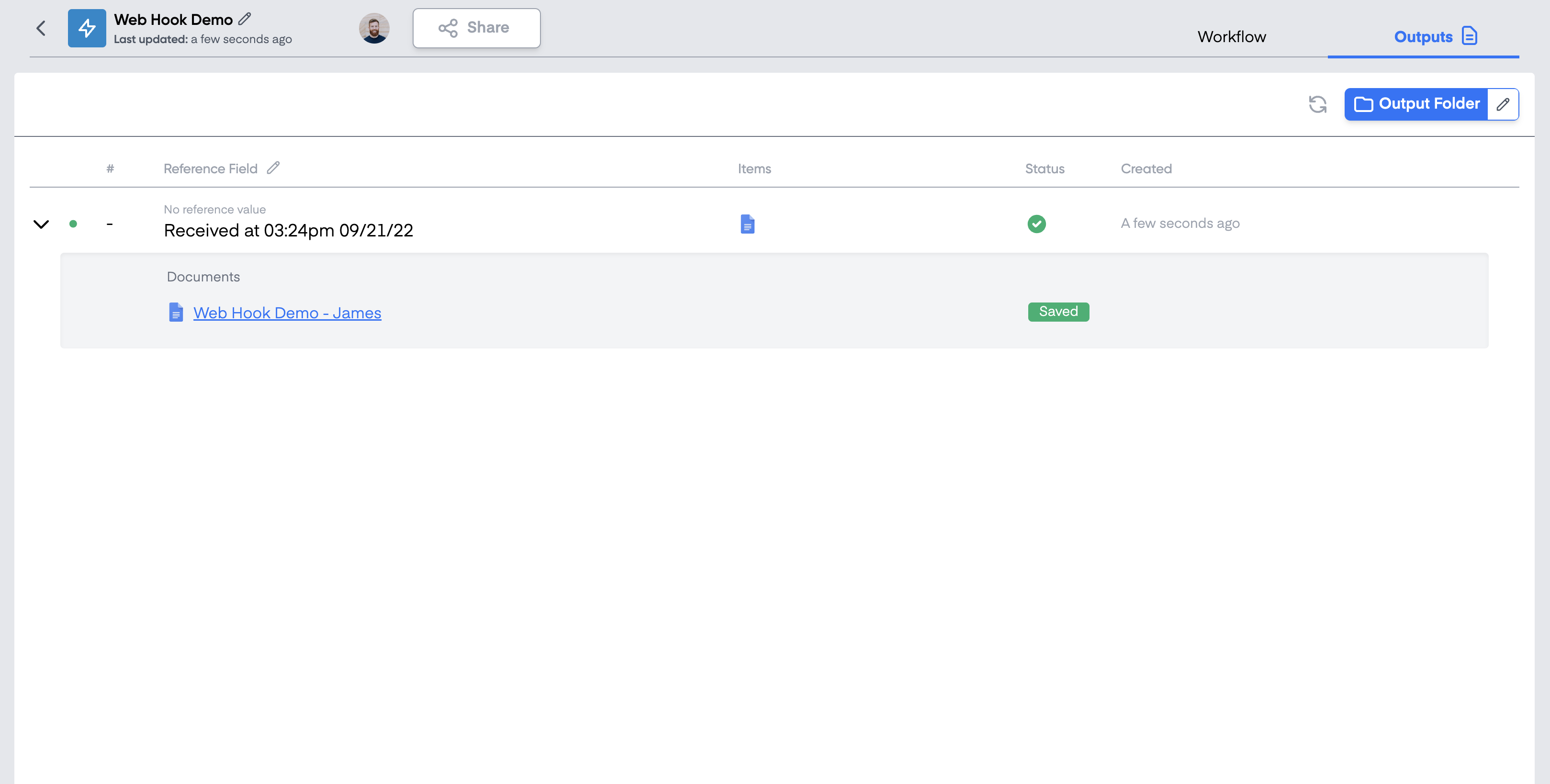
The output documents appear in the Outputs tab and are saved to a Google Drive folder:
That's it. Every Typeform submission now generates a document.