Multiple signers on the same document
Request signatures from up to four people on the same document, in a defined order. Useful for sales contracts, partnership agreements, NDAs, and employment contracts where every party needs to sign before the document is final.
Multiple signers is available on the Pro and Teams plans.
What you'll do
- Add a second (and third, and fourth) signer
- Understand the order signers receive the document
If you haven't sent a signature request before, start with Get started with eSignatures.
1. Add another signer
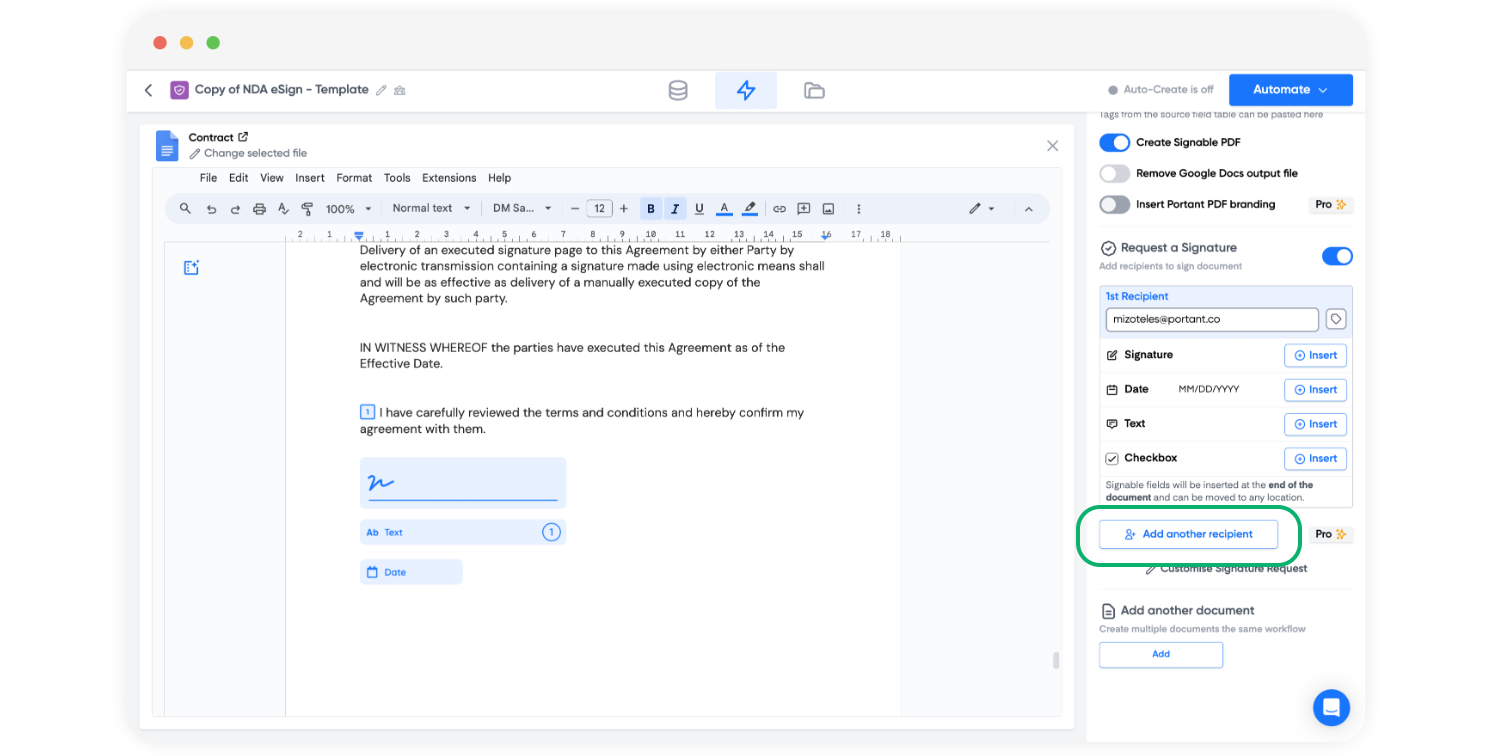
Once you've added the first signer's signature placeholder(s), click Add Another Recipient. The next signer's placeholders show up in a different colour so you can tell them apart.
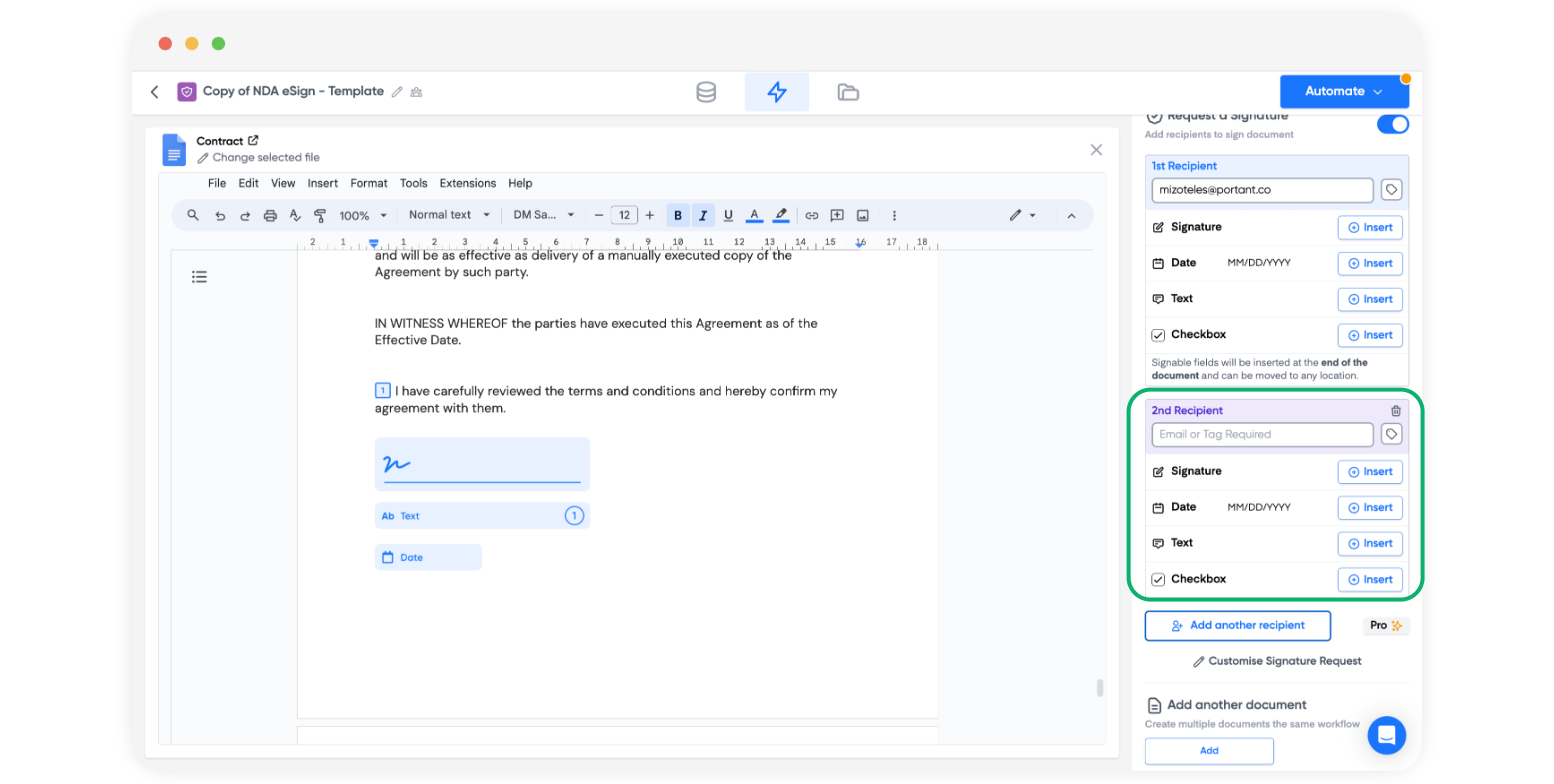
Enter the second signer's email address.
Note: This can be a
{{tag}}from your source, or a typed email.
Add the signature and date placeholders for that signer, and place them wherever you need them in the document.
Note: New placeholders always land at the end of the document, but you can move them anywhere afterwards.
Note: You can also add Text Field and Checkbox placeholders for each signer. See Request info on signing.
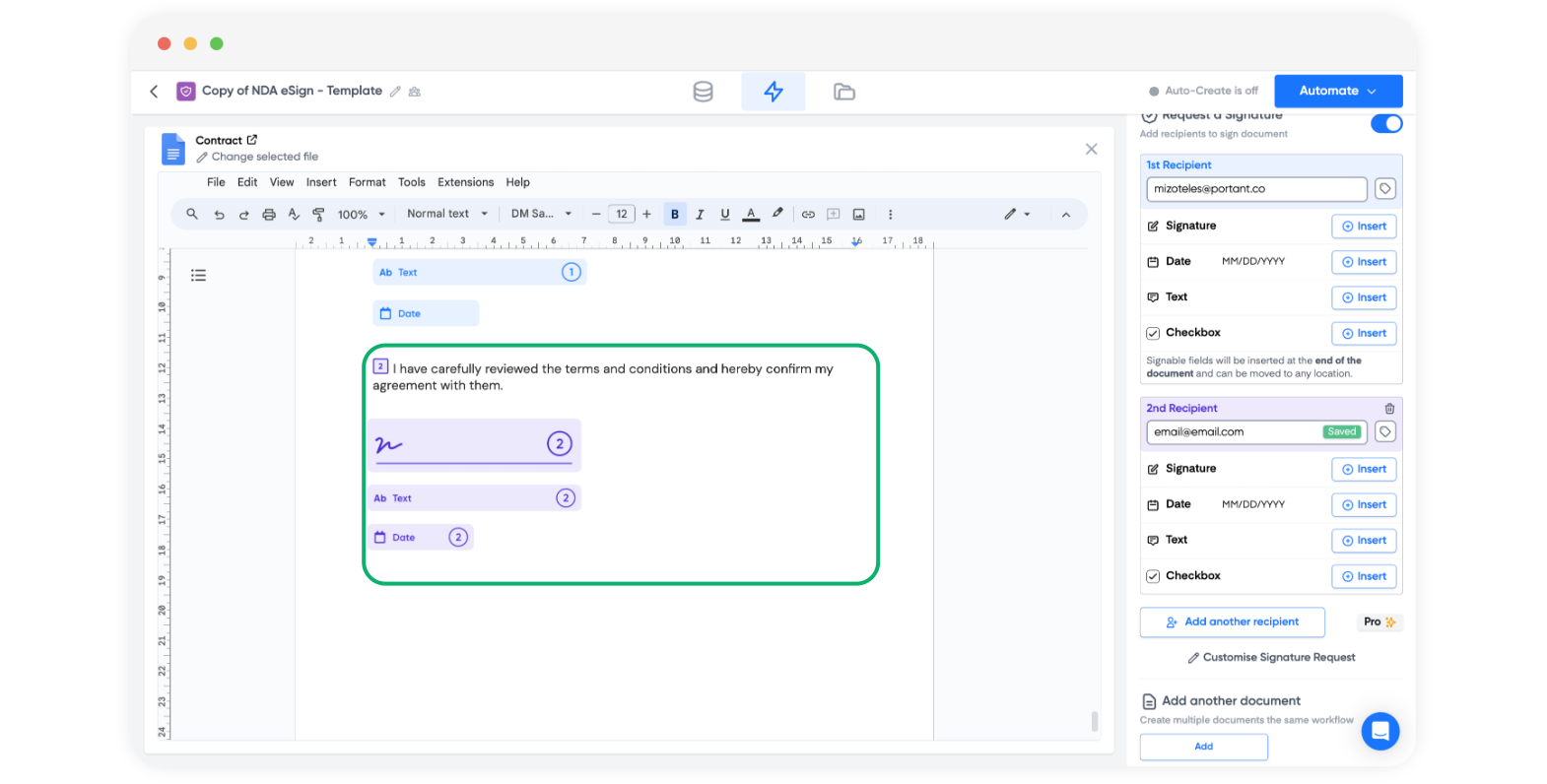
Repeat the Add Another Recipient step to add a third or fourth signer.
Note: You can have up to four signers per document.
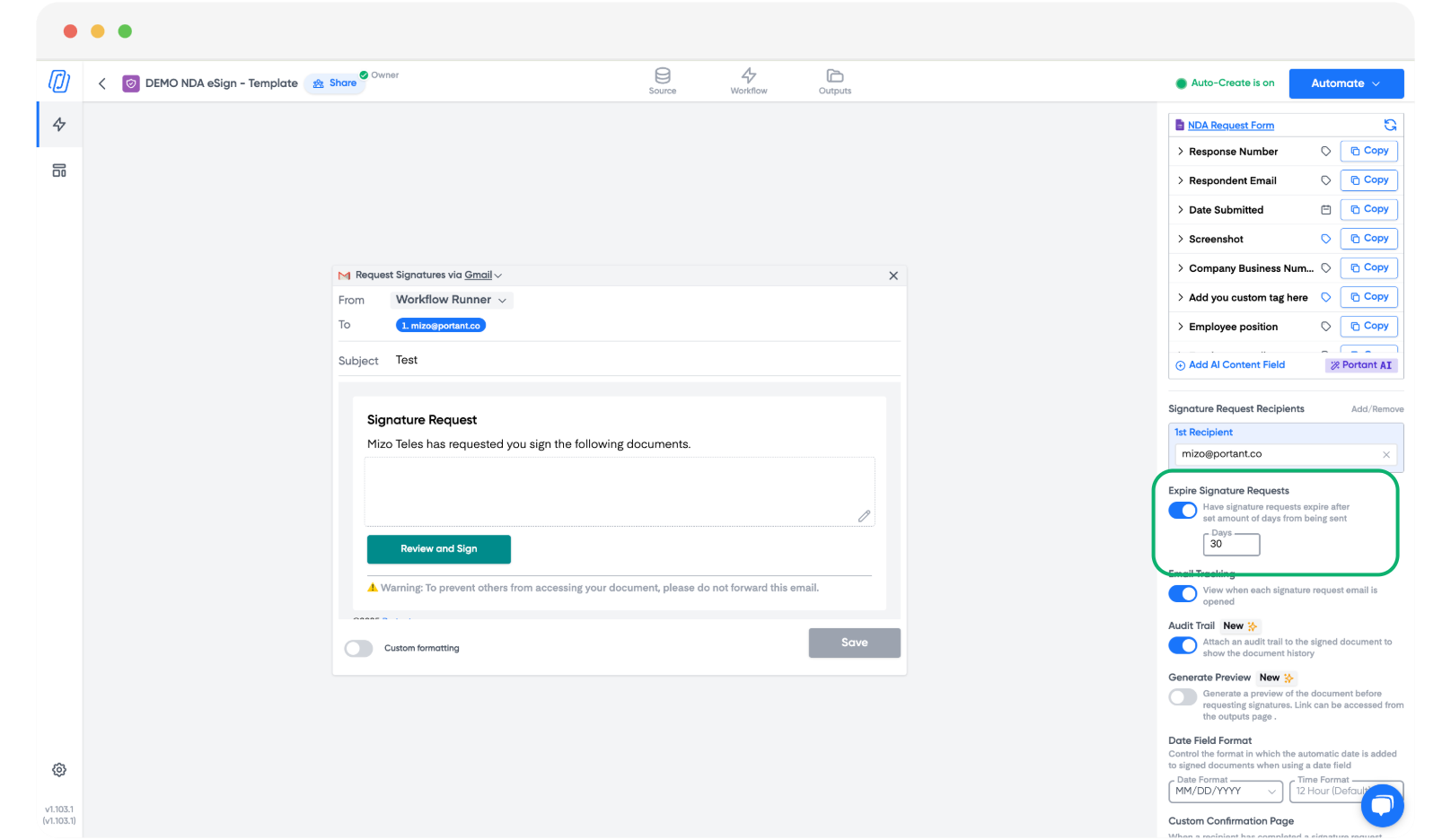
Note: You can set a custom signature link expiry (30, 60, 90 days) or disable expiry in the template block. See Signature link expiry.
2. Signing order
Signers receive the document in the order they appear in the workflow. Once the first signer signs, the document is sent to the second, and so on.
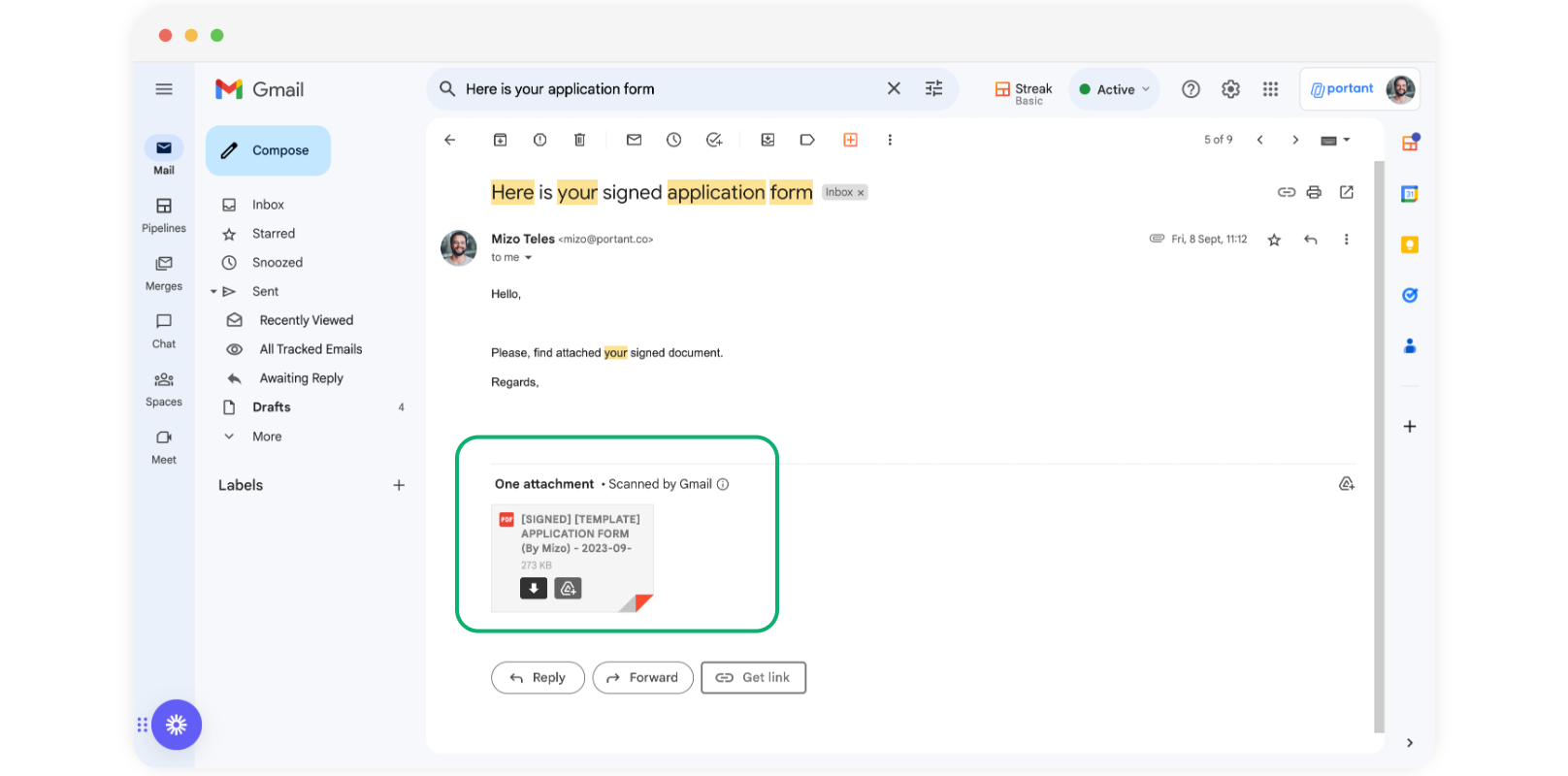
When everyone has signed, the confirmation email goes out (you can send it to all signers, or just to the people you choose). It includes the signed PDF as an attachment, plus any other attachments you've added, and supports {{tags}} from your source. A copy is also saved to your Google Drive folder.