Email drafts
Save workflow emails to your Drafts folder instead of sending them automatically. Useful when you want to review the content, tweak the wording, or add an extra attachment before the email goes out.
Save emails as drafts
Open your workflow in Portant.
Click the Email block you want to configure.
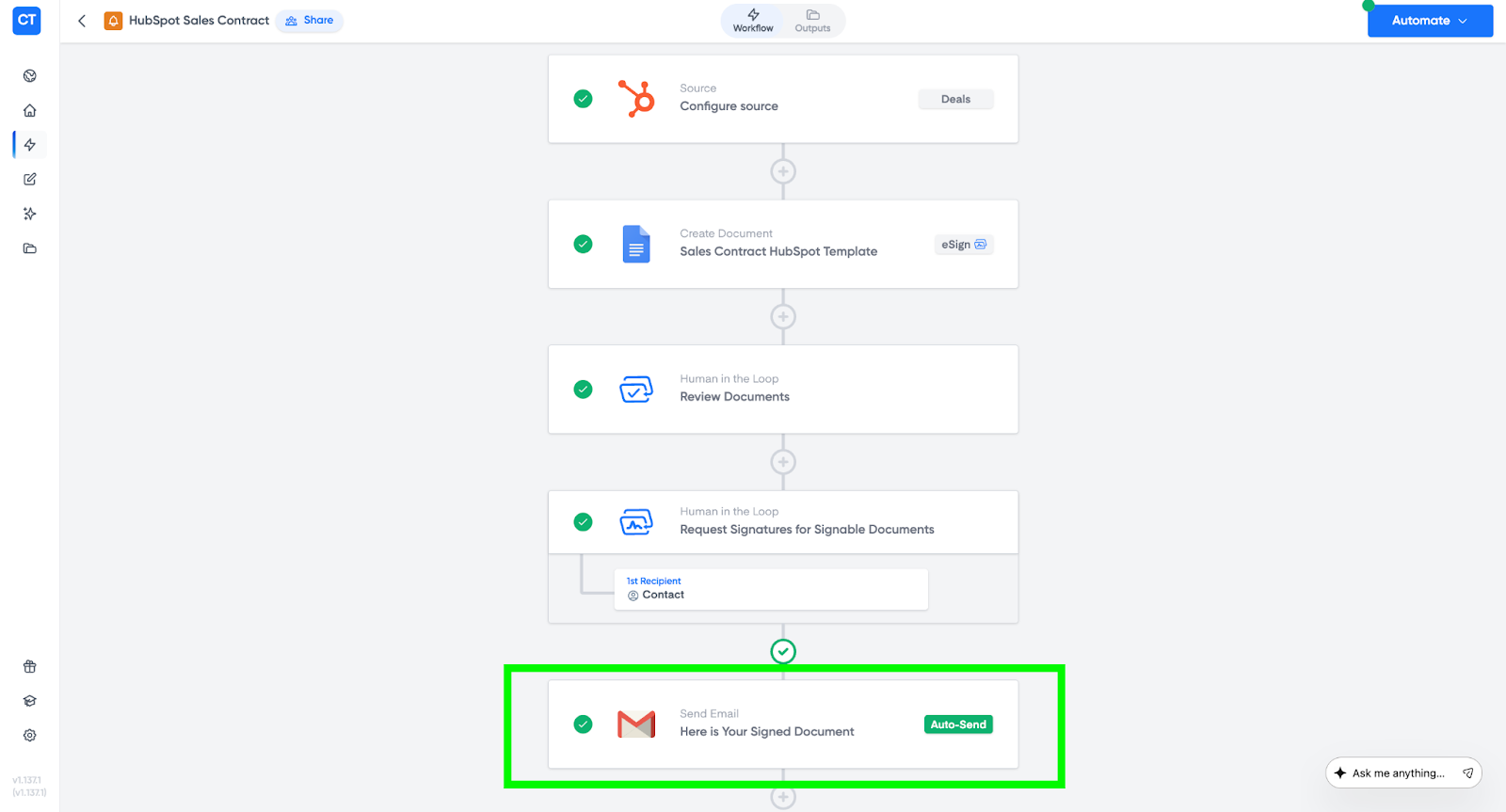
On the right-hand panel, find the toggle labelled Generate draft for manual sending.
Turn it on.
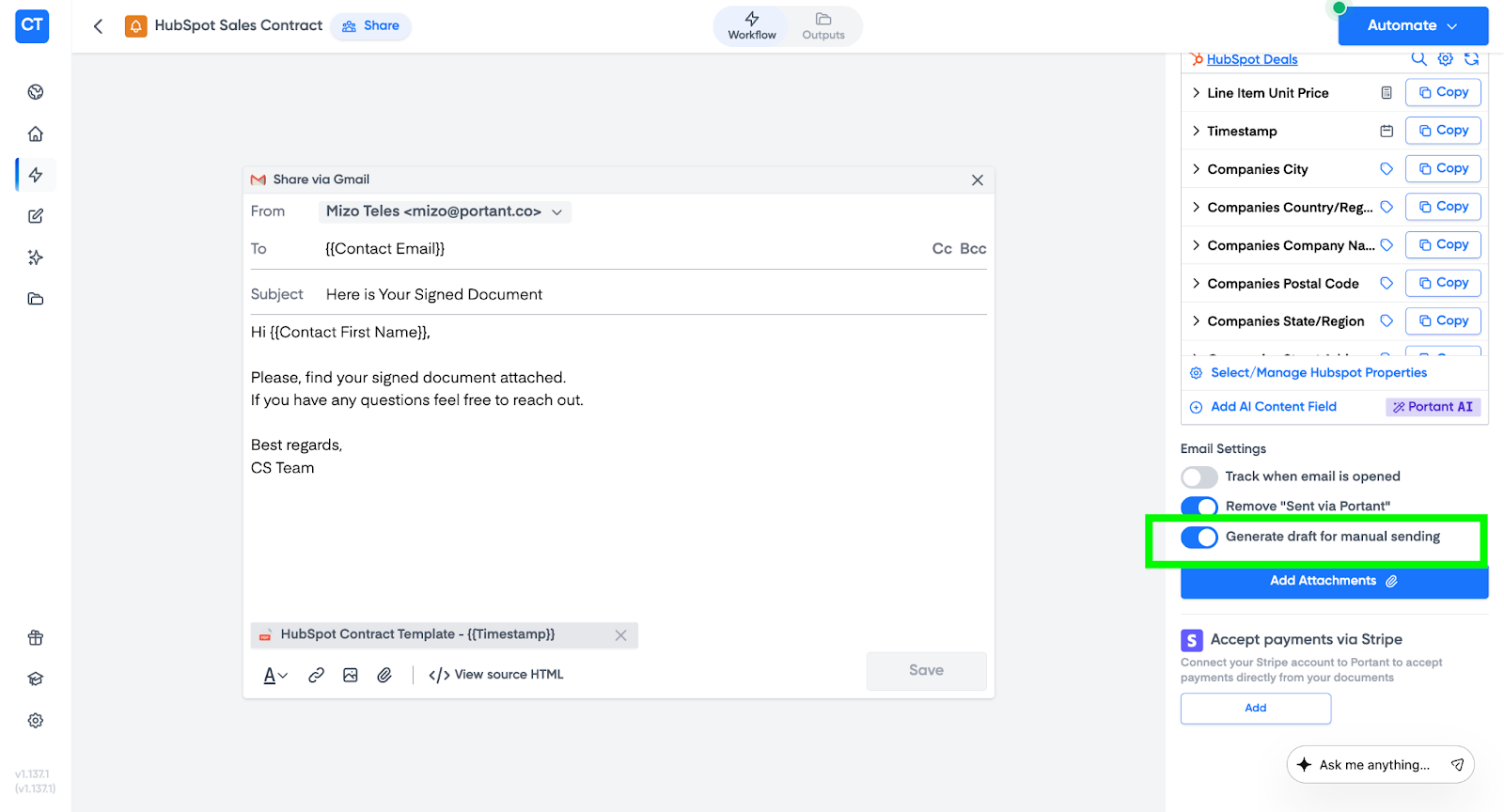
The email block now shows that emails will be saved as drafts instead of sent automatically.
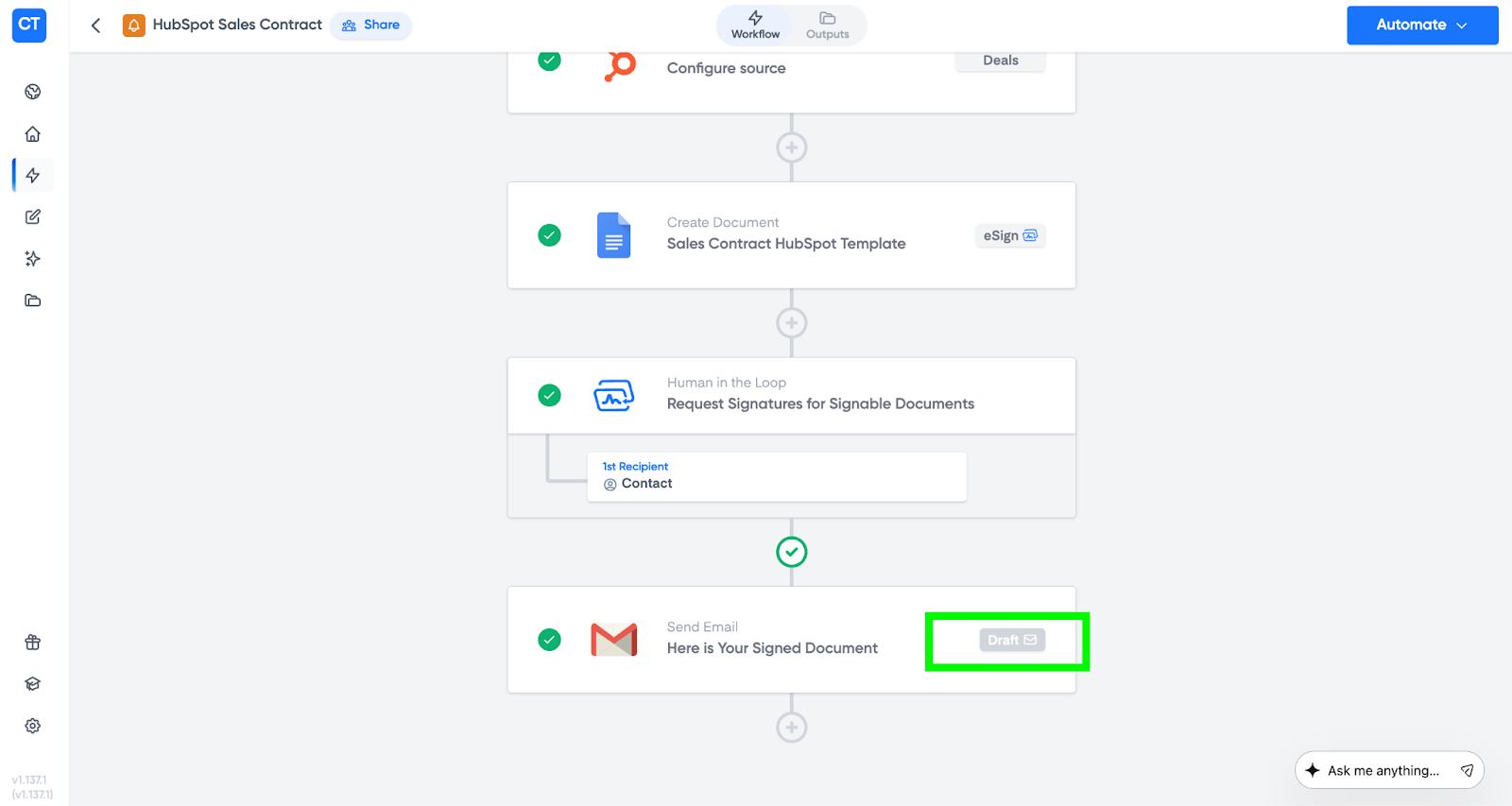
Review and send a draft
After your automation runs, you can review each draft before it goes out.
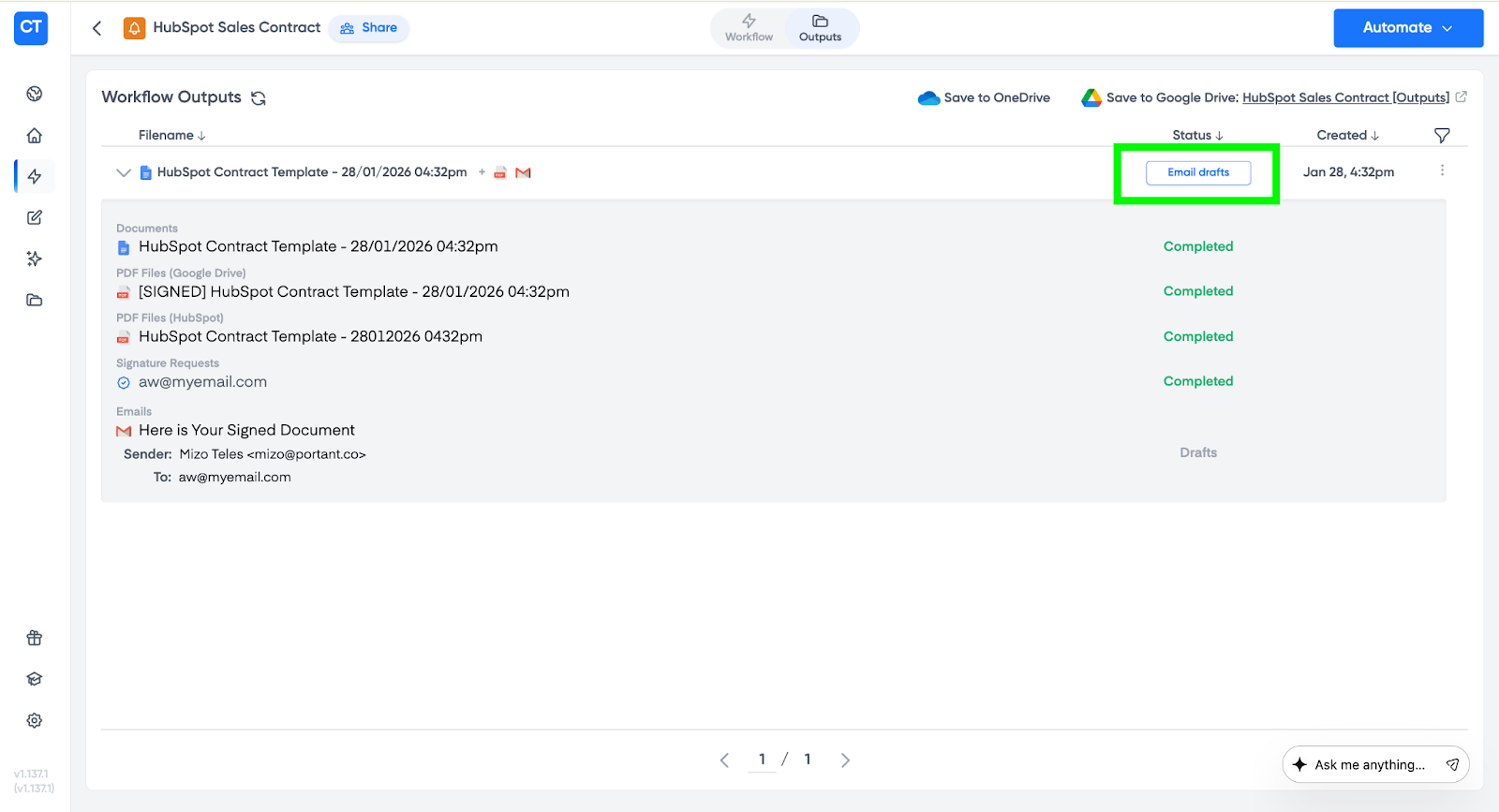
Go to the Outputs tab.
Find the run with an Email drafts button next to it.
Click Email drafts to open the draft.
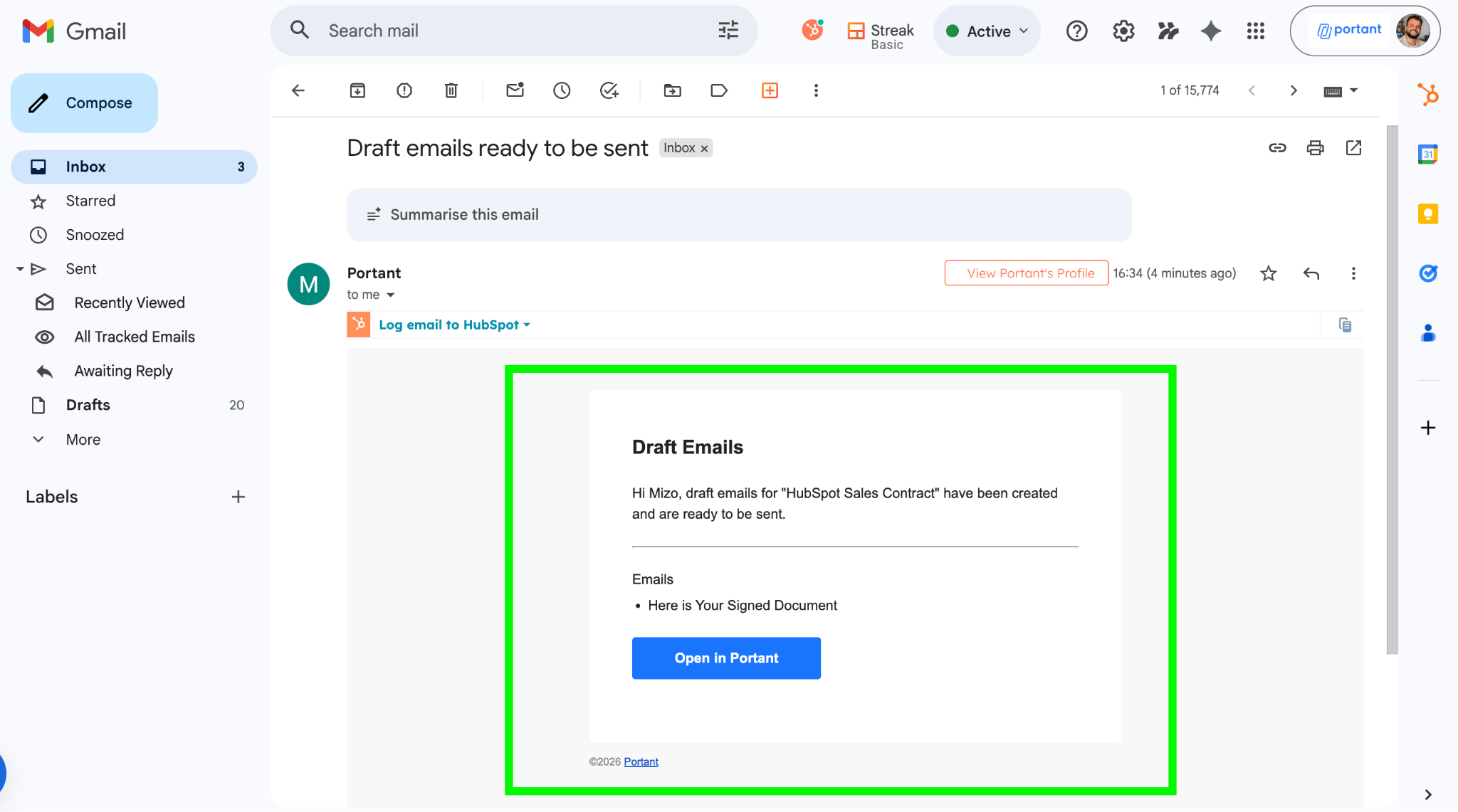
Tip: You can also jump to the draft from your inbox. Portant sends a notification email when a draft is ready. Click Open in Portant to go straight to it.
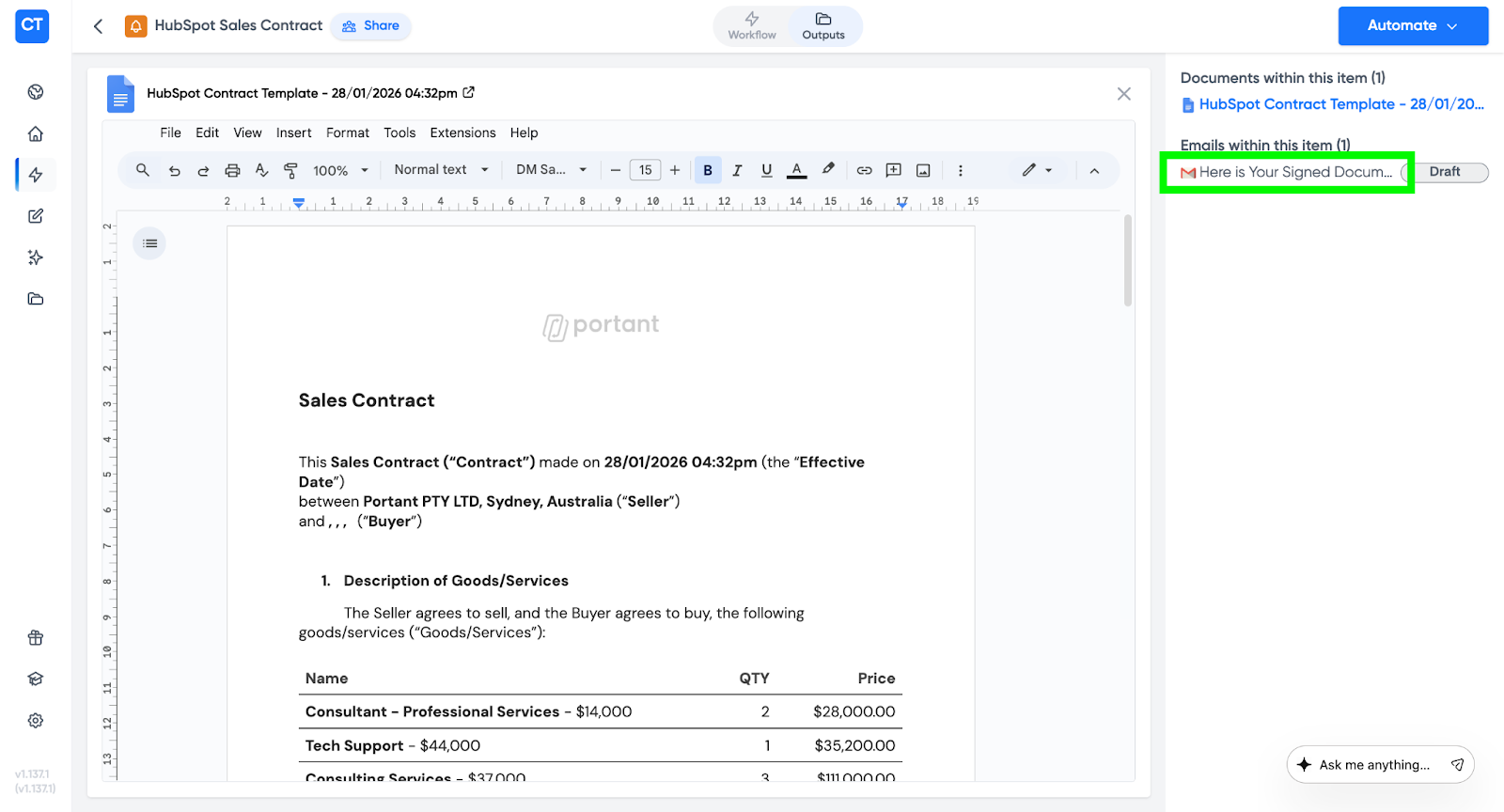
Once you're in the Outputs tab:
Click on the email subject.
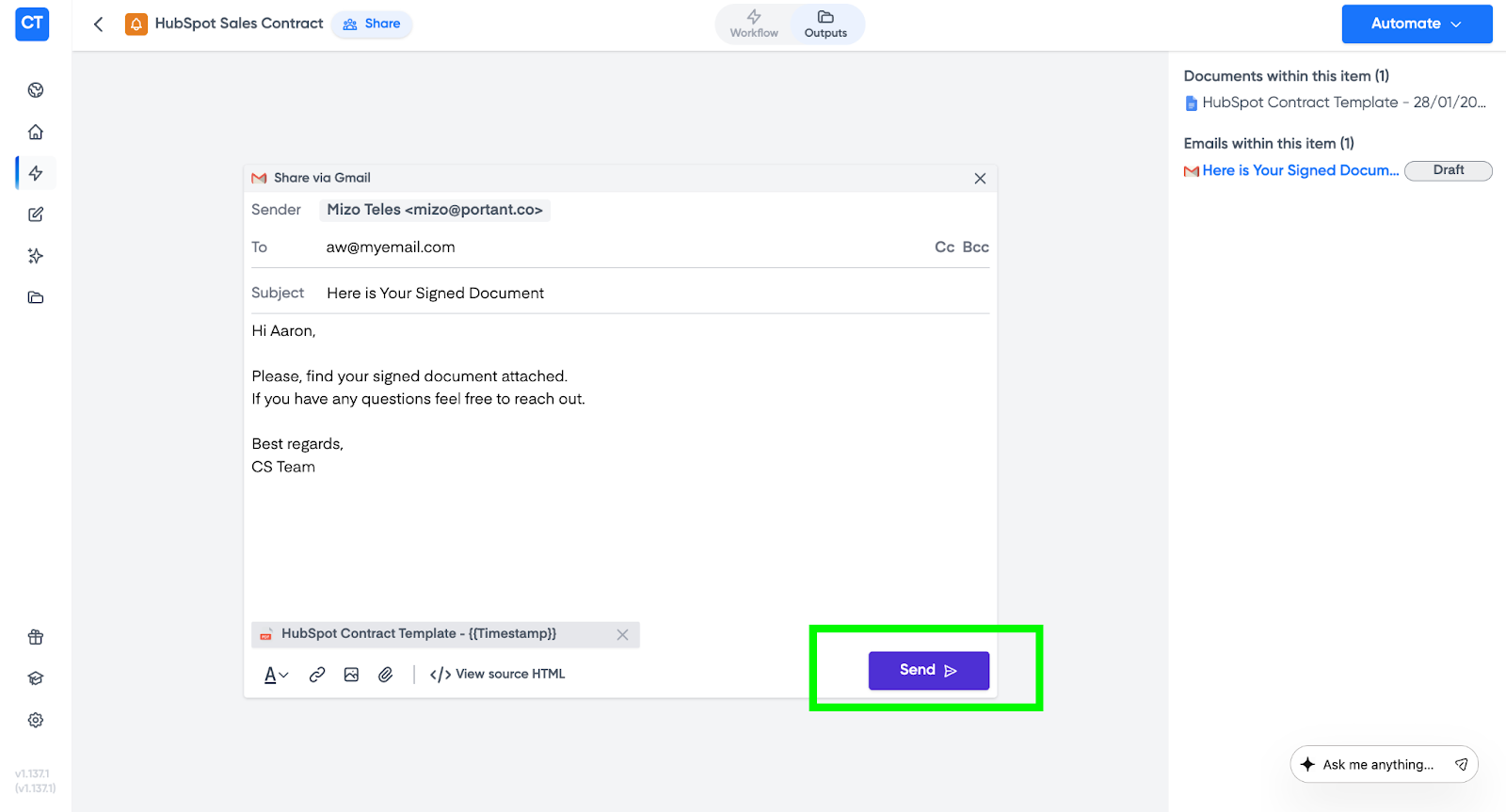
Edit the email content if you need to.
Add any extra attachments.
When you're happy with it, click Send.
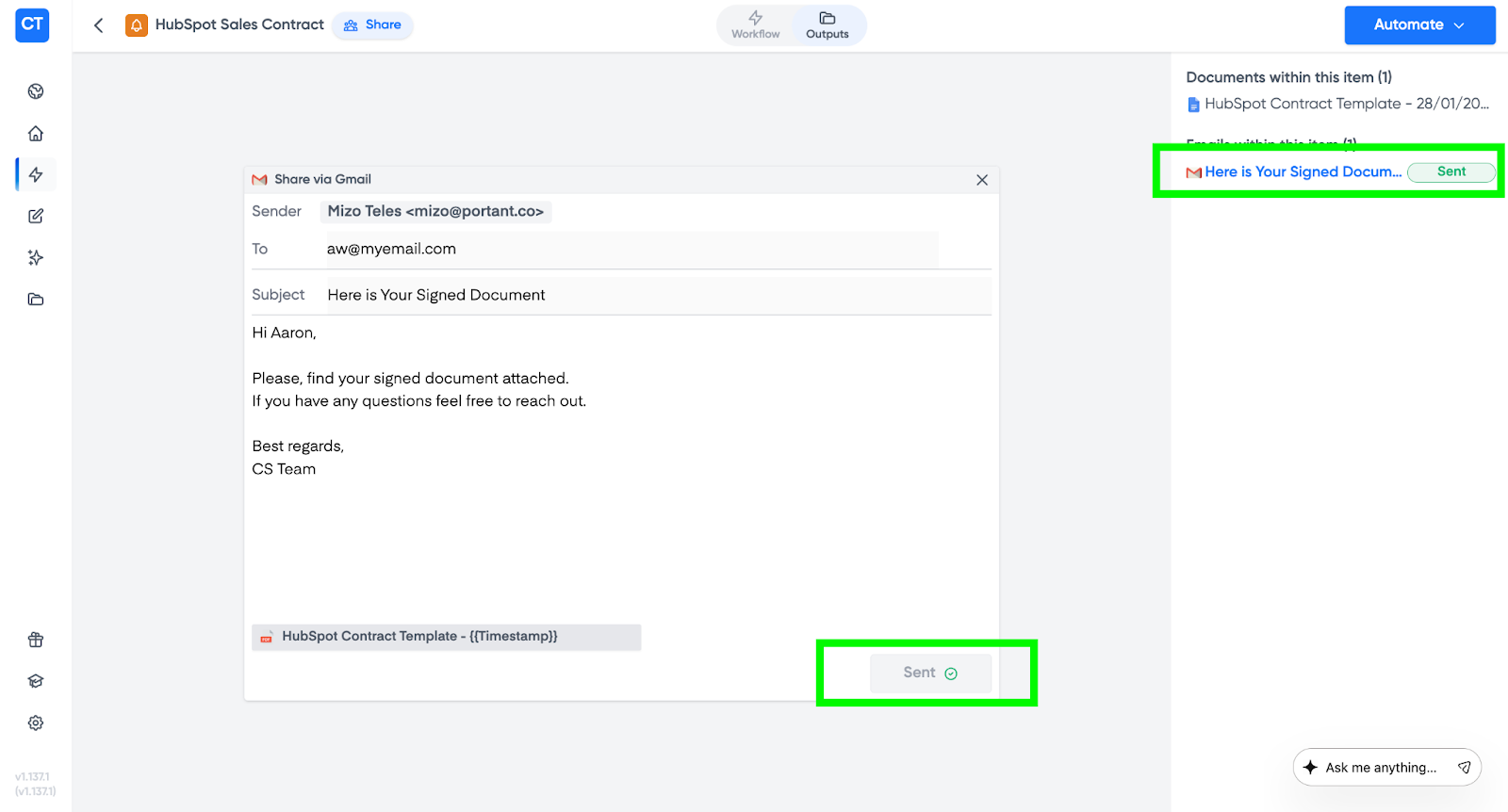
Once sent, Portant marks the draft as sent so you can track what's gone out.