
Google Forms data merge settings
Once you've added your tags, the Data Merge settings control how the merge runs and what happens when a new response comes in.
Automatically create documents
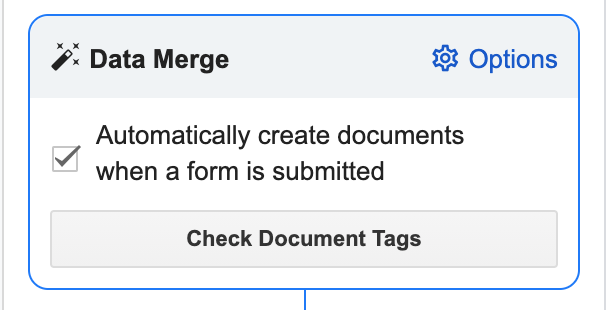
The main job of a Google Forms source is to create a new document each time someone submits a response. Tick the checkbox in the Data Merge box to turn it on. An indicator appears above the data sources table to confirm it's running.

For more on this, see auto-create from Google Forms.
Check document tags
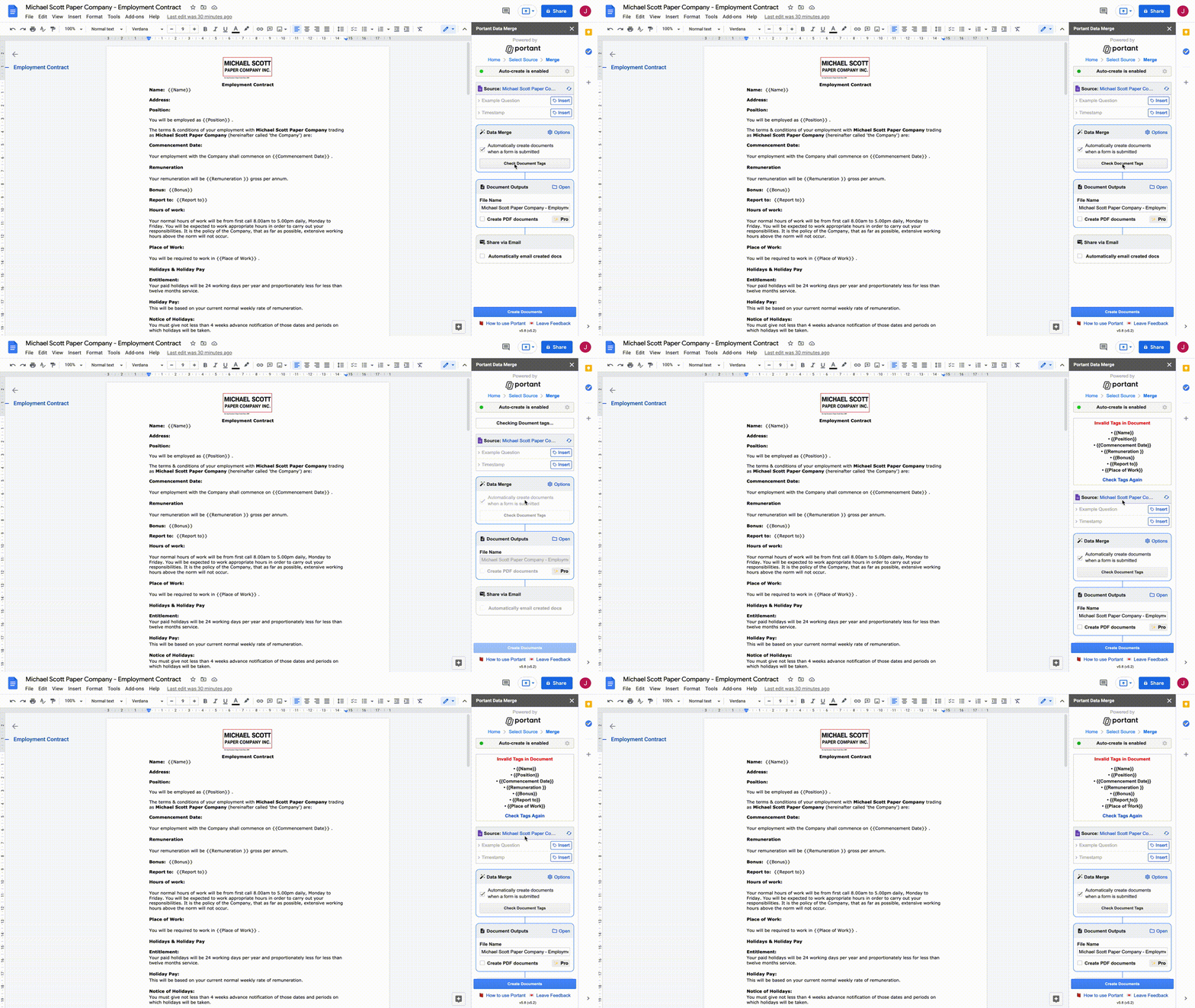
Below the auto-create checkbox, click the button to check your tags. Portant scans the document for any tags it doesn't recognise and highlights them so you can fix them.
Document links
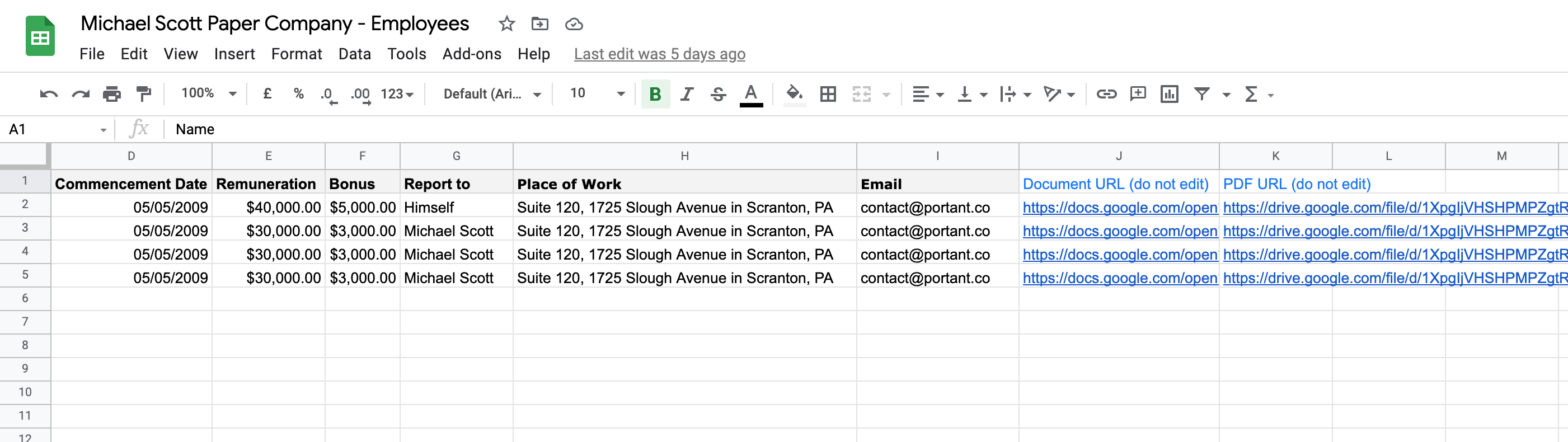
In the options menu (top-right of the Data Merge box), turn on Document Links to have Portant write the document (and PDF) URL into the response sheet, next to the row that triggered it.
Response number and timestamp tags
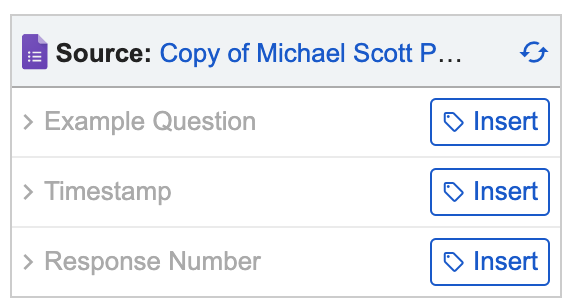
At the bottom of the source table, you'll find two extra tags that aren't questions in your form:
- Timestamp, the time the response was submitted. The format and timezone can be changed in the timezone, date and time settings.
- Response number, the unique response number, starting from 1.