
Get started with eSignatures
Set up a Portant workflow that sends a document for signature automatically, every time a new row appears in your source. By the end of this page you'll have a signature request going out from a real source, signed PDFs landing in your output folder, and a confirmation email firing once everyone has signed.
This page assumes you've already created a workflow with a document template. If you want the longer walk-through that includes picking a source and customising the document, see Signature requests.
What you'll do
- Add the signature placeholders to your document
- Edit the signature request email (optional)
- Edit the signature confirmation email (optional)
- Turn the workflow on and test it
1. Add the signature placeholders
Below the Output Name field there's a button to request a signature as part of your workflow.
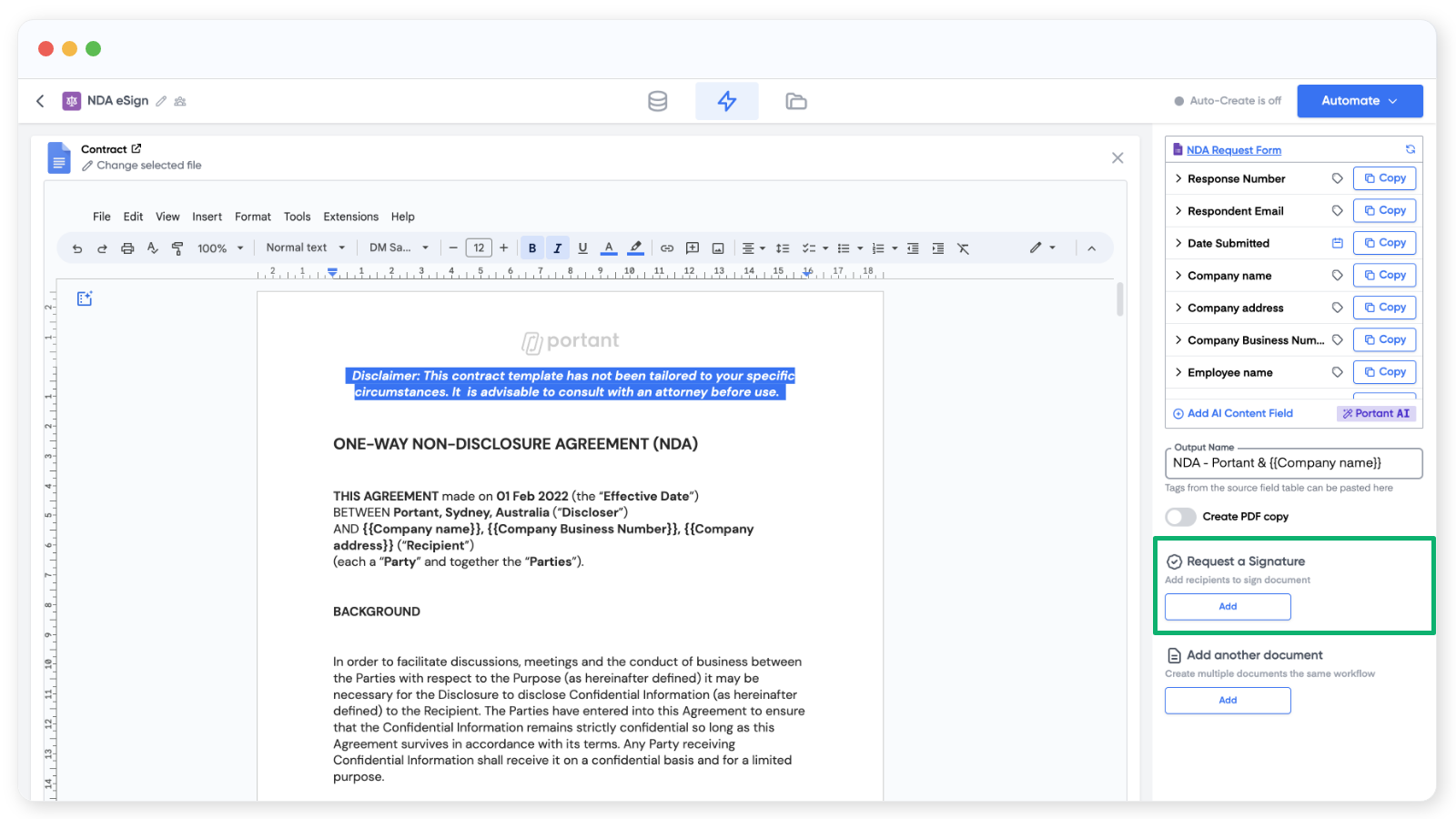
Click it and three signature settings appear:
- The email address of the recipient. This can be a
{{tag}}from your source, or a typed email likejames@portant.co. - The Signature placeholder, an image you drop into the document where the signature should appear.
- The Date placeholder, an image for the date the document was signed.
Note: You can also add Text, Checkbox, Date, and Initials placeholders, and set whether they're mandatory. See Request info on signing.
Add the recipient's email
Click the tag button to the right of the email box to pick a field from your source, or type the address directly.
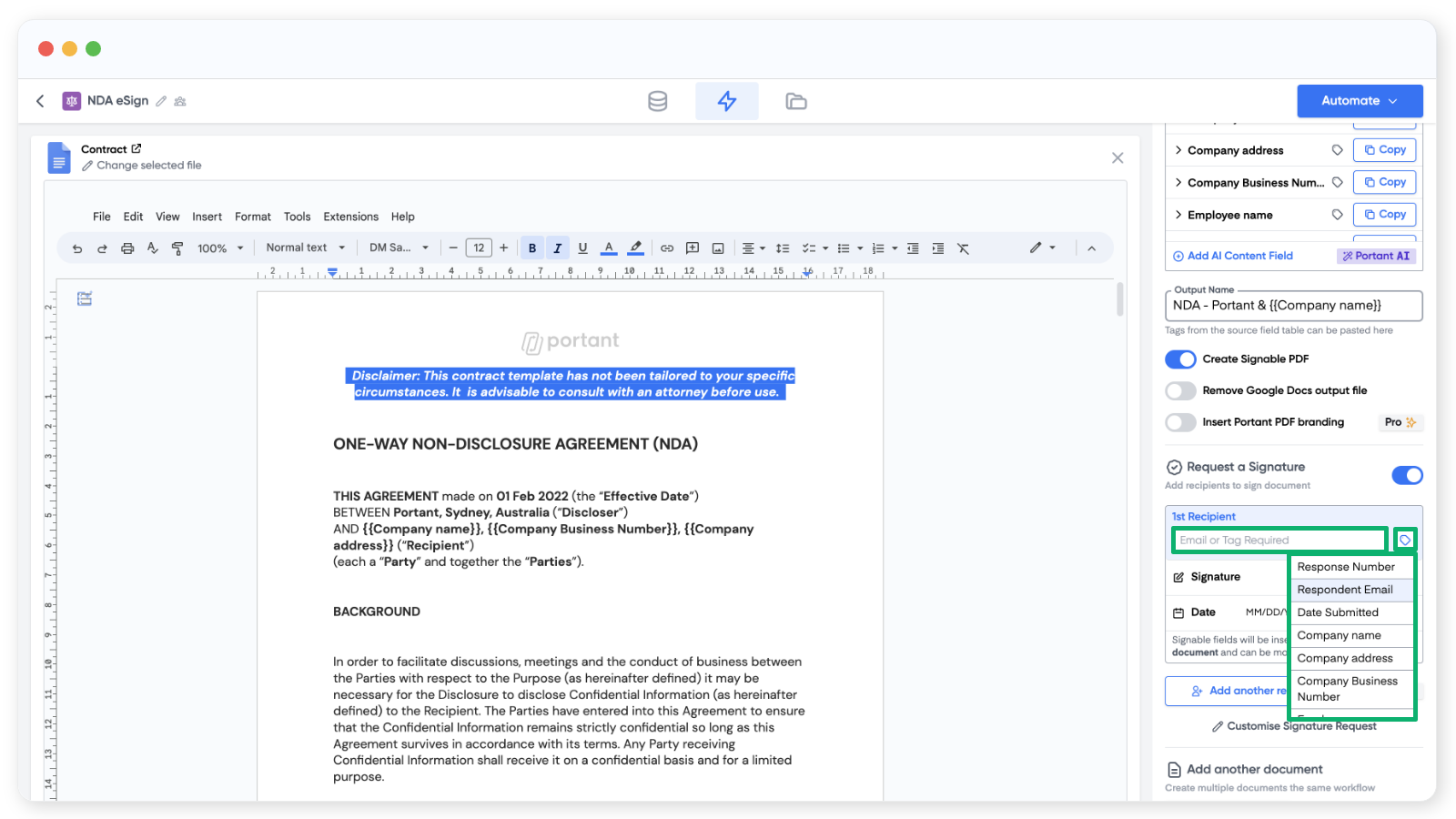
Note: If you're using Google Forms, the Respondent email field only works when you've turned on collect respondent email addresses in the form. Or use a question to collect the email manually.
Insert the signature placeholder
Click Insert next to Signature. The placeholder is dropped at the end of the document the first time, but you can move it anywhere afterwards.
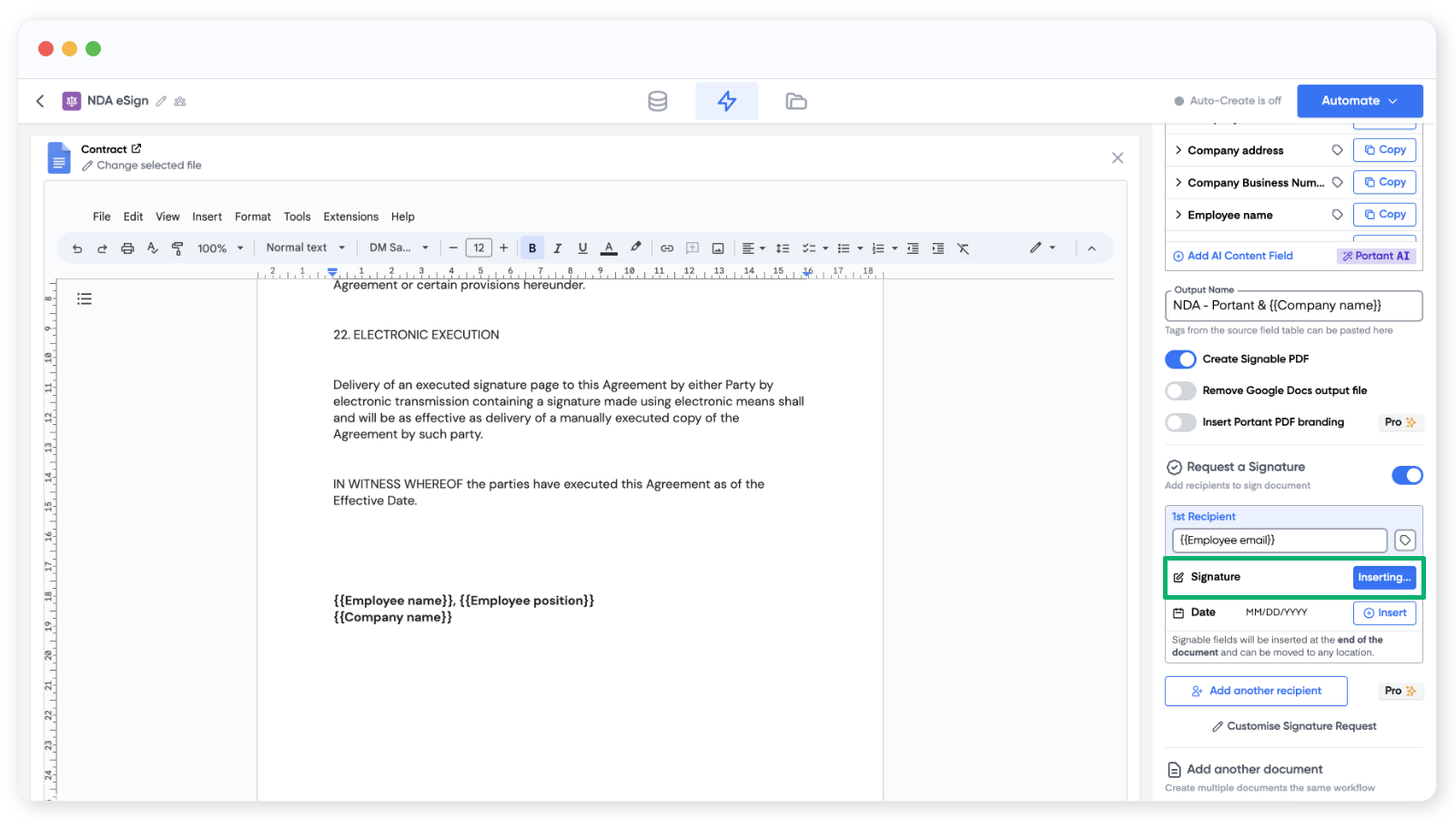
The signature placeholder is a regular image, so resize it to control how big the signature appears.
Note: Copy and paste the placeholder image to add the same signature in multiple places.
Insert the date placeholder
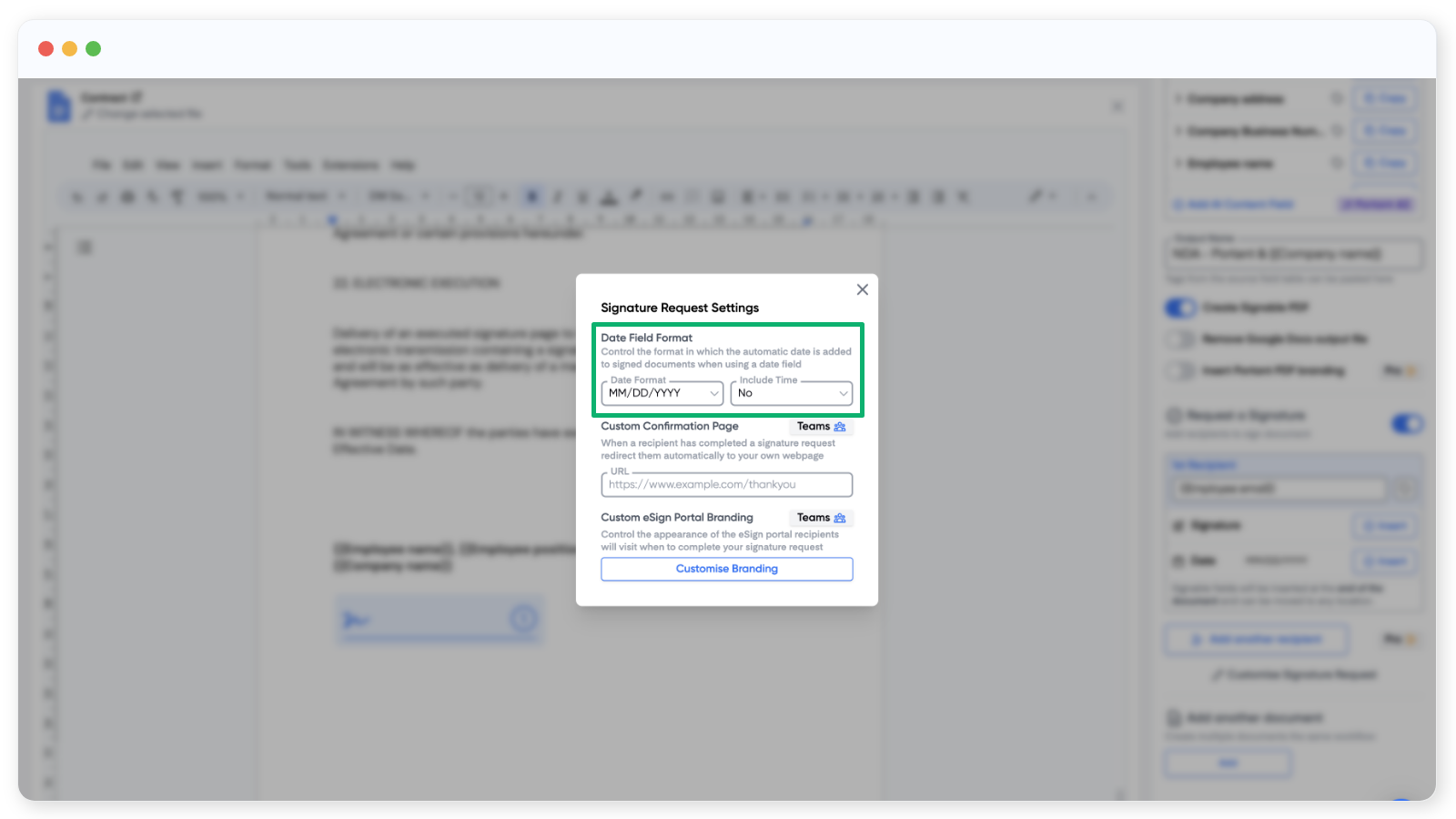
Same steps as the signature placeholder. To change the date format, click the format preview next to the date.
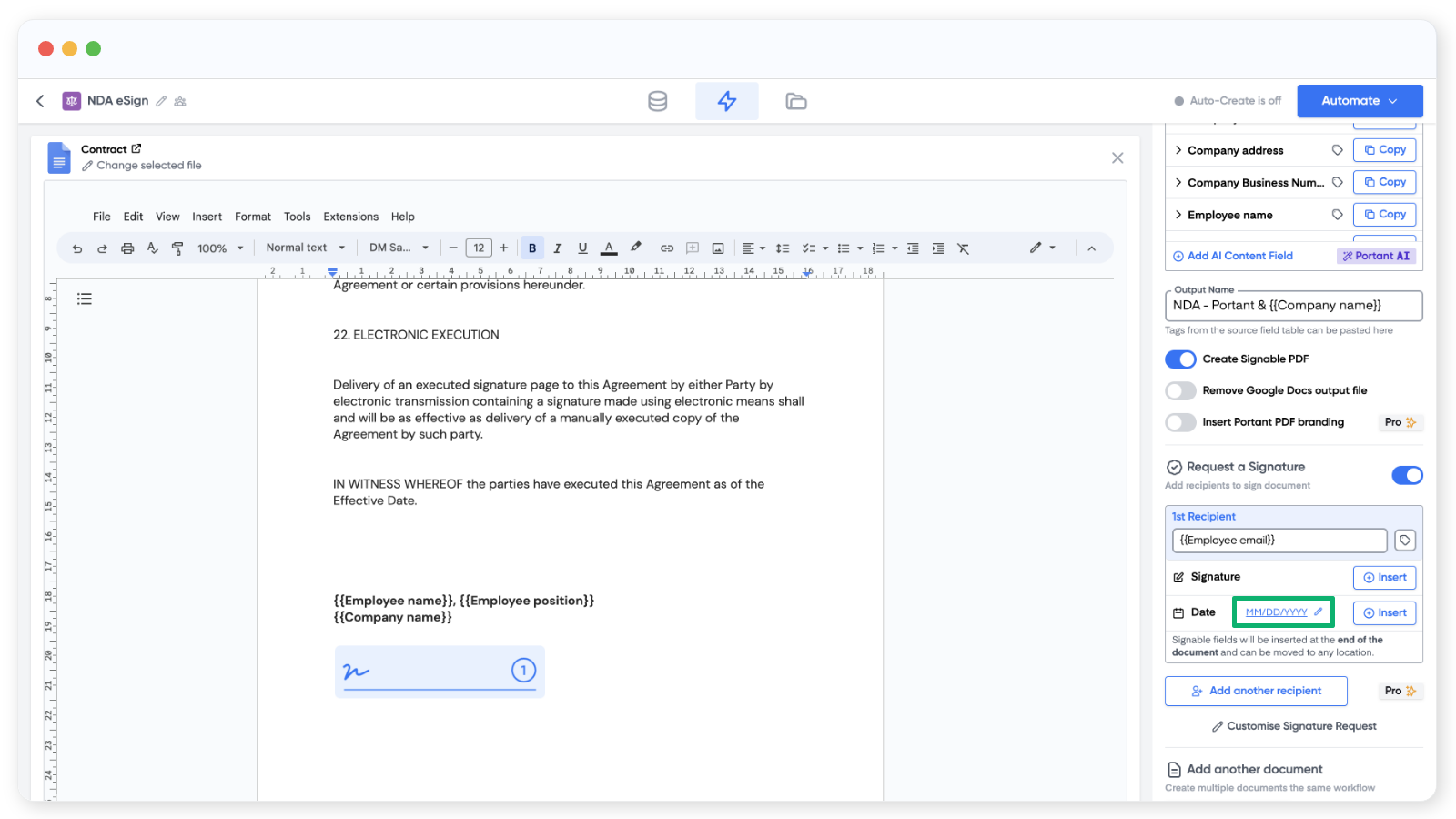
A modal opens where you can pick the format. Teams plans can also customise the eSigning portal's branding here.
If you need more than one person to sign the same document, see Multiple signers (Pro and Teams plans).
Note: On free accounts, signed PDFs include a Portant watermark in the footer. To remove it, upgrade to Pro or Teams.
2. Edit the signature request email (optional)
Once your placeholders are in, head back to the workflow overview by clicking the lightning bolt icon at the top of the page. The signature request block sits below your document block.
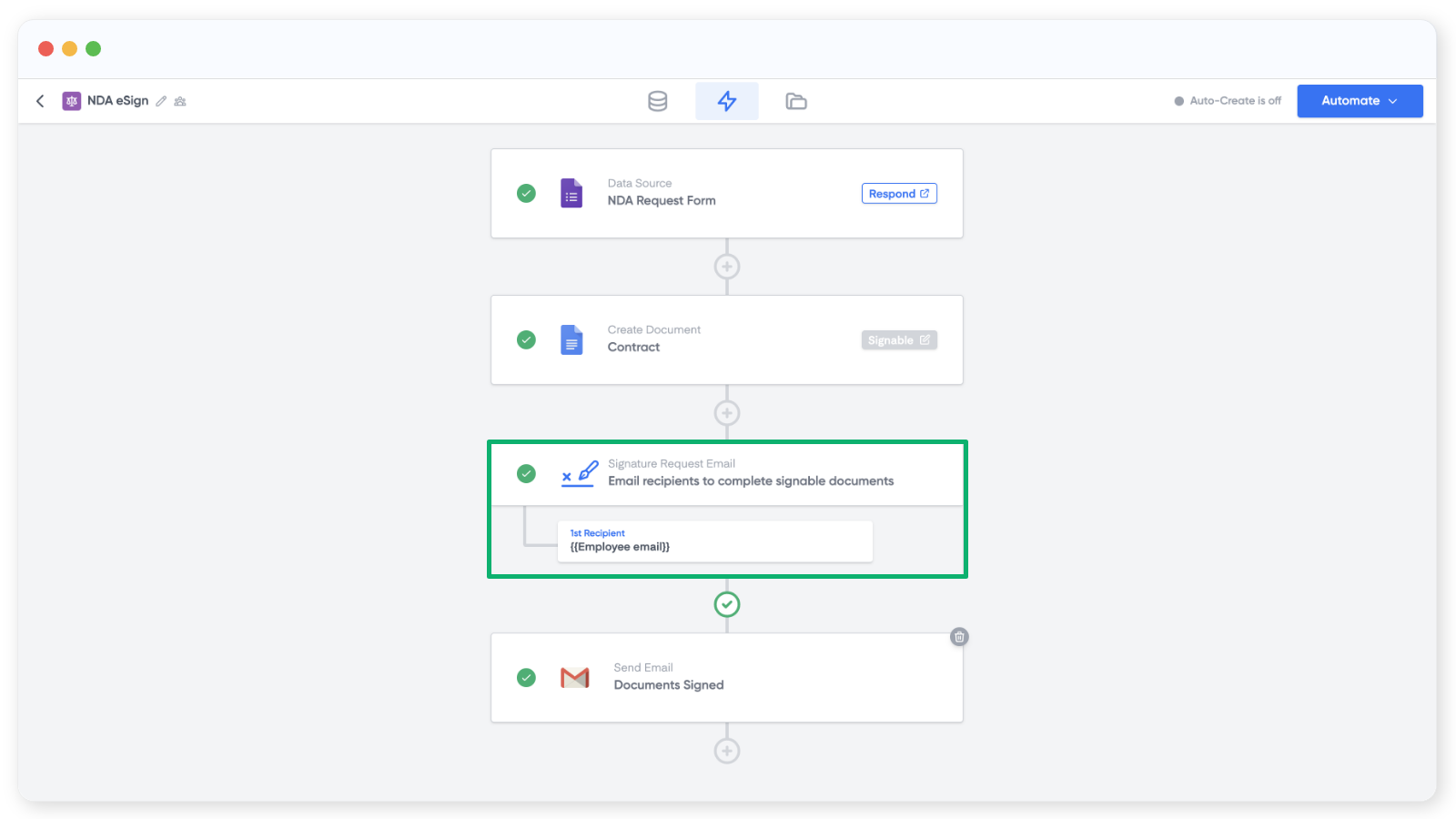
Click into the block to edit the Subject and Message fields. The To field is locked to the email address you set on the document. You can add {{tags}} to the subject and message to personalise them.
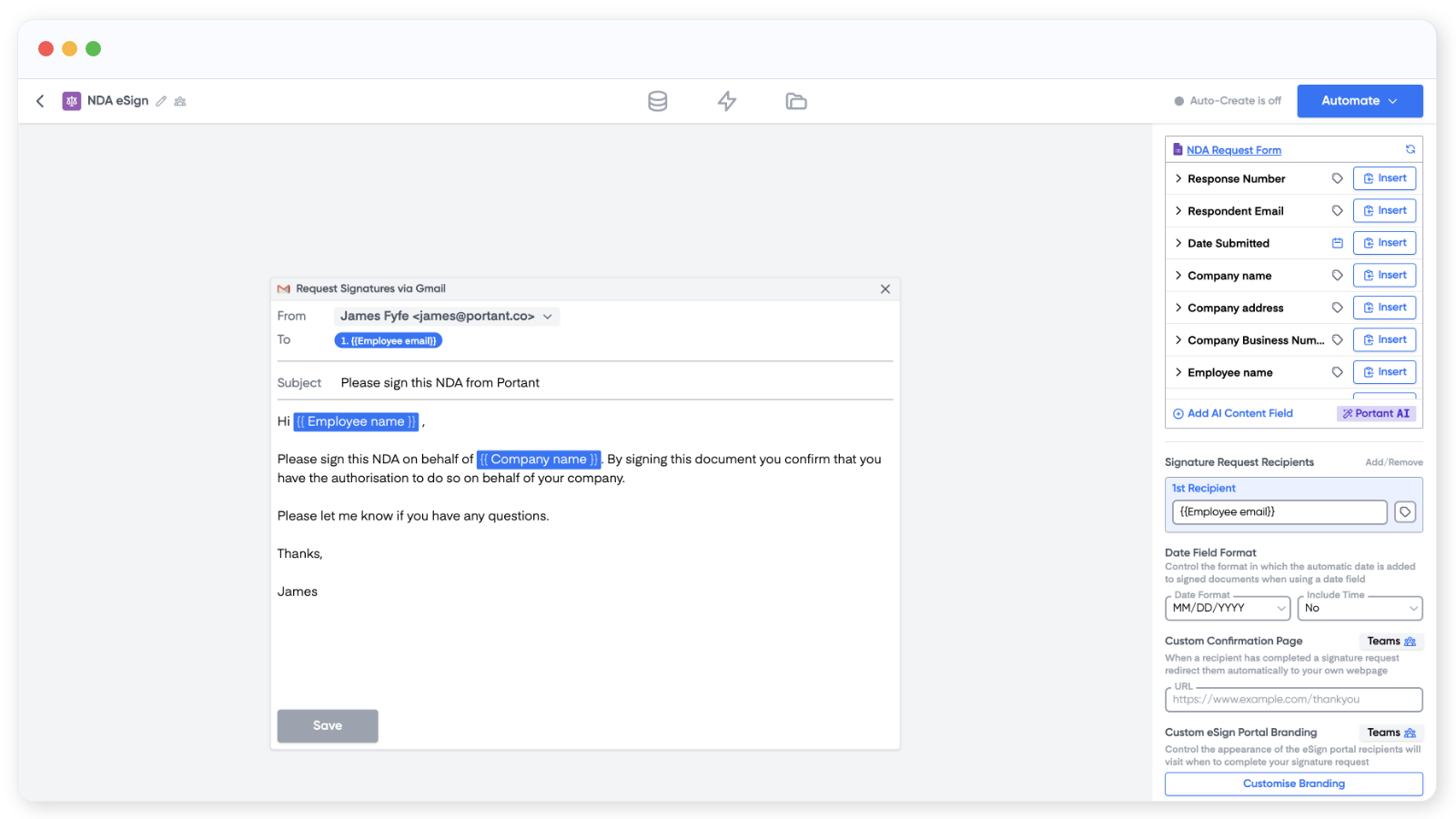
Click Save when you're done.
Note: On the right side, below the source table, you can edit the signed date format and customise the confirmation page URL and the eSign portal branding (colour and logo).
For more on the request email (full HTML editing, attachments), see Customise the signature request email.
3. Edit the signature confirmation email (optional)
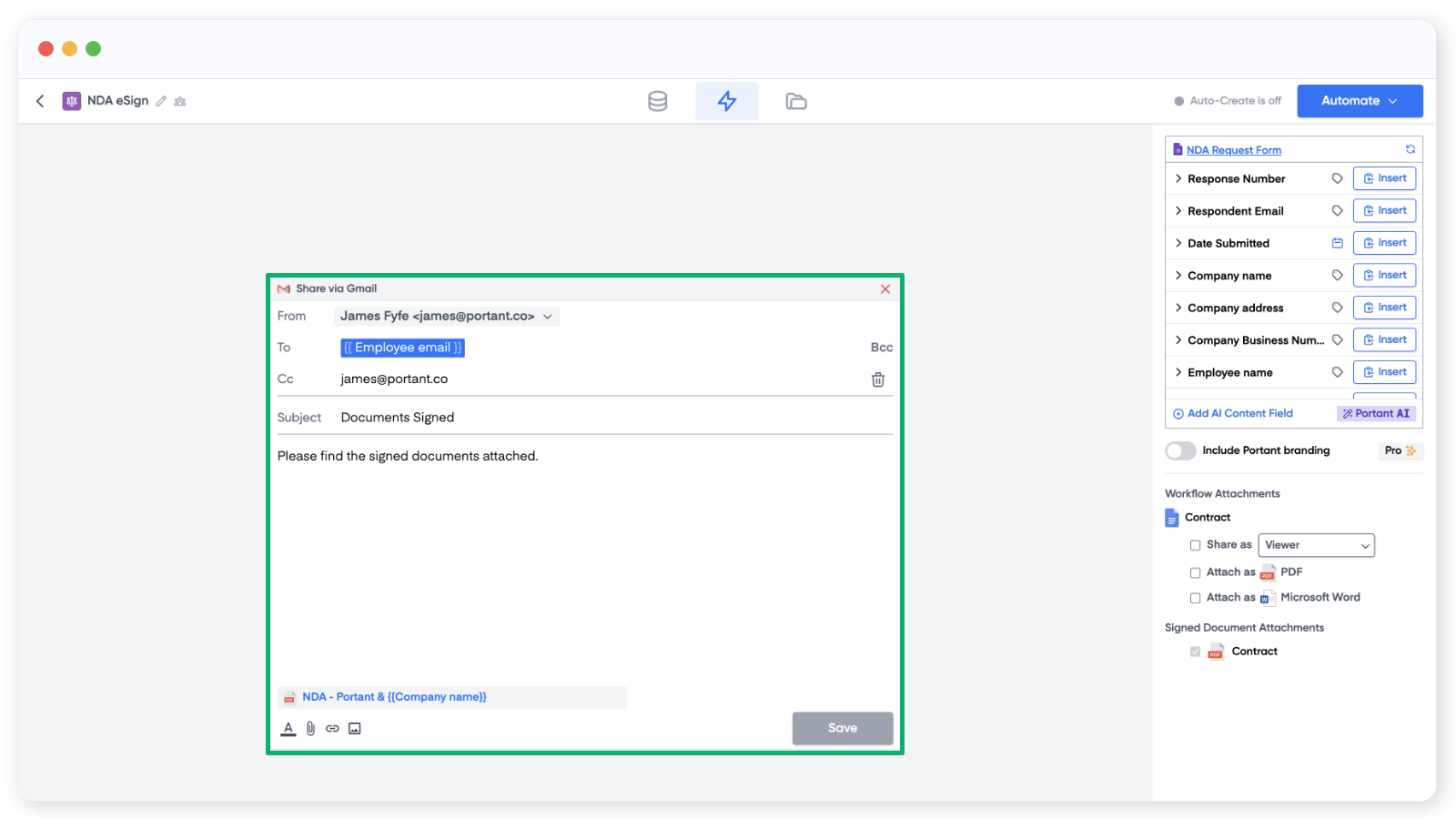
The confirmation email goes out once everyone has signed. Open the workflow overview again and click the email block at the end of the workflow.
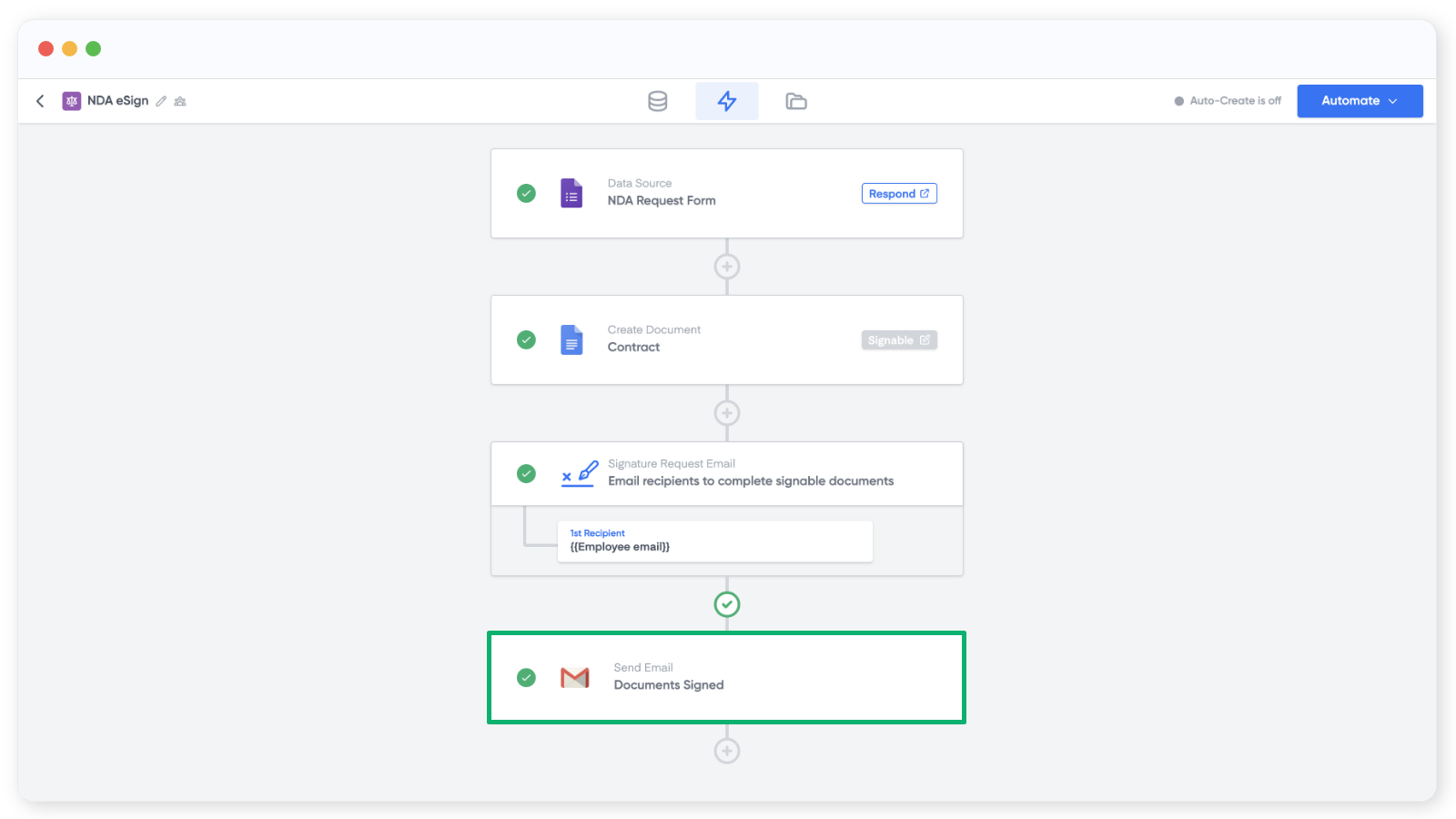
Set To, CC, BCC, Subject, and the Message body. Use tags from the source table to personalise. Save when done.
4. Turn on the workflow and test
Click Automate in the top right and toggle Auto-create on. Every new row, response, or trigger event from your source will now run the workflow and send a signature request.
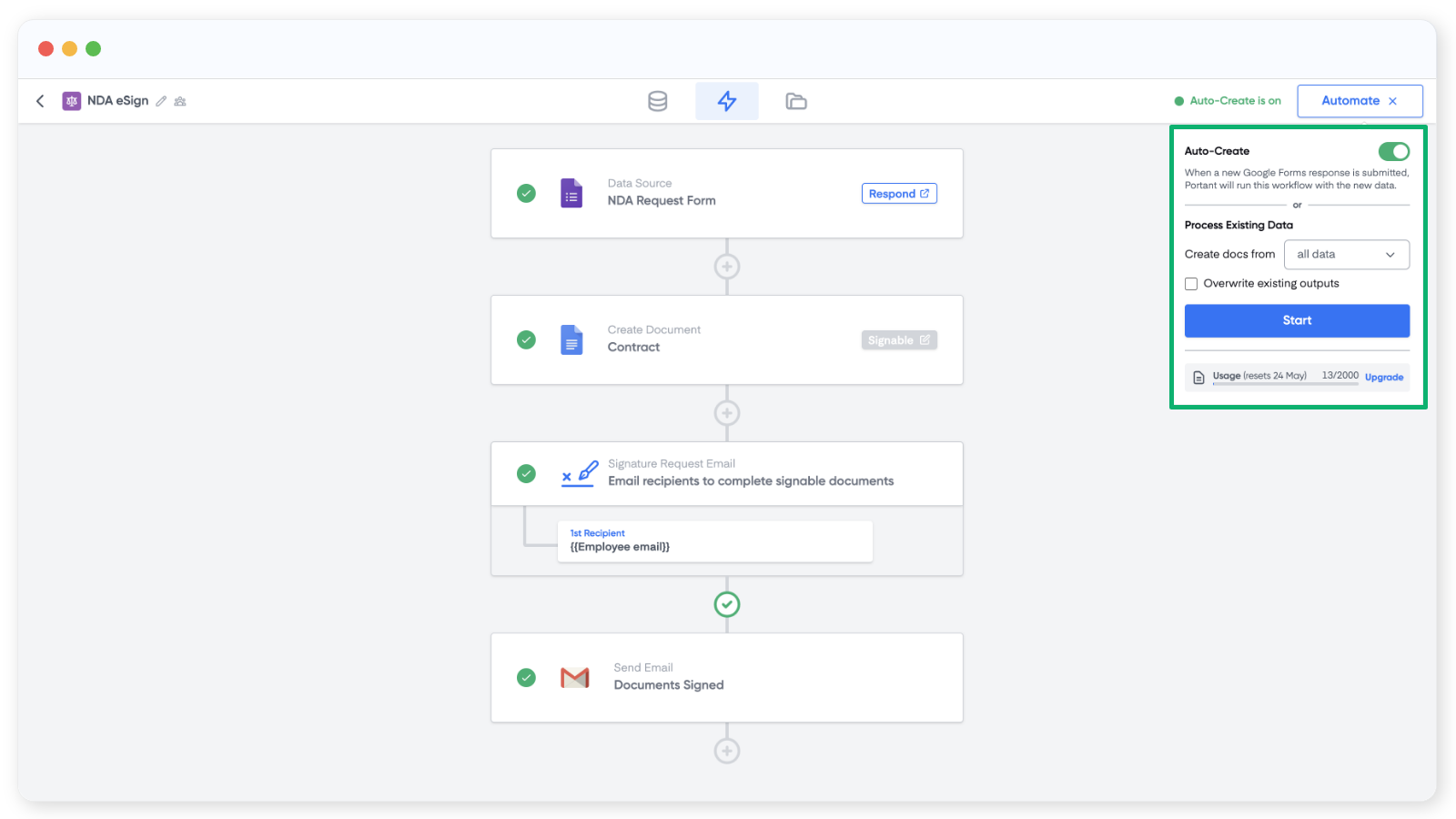
Note: Process Existing Data lets you re-run the workflow over old rows or responses. Pick Custom range from the dropdown to process a slice instead of everything.
Submit a test response. The signer receives an email like this:
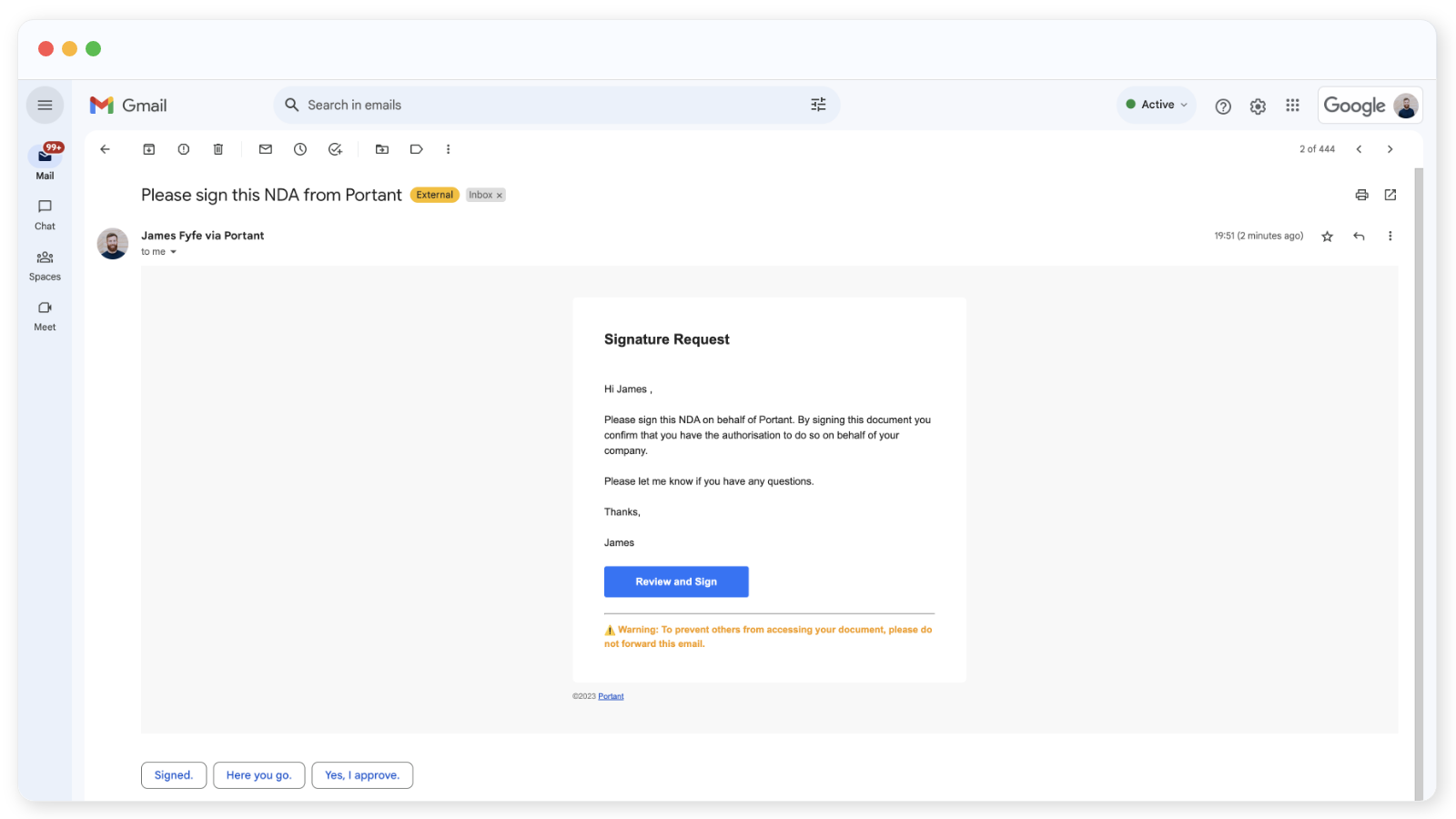
When they click Review and Sign, they land on the signing page:
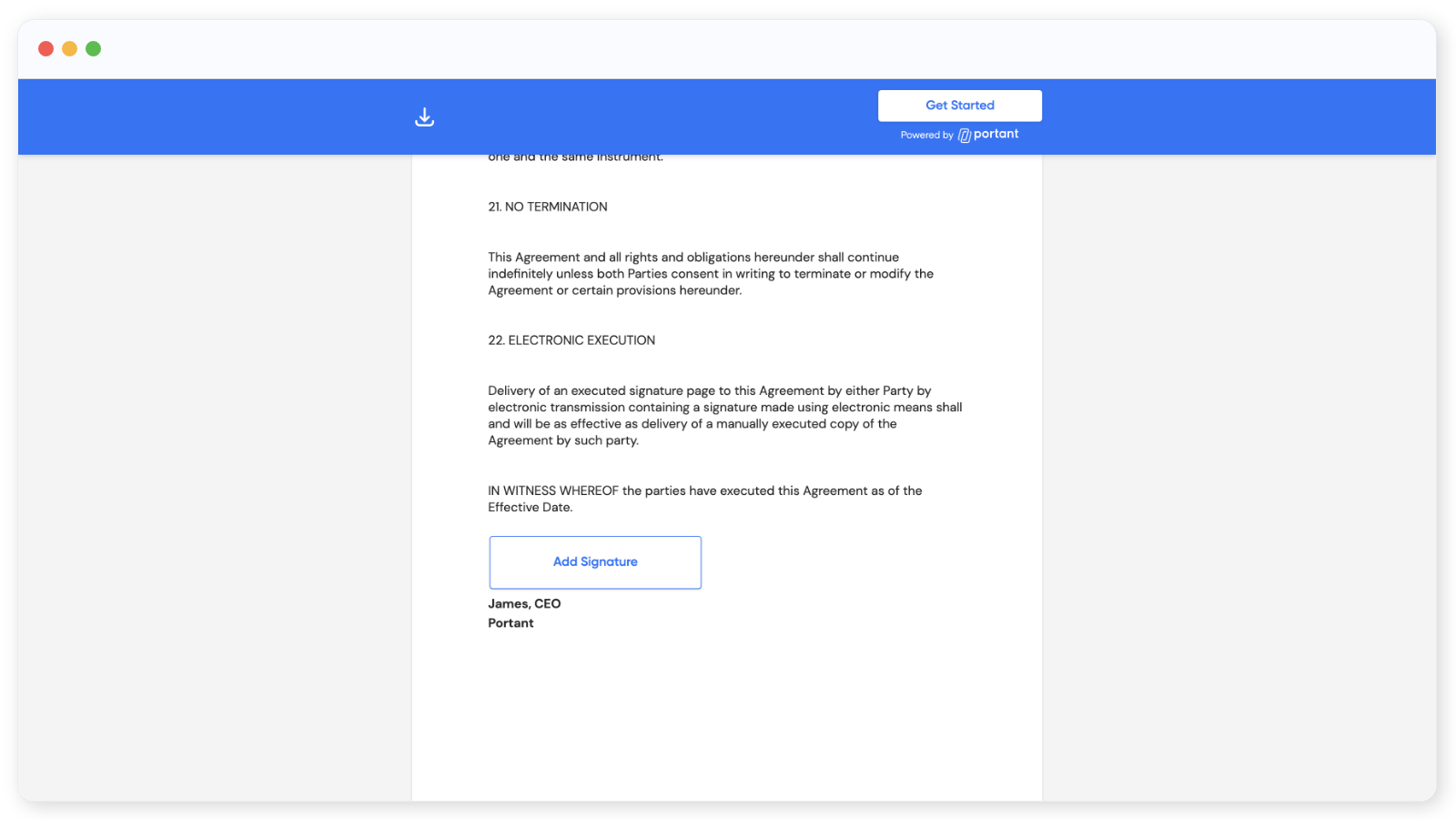
Then they sign:
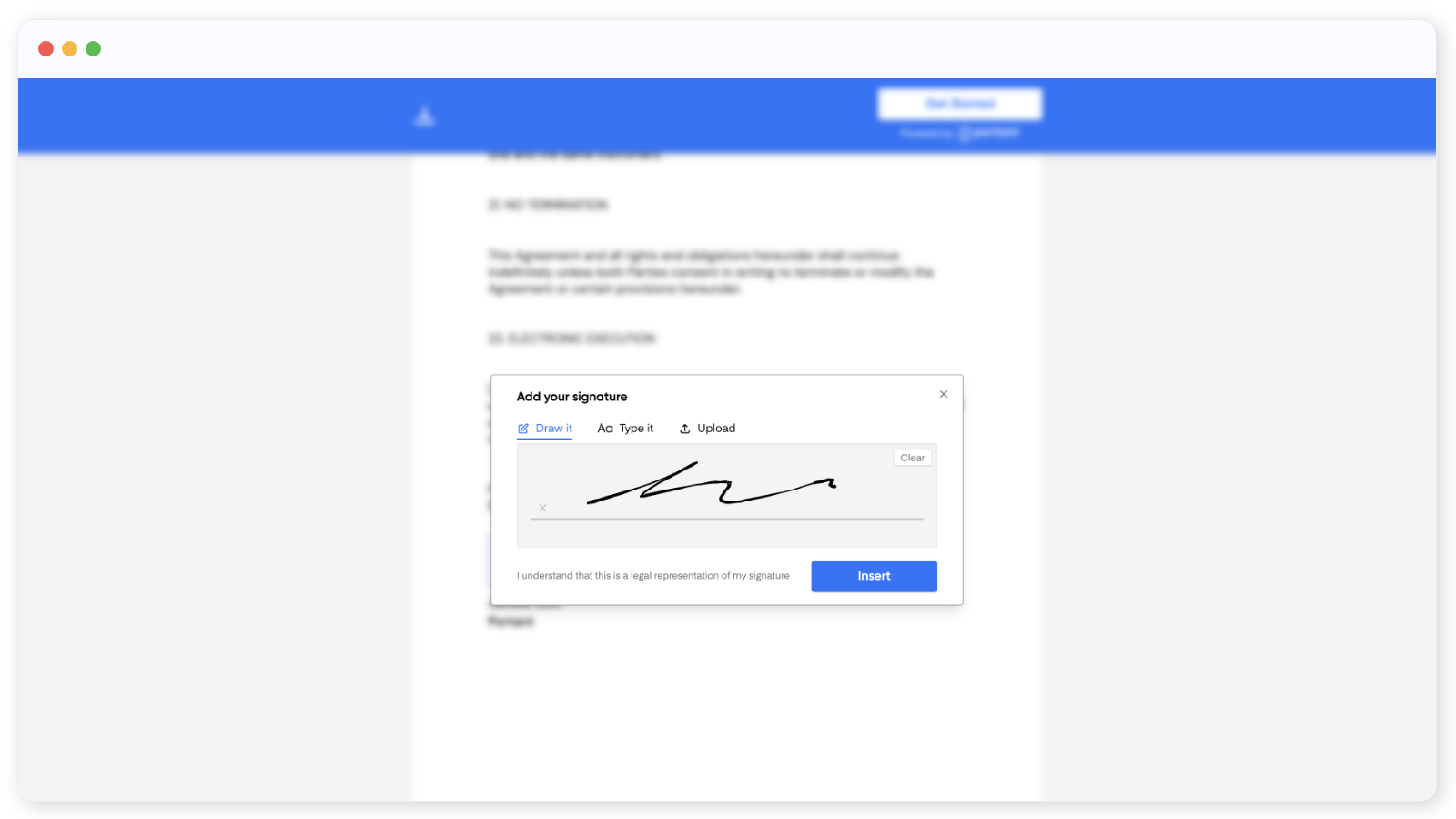
Once signed, a copy of the signed PDF is saved to your Google Drive folder, the confirmation email is sent, and a link to the signed document appears on the Outputs page in Portant.
Note: By default, signature requests expire after 30 days. You can change or disable expiry in the template block. See Signature link expiry.
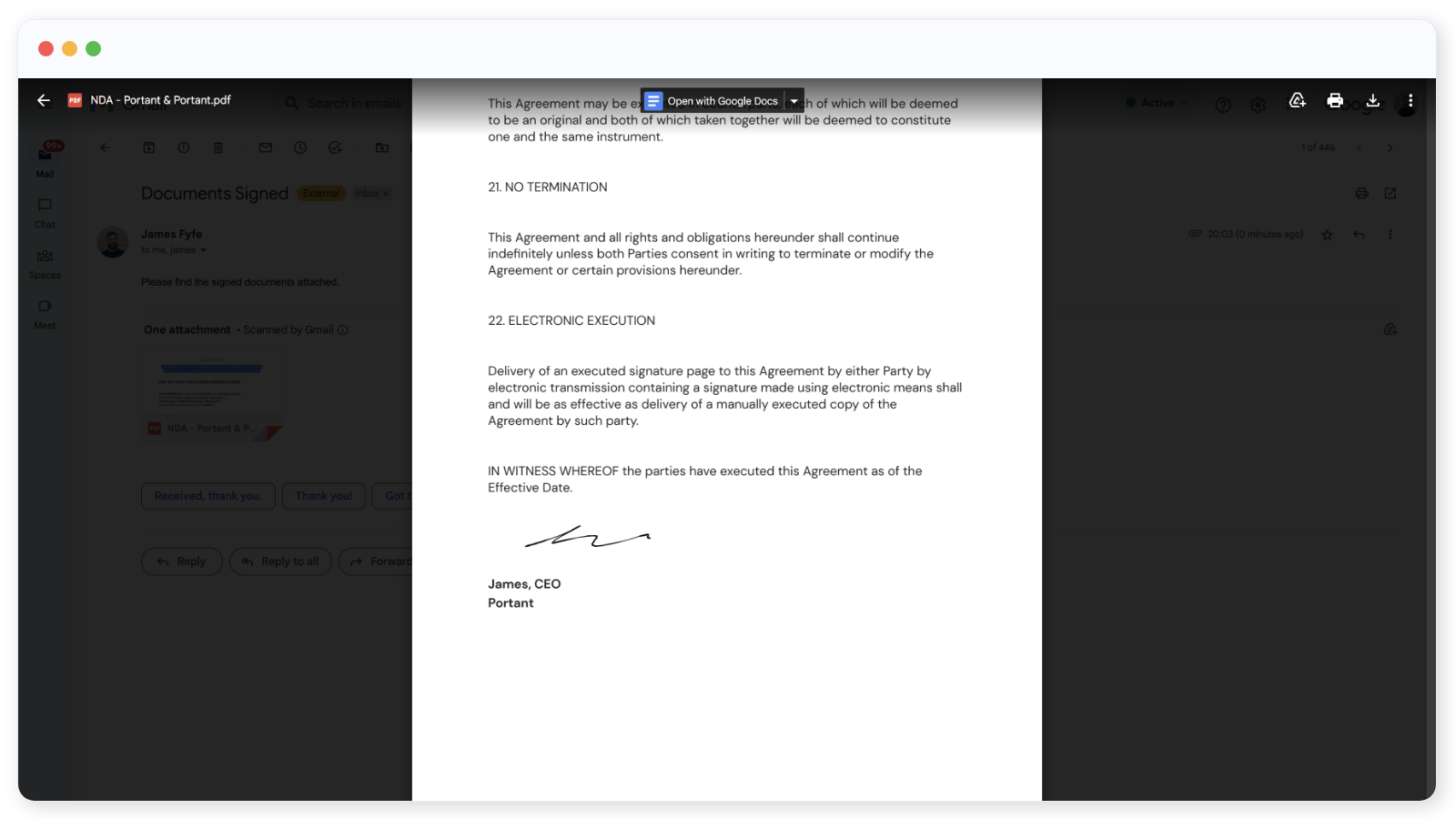
That's your first signature workflow live.
Related
- Signature requests: the full walk-through, including picking a source and customising the template.
- Multiple signers: request signatures from up to four people.
- Customise the signature request email: full HTML editing, attachments, and branding.
- Audit trail: append a signing audit to the signed PDF.
- Compliance: country-by-country legal positioning.