
Save outputs to OneDrive
If you work in Microsoft 365, you can send your workflow outputs straight to OneDrive instead of Google Drive. Word and PowerPoint outputs land in the folder you choose, ready to open and edit.
How it works
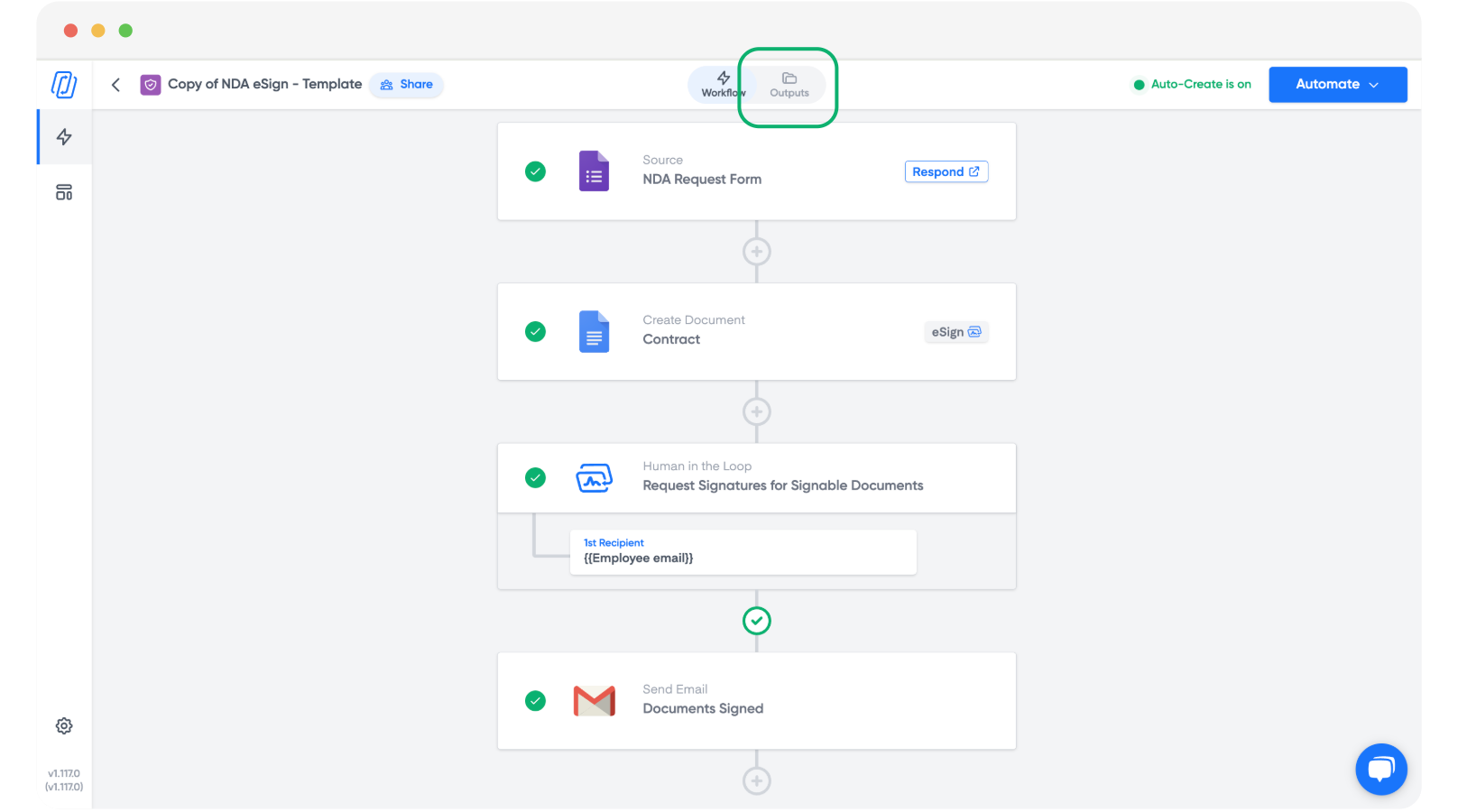
When your template is a Microsoft Word or PowerPoint file and you've connected the Microsoft integration, you can pick a OneDrive folder as the destination for that workflow's outputs. Each run saves the generated file into the folder you select on the Outputs tab.
Note: Save to OneDrive may currently be limited to files up to 4MB. If you don't see the option, check the Outputs tab and that your Microsoft integration is connected.
Connect your OneDrive
- Open your workflow and go to the Outputs tab.
- Click the option to Save to OneDrive, or connect Microsoft if you haven't already.
- Authorise Portant to access your OneDrive when prompted.
- Pick the OneDrive folder where outputs should be saved.
After setup, every run of the workflow writes its Microsoft outputs into that folder. You can then open them with Edit in OneDrive like any other file in your account.
Related
- Auto-file output files for building subfolder structures from tags.
- Microsoft Word templates and Microsoft PowerPoint templates for the template types that produce OneDrive-friendly outputs.