
Add multiple line items into a single document
Pull all the line items (or any associated objects) from a HubSpot record into a single document, with one row per item. This page covers the HubSpot-specific setup. The rules for repeating tables and line items in general live in Line items and tables and Repeating tables.
In this guide:
- Group HubSpot line items into a single document
- Sort the rows in the table
Group HubSpot line items into a single document
If this is your first HubSpot workflow, start with the HubSpot overview for the setup basics.
Once your workflow is set up, open the Template block (Google Docs or Slides).

Place the line item tags inside a table row in your template. Portant clones that row for every line item on the record, so you only design the row once.
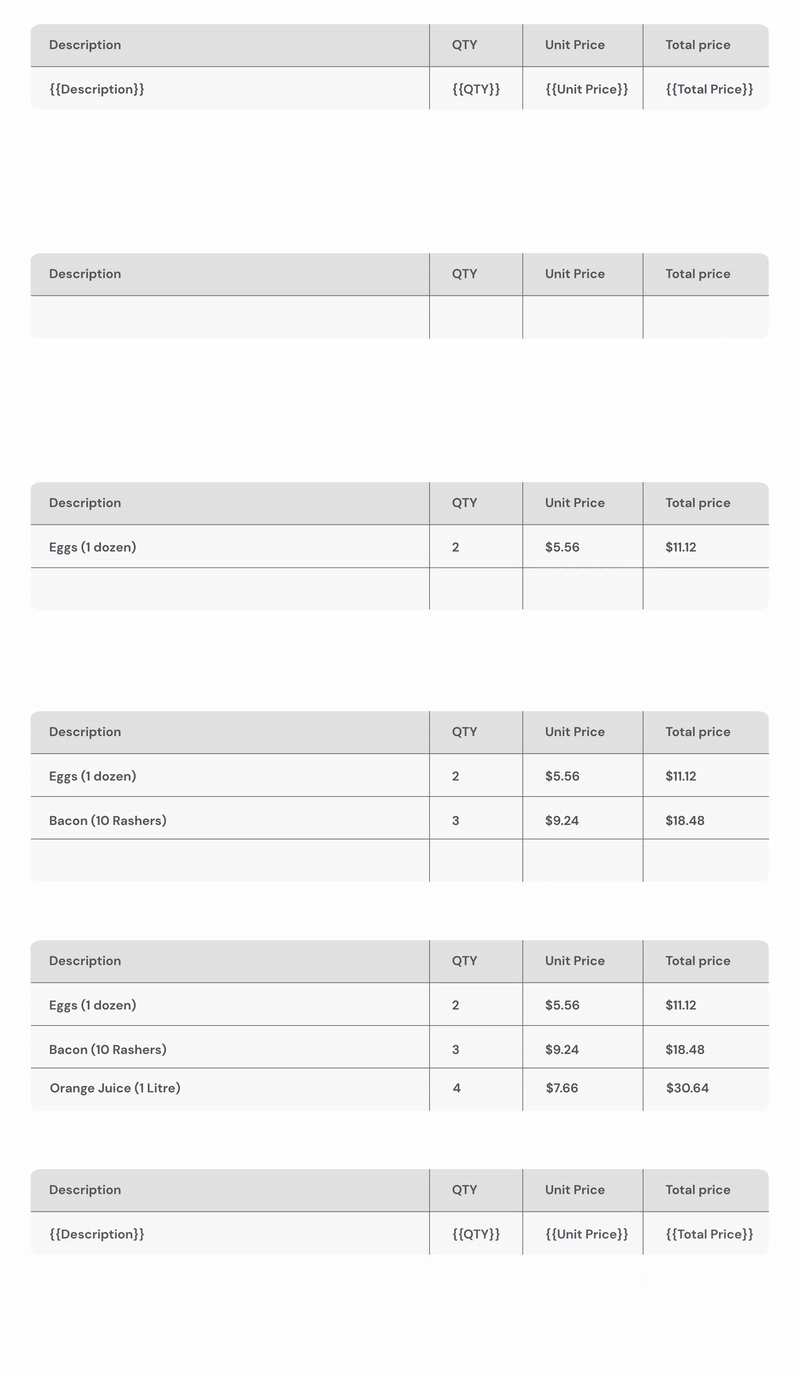
Make sure every tag for the line item sits inside the table row. In this example, the row uses tags for Line Item Name, Line Item Unit Price, and Line Item Quantity.
When you run the workflow on a deal with several line items, Portant adds one new row to the table for each item.
For more on how repeating tables behave (totals rows, formatting, troubleshooting), see Repeating tables.
Sort the rows in the table
To control the order rows appear, open the Manage HubSpot Fields modal.
Pick the object you want to sort.
Use the sort options at the bottom of the property list to set the field and the order.
For more on sorting across all sources, see Sort and order rows.