
Convert form responses to PDFs
Turn every Google Form submission into a formatted PDF, automatically. Pick a form, design the document once, and let Portant produce a new PDF every time someone hits Submit.
What you'll learn
- Create a new workflow
- Pick a Google Form as the source
- Customise a document with the form answers
- Turn on the workflow
Create a new workflow
Click "Add Workflow" in the top right.
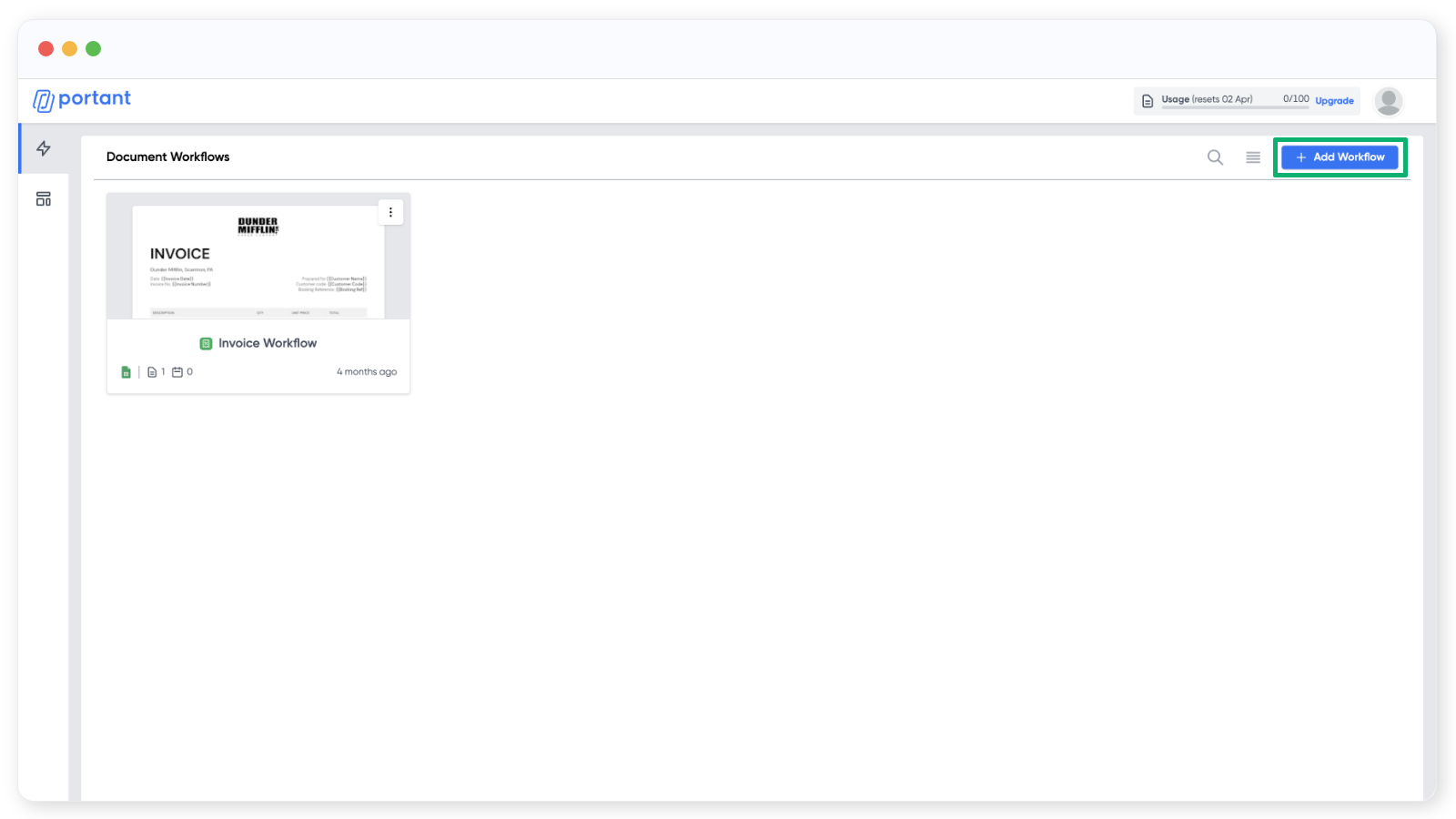
Pick a Google Form as the source
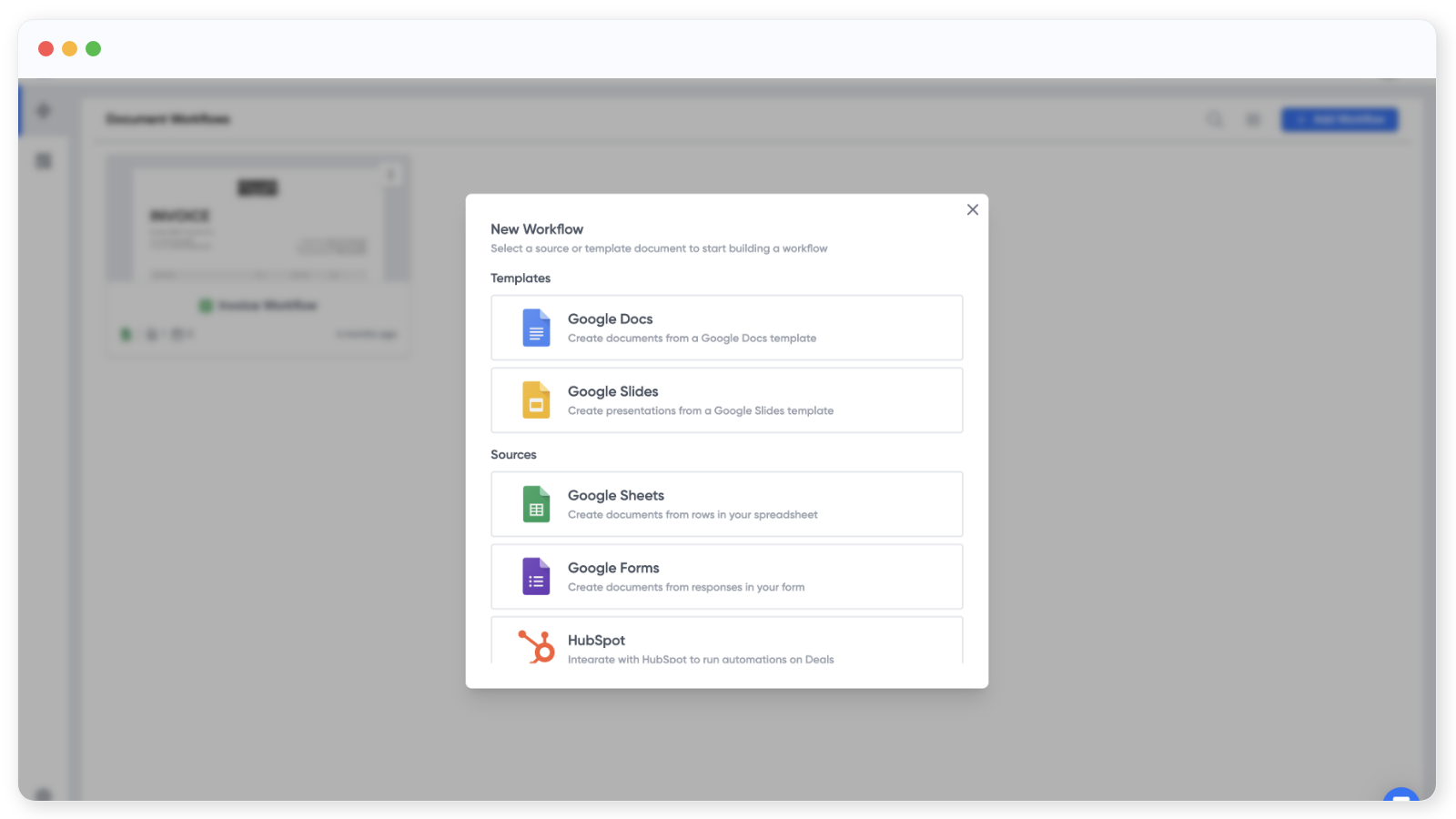
Adding a workflow starts with picking a source or a template. For this guide we're starting from a Google Forms source, but you could just as easily start from the document template instead.
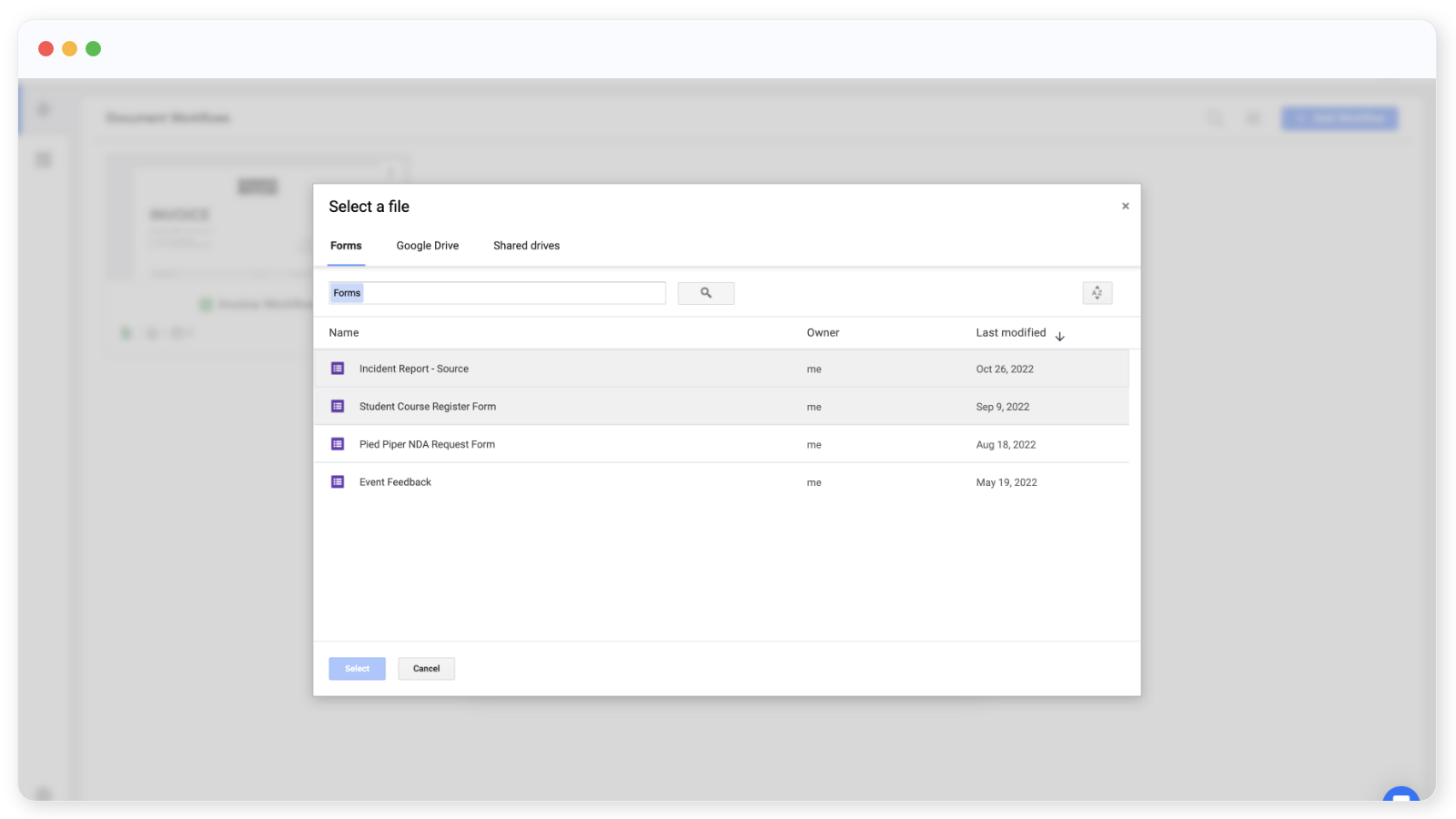
Pick a Google Form from your Drive, or create a new one.
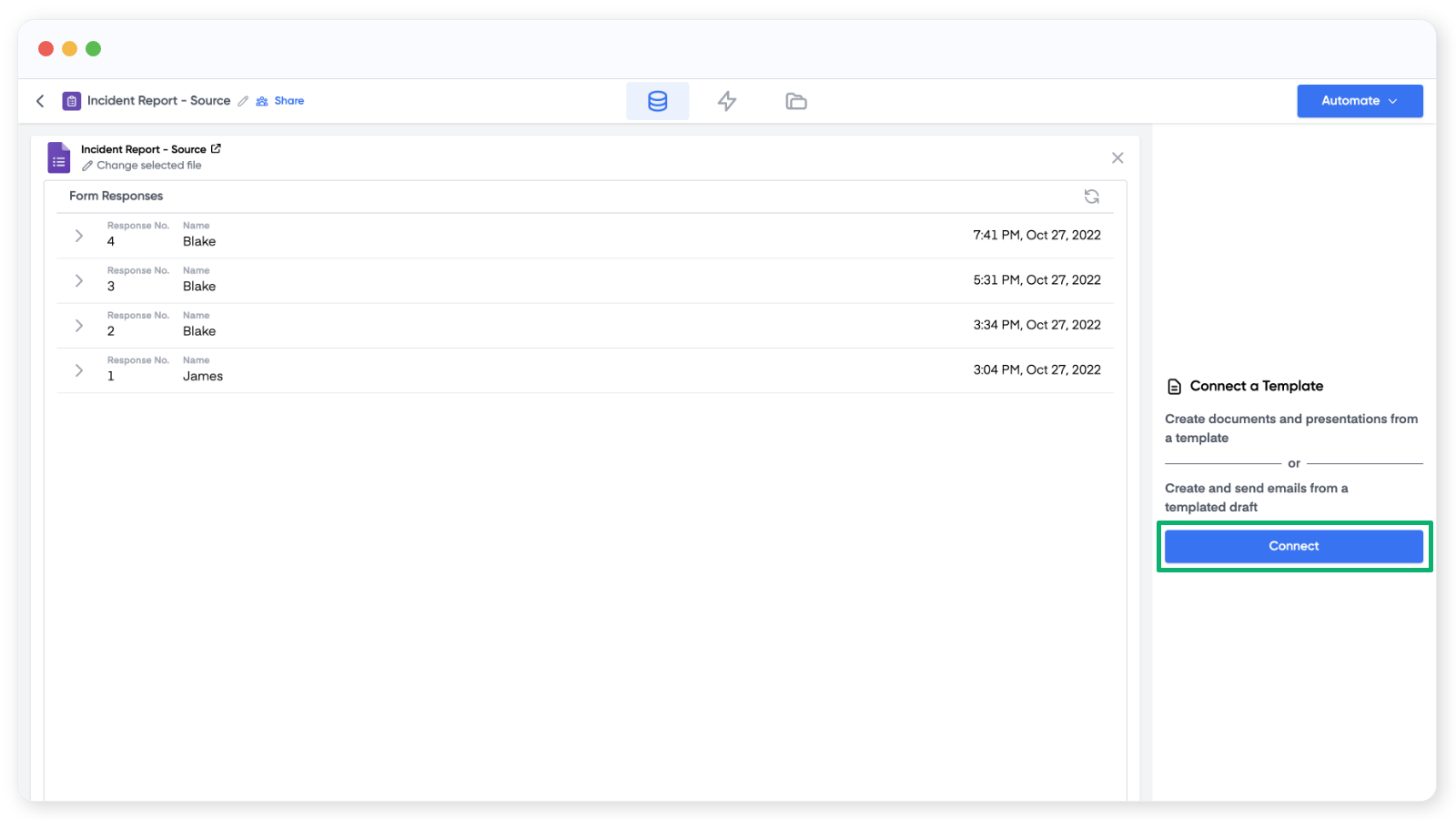
Once a form is connected, Portant lists the responses on the right. If there are none yet, that section will be empty. From here you can open the form to edit it, copy the public link, or click "Change selected file" to swap the form.
Customise a document with the form answers
Add a template block by clicking "Connect" on the right.
Choose Google Docs or Google Slides as the template, then either create a new file or pick an existing one.
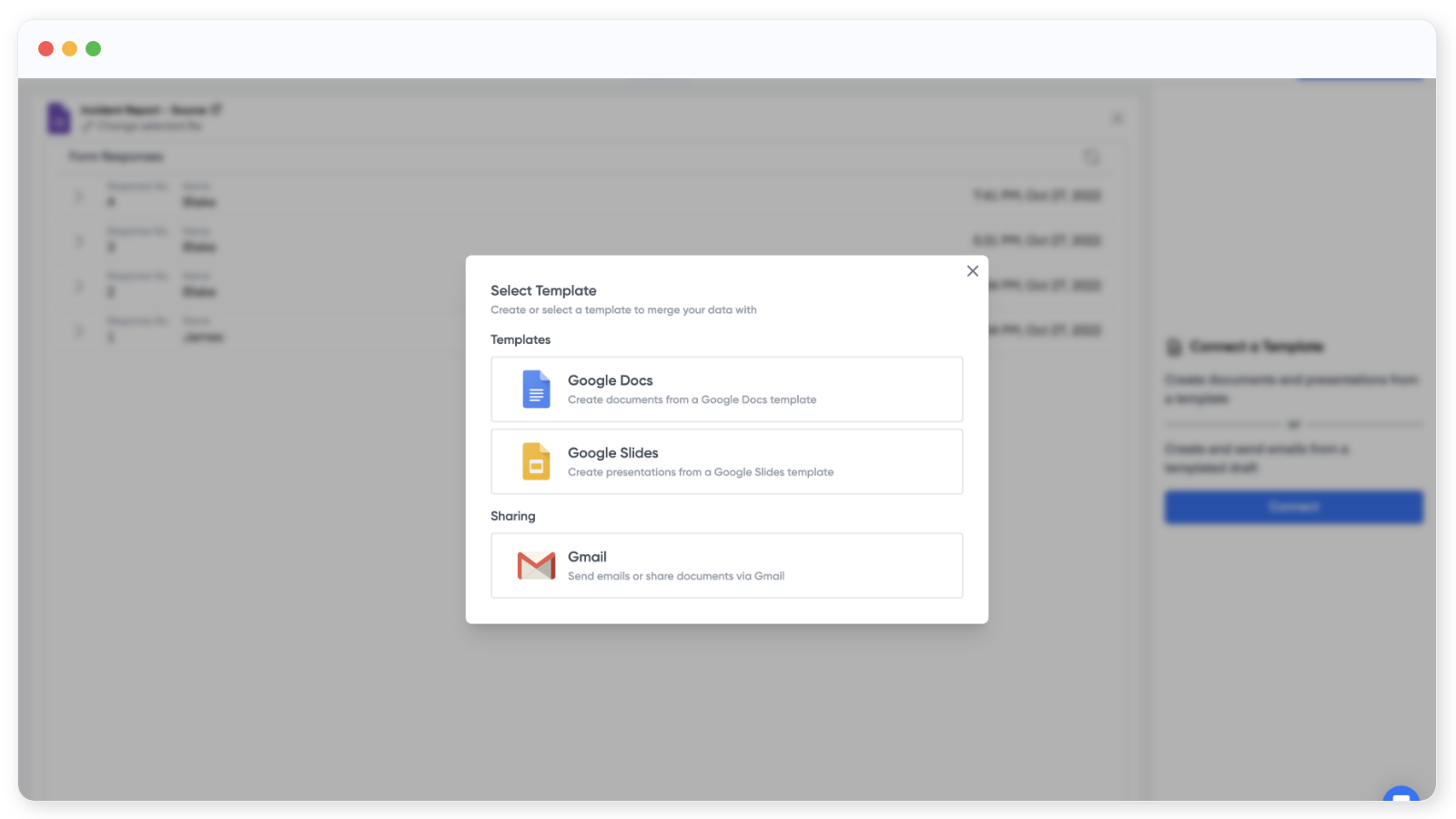
You can also generate an email directly from the form response.
When the document opens, the source table on the right lists every form question.
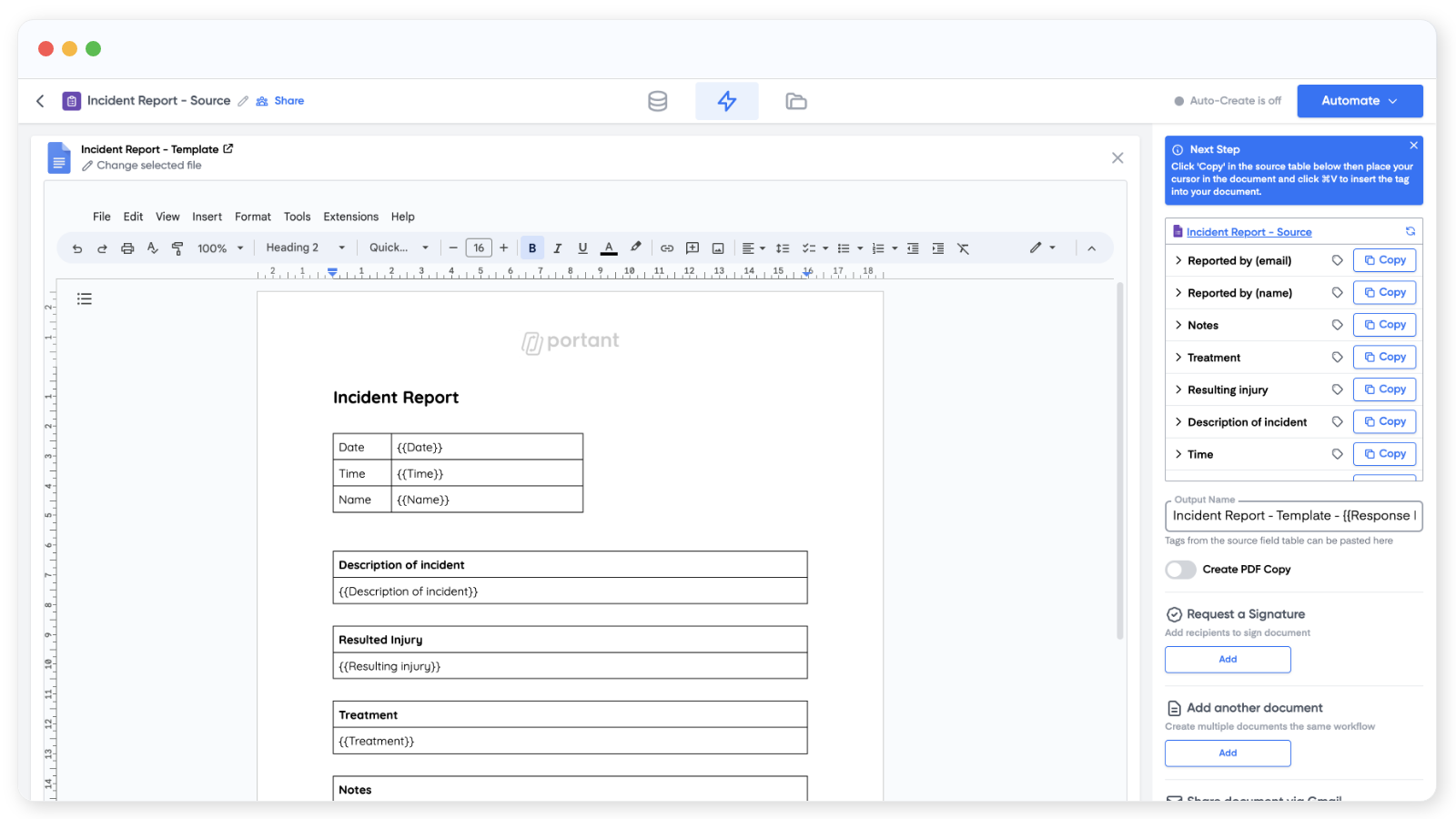
To insert an answer into the document, click "Copy" next to the question and paste the {{tag}} where you want the answer to appear.
You can also add image tags to documents and presentations, and edit a tag's display name by clicking on the row.
Set the Output Name for each generated file. Tags work here too, which is useful for naming files like {{Submission Date}} - {{Name}}.
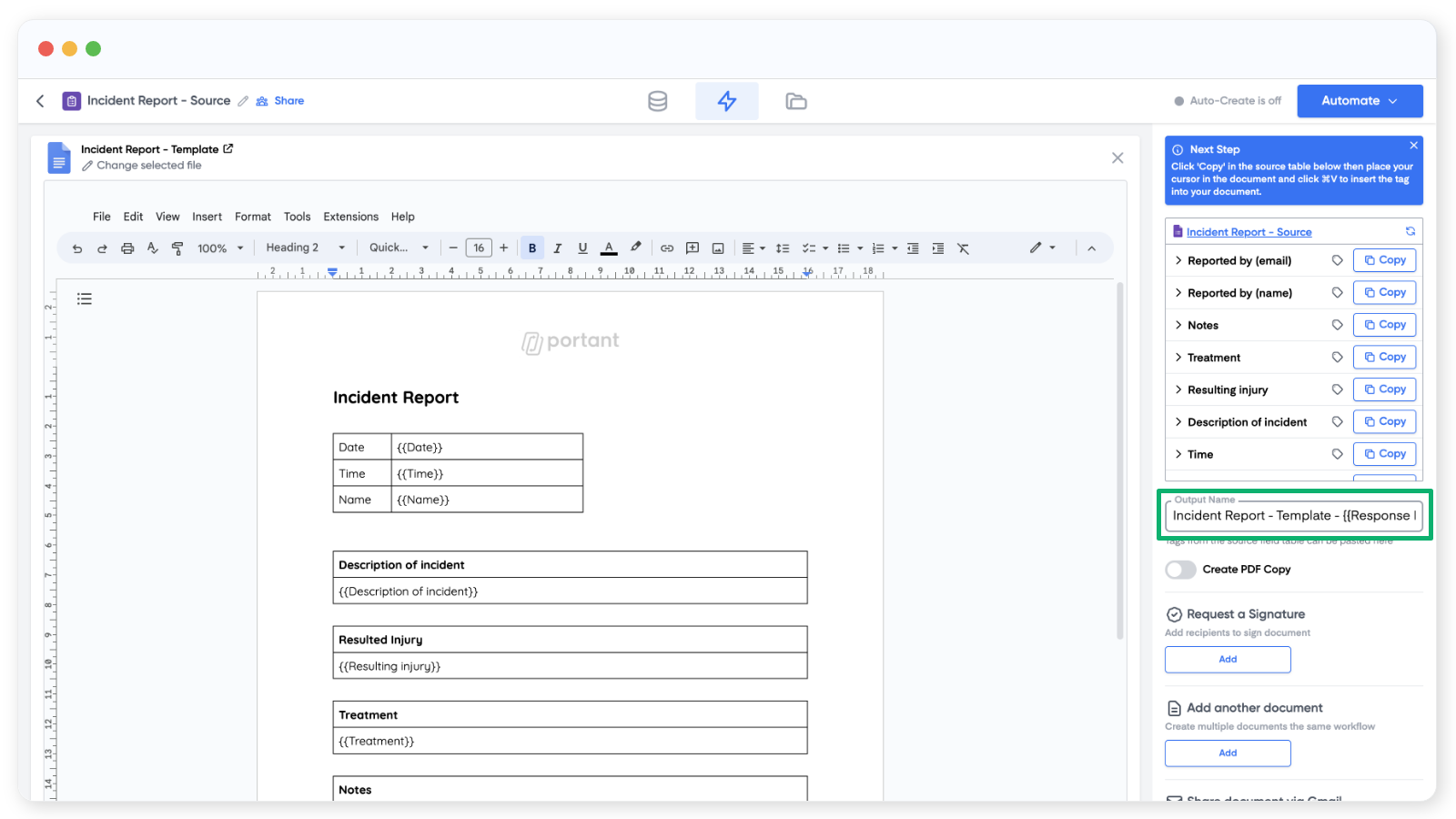
Below the Output Name field is the option to save each output as a PDF.
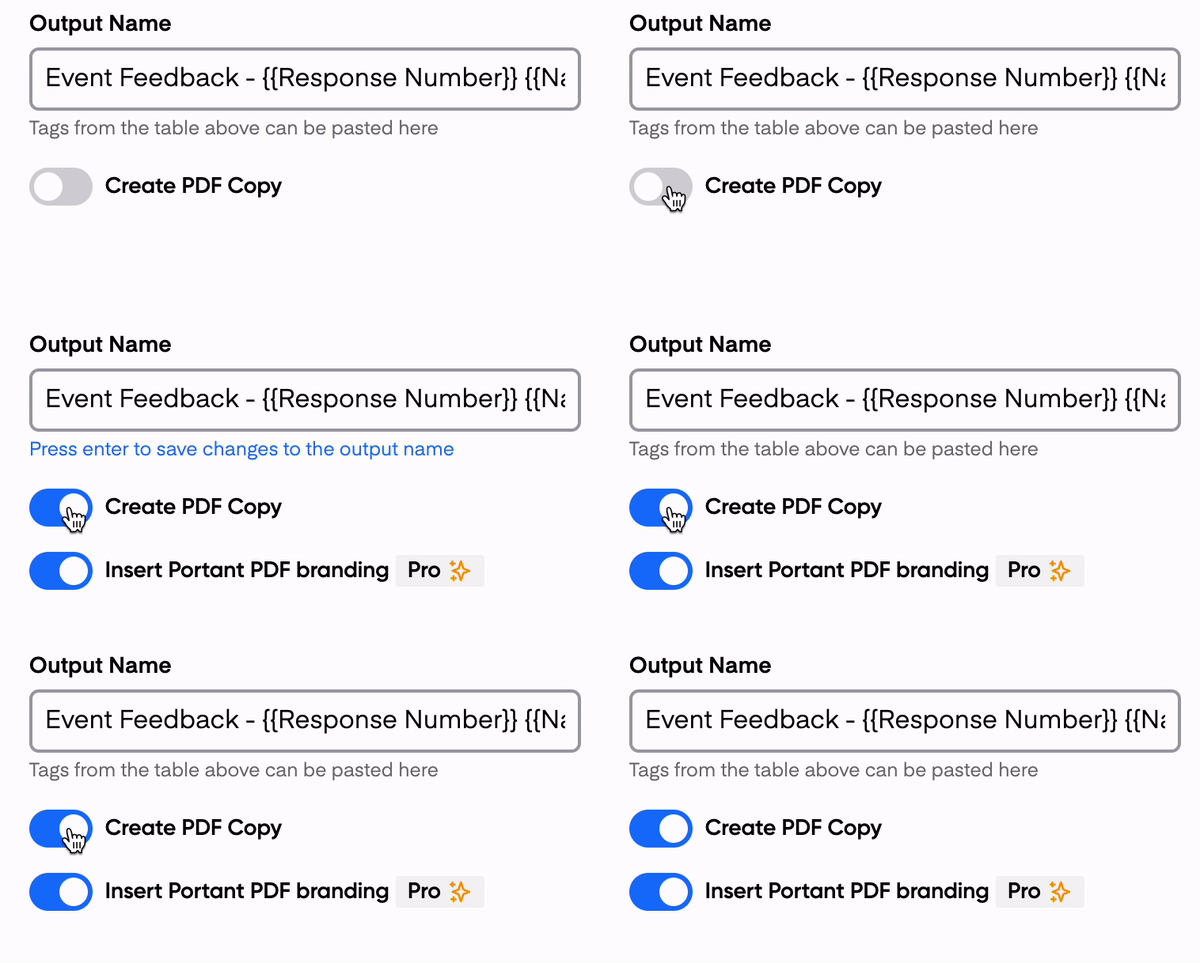
Free accounts include a Portant watermark in the PDF footer. To remove it, upgrade to Pro or Teams.
Turn on the workflow
Click "Automate" in the top right and switch Auto-create on. Every new form response will run through the workflow and produce a new document.
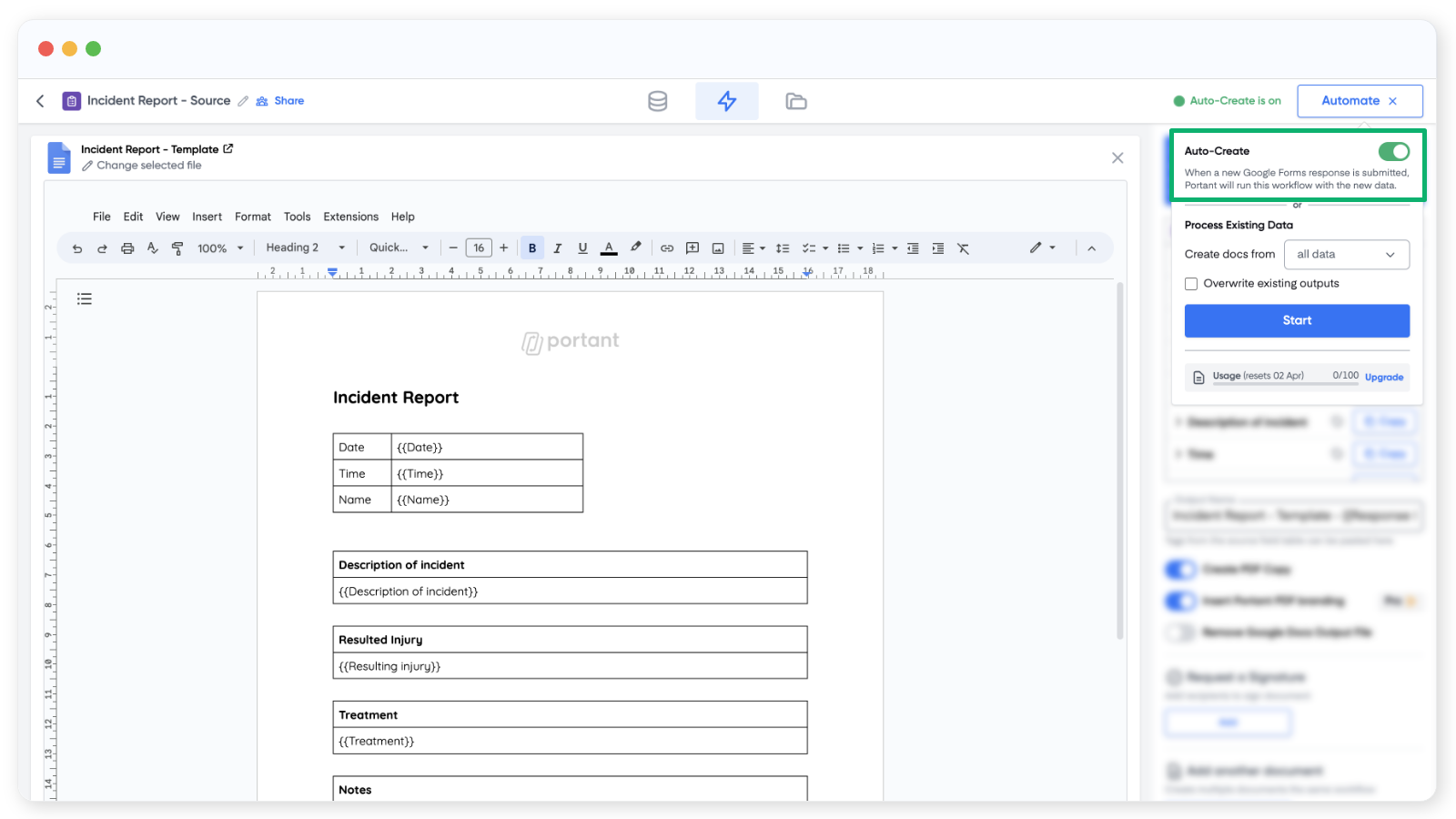
In the same panel you can process older form responses with "Process Existing Data". Choose all responses or pick a custom range.
To test, submit a response in your form. A new document should appear on the Outputs tab within a few seconds.
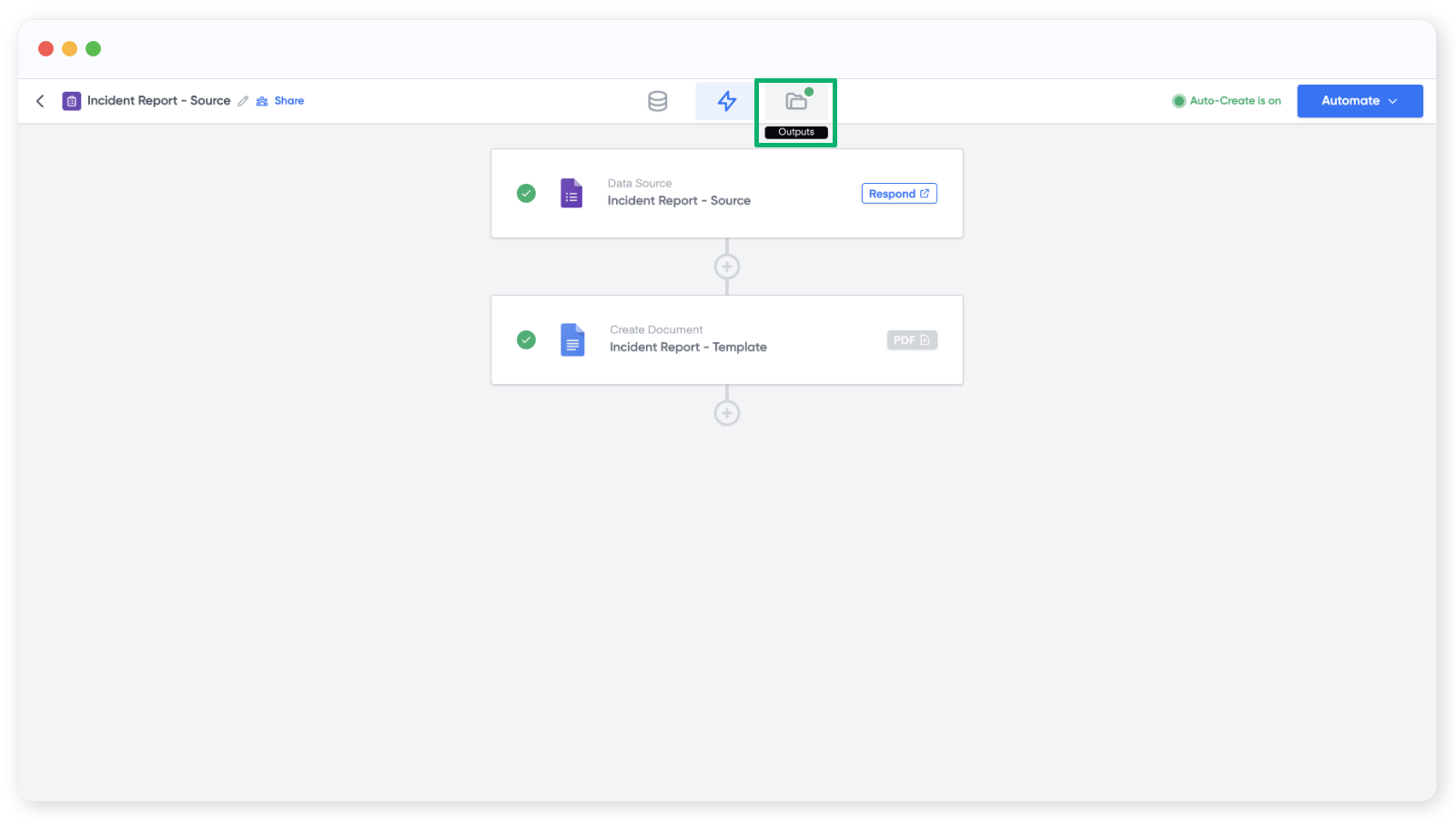
That's it. Every form submission now produces a PDF, automatically.