
Developer console
The developer console is a built-in browser tool that logs what's happening on a page (JavaScript errors, network requests, security warnings). When you share a screenshot of the console, the Portant team can usually pinpoint the cause of an issue much faster.
This page shows how to open the developer console in Chrome, Edge, Firefox, and Safari. Take a screenshot of the Console tab once it's open and send it to us via support.
Chrome
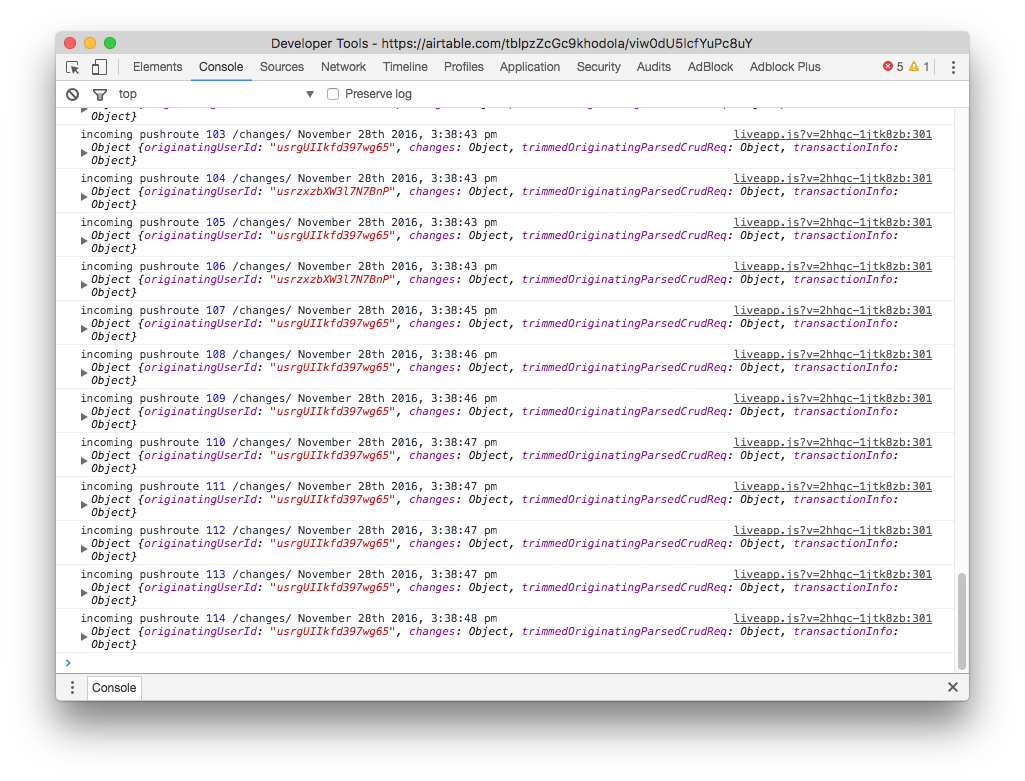
Use the keyboard shortcut Ctrl + Shift + J (Windows) or Cmd + Option + J (Mac), then go to the Console tab.
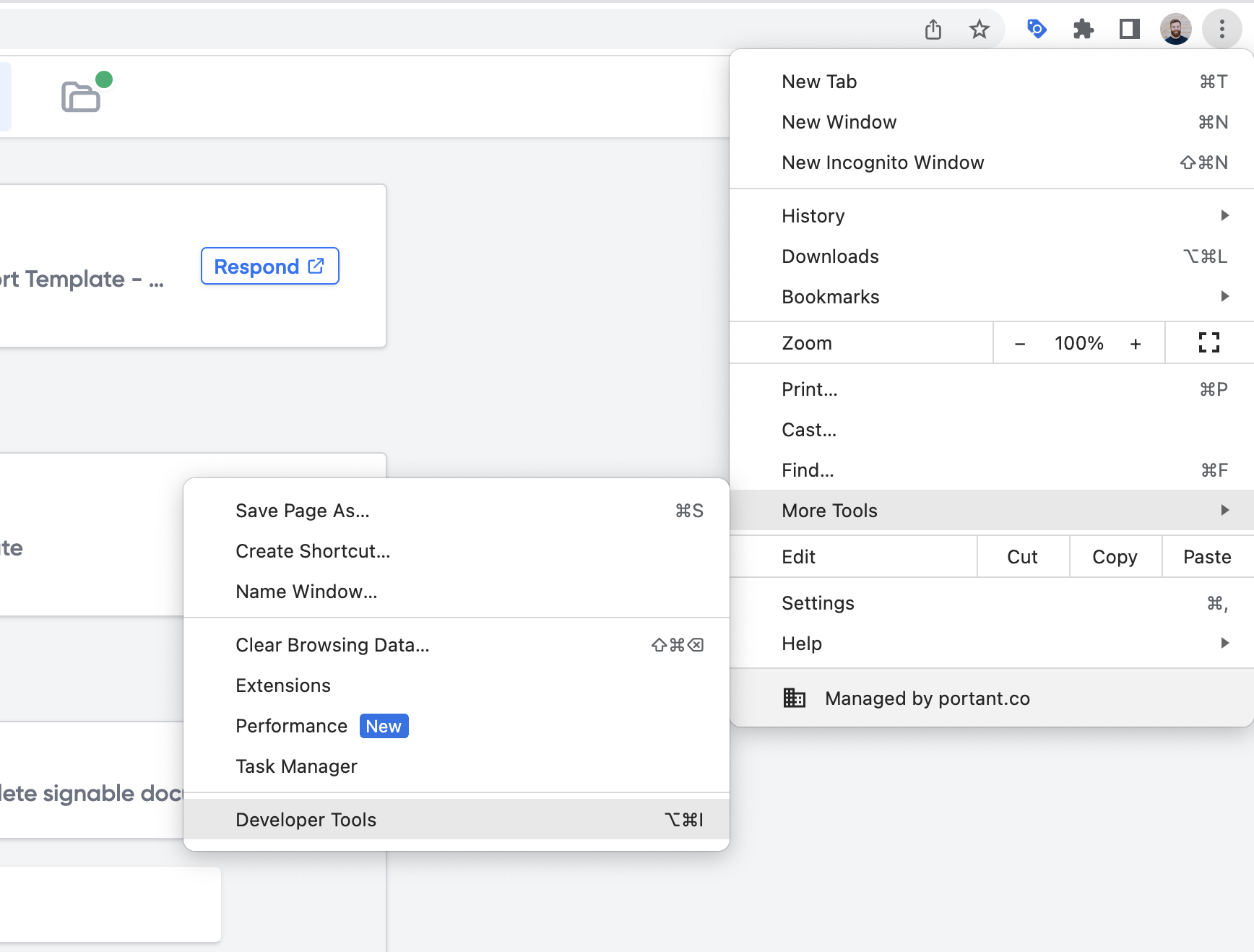
If you'd rather use the menu, open the Chrome menu, choose More Tools → Developer Tools, then switch to the Console tab.
Edge
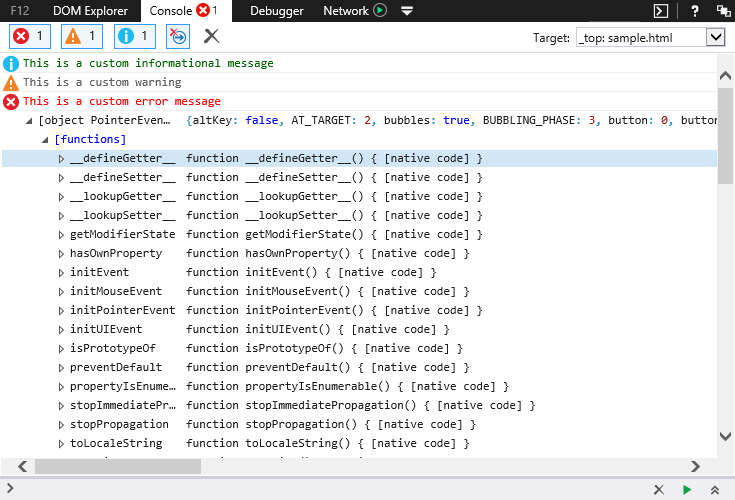
Press F12 to open the developer tools, then go to the Console tab.
Firefox
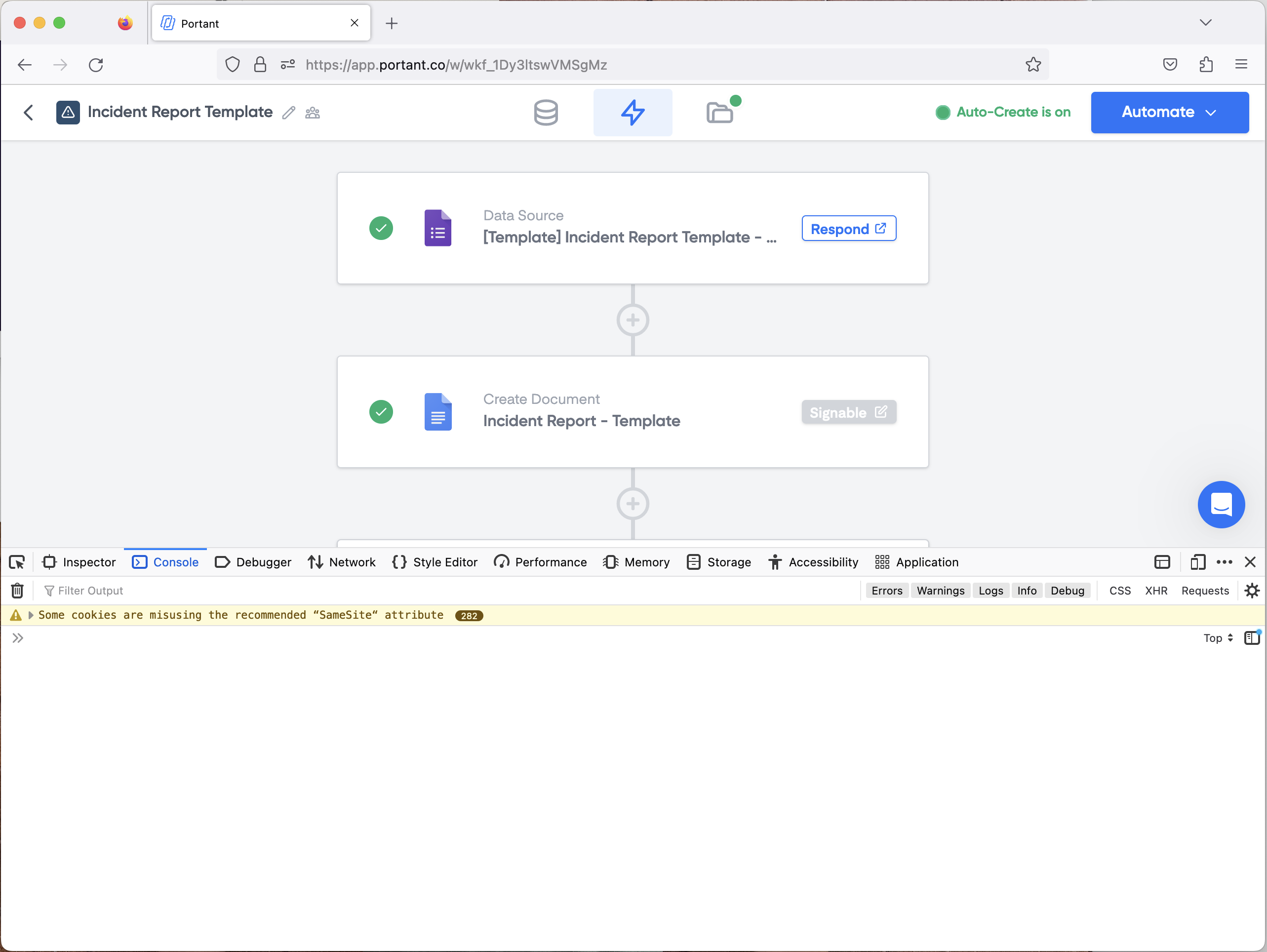
Use the keyboard shortcut Ctrl + Shift + I (Windows) or Cmd + Option + I (Mac). The developer toolbox opens at the bottom of the window with the Web Console active.
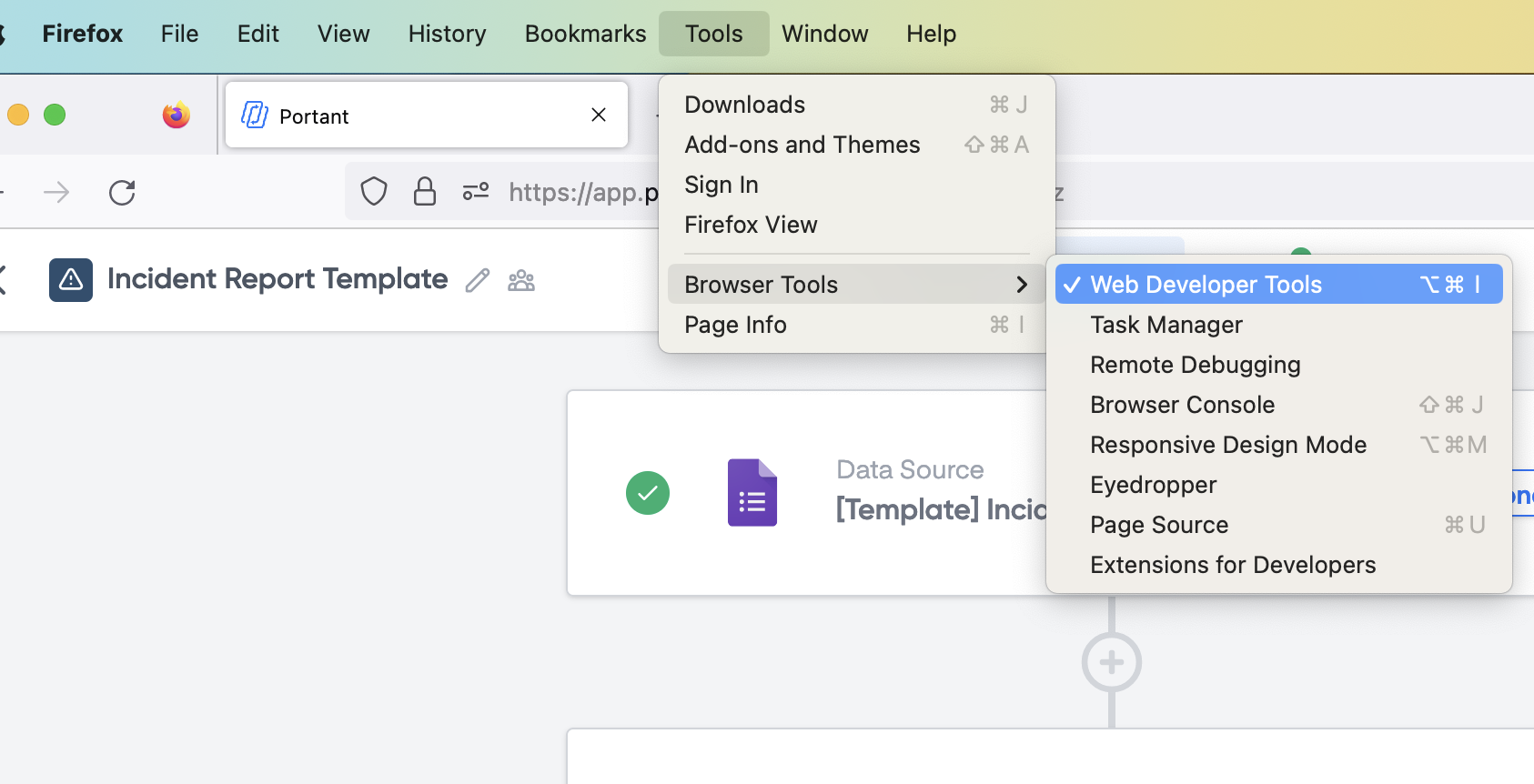
You can also open it from the menu: Tools → Browser Tools → Web Developer Tools.
Safari
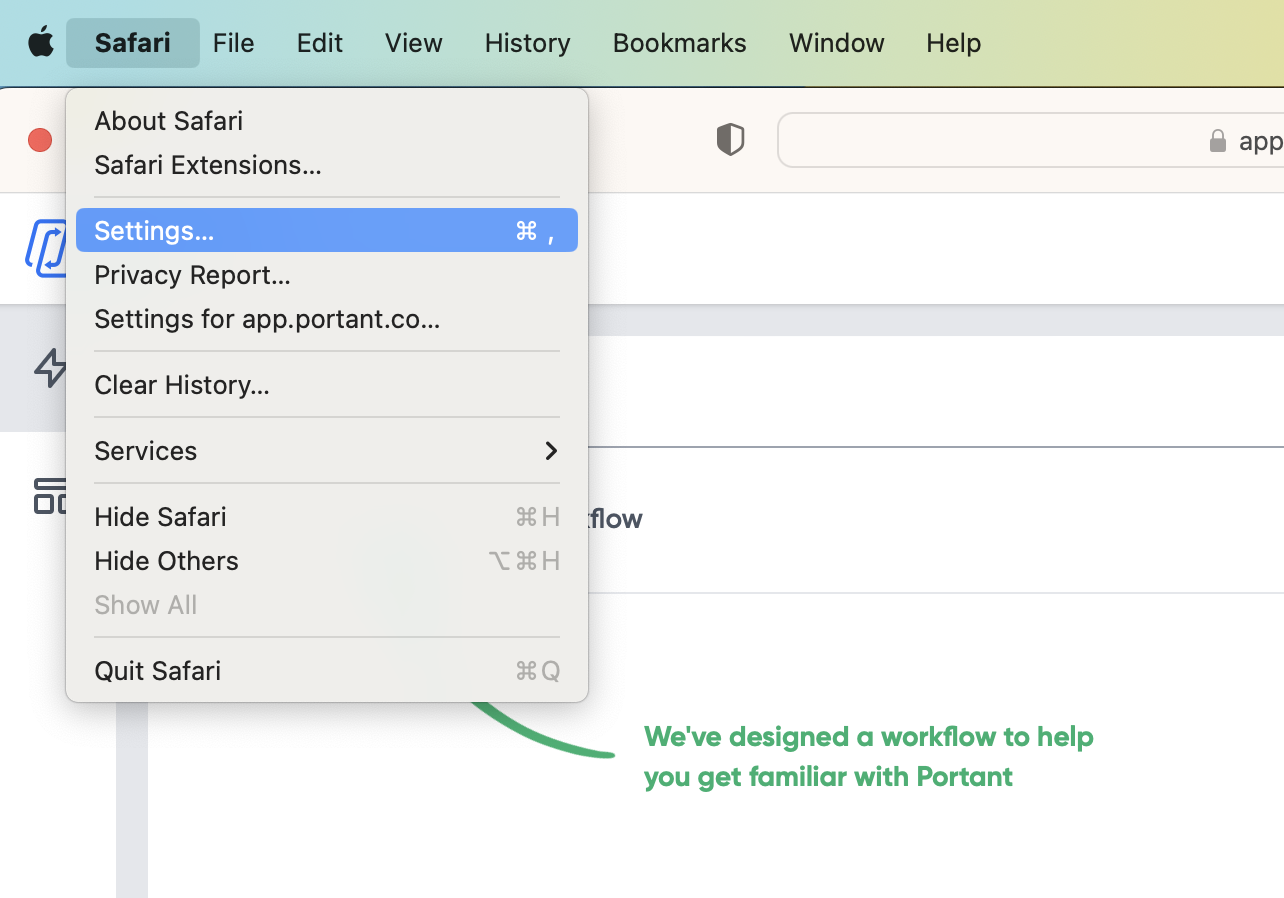
Safari hides the Develop menu by default, so turn it on first. Open the Safari menu in the Mac menu bar and choose Settings.
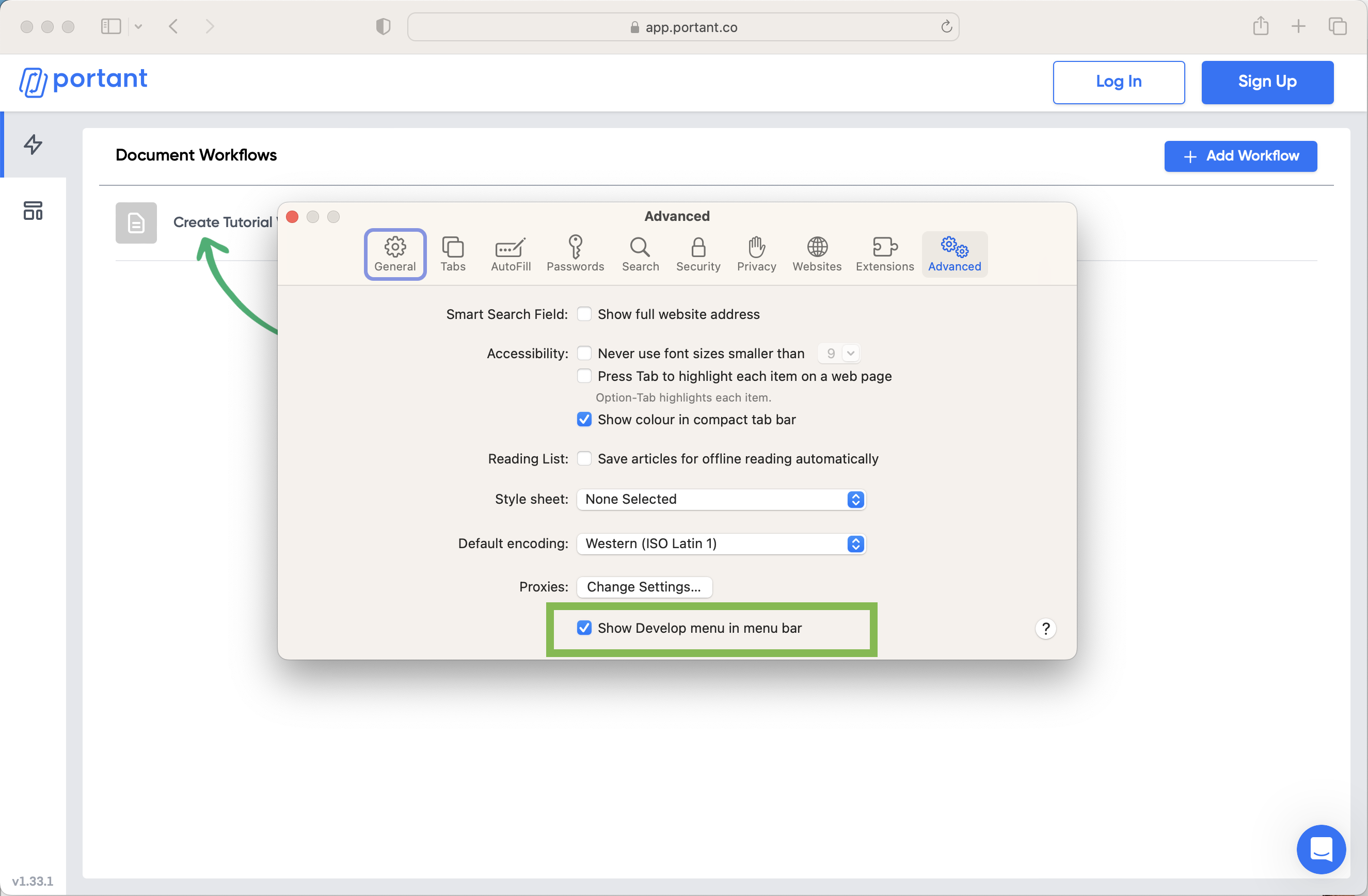
Go to the Advanced tab and tick Show Develop menu in the menu bar.
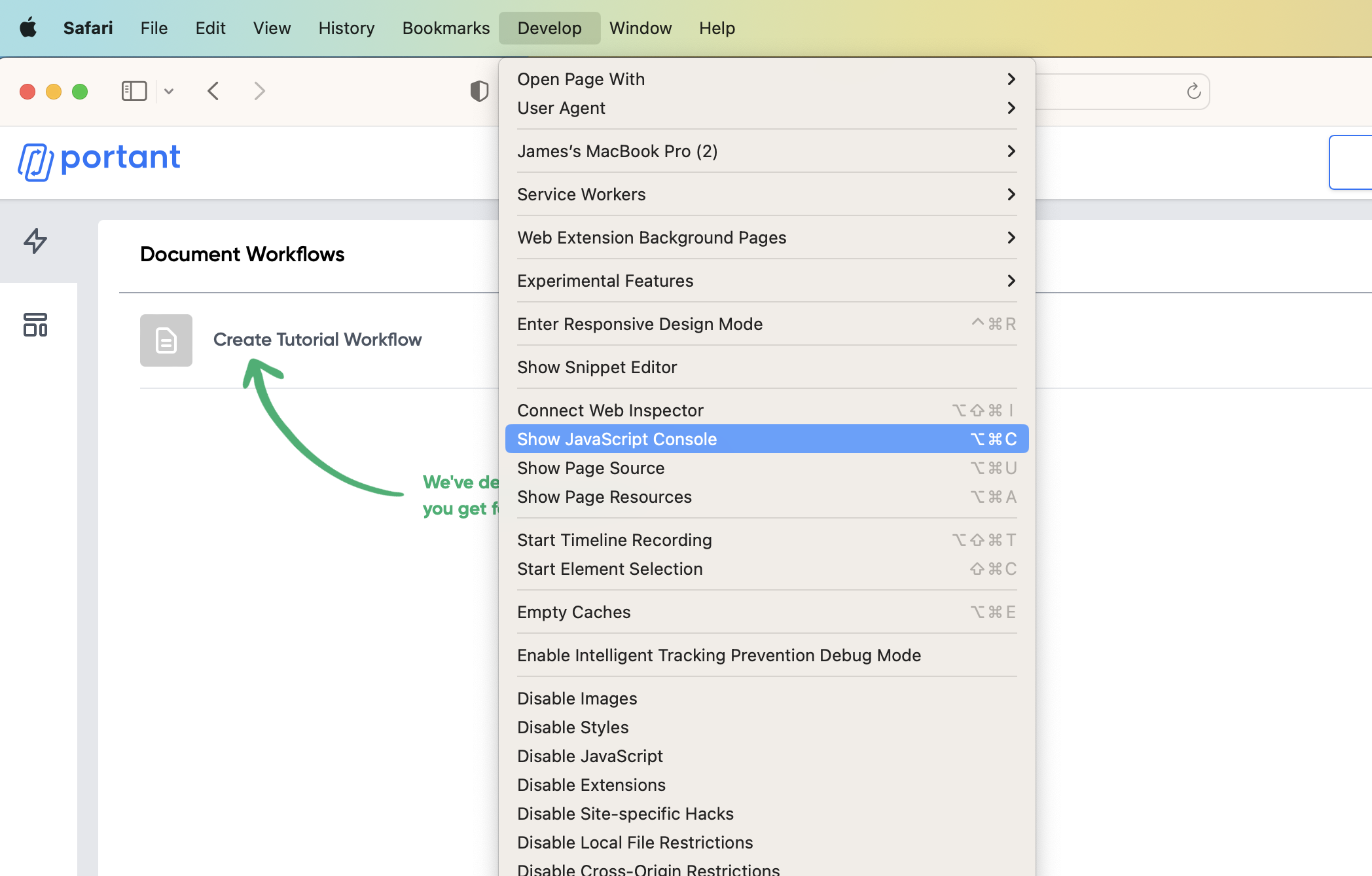
With the Develop menu enabled, open it from the Mac menu bar and choose Show JavaScript Console.
The console appears in the bottom half of the browser window.
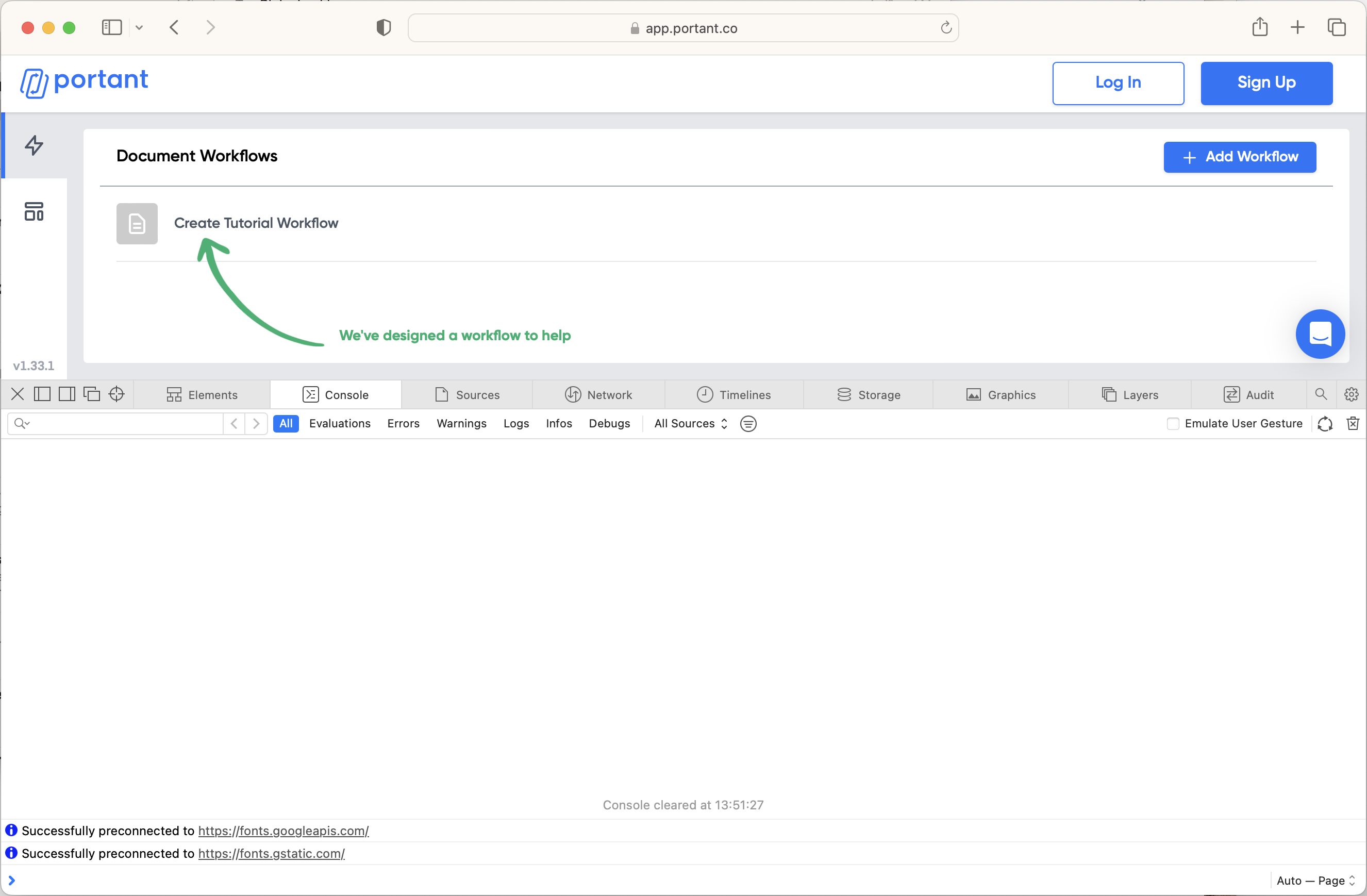
Once the Develop menu is enabled, you can also use the shortcut Option + Command + C.