
Auto-file output files
Sort generated documents into folders automatically, using values from your source. For example, you can have Portant create one folder per customer and drop each new document into the right one when the workflow runs.
Build folders from tags
If you haven't built a workflow yet, start with How to create your first workflow, then come back here.
Open your workflow and go to the Outputs tab.
Click Save to Google Drive.
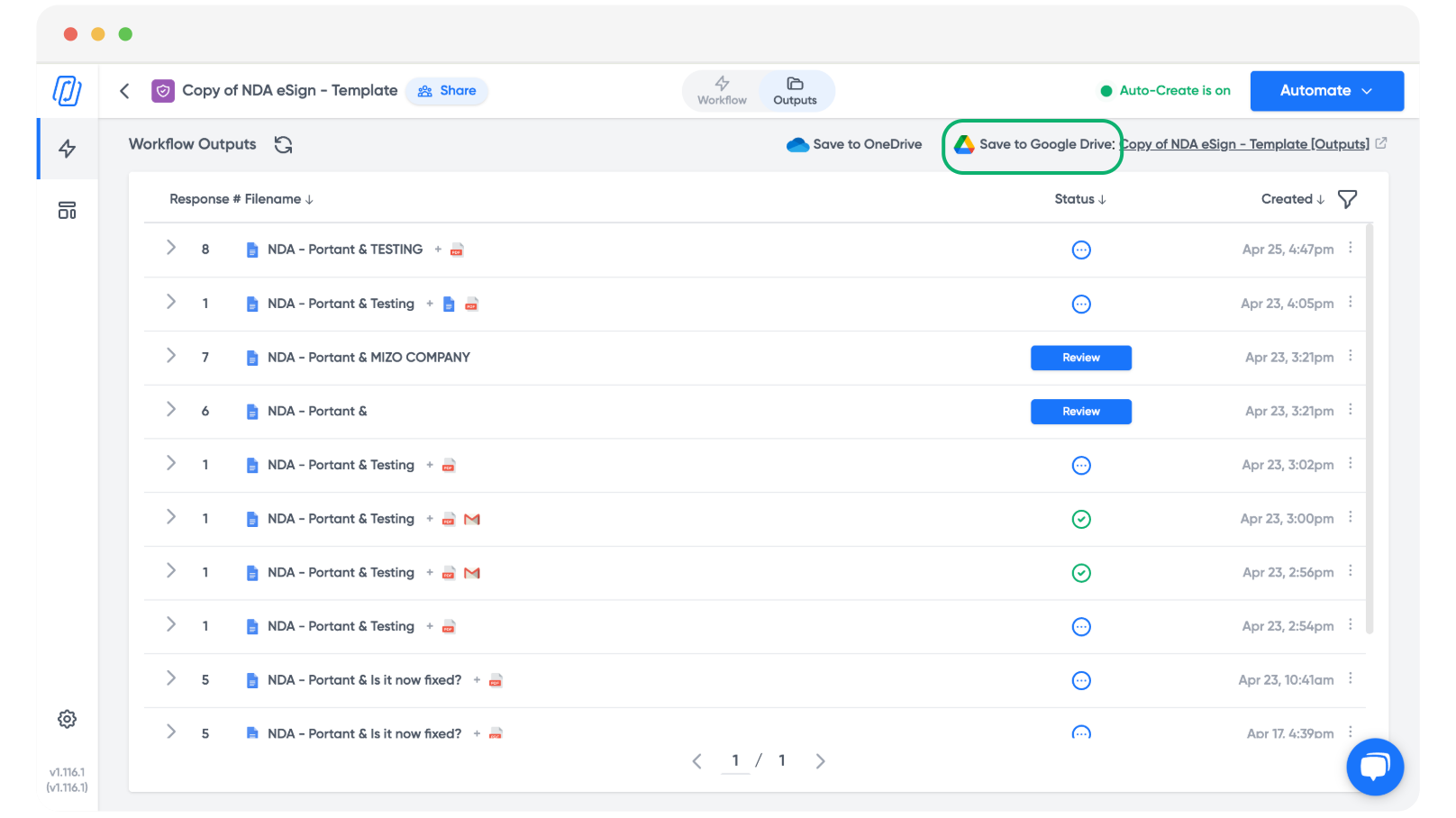
Click Change Folder and pick the parent folder where outputs should live.
Choose the folder you want.
Note: If a single folder is enough, you can stop here.
In the Custom Folders section, use the blue tag button to insert tags from your source. Separate folder layers with a forward slash (
/).In the example below, one tag creates a folder per company, and a second tag creates a folder per employee inside it.
Note: Folder names don't have to be tags. You can type plain text, or mix tags and text.
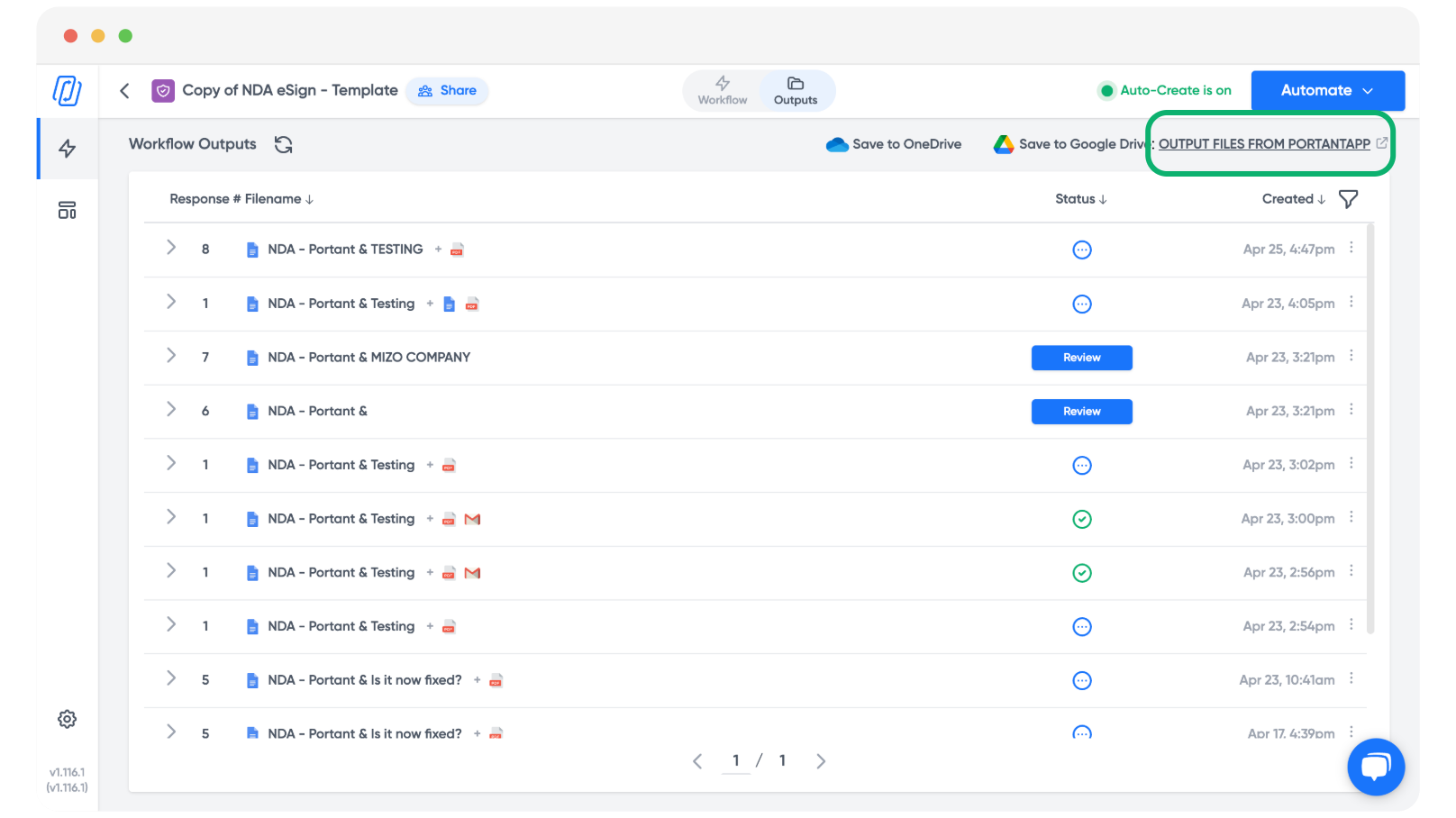
Click Save. The folder path appears on each row in the Outputs tab.
What happens on re-runs
If a folder with the same name already exists from a previous run, Portant will use that folder instead of creating a new one. So if "Acme/John Smith" already exists, the next "Acme / John Smith" output is filed into it.
Related
- Change the output folder to set the parent folder.
- Customise output file names to name the files inside those folders.
- Tags overview for what you can use inside the folder path.