
Quote template
Quote Template Google Docs
Use our Google Doc Quote Template to customize and streamline your process with accurate, professional price quotes.

Trusted by teams at










Google Docs Quote Template
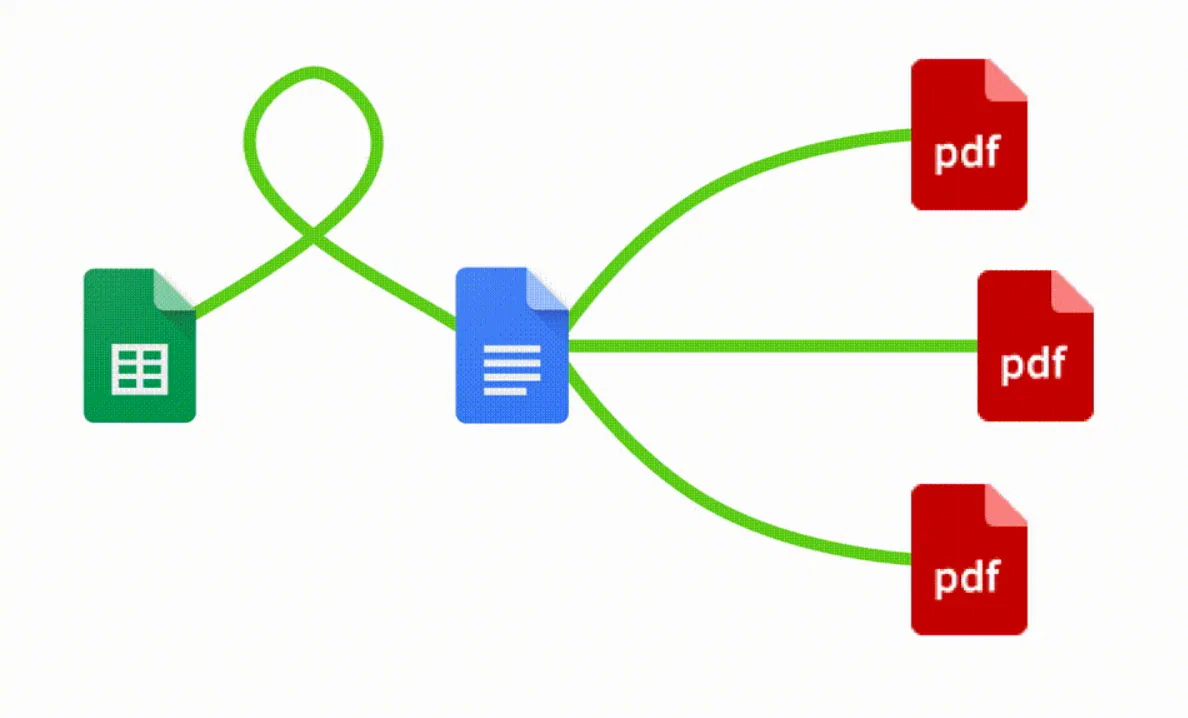
You can create the template for quote of job automatically from Google Sheets in a few easy steps. It’s simple to use Portant as a free Google Sheets quote template, which includes various elements like your company logo, unique quote number, quote date, and customer contact information. After opening Portant Workflow, select your Google Sheet, then connect a Google Docs quote template, and customize your contract quote template with column tags. Attach it to an email, and finally click ‘Start automation.’ Voila! You’ve automated your quotes from Google Sheets!
We understand how time-consuming it is to manually copy and paste data into quotation templates, double-check all the details for accuracy, and then convert them into a PDF to send. That’s why we’ve made it easier.
With Portant, you can connect a Google Sheet to a quotation template, click a few buttons, and have your freelance quotes automatically generated and sent. You can even customize who the email is sent from (e.g., accounts@portant.co) and include any specific instructions for your potential customers. The best part? You can set your self-employed quote process on autopilot, and ensure that every customer receives their quote in a timely and professional manner.
How to automate your Google Docs quotation template

Step 1
Open Sheet
Select the Google Sheet you want to use as the data source for your quotes. Portant connects directly to your spreadsheet to pull in the data it needs.

Step 2
Connect Template
Connect your Google Docs, Slides, or Sheets quote template. Portant will link it to your spreadsheet data source so it knows which fields to merge.

Step 3
Customize
Customize your quote with merge tags like {{Contact Name}}, {{Line Items}}, and {{Total}}. Format it with your branding, colours, and layout.

Step 4
Create
Create quotes automatically when new rows are added to your sheet, or generate them manually in batches. Send via email or save to Google Drive.
How to automate your Google Docs quotes with a template
Step 1
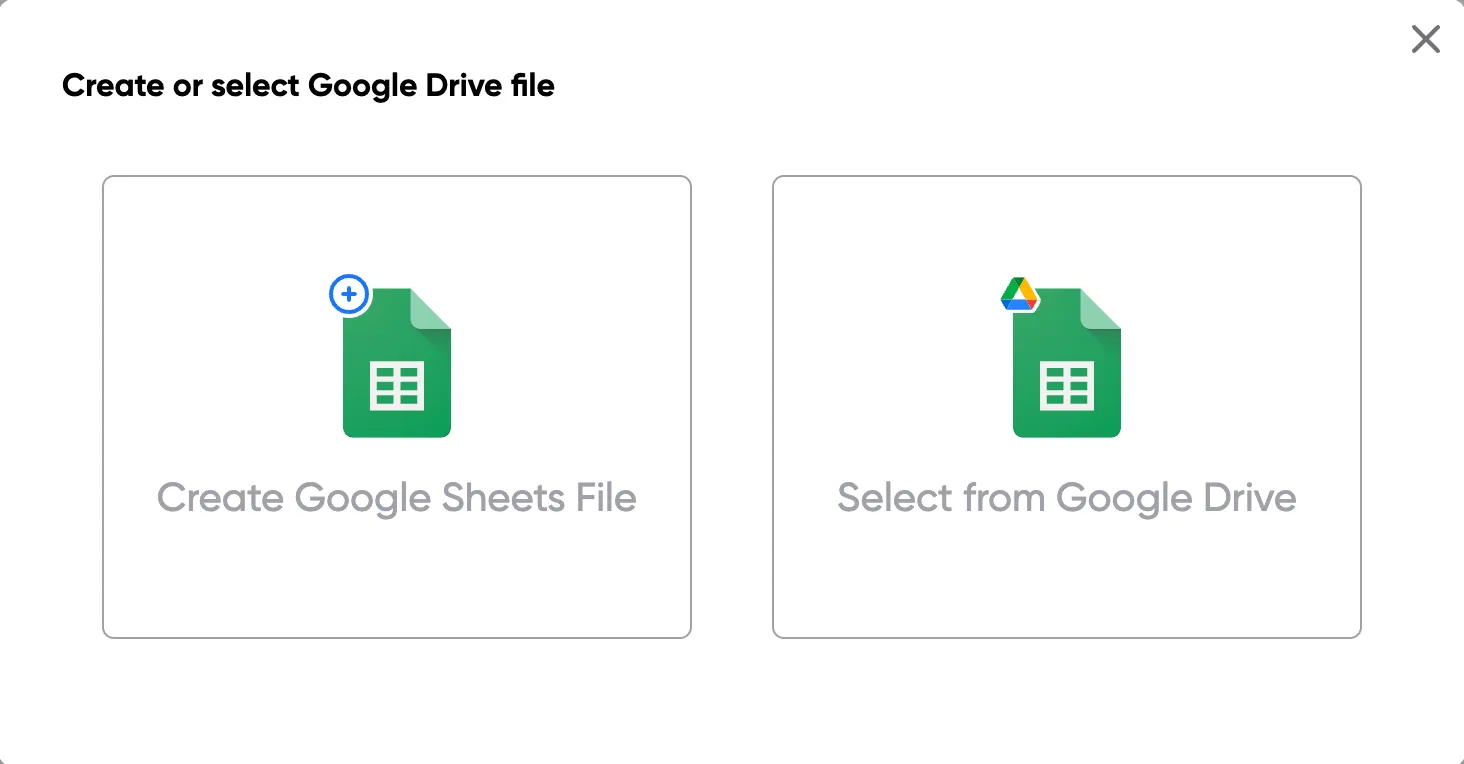
Step 1: Open a Google Sheet
Open a Google Sheet that contains the data for your quotes. This could include customer details, product names, quantities, pricing, and discount information. Create a new sheet if you don't have one yet.
Step 2
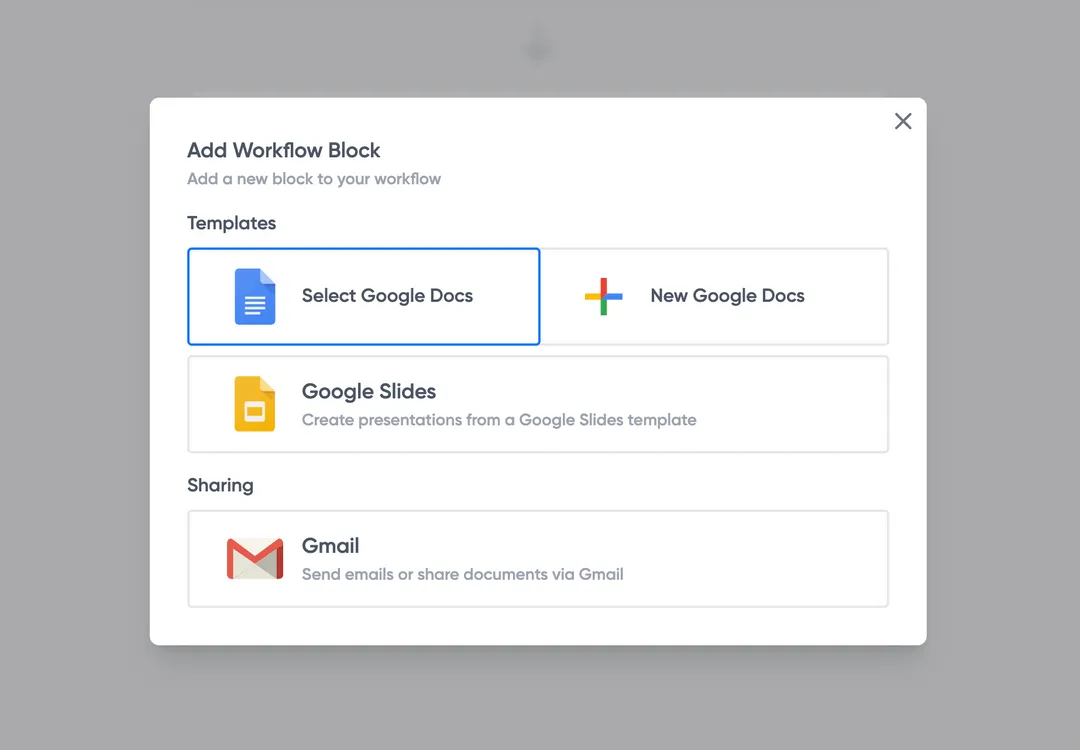
Step 2: Connect your quote template
Open the Portant add-on and connect your Google Docs or Slides quote template. Portant will scan for merge tags and match them to your sheet columns automatically.
Step 3
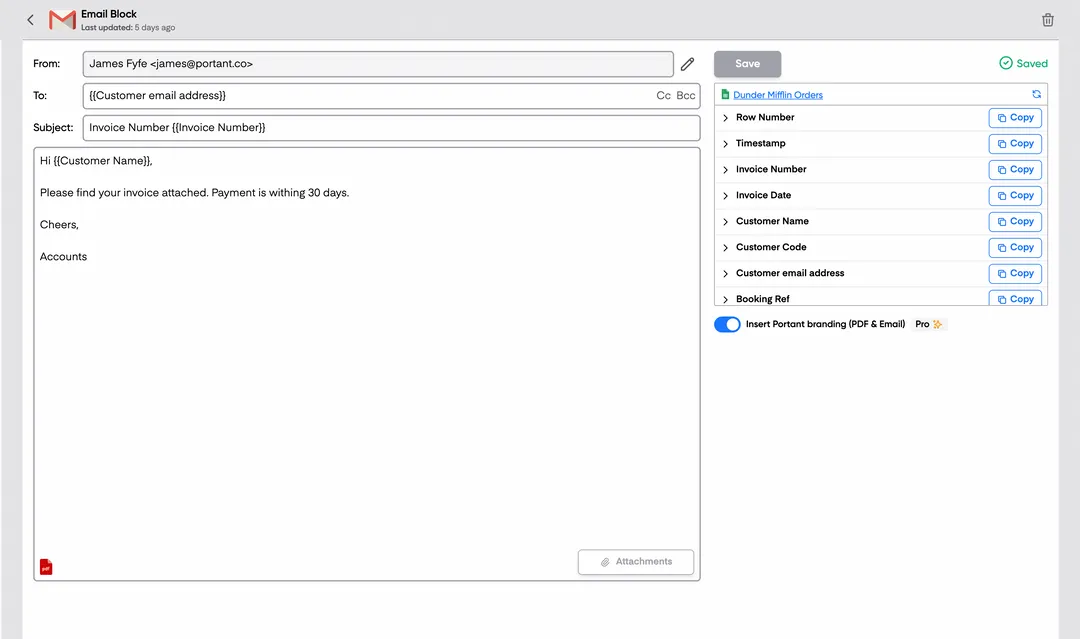
Step 3: Customize your output
Choose how your quotes are delivered. Send them directly to customers via email, save as PDFs to Google Drive, or both. Add merge tags to the email subject and body for a personal touch.
Step 4
Step 4: Automate your quotes
Turn on auto-create to generate quotes every time a new row is added. Run the workflow manually for batch processing, or schedule it to run at specific intervals.
Eliminate unnecessary manual work
Stop spending hours copying and pasting data from spreadsheets into documents. Portant automates the entire process, pulling data directly from your source and generating completed documents in seconds. Focus on the work that matters, not repetitive formatting tasks.
Make your documents more accurate
Manual document creation leads to errors, from wrong names to outdated figures. Portant maps data fields directly to your template, eliminating typos and ensuring every document is accurate and consistent. Your team sends fewer corrections and your clients get the right information every time.
Built into Google Workspace
Portant works natively with Google Docs, Sheets, Slides, and Gmail. There is no new interface to learn, no data to export, and no switching between tools. Your team stays in the apps they already use while Portant handles the document generation in the background.
What teams say about Portant
“Portant has been a game-changer for Clipboard! It's saved our sales team countless hours every week by generating order forms, proposals and contracts with info from HubSpot automatically filled in.”
“This product is a gamechanger for all of those painful manual document merges. Love what you and the team have built!”
“This software brilliantly takes over the tedious process of creating and sending invoices. This not only saves time but massively reduces errors of data entry.”
“Love this product. Have been using it for over a year and the integration to Google Workspace is awesome. Lots of credit for listening to your users!”
“Truly a gamechanger! Portant streamlines these tasks and allows me to focus on the things that require my attention and problem-solving!”
“Portant has been a game-changer for Clipboard! It's saved our sales team countless hours every week by generating order forms, proposals and contracts with info from HubSpot automatically filled in.”
“This product is a gamechanger for all of those painful manual document merges. Love what you and the team have built!”
“This software brilliantly takes over the tedious process of creating and sending invoices. This not only saves time but massively reduces errors of data entry.”
“Love this product. Have been using it for over a year and the integration to Google Workspace is awesome. Lots of credit for listening to your users!”
“Truly a gamechanger! Portant streamlines these tasks and allows me to focus on the things that require my attention and problem-solving!”
Frequently asked questions
To create a quote using a Google Docs quote template, select one from the available quotation templates or other Google Docs templates, like a free quote template. Customize the template by adding your company logo, address, client information, services, products, and their respective prices. Ensure all company and client details, as well as pricing, are accurate. Once completed, save the quotation template and share it with your client. You can also convert this quotation into a price quote or an invoice if needed.
Using Google Docs templates for quotes provides businesses with the ability to create professional, polished price quotes quickly. It is easy to select a free quote template and modify it to fit your business’s needs, ensuring all products, services, and agreed upon prices are correctly reflected. You can upload your logo, customize terms, and modify the design to create identical quotes for multiple clients. Google Docs and free quote templates also allow for collaboration with clients or team members.
Yes, Google Docs quote templates are fully customizable. You can modify fonts, colors, and layouts to fit your company’s branding, as well as insert your company logo to maintain professionalism in the price quote template. Additionally, you can add detailed information such as agreed upon pricing, fixed prices for services or products, and specific terms. Tailor the template to ensure your price quotes, quotation templates, and other free templates reflect your company's image and professionalism.
Google Docs does not provide built-in automation for price quotes, but integrating Google Docs with Google Sheets allows for some automation in creating quotes and invoices. For example, you can calculate totals, agreed upon prices, and tax rates automatically by linking a price quote template to a Google Sheet. This makes generating free price quotes easier and faster while ensuring accuracy.
To ensure accuracy in a quote, always double-check the data, especially pricing, quantities, and agreed upon terms. Google Sheets can help automate calculations for totals, fixed prices, and taxes, ensuring there are no manual errors. Make sure to review client and company details and use quotation templates that are tailored to your business. Also, the Google Docs template should be updated regularly to reflect any new services, products, or pricing terms your business provides.
Google Docs offers a range of benefits for creating price quotes. It is cloud-based, making collaboration with clients and team members easy, and free templates are available to download or customize as needed. Additionally, Google Docs integrates seamlessly with Google Sheets, allowing for automated calculation of prices, taxes, and other details, reducing manual entry errors in quotation templates. The flexibility and cost-effectiveness of Google Docs make it ideal for service-based businesses, freelancers, and SMEs.
Yes, once a quote is accepted, you can easily convert it into an invoice by duplicating the document and adding the necessary modifications. This includes changing the title to "Invoice," adding an invoice number, and inputting payment details such as the due date. If you use a price quote template in Google Docs, you can maintain consistency between quotes and invoices by following a similar format for both.
Service-based businesses, small businesses, freelancers, and companies with a high volume of clients benefit most from using Google Docs quote templates. These templates allow businesses to generate professional price quotes, product estimates, and service quotes efficiently. Google Docs templates are especially useful for companies that provide services, goods, or customized pricing solutions, as they allow businesses to adjust terms and pricing for each customer or quote.
Google Docs does not have a specific built-in quote template, but it offers features that allow users to create and customize their own quote documents. Here's how you can create a quote template in Google Docs:
- Start with a Blank Document:
- Open Google Docs and create a new document.
- Insert a Table for Structured Data:
- Use a table to organize client information, date, quote number, and itemized list of goods/services. This ensures a clean and professional layout.
- Add Headers and Footers:
- Include your company name, logo, and contact details in the header.
- Use the footer for additional contact details or legal disclaimers.
- Utilize Styling Tools:
- Use Google Docs’ styling tools to format your text. Bold can be used for headings, and different font sizes can be applied to distinguish sections.
- Use Google Sheets for Calculations:
- If you need to include calculations, such as total costs or taxes, consider doing this in Google Sheets first and then inserting the table into your Google Docs document.
- Insert and Customize Content:
- Add relevant details, such as the client’s name and address, a description of the product/service, terms and conditions, and expiration date of the quote.
- Save as a Template:
- Save the document as a template by creating a copy for each new quote you prepare to preserve the original format.
For users interested in more specific quote formats, Google Docs users often look for third-party templates or downloadable templates that can be customized to fit their needs. Templates like “price quote template google docs,” “construction quote template google docs,” or “sales quote template google docs” can be created by following similar customization steps within Google Docs. Additionally, exploring Google Sheets and Google Forms could offer more dynamic quote or invoice solutions for those requiring interactive elements.
A receipt and an invoice are distinct documents with different purposes, and one cannot simply replace the other. Here's a breakdown of their differences and why a receipt cannot replace an invoice:
1. Purpose:
- Invoice: An invoice is a formal request for payment. It is issued by the seller (landlord, in the case of rental properties) to the buyer (tenant) before the payment is made. It lists the goods or services provided, their quantities, and prices, along with any applicable taxes or fees. Invoices serve as a billing statement for the services or products rendered.
- Receipt: A receipt is proof of payment. It is issued after the payment has been made. It confirms that the buyer has paid for the goods or services and lists the amount paid, date, and other pertinent payment details.
2. Timing:
- Invoice: Sent before payment as a request for payment.
- Receipt: Provided after payment as proof of the transaction.
3. Content:
- Invoice: Typically includes an itemized list of services or products, terms of payment (due date, methods of payment), and may include invoice numbers for record-keeping.
- Receipt: Includes details such as the date of payment, amount paid, payment method, receipt number, and a brief description of goods or services received.
4. Legal and Accounting Use:
- Invoice: Used for accounts receivable purposes and needed for accounting records to track pending payments and manage cash flow.
- Receipt: Used for accounts payable to acknowledge that the payment obligation has been settled. Often required for tax documentation as evidence of expenses incurred.
5. Example:
- If a landlord issues a rental invoice template, it serves as a request for the tenant to pay the upcoming rent. Once the tenant pays, the landlord would issue a receipt to confirm that the rent payment has been received.
While both documents are crucial in financial transactions, they serve different roles and are not interchangeable. An invoice facilitates a transaction by requesting payment, while a receipt confirms its completion.
To get a quotation template, particularly using Google Docs or Google Sheets, follow these steps:
- Google Docs Template Gallery:
- Open Google Docs.
- Click on the "Template Gallery" at the top right corner.
- Browse through available templates for a quotation or business-related template.
- If you don’t find a suitable template, consider creating your own by selecting a blank document and formatting it according to your needs. Use headings, tables, and formatted text to define sections like client details, services, pricing, etc.
- Google Sheets Template Gallery:
- Open Google Sheets.
- Click on "Template Gallery" to check for quotation templates.
- Google Sheets may have specific templates for quotations, invoices, or pricing models that you can use.
- Create Your Own Template:
- Open a new document or sheet.
- Structure your template with sections for items/services, pricing, client information, and terms & conditions.
- Format the document for easy input areas, such as tables for line items and prices.
- Save it as a template for future use by naming it clearly and sharing with appropriate permissions if needed.
- Use a Pre-made Template:
- Search for "price quote template Google Docs" or "business quote template Google Docs" in the Google search bar or respective app's search feature.
- Select a fitting template, open it, and customize the information fields according to your business requirements.
- Customization and Efficiency Tools:
- Enable "Smart Quotes" for better formatting.
- Consider adding features such as drop-down selections or pre-set calculations in Google Sheets for dynamic pricing or discounts.
- Downloadable Templates:
- Several online resources offer free downloadable quote templates for Google Docs or Sheets. Download a template, upload it to your Google Drive, and customize it.
- Organization and Storage:
- Create a folder in Google Drive titled "Quote Templates" to organize all your templates and ensure easy access.
By following these steps, you can efficiently source or create a quotation template that fits your professional needs using Google Docs or Sheets.
To make quotes look good in Google Docs:
1. Block Quote Formatting:
- Select the text you want to format as a block quote.
- Go to the toolbar and click on the "Increase indent" icon. This will create a left-indented block of text.
- Optionally, reduce the font size and adjust line spacing for a more distinct appearance.
2. Smart Quotes:
- Check that your document uses smart quotes instead of straight quotes for a more polished look.
- Go to "Tools" > "Preferences" and ensure "Automatically use smart quotes" is checked.
3. Styling and Customization:
- Change the text style by selecting the quote and using the toolbar to customize font type, size, color, or bold/italicize the text.
- Add a subtle background color to the block quote using the "Highlight color" option in the toolbar for emphasis.
4. Using Templates:
- Use a pre-made Google Docs quote template, if available, to ensure consistency in design and format across documents.
5. Pull Quotes:
- For emphasis, create pull quotes by copying the key part of the quote, increasing the font size, and placing it somewhere prominent in the document.
6. Citation Formatting:
- Use consistent citation styles such as MLA or APA. Google Docs offers built-in options to format citations under the "Tools" > "Citations".
7. Headers and Footers for Quotes:
- Use headers or footers to style or cite lengthy quotes that need to be repeated on multiple pages for cohesion.
8. Use Add-ons:
- Consider using Google Docs add-ons for additional formatting options that are specific to quotes and citations.
Enhancing the appearance of quotes can make them stand out and add to the overall professionalism of your document in Google Docs.
A rent statement and a rent invoice serve distinct purposes in property management and rental transactions:
- Rent Invoice:
- A rent invoice is a formal document prepared by the landlord or property manager and issued to the tenant.
- It serves as a request for payment for rental services, detailing the amount due, the due date, and the period the invoice covers.
- It may include additional costs such as utilities, maintenance charges, or late fees if applicable.
- Rent invoices help formalize the payment process and provide documentation for both the tenant and landlord.
- Rent Statement:
- A rent statement is an account summary provided to tenants that outlines their payment history, including past payments made, payments due, and any outstanding balances.
- It usually covers a longer period than an invoice, allowing tenants to track their payment history over time.
- Rent statements typically include detailed information about any adjustments, credits, or additional charges applied to the tenant's account.
- They offer transparency and help tenants keep track of their financial obligations related to renting the property.
In summary, a rent invoice is primarily a request for payment, while a rent statement provides a comprehensive history of rental payments and account activity. Both documents play vital roles in maintaining clear communication and financial clarity between landlords and tenants.
To get straight quotes in Google Docs, you'll need to disable the "smart quotes" feature, which automatically converts straight quotes to curly quotes. Follow these steps:
- Open your Google Docs document.
- Go to the "Tools" menu at the top of the page.
- Select "Preferences" from the dropdown menu.
- In the Preferences window, uncheck the box labeled "Use smart quotes."
- Click "OK" to save your changes.
Now, when you type quotation marks, they will remain as straight quotes. If you have existing curly quotes in your document, you'll need to replace them manually with straight quotes.
To indent a quotation in Google Docs:
1. Highlight the Text: Select the text that you want to format as a block quote.
2. Access the Ruler:
- If the ruler is not visible, go to the "View" menu and select "Show ruler".
3. Adjust the Indentation:
- On the ruler, you'll see two small blue markers: a rectangle for the left margin and a triangle for the first line indent.
- Drag the rectangle (left margin marker) to the right to increase the indentation of the entire selected text. For a typical block quote, a half-inch indent is standard.
4. Formatting Paragraph (Optional for finer control):
- Right-click on the highlighted text and choose "Paragraph styles" > "Normal Text".
- Select "Align & indent" > "Indentation options".
- In the "Left" field, enter a specific measurement (e.g., 0.5 inches).
- Click "Apply".
5. Adjust Line Spacing (Optional):
- While the text is selected, press the "Format" menu.
- Go to "Line spacing" and choose your desired spacing option to ensure the block quote stands out clearly.
This method efficiently creates a visually distinct block quote by manipulating Google Docs' native formatting tools.
To indent a long quotation in Google Docs, follow these steps:
1. Select the Quotation: Highlight the text that you want to format as a block quote.
2. Go to the Format Menu: Click on "Format" in the top menu.
3. Choose Align & Indent: From the dropdown menu, select "Align & Indent" and then click on "Indentation options."
4. Set Left Indentation: In the Indentation options dialog box, set the "Left" indentation to increase the margin for the highlighted text. A common setting is 0.5 inches or 1.27 cm, depending on your document's measurement system.
5. Apply the Change: Click "Apply" to implement the indent to the selected text.
Alternatively, you can use the ruler:
- Display the Ruler: Ensure your ruler is visible by clicking "View" and checking "Show ruler."
- Drag the Left Indent: Click and drag the blue rectangle on the ruler to the right to create the indent for the entire paragraph. The inverted triangle controls the first line's indent, but for a block quote, you'll want to move the rectangle to indent the entire paragraph evenly.
These steps will help you format a quotation as a block quote in your Google Docs.
To format a block quote in Google Docs, follow these steps:
- Select the Text:
- Highlight the text that you want to format as a block quote.
- Open the Format Menu:
- Go to the "Format" menu at the top of Google Docs.
- Indent the Text:
- Select "Align & Indent" from the dropdown menu.
- Choose "Indentation options."
- Under "Special," select "Hanging."
- Set the "Indentation" amount, typically 0.5 inches, for the left indent.
- Adjust Line Spacing (Optional):
- To make the block quote standout further, adjust the line spacing.
- Access "Line spacing" under the "Format" menu.
- Select "Custom spacing" and adjust the values as desired.
- Change Text Styling (Optional):
- You can italicize or change the font style of the block quote text for emphasis.
- Use the toolbar options to change the text formatting as needed.
- Additional Formatting (Optional):
- Consider adding a different font color or background color to the block quote for additional emphasis if suitable for your document style.
These steps will help you properly format a block quote in Google Docs, ensuring it is visually distinct and in line with traditional block quote formatting.
Proforma invoices are not illegal. They are a legitimate and commonly used financial document in both national and international trade. A proforma invoice serves several purposes:
- Preliminary Invoice: It provides a preliminary bill of sale sent to buyers in advance of a shipment or delivery of goods. This is helpful for informing the buyer of the goods to be received, the costs involved, and the terms of the transaction.
- Cost Estimate: A proforma invoice is often used to declare the value of the trade for customs purposes or to offer an estimate to a buyer from the seller.
- Non-Binding: It is non-binding and does not legally require the buyer to make payment unless they decide to follow through with the purchase after receiving the actual commercial invoice.
- Clarity in Trade: Proforma invoices help eliminate misunderstandings in transactions by clearly outlining what will be delivered and at what price.
Using proforma invoices complies with international trade standards, and they are accepted and recognized worldwide in various industries. However, it's important to note that a proforma invoice should include relevant details such as item descriptions, quantities, prices, and terms and conditions to ensure complete and accurate communication between the seller and buyer.
To indent the second line of a citation in Google Docs, you can create a hanging indent by following these steps:
- Highlight the citation text that you want to format.
- Click on "Format" in the top menu.
- Select "Align & indent" from the dropdown menu.
- Click on "Indentation options..."
- In the dialog box that appears, choose "Hanging" from the "Special" dropdown menu under "Indentation."
- Set the desired indentation size (commonly 0.5 inches) in the box next to "By."
- Click "Apply" to format the citation with a hanging indent.
The second line and any subsequent lines in the citation will now be indented, creating a hanging indent effect.
To format a quote longer than 4 lines in Google Docs, you can create a block quote. Here's how to do it:
1. Select the Text: Highlight the text that you want to format as a block quote.
2. Access the Toolbar: Go to the toolbar at the top of the page.
3. Increase Indentation:
- Click on the "Increase indent" button. This icon usually looks like a right-facing arrow or lines with an arrow, found in the toolbar. This will shift the text to the right, indicating a block quote.
4. Adjust Line Spacing (Optional):
- For a distinct block quote appearance, consider adjusting the line spacing. Go to "Format" in the main menu, then "Line & paragraph spacing," and choose the desired spacing.
5. Change Text Style (Optional):
- You can also italicize the block quote to make it stand out. Highlight the text, then click on the "Italics" button in the toolbar or press Ctrl + I (Windows) or Cmd + I (Mac).
Following these steps will help you format a quote longer than 4 lines by creating a visually distinct block quote in Google Docs.
To quote multiple lines of dialogue, follow these guidelines:
1. Use Block Quotations: Typically, when quoting dialogue from multiple speakers or a long passage, it is formatted as a block quote. In Google Docs, you can start a block quote by selecting the text, clicking on "Format" in the menu, then "Align & indent," and choosing "Increase indent." However, it’s important to keep each change in speaker on a new line, as would appear in the original text.
2. Indentation: Begin each line of the dialogue with a half-inch indentation from the left margin. This can be done by using the tab key or by setting a hanging indent for the paragraph if using word-processing software like Google Docs.
3. Speaker Tag/Attribution: If there are multiple speakers, ensure that each speaker's dialogue begins with the speaker tag or name. This can be formatted as "[Name]: [Dialogue]".
4. Punctuation: Maintain the punctuation and capitalization as in the original text. If the dialogue is part of a larger sentence or paragraph, do not add extra punctuation.
5. Quote Marks: Start each speaker's line with a quotation mark if it is necessary as per the context (e.g., within-text dialogues). However, block quotes generally do not require additional quotation marks around the block itself.
6. Contextual Notes: If needed, add a short introductory sentence to explain the context before starting the block quote.
By following these steps, you can accurately and clearly quote multiple lines of dialogue in your document.
To insert straight quotes in Google Docs, follow these steps:
- Open a Google Docs document.
- Click on "Tools" in the top menu.
- Select "Preferences" from the dropdown menu.
- In the Preferences window, uncheck the box labeled "Use smart quotes" to disable smart quotes and enable straight quotes.
- Click "OK" to save the changes.
Now, when you type quotes in your Google Docs document, they will appear as straight quotes.
To indent in Google Docs, follow these steps:
- Place the cursor at the beginning of the line or paragraph where you want to create the indent.
- Go to the top menu and click on "Format."
- From the drop-down options, select "Align & indent."
- Then, click on "Indentation options."
- In the "Indentation options" dialog box, you can adjust the indentation settings:
- For a left indent, enter the desired measurement in the "Left" box.
- For a first line indent, enter the desired measurement in the "First line" box.
- Click "Apply" to set the indentation.
Additionally, for quick indents:
- Use the "Tab" key to create a first-line indent at the start of a paragraph.
- To indent a whole paragraph, select the text and press the "Tab" key.
- For hanging indents, after creating the first-line indent, move the top marker on the ruler at the top of the document to where you want the hanging indent to begin.
Explore related templates
Design Quote Template
Copy our Design Quote Template, automate your quotes process, and create professional quotes using customizable templates.
View template Quote templatePrice Quote Template
Copy our Price Quote Template, automate your quotes with customizable templates like a service or business quote template, and create professional, accurate quotes quickly.
View template Quote templateQuote Invoice Template
Copy our Quote Invoice Template, automate your quoting process, and create professional quotes with customizable templates, including options for pricing, business logos, and service details.
View template Quote templateWord Quote Template
Connect your Word to a customizable quote template to streamline your quotation process, easily add client details, unit prices, and service quotes, and generate professional quotes effortlessly.
View template Quote templateExcel Quote Template
Connect your Microsoft Excel to a customizable quote template or price quote template and streamline your sales quote or service quote process effortlessly for small businesses and specific clients.
View template Quote templateGoogle Sheets Quote Template
Connect Google Sheets to a customizable quotation template and streamline your price quote process, ensuring accurate costs and service details for clients.
View template Quote templateSales Quote Template
Copy our Sales Quote Template, automate your quotes process, and create professional quotes using customizable templates.
View template Quote templateIndependent Contractor Quote Template
Download our Independent Contractor Quote Template to streamline your invoicing process. Create professional quotes, add material costs and labor costs, and ensure accuracy with every quote total.
View template Quote templateRental Quote Template
Copy our customizable rental quotation template to streamline your billing process, track rent payments, and automate your rental quotations for your rental business. Easily manage vehicle rentals, lease rental quotations, and more with our professional template.
View template Quote templateProforma Quote Template
Copy our Proforma Quote Template to create professional quotations easily. Automate your quote process using Google Sheets or Google Docs for a streamlined, customizable experience.
View template Quote templateBusiness Quote Template
Copy our free business quote template and easily automate your quoting process. Customize your professional quotes in pdf format using google sheets or excel templates, and streamline your workflow for faster, more accurate price quotes.
View template Quote templateConsulting Quote Template
Copy our consulting quote template and automate your consulting business invoice process with ease. Customize consultant quotations, streamline services, and manage clients more efficiently with our fully customizable solution.
View template