
Quote template
Word Quote Template
Connect your Word to a customizable quote template to streamline your quotation process, easily add client details, unit prices, and service quotes, and generate professional quotes effortlessly.

Trusted by teams at










Google Excel Quote Template
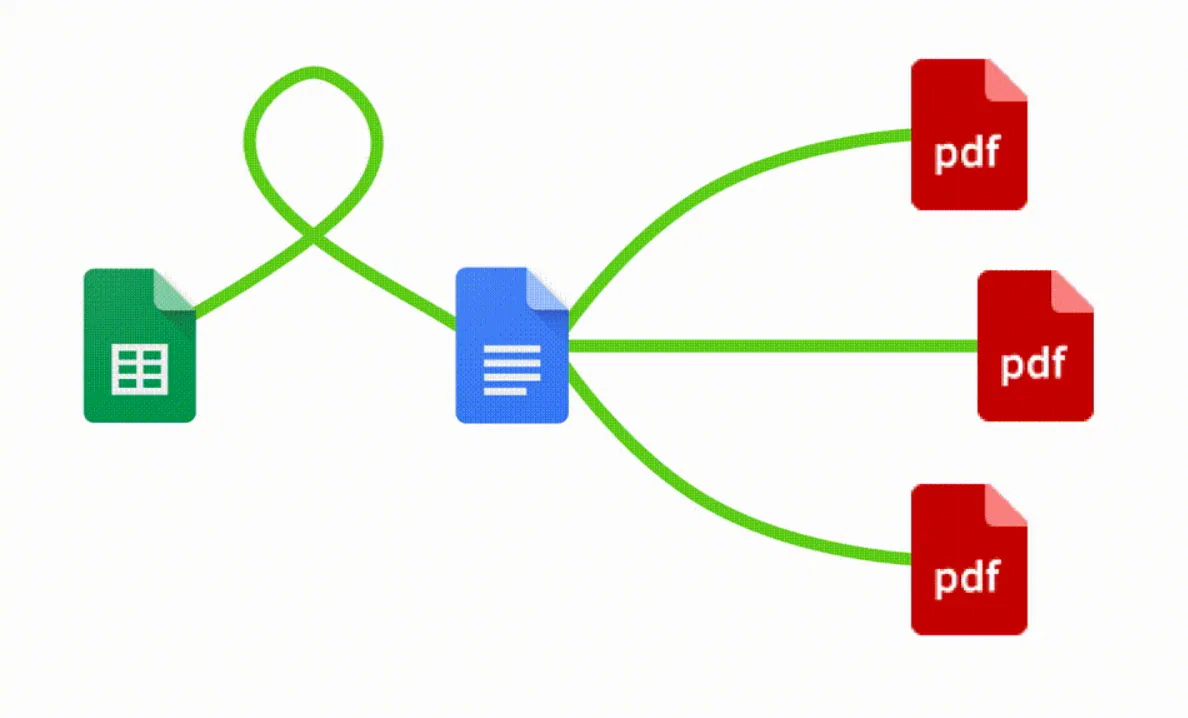
You can create Microsoft Word quotes automatically from Google Sheets in a few easy steps. It is simple to use Portant as a free Google Sheets quotes template, which contains all kinds of different elements including your company logo, unique quotation numbers, payment terms, price quotes, and contact details. After you've opened Portant Workflow, select your Google Sheet, then connect a Google Docs quote template, customize your blank quotation template with column tags, attach it to an email, and finally click 'Start automation'. Voila!—you’ve automated your Microsoft Word quotes!
We know how painful and monotonous it can be to copy and paste data into quotation templates, double-check all the information is correct, save it as a PDF and then send the quotation to your potential clients. That’s why we’ve come to the rescue.
With Portant, you can connect a Google Sheet to a quotation template, click a few buttons, and quotes will be magically generated and sent whenever you need to. You can also customize the email and who it's sent from (e.g., accounts@portant.co). It's easy to place your MS Word quotation templates on autopilot.
How to automate your Word quote templates

Step 1
Open Sheet
Select the Google Sheet you want to use as the data source for your quotes. Portant connects directly to your spreadsheet to pull in the data it needs.

Step 2
Connect Template
Connect your Google Docs, Slides, or Sheets quote template. Portant will link it to your spreadsheet data source so it knows which fields to merge.

Step 3
Customize
Customize your quote with merge tags like {{Contact Name}}, {{Line Items}}, and {{Total}}. Format it with your branding, colours, and layout.

Step 4
Create
Create quotes automatically when new rows are added to your sheet, or generate them manually in batches. Send via email or save to Google Drive.
How to automate your Google Word quotes with a template
Step 1
Step 1: Open a Google Sheet
Open a Google Sheet that contains the data for your quotes. This could include customer details, product names, quantities, pricing, and discount information. Create a new sheet if you don't have one yet.
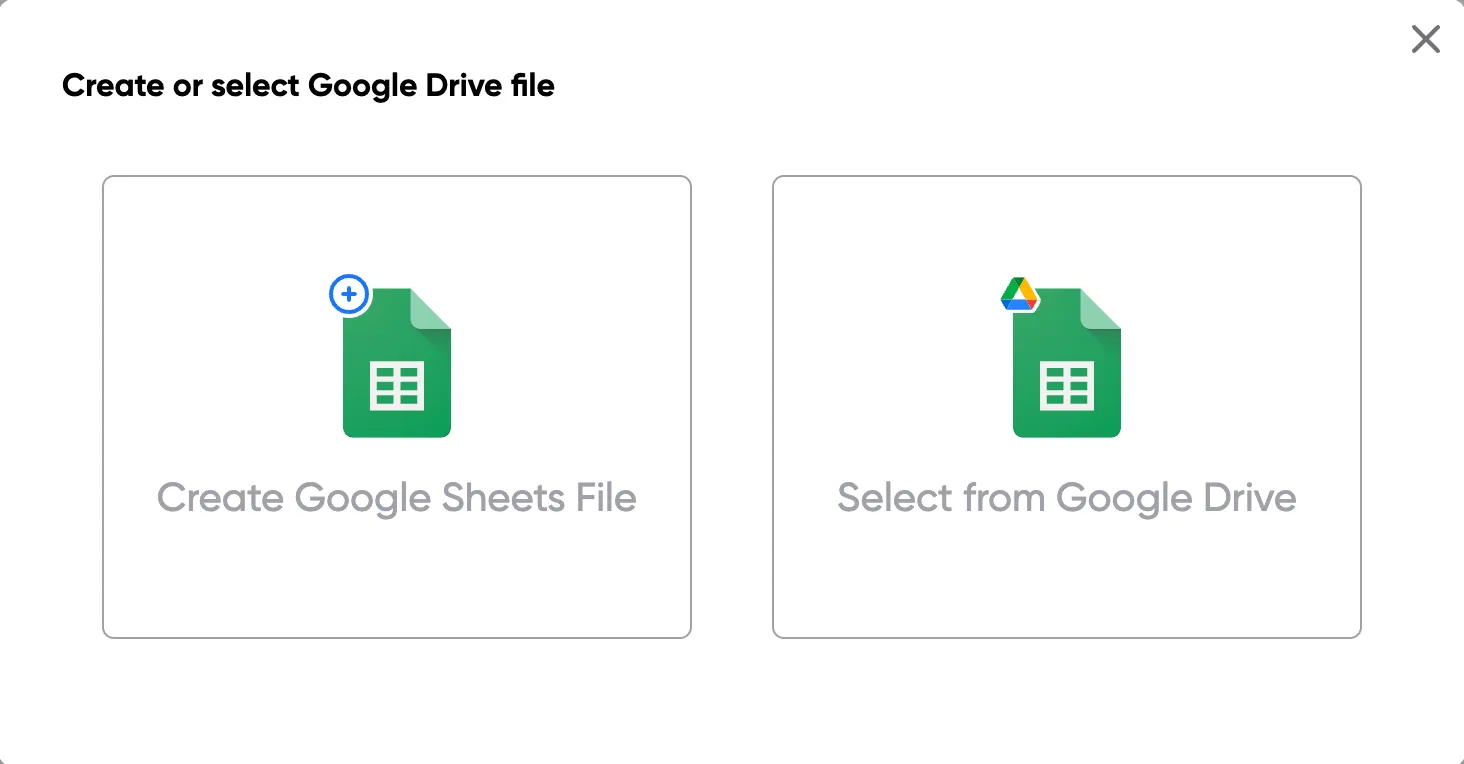
Step 2
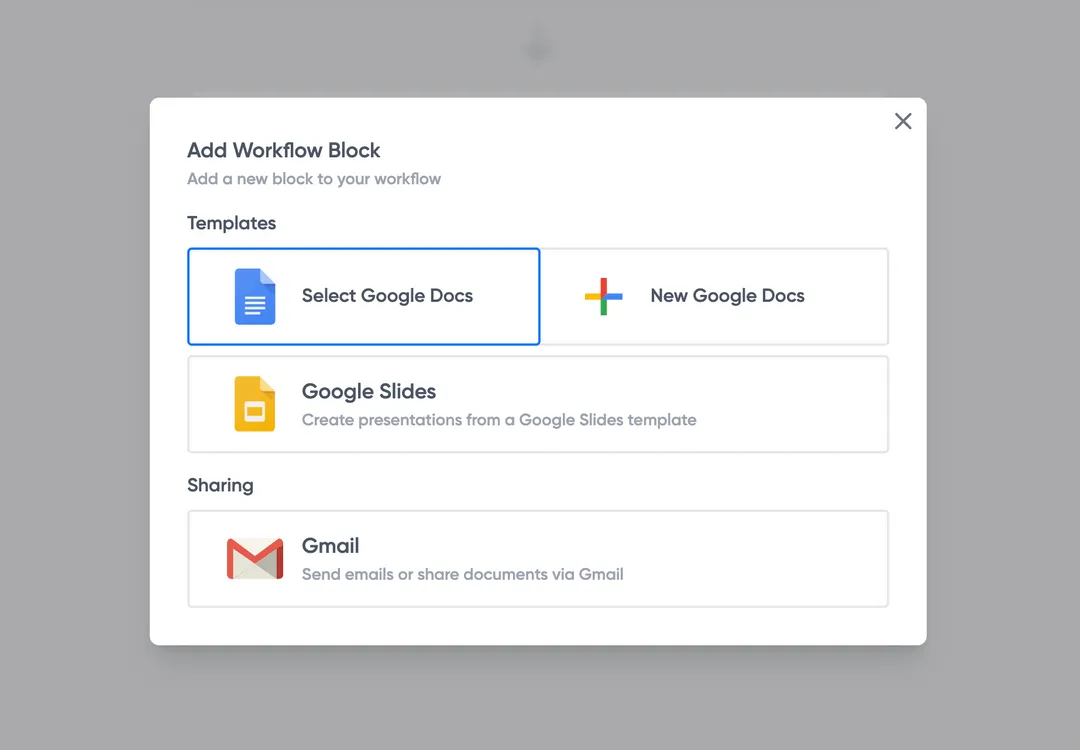
Step 2: Connect your quote template
Open the Portant add-on and connect your Google Docs or Slides quote template. Portant will scan for merge tags and match them to your sheet columns automatically.
Step 3
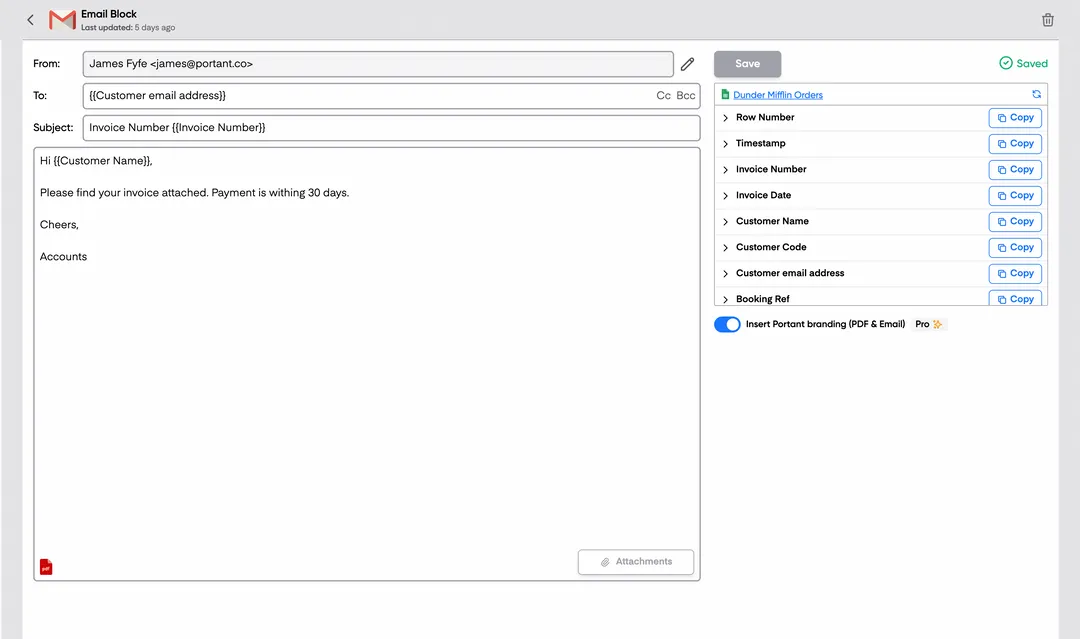
Step 3: Customize your output
Choose how your quotes are delivered. Send them directly to customers via email, save as PDFs to Google Drive, or both. Add merge tags to the email subject and body for a personal touch.
Step 4
Step 4: Automate your quotes
Turn on auto-create to generate quotes every time a new row is added. Run the workflow manually for batch processing, or schedule it to run at specific intervals.
Eliminate unnecessary manual work
Stop spending hours copying and pasting data from spreadsheets into documents. Portant automates the entire process, pulling data directly from your source and generating completed documents in seconds. Focus on the work that matters, not repetitive formatting tasks.
Make your documents more accurate
Manual document creation leads to errors, from wrong names to outdated figures. Portant maps data fields directly to your template, eliminating typos and ensuring every document is accurate and consistent. Your team sends fewer corrections and your clients get the right information every time.
Built into Google Workspace
Portant works natively with Google Docs, Sheets, Slides, and Gmail. There is no new interface to learn, no data to export, and no switching between tools. Your team stays in the apps they already use while Portant handles the document generation in the background.
What teams say about Portant
“Portant has been a game-changer for Clipboard! It's saved our sales team countless hours every week by generating order forms, proposals and contracts with info from HubSpot automatically filled in.”
“This product is a gamechanger for all of those painful manual document merges. Love what you and the team have built!”
“This software brilliantly takes over the tedious process of creating and sending invoices. This not only saves time but massively reduces errors of data entry.”
“Love this product. Have been using it for over a year and the integration to Google Workspace is awesome. Lots of credit for listening to your users!”
“Truly a gamechanger! Portant streamlines these tasks and allows me to focus on the things that require my attention and problem-solving!”
“Portant has been a game-changer for Clipboard! It's saved our sales team countless hours every week by generating order forms, proposals and contracts with info from HubSpot automatically filled in.”
“This product is a gamechanger for all of those painful manual document merges. Love what you and the team have built!”
“This software brilliantly takes over the tedious process of creating and sending invoices. This not only saves time but massively reduces errors of data entry.”
“Love this product. Have been using it for over a year and the integration to Google Workspace is awesome. Lots of credit for listening to your users!”
“Truly a gamechanger! Portant streamlines these tasks and allows me to focus on the things that require my attention and problem-solving!”
Frequently asked questions
Yes, you can easily convert your Word quote template into a PDF using the free quote template options. After filling out the quotation template with all your client details, such as your company name, business details, and unit prices, you can go to "File" > "Save As" and select PDF from the available file formats. This process helps to keep all the information, such as your company logo and professional quote structure, intact for potential clients. It’s a simple way to ensure your service quotes and other details remain consistent, allowing your clients to view a polished, professional document.
A comprehensive Word quote template should include the following: your company name, business details, your business owner or administrator, client details, contact details, and a unique quote number. You should also have a detailed breakdown of material costs, item descriptions, and unit prices for the services you offer. Don't forget to include your payment terms, the expiration date of the quote, and the total price. Additionally, having a professional-looking logo, the company details, and any references to potential clients is important to make sure that your quotation represents your business accurately.
Regular updates to your Word quote template are crucial, especially if you're working in a construction business or any other service provider that frequently changes prices. Quotations for different types of services should be updated based on changes in your business, price quotes, or service quote adjustments. This means keeping your client details up to date, adjusting your payment terms, and modifying the company information whenever necessary. Doing so ensures that your quotation template remains accurate and reflects the most current business conditions, which helps you save time and provide accurate quotes to your clients.
Yes, Word quote templates are incredibly versatile and can be adapted for various types of services, whether it's for a construction business, cleaning services, or more specialized service quotes. These templates allow you to customize unit prices, payment terms, and other specific aspects of the service you're offering. They help make your business quote appear professional and fit different industry standards, allowing you to cater to potential clients from a wide range of industries.
Absolutely, you can add a digital signature to your Word quote template using Microsoft Word’s signature feature. This can be particularly useful if you're working with potential clients who require formal agreements or need to see the professional quotes before making a commitment. You can also include additional features such as your company logo, and specific terms and conditions that help build your company's credibility and brand identity. This way, your clients can see a professional quote that reflects the high standards of your service.
If your Word quote template is too large to email, consider compressing the file or saving it as a PDF. This helps to maintain the quality of the company logo, item descriptions, and all other necessary details. Alternatively, you could use cloud services like Google Drive or Dropbox and share the link with your potential clients. This method ensures that the quotation template remains clear and that all service details are easily accessible.
To add terms and conditions, create a dedicated section in your Word quote template that outlines payment terms, service obligations, and material costs if relevant to your business. Make sure you add any additional notes that will help clarify expectations, such as line items, specific services, or any customizations offered. This helps prevent any misunderstandings and ensures your clients are fully informed about your quotation.
To add a reference number or quote number, insert a text field at the top of your Word quote template. This field should be labeled "Quote Number" or "Reference Number" and can be formatted to match the rest of your document. Using a numbering system is an effective way to manage your quotation templates, especially if you have multiple projects or clients. Additionally, tracking the quote number allows for better organization and helps in maintaining accurate records of all quotations you have sent out.
Explore related templates
Design Quote Template
Copy our Design Quote Template, automate your quotes process, and create professional quotes using customizable templates.
View template Quote templatePrice Quote Template
Copy our Price Quote Template, automate your quotes with customizable templates like a service or business quote template, and create professional, accurate quotes quickly.
View template Quote templateQuote Invoice Template
Copy our Quote Invoice Template, automate your quoting process, and create professional quotes with customizable templates, including options for pricing, business logos, and service details.
View template Quote templateExcel Quote Template
Connect your Microsoft Excel to a customizable quote template or price quote template and streamline your sales quote or service quote process effortlessly for small businesses and specific clients.
View template Quote templateQuote template google docs
Use our Google Doc Quote Template to customize and streamline your process with accurate, professional price quotes.
View template Quote templateGoogle Sheets Quote Template
Connect Google Sheets to a customizable quotation template and streamline your price quote process, ensuring accurate costs and service details for clients.
View template Quote templateSales Quote Template
Copy our Sales Quote Template, automate your quotes process, and create professional quotes using customizable templates.
View template Quote templateIndependent Contractor Quote Template
Download our Independent Contractor Quote Template to streamline your invoicing process. Create professional quotes, add material costs and labor costs, and ensure accuracy with every quote total.
View template Quote templateRental Quote Template
Copy our customizable rental quotation template to streamline your billing process, track rent payments, and automate your rental quotations for your rental business. Easily manage vehicle rentals, lease rental quotations, and more with our professional template.
View template Quote templateProforma Quote Template
Copy our Proforma Quote Template to create professional quotations easily. Automate your quote process using Google Sheets or Google Docs for a streamlined, customizable experience.
View template Quote templateBusiness Quote Template
Copy our free business quote template and easily automate your quoting process. Customize your professional quotes in pdf format using google sheets or excel templates, and streamline your workflow for faster, more accurate price quotes.
View template Quote templateConsulting Quote Template
Copy our consulting quote template and automate your consulting business invoice process with ease. Customize consultant quotations, streamline services, and manage clients more efficiently with our fully customizable solution.
View template