
Quote template
Business Quote Template
Copy our free business quote template and easily automate your quoting process. Customize your professional quotes in pdf format using google sheets or excel templates, and streamline your workflow for faster, more accurate price quotes.
Trusted by teams at










Business Quote Template
You can create business quotes automatically from Google Sheets in a few easy steps. It is simple to use Portant as a free Google Sheets quotes template which contains all kinds of different elements including your logo, unique quote numbers, payment terms and contact information. After you've opened Portant Workflow, select your Google Sheet, then connect a Google Docs quote template, customise your blank quote template with column tags, attach it to an email and finally click 'Start automation', and voila!, you’ve automated your quotes from Google Sheets!
We know how painful and monotonous it can be to copy and paste data into quote templates, double check all the information is correct, save it as a pdf and then send the quote to your customers. That’s why we’ve come to the rescue.
With Portant, you can connect a Google Sheet to a quote template, click a few buttons and business quotes will be magically generated and sent whenever you need to. You can also customise the email and who it's sent from (e.g accounts@portant.co). It's easy to place your business quotes on autopilot.
How to automate your business quotes

Step 1
Open Sheet
Select the Google Sheet you want to use as the data source for your quotes. Portant connects directly to your spreadsheet to pull in the data it needs.

Step 2
Connect Template
Connect your Google Docs, Slides, or Sheets quote template. Portant will link it to your spreadsheet data source so it knows which fields to merge.

Step 3
Customize
Customize your quote with merge tags like {{Contact Name}}, {{Line Items}}, and {{Total}}. Format it with your branding, colours, and layout.

Step 4
Create
Create quotes automatically when new rows are added to your sheet, or generate them manually in batches. Send via email or save to Google Drive.
How to automate your business quotes with a template
Step 1
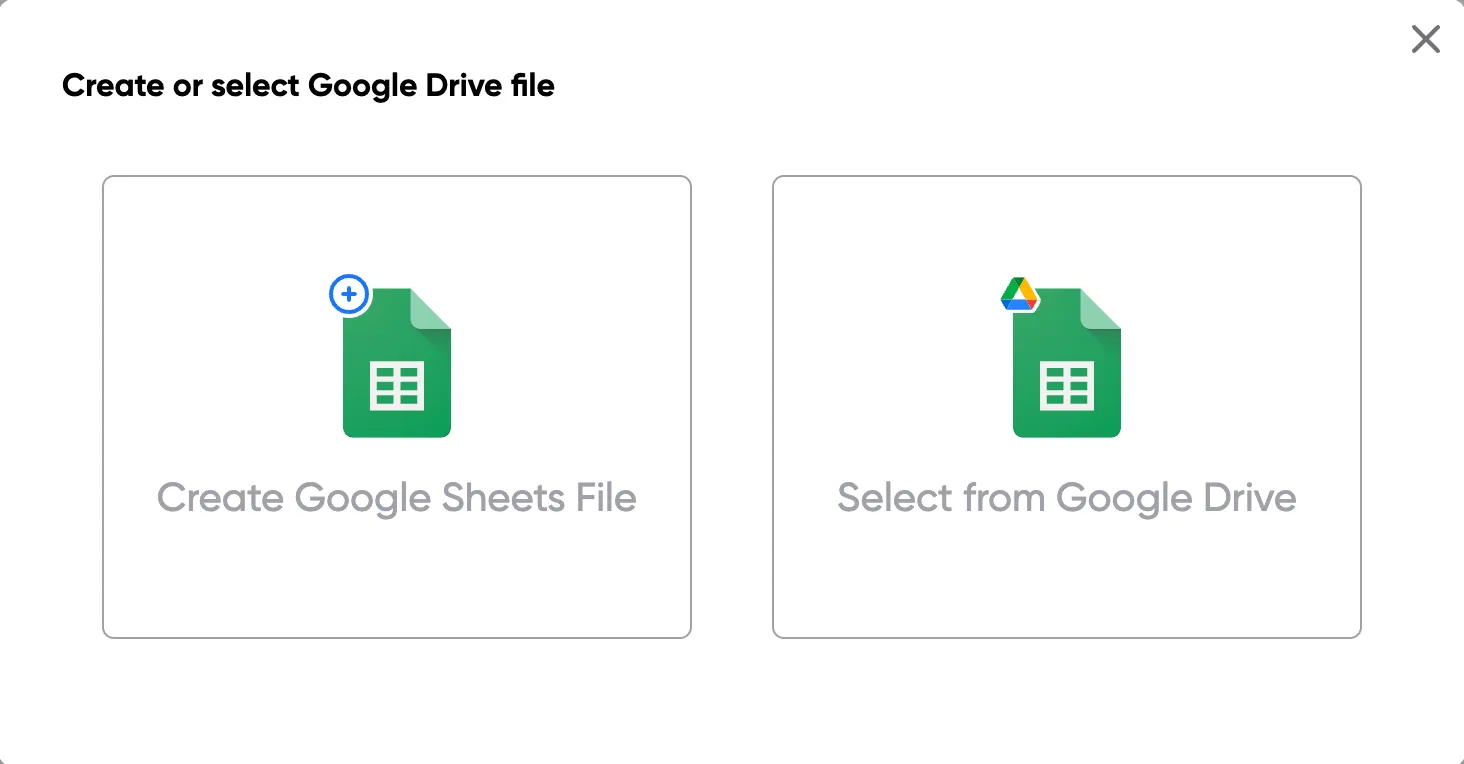
Step 1: Open a Google Sheet
Open a Google Sheet that contains the data for your quotes. This could include customer details, product names, quantities, pricing, and discount information. Create a new sheet if you don't have one yet.
Step 2
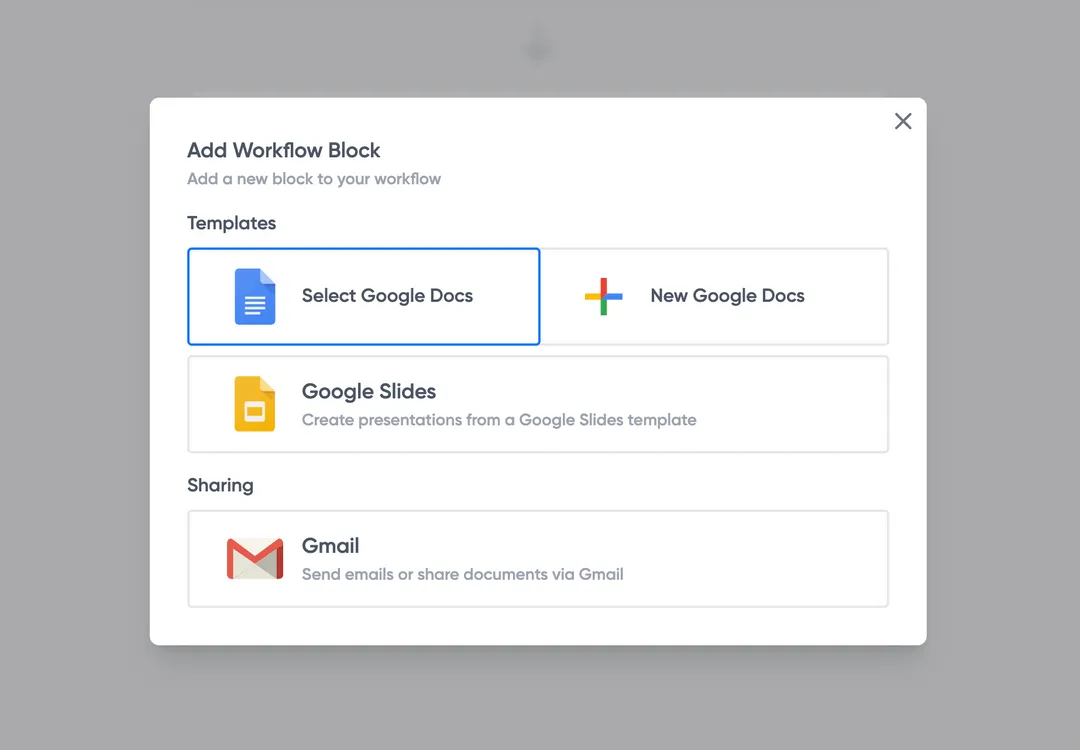
Step 2: Connect your quote template
Open the Portant add-on and connect your Google Docs or Slides quote template. Portant will scan for merge tags and match them to your sheet columns automatically.
Step 3
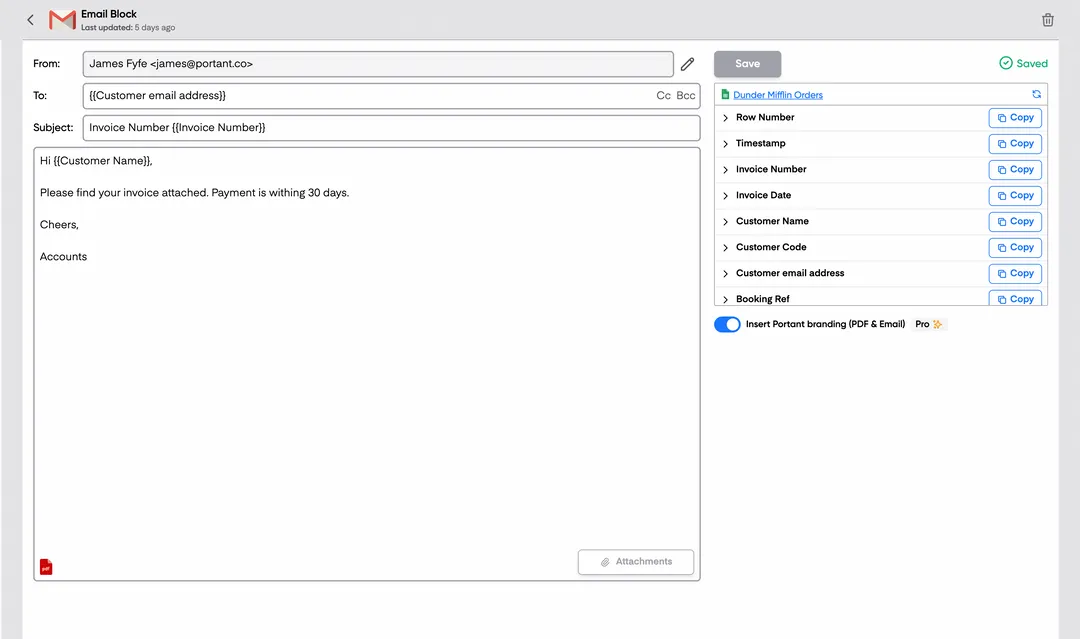
Step 3: Customize your output
Choose how your quotes are delivered. Send them directly to customers via email, save as PDFs to Google Drive, or both. Add merge tags to the email subject and body for a personal touch.
Step 4
Step 4: Automate your quotes
Turn on auto-create to generate quotes every time a new row is added. Run the workflow manually for batch processing, or schedule it to run at specific intervals.
Eliminate unnecessary manual work
Stop spending hours copying and pasting data from spreadsheets into documents. Portant automates the entire process, pulling data directly from your source and generating completed documents in seconds. Focus on the work that matters, not repetitive formatting tasks.
Make your documents more accurate
Manual document creation leads to errors, from wrong names to outdated figures. Portant maps data fields directly to your template, eliminating typos and ensuring every document is accurate and consistent. Your team sends fewer corrections and your clients get the right information every time.
Built into Google Workspace
Portant works natively with Google Docs, Sheets, Slides, and Gmail. There is no new interface to learn, no data to export, and no switching between tools. Your team stays in the apps they already use while Portant handles the document generation in the background.
What teams say about Portant
“Portant has been a game-changer for Clipboard! It's saved our sales team countless hours every week by generating order forms, proposals and contracts with info from HubSpot automatically filled in.”
“This product is a gamechanger for all of those painful manual document merges. Love what you and the team have built!”
“This software brilliantly takes over the tedious process of creating and sending invoices. This not only saves time but massively reduces errors of data entry.”
“Love this product. Have been using it for over a year and the integration to Google Workspace is awesome. Lots of credit for listening to your users!”
“Truly a gamechanger! Portant streamlines these tasks and allows me to focus on the things that require my attention and problem-solving!”
“Portant has been a game-changer for Clipboard! It's saved our sales team countless hours every week by generating order forms, proposals and contracts with info from HubSpot automatically filled in.”
“This product is a gamechanger for all of those painful manual document merges. Love what you and the team have built!”
“This software brilliantly takes over the tedious process of creating and sending invoices. This not only saves time but massively reduces errors of data entry.”
“Love this product. Have been using it for over a year and the integration to Google Workspace is awesome. Lots of credit for listening to your users!”
“Truly a gamechanger! Portant streamlines these tasks and allows me to focus on the things that require my attention and problem-solving!”
Frequently asked questions
A quote template is essential for businesses because it streamlines the quoting process, ensuring consistency and professionalism. Using a free quote template reduces errors, saves time, and helps maintain a clear record of all the details like pricing, terms, and conditions. With google sheets and contractor quotation templates, businesses can automate the quoting process and easily send professional quotes. This integration can make the quoting process more efficient and customized for your needs.
A comprehensive quote template should include the company logo, business logo, client information, and a detailed breakdown of services offered, prices, and terms and conditions. It's also crucial to provide clear payment terms, delivery dates, and product quote template information. Using a free quote template ensures that all the necessary fields like item descriptions and unit prices are in place. Adding a section for professional quotes in pdf format makes it easy to share quotes with clients.
A well-designed service quote template builds trust and confidence with potential clients. Providing a clear, concise, and visually appealing price quote can enhance client satisfaction and ensure you're meeting expectations. By utilizing a customized quote template created in excel or google sheets, you can quickly adapt the pricing and services to the client's needs, reducing manual effort and improving the client experience. Professional quotes also show attention to detail, which leads to better client relationships and a higher likelihood of securing repeat business.
To ensure accuracy, review all calculations and details before sending out the quote. It's crucial to use a pdf version of the quote to prevent editing or accidental changes. Additionally, using a professional quote template that integrates with google sheets helps to automatically pull unit prices and client information from your records. If you're working on large projects like construction projects, automating quotes ensures that all costs are reflected accurately. This also reduces errors when working with potential customers.
The template should be easy to read and customized to include your business logo, company logo, and branding elements like colors. Use formats that highlight key sections, like pricing and services offered, so they stand out. If you're creating a price quote template or quotation template, it's essential to ensure that the formatting is clean and professional. A generic quote template with the correct formatting makes sure the document is clear and easy to understand.
You can send a service quote or business quote via email, attaching the document in pdf format. Including a personalized message with your professional quote ensures clarity and professionalism. For more convenience, you could also share the quote template in word or pdf, depending on the client's preference. If using google sheets, automate the process to send the price quote directly from your spreadsheet to ensure that the client receives the quote promptly.
Yes, a business quote template can be integrated with accounting or CRM software. This allows for seamless updates of prices, services, and details. Using tools like google sheets and excel quote templates, you can automate your workflow from creating the price quote to converting it into an invoice. A quotation template that integrates with microsoft excel can help keep your records up to date, making it easier to manage your business' financials.
A quote is a fixed price offer, meaning once the client accepts, the costs are locked in. On the other hand, an estimate is more flexible, allowing room for adjustments as the project progresses. Professional quotes are typically more specific, with detailed breakdowns of unit prices and services offered. Estimates, especially in industries like construction projects, may fluctuate depending on the scope of work. Both price quotes and estimates should be clear to avoid confusion.
To write a business quote, follow these steps:
- Header Information:
- Use a business quote template, which can often be found as free quote templates online, or create your own in Word, Excel, or Google Docs.
- Include your company's name, logo, address, contact information, and the date of the quote.
- Quote Number:
- Assign a unique number to each quote for easy tracking and reference.
- Client Information:
- Include the client's name, company, and contact details. Consider using a professional quote template for consistency.
- Introduction:
- Briefly introduce the quote by referencing any prior discussions or agreements with the client. This can be customized in the business quote template you are using.
- Itemized List of Products or Services:
- Clearly list each product or service, using a format similar to a business quote template PDF or an online quote template.
- Provide a detailed description, quantity, unit price, and total price for each item.
- Subtotal and Total:
- Calculate the subtotal for all items.
- Include any applicable taxes or discounts.
- Provide the final total cost. Templates for quotes can help format this section accurately.
- Terms and Conditions:
- Outline payment terms, delivery timelines, and any other important conditions. Many free sales quote templates provide sections for this.
- Validity:
- State how long the quote is valid. It's common practice to use terms like "valid for 30 days" in a professional quotation template.
- Additional Notes:
- Add any necessary notes or disclaimers that the client should be aware of. This could be a good place to personalize or include specific instructions.
- Thank You and Contact Information:
- Conclude with a thank you note and provide your contact details for any queries or follow-up.
Review the document before sending it to ensure accuracy and professionalism. Utilize a free business quote template for easy editing and formatting adjustments.
Creating a business quotation format involves a series of structured steps to ensure that all necessary details are included clearly and professionally. Here's a guide to help you craft a comprehensive business quotation:
1. Header:
- Include your business name, logo, address, contact information, and email.
- Add the date of the quotation.
2. Client Information:
- Add the client's name, company name, and contact information.
3. Quotation Number:
- Assign a unique quotation number for tracking and reference.
4. Title/Subject:
- Provide a clear title like "Quote for [Service/Product]".
5. Introduction:
- Briefly mention the purpose of the quotation and thank the client for their inquiry.
6. Itemized List of Products/Services:
- List each product or service offered, including a description, quantity, price per unit, and total price for each line item.
- Specify any applicable taxes, discounts, or additional fees separately.
7. Total Cost:
- Sum up the total cost, making it clear whether taxes are included.
8. Terms and Conditions:
- Detail payment terms, including acceptable payment methods and timelines.
- State the validity period of the quotation and any other specific conditions like delivery timelines or warranty information.
9. Signature Section:
- Leave space for both the issuer’s and client's signature and names to acknowledge acceptance of the quotation terms.
10. Additional Information:
- Add any optional notes or instructions specific to the client’s needs or project scope.
Make sure that your quotation format is professional, easy to read, and tailored to your business's brand identity. This can be created using templates in applications like Microsoft Word, Excel, or other online quotation tools to ensure consistency and accuracy.
Yes, there is a quote template available in Word, which can be particularly handy for contractors and freelancers who need to prepare professional quotes for their clients. Here are some ways to find and use quote templates in Word:
1. Built-in Templates:
- Open Microsoft Word.
- Click on ‘File,’ then select ‘New.’
- Use the search bar to type “quote” or “quotation template.”
- Browse through the available templates and select the one that best fits your needs.
2. Online Resources:
- Microsoft Office’s website offers a variety of templates, including contractor and freelance quote templates, which can be downloaded for free and used in Word.
- Other websites may also offer free downloadable Word templates for specific needs, such as construction quotes, remodeling quotes, and job quotes.
3. Customization:
- Once you’ve downloaded a template, you can customize it by adding your company’s logo, adjusting the layout to include necessary fields such as client information, detailed descriptions of goods or services, pricing, and terms and conditions.
- Save your customized template for future use to ensure consistency across all quotes.
4. Using a Template for Specific Industries:
- For construction companies, there are templates such as construction quote forms or construction job quote templates that are specially formatted to include fields relevant to construction projects.
- Freelancers can use templates like freelance quote templates or freelance project quotation templates tailored for project-based work.
5. Available Formats:
- If you are looking for a specific format like a Word template, you can search for "contractor quote template Word" to find options that are in the Word format, ready to be downloaded and edited.
These resources should help you prepare professional quotes efficiently, saving time and ensuring you present a polished image to your clients.
To format a professional quote effectively, several elements should be included to ensure clarity and professionalism. Utilize business quote templates or professional quotation templates to streamline the process. Here are the key components to include in your quote format:
- Header:
- Include your company name, logo, and contact information.
- Add the client's name and address.
- Quote Number and Date:
- Assign a unique quote number for tracking and reference.
- Include the date the quote was created.
- Title:
- Use a clear and descriptive title, such as "Business Quote" or "Quotation for Services."
- Introduction:
- Provide a brief introduction or context for the quote. This could be a summary of the request and any specific conditions or limitations.
- Description of Products/Services:
- List each product or service separately.
- Provide detailed descriptions to avoid any ambiguity.
- Indicate quantities, unit prices, and total costs.
- Pricing:
- Clearly state the currency and include totals for each section.
- Add any applicable discounts, taxes, and additional fees.
- Sum up the total amount payable.
- Terms and Conditions:
- Specify payment terms (e.g., 30 days from receipt).
- Include expiration date of the quote.
- State any other relevant terms related to the quote.
- Additional Information:
- Add any other necessary details, such as delivery timelines, warranty information, or service agreements.
- Approval Section:
- Provide space for client signature and date to indicate acceptance of the quote.
By following this structure, you ensure the quote is professional, transparent, and easily understandable for the client, thus increasing the likelihood of a successful business transaction. Consider using a professional quotes template or a business quote template in Excel or PDF format for an easy-to-use and uniform appearance.
To write a consulting quote, you can follow these steps to ensure all necessary details are included:
- Company Information:
- Include your company name, logo, address, phone number, and email.
- Client Information:
- Provide the client's name, company, position, and contact details.
- Quote Number:
- Assign a unique identifying number to the quote for easy tracking.
- Date:
- State the date the quote is issued and its expiry date.
- Description of Services:
- Clearly outline the consulting services being offered. Use clear and concise language for each service line item.
- Pricing:
- Provide a detailed breakdown of costs associated with each service. Include any applicable taxes or discounts.
- Terms and Conditions:
- Mention the payment terms, due dates, and acceptable payment methods. Also, include any terms related to revisions, cancellations, or refunds.
- Additional Notes:
- If necessary, add any special notes or conditions related to the quote such as project timelines, milestones, or delivery expectations.
- Contact Information:
- Provide a contact name and details for any queries related to the quote.
- Signature:
- Include a space for both the provider and the client to sign and date, indicating agreement.
By ensuring these components are included, your consulting quote will be comprehensive and professional, increasing the likelihood of acceptance by the client.
To format a freelance quote, follow these steps:
- Header:
- Include your business name, logo, and contact information.
- Add a unique quote number and date of issue.
- Client Information:
- Include the client's name, company, and contact details.
- Quote Title:
- Clearly state that it is a quote, e.g., 'Freelance Quote for [Project Name]'.
- Project Description:
- Provide a brief description of the project or services to be provided.
- Itemized List:
- List each service or item with a description, quantity, and rate.
- Include a section for additional costs or expenses if applicable.
- Total Costs:
- Provide a subtotal of all services and items.
- Include any taxes or discounts.
- Clearly state the total amount due.
- Payment Terms:
- Specify payment methods, terms (e.g., payment upon completion, installments), and due dates.
- Validity Period:
- Indicate how long the quote is valid, e.g., 'This quote is valid for 30 days.'
- Terms and Conditions:
- Briefly outline any important terms and conditions related to the project or payment.
- Signature Section:
- Include a space for your signature and a space for client acceptance.
This format ensures clarity and professionalism, helping both parties understand the scope and cost of the freelance work.
To create a quote document, follow these steps:
1. Choose a Template: Start by selecting a quote template that fits your needs. You can use a professional quote template, a business quotation template, or a free quote template you find online. Many options are available in formats like PDF, Excel, or Google Docs.
2. Include Business Information: Clearly display your company name, address, contact details, and logo at the top of the document. This establishes your brand identity and makes it easy for the client to reach you.
3. Client Information: Add the client's name, company, and contact information. This personalizes the quote and clarifies who the intended recipient is.
4. Quote Number and Date: Assign a unique quote number for tracking and record-keeping purposes. Include the date the quote is issued and the validity period, which indicates how long the terms are applicable.
5. Description of Services or Products: List the products or services being quoted. Include detailed descriptions to avoid misunderstandings, and organize this information in a clear, itemized format.
6. Pricing Details: Provide a breakdown of the costs. This should include the quantity, unit price, and total price for each item or service. If applicable, mention any discounts or promotions.
7. Terms and Conditions: Outline all terms and conditions clearly. Specify payment terms, delivery timelines, and any guarantees or limitations. This section protects both parties and sets expectations.
8. Additional Notes: Add any additional information or stipulations that are relevant to the quote, such as warranties, support options, or special instructions for order completion.
9. Signature and Contact Information: Leave space for your signature and possibly the client's signature, indicating agreement or acknowledgment. Reiterate your contact information in case there are questions.
10. Review and Send: Double-check all details for accuracy and coherence before sending. Send it via the preferred medium of the client, whether it's an email with a PDF attachment or a printed version delivered by mail.
Using these steps and a well-structured template ensures your business quote is professional, thorough, and helpful for clients.
To format a direct quote effectively, follow these guidelines:
1. Use Quotation Marks:
- Enclose the exact words of the source in quotation marks.
2. Cite the Source:
- Include an in-text citation with the author's last name and the page number (if applicable) immediately after the quote. For online sources without page numbers, include the paragraph number if possible.
3. Integrate into Your Text:
- Introduce the quote with a signal phrase that includes the author's name, and make sure the quote fits grammatically into your sentence.
4. Maintain the Original:
- Do not change the original text, including grammar or spelling, unless indicating with brackets for minor changes or ellipses for omitted sections.
5. Block Quotes:
- For quotes longer than four lines of prose or three lines of poetry, format as a block quote: start the quote on a new line, indented 0.5 inches from the left margin, without quotation marks.
6. Punctuation:
- Periods and commas that are part of the quote go inside the closing quotation mark; other punctuation marks such as colons and semicolons should be outside unless they are part of the quoted material.
7. Attribution:
- Always attribute the quote to the original author to avoid plagiarism and to give credit.
By adhering to these guidelines, you ensure that direct quotes are clearly identified and seamlessly integrated into your writing.
To quote a day rate effectively, follow these guidelines:
- Determine the Day Rate:
- Assess your expertise, experience, and the industry standard to set a competitive rate.
- Consider your annual income target, business expenses, and average number of billable days.
- Break Down the Components:
- Include services to be provided, expected outcomes, and any deliverables.
- State any work hours included in your day rate.
- Create a Professional Quote Template:
- Use a professional quote template or a business quote template to structure the document.
- Include sections for contact information, client details, description of services, and total cost.
- Specify Terms and Conditions:
- Clearly state payment terms, including deposit requirements, payment methods, and due dates.
- Mention cancellation policies and any additional expenses not covered in the day rate.
- Format the Quote:
- Use a clean and clear format such as a business quote format or a quotation template.
- Ensure the document is easy to read; consider using bullet points or tables.
- Provide Options for Customization:
- Offer different packages or add-on services, utilizing a template for a quote for services.
- Ensure your quote template online allows for customization to tailor to specific client needs.
- Delivery and Follow-Up:
- Send the quote via email or use an online quote template service for easy access.
- Follow up with the client to address any questions and clarify the quotation details.
By following these steps, you'll be able to present a clear and effective quote for a day rate to your clients.
To quote a fee effectively, follow these steps:
- Identify the Service or Product: Clearly define the service or product for which the quote is being provided. Use specific terms to avoid misunderstandings.
- Choose the Right Template: Utilize business quote templates that fit the context of your service, such as a professional quote template, service quote template, or company quote template. Online resources often offer free quote templates or quote forms for business.
- Determine the Pricing Structure: Decide on a pricing model that matches the service, such as hourly rates, flat fees, or a combination of both.
- Itemize Costs: Break down the fee into separate components, including labor, materials, taxes, or any other relevant charges. A detailed business quotation template can assist with this.
- Include Payment Terms: Specify the terms of payment, such as payment milestones, deadlines, and accepted payment methods. A company quotation template can help outline these details clearly.
- Add Validity Period: Include the timeframe during which the quote is valid. This encourages prompt decision-making from the client and helps manage expectations.
- Incorporate Terms and Conditions: Clearly state the terms and conditions, including any limitations, warranties, or liability clauses. A professional services quote template can guide this section.
- Use Professional Formatting: Utilize a clean and professional format. This could be achieved using templates like business quote template PDF or business quotations format.
- Review and Confirm Details: Double-check all figures and information to ensure accuracy and completeness before sending it to the client.
- Send and Follow-up: Deliver the quote to the client via email or a client portal. Consider using quote template doc or quote template online for easy sharing and accessibility. Follow up with the client to address any questions or clarifications they might have.
By using appropriate templates and ensuring clarity in your presentation, you create an effective and understandable fee quotation for your services or products.
Explore related templates
Design Quote Template
Copy our Design Quote Template, automate your quotes process, and create professional quotes using customizable templates.
View template Quote templatePrice Quote Template
Copy our Price Quote Template, automate your quotes with customizable templates like a service or business quote template, and create professional, accurate quotes quickly.
View template Quote templateQuote Invoice Template
Copy our Quote Invoice Template, automate your quoting process, and create professional quotes with customizable templates, including options for pricing, business logos, and service details.
View template Quote templateWord Quote Template
Connect your Word to a customizable quote template to streamline your quotation process, easily add client details, unit prices, and service quotes, and generate professional quotes effortlessly.
View template Quote templateExcel Quote Template
Connect your Microsoft Excel to a customizable quote template or price quote template and streamline your sales quote or service quote process effortlessly for small businesses and specific clients.
View template Quote templateQuote template google docs
Use our Google Doc Quote Template to customize and streamline your process with accurate, professional price quotes.
View template Quote templateGoogle Sheets Quote Template
Connect Google Sheets to a customizable quotation template and streamline your price quote process, ensuring accurate costs and service details for clients.
View template Quote templateSales Quote Template
Copy our Sales Quote Template, automate your quotes process, and create professional quotes using customizable templates.
View template Quote templateIndependent Contractor Quote Template
Download our Independent Contractor Quote Template to streamline your invoicing process. Create professional quotes, add material costs and labor costs, and ensure accuracy with every quote total.
View template Quote templateRental Quote Template
Copy our customizable rental quotation template to streamline your billing process, track rent payments, and automate your rental quotations for your rental business. Easily manage vehicle rentals, lease rental quotations, and more with our professional template.
View template Quote templateProforma Quote Template
Copy our Proforma Quote Template to create professional quotations easily. Automate your quote process using Google Sheets or Google Docs for a streamlined, customizable experience.
View template Quote templateConsulting Quote Template
Copy our consulting quote template and automate your consulting business invoice process with ease. Customize consultant quotations, streamline services, and manage clients more efficiently with our fully customizable solution.
View template