
Quote template
Google Sheets Quote Template
Connect Google Sheets to a customizable quotation template and streamline your price quote process, ensuring accurate costs and service details for clients.

Trusted by teams at










Google Sheets Quote Template
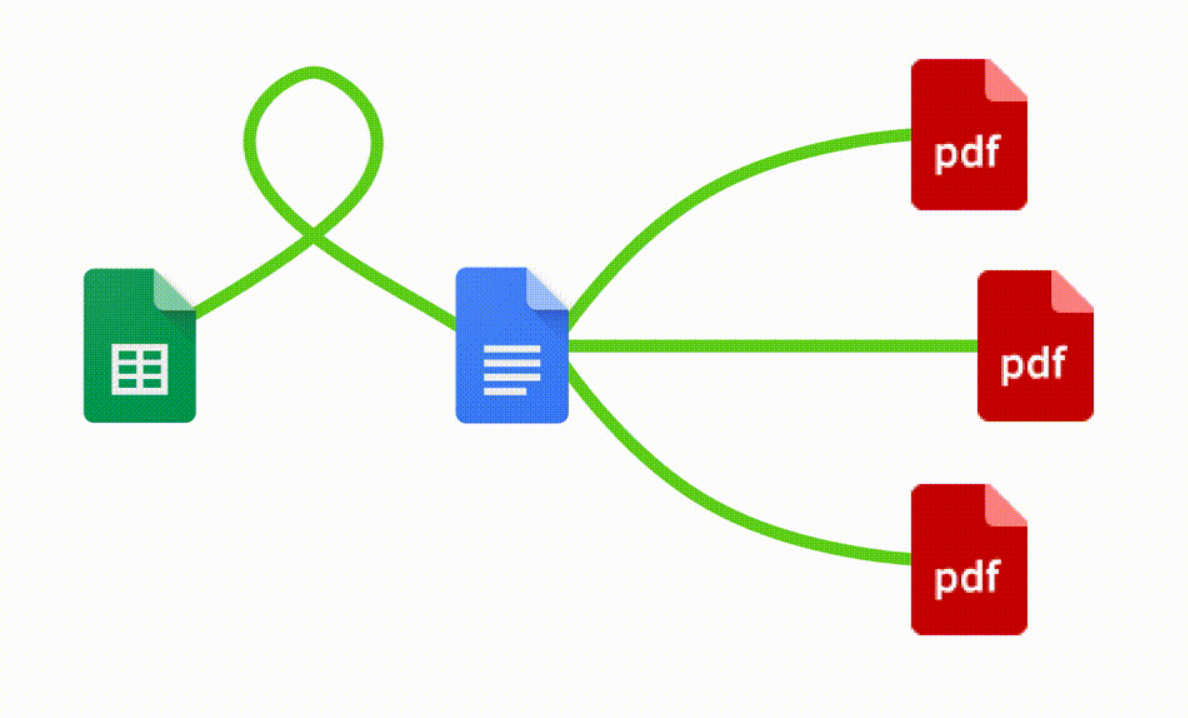
You can create quotation documents automatically from Google Sheets in a few easy steps. It’s simple to use Portant as a free quote template, which contains various elements like unique quote numbers, contact information, and even your company branding. After you’ve opened Portant Workflow, select your Google Sheet, then connect a Google Docs quote template, and customize your blank quotation template with column tags. Once that’s done, attach it to an email, and with a single click, Start automation! Voila! You’ve automated your quotation process from Google Sheets!
We know how monotonous and time-consuming it can be to copy and paste data into templates, double-check all the details, save the document as a PDF, and then send the quote to your clients. That’s why we’ve come to the rescue.
With Portant, you can connect a Google Sheet to a quotation template and, with just a few clicks, generate and send quotes whenever needed. You can also easily customize the email and specify who it’s sent from (e.g., accounts@portant.co). It’s convenient to automate your sales quotes and streamline your entire quote process, making it easier to manage and track quotes for all your customers.
How to automate your Google Sheet quotes

Step 1
Open Sheet
Select the Google Sheet you want to use as the data source for your quotes. Portant connects directly to your spreadsheet to pull in the data it needs.

Step 2
Connect Template
Connect your Google Docs, Slides, or Sheets invoice template. Portant will link it to your spreadsheet data source so it knows which fields to merge.

Step 3
Customize
Customize your invoice with merge tags like {{Company Name}}, {{Amount Due}}, and {{Due Date}}. Format it with your branding, colours, and layout.

Step 4
Create
Create invoices automatically when new rows are added to your sheet, or generate them manually in batches. Send via email or save to Google Drive.
How to Automate Your Google Sheet Price Quotes with a Quotation Template
Step 1
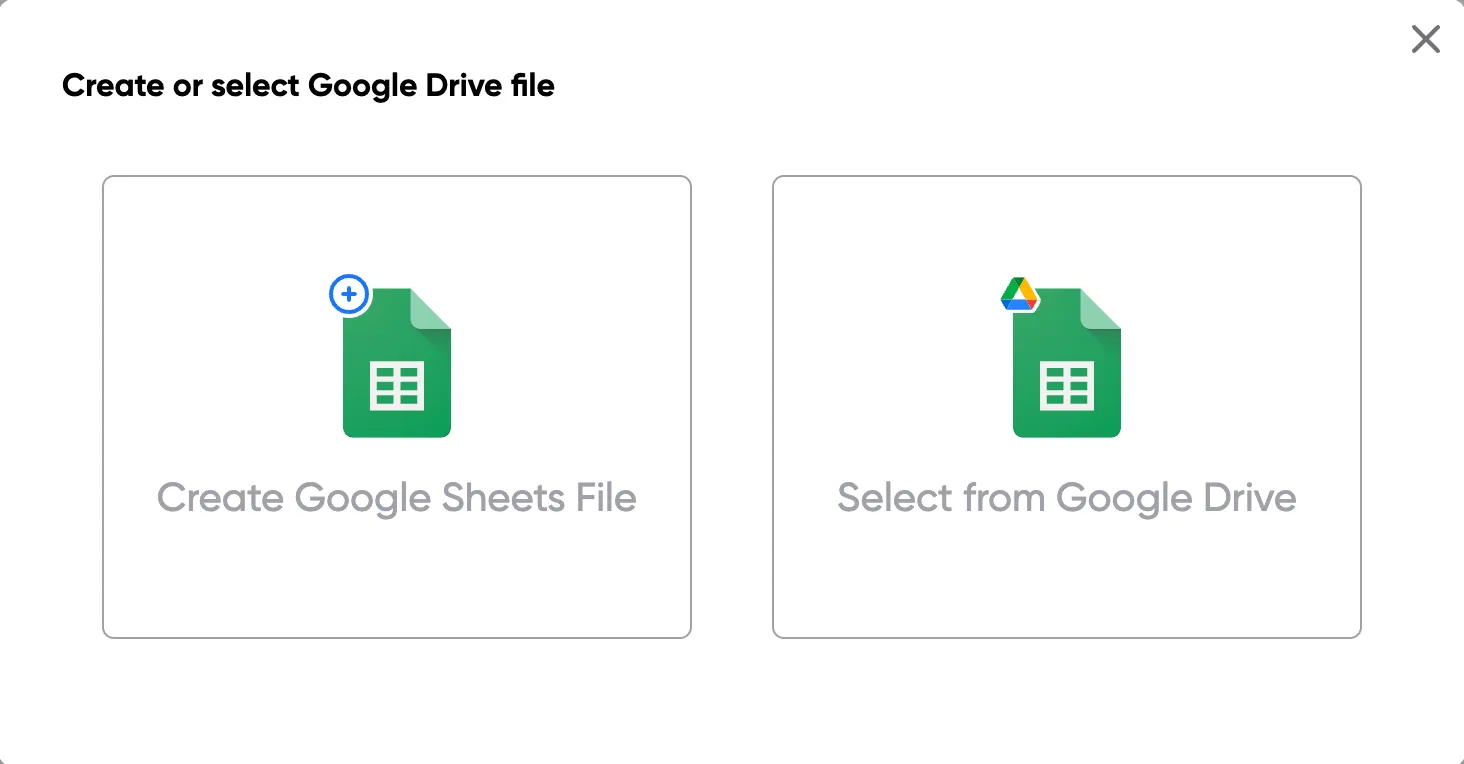
Step 1: Open a Google Sheet
Open a Google Sheet that contains the data for your quotes. This could include customer details, product names, quantities, pricing, and discount information. Create a new sheet if you don't have one yet.
Step 2
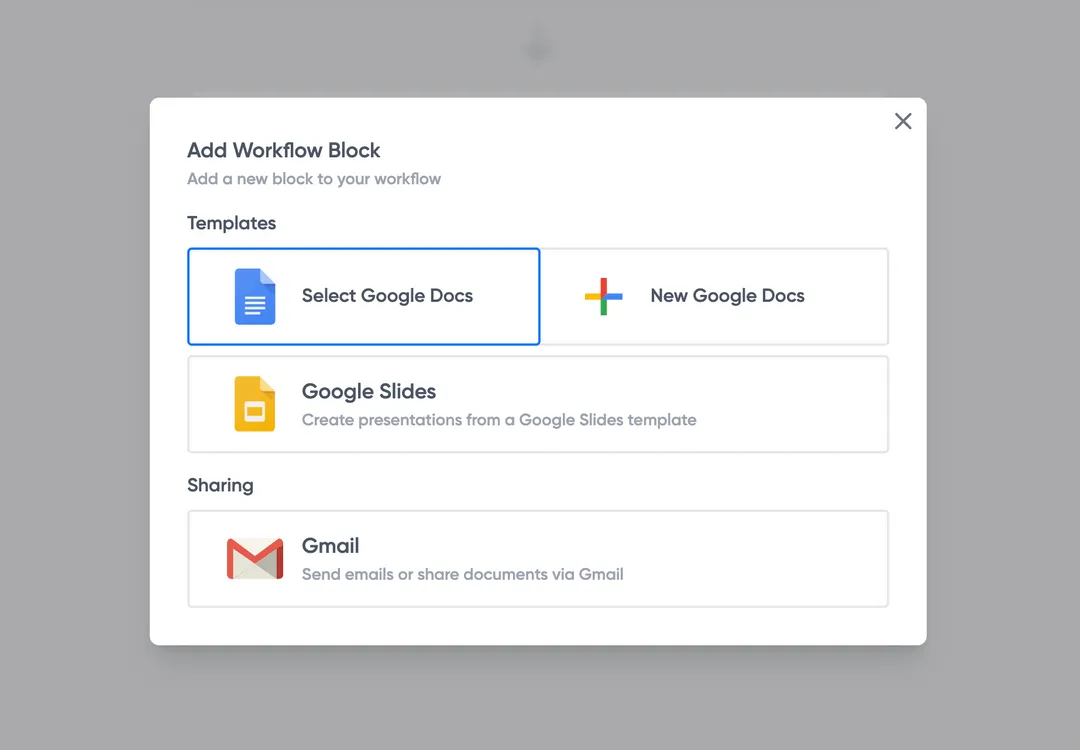
Step 2: Connect your quote template
Open the Portant add-on and connect your Google Docs or Slides quote template. Portant will scan for merge tags and match them to your sheet columns automatically.
Step 3
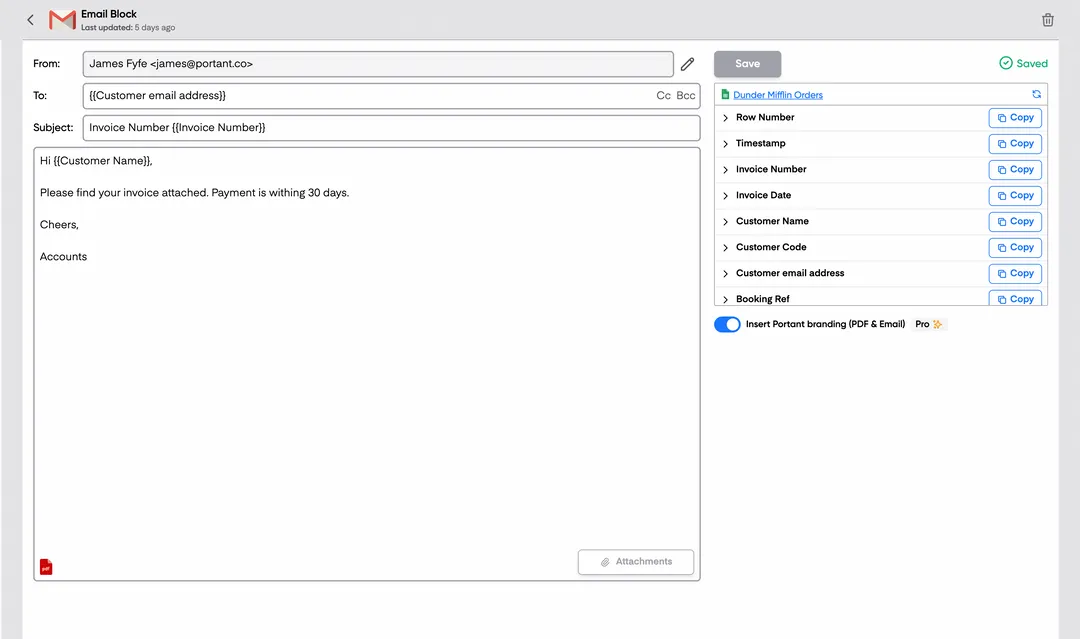
Step 3: Customize your output
Choose how your quotes are delivered. Send them directly to customers via email, save as PDFs to Google Drive, or both. Add merge tags to the email subject and body for a personal touch.
Step 4
Step 4: Automate your quotes
Turn on auto-create to generate quotes every time a new row is added. Run the workflow manually for batch processing, or schedule it to run at specific intervals.
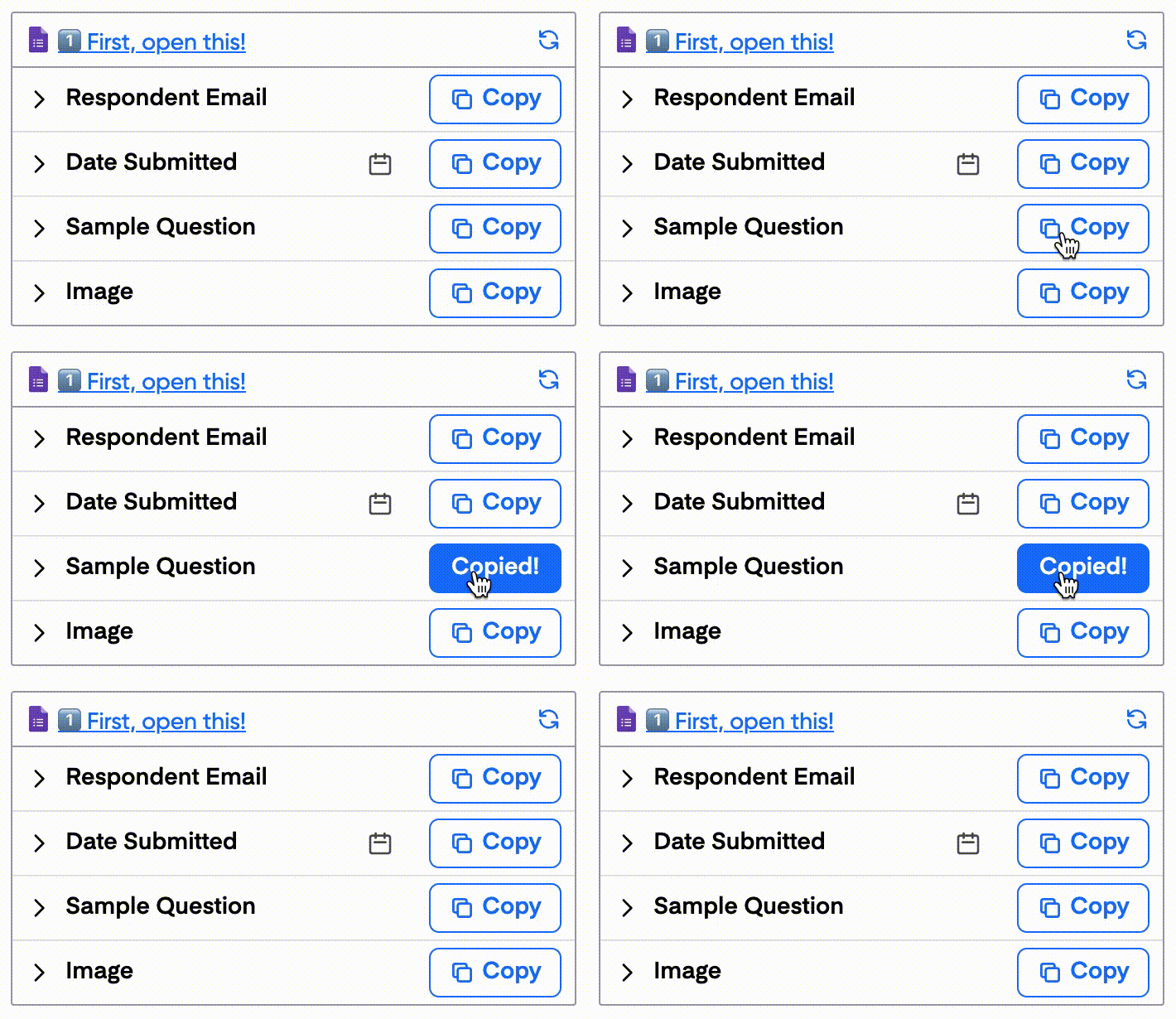
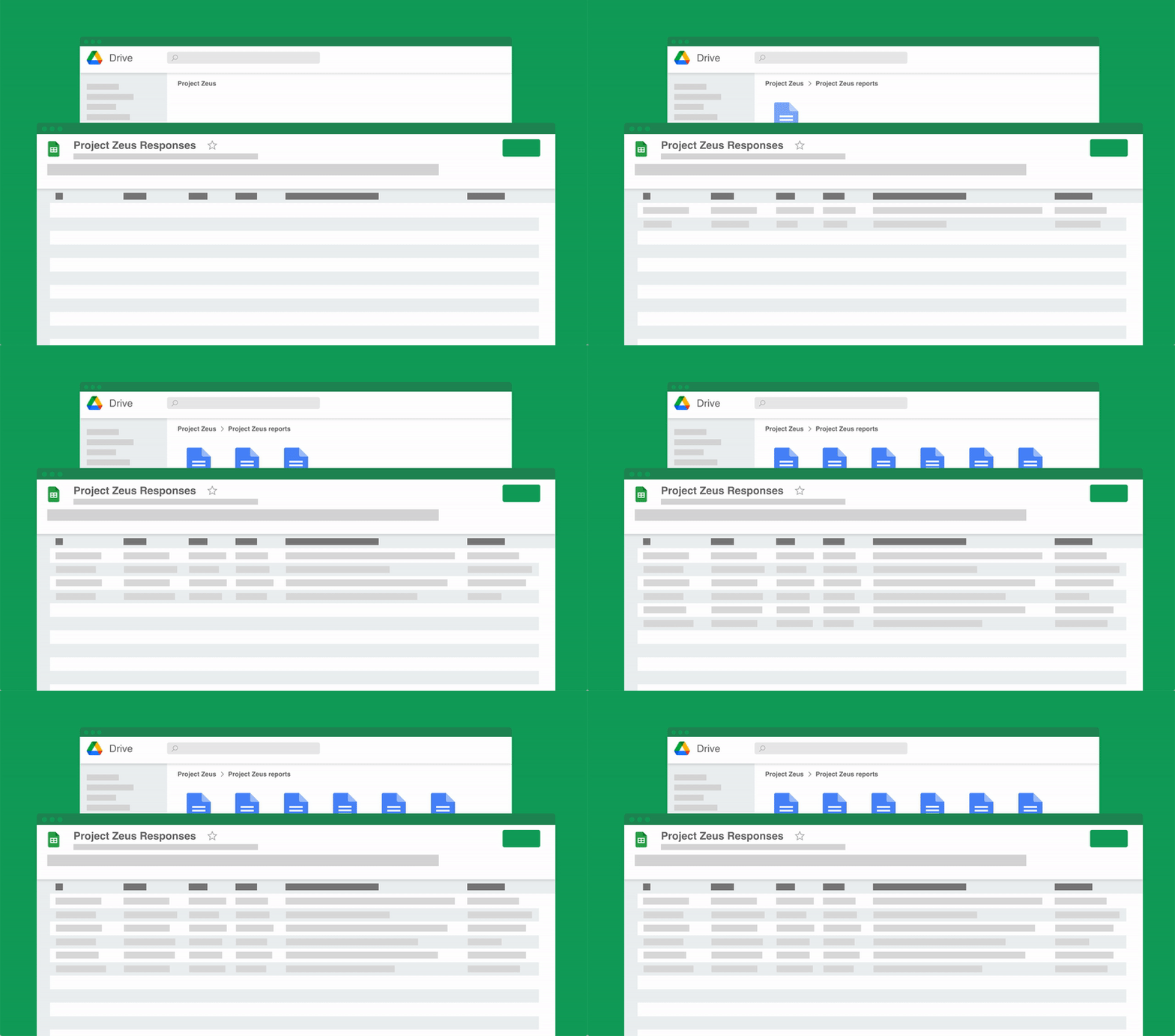
Eliminate unnecessary manual work
Stop spending hours copying and pasting data from spreadsheets into documents. Portant automates the entire process, pulling data directly from your source and generating completed documents in seconds. Focus on the work that matters, not repetitive formatting tasks.
Make your documents more accurate
Manual document creation leads to errors, from wrong names to outdated figures. Portant maps data fields directly to your template, eliminating typos and ensuring every document is accurate and consistent. Your team sends fewer corrections and your clients get the right information every time.
Built into Google Workspace
Portant works natively with Google Docs, Sheets, Slides, and Gmail. There is no new interface to learn, no data to export, and no switching between tools. Your team stays in the apps they already use while Portant handles the document generation in the background.
What teams say about Portant
“Portant has been a game-changer for Clipboard! It's saved our sales team countless hours every week by generating order forms, proposals and contracts with info from HubSpot automatically filled in.”
“This product is a gamechanger for all of those painful manual document merges. Love what you and the team have built!”
“This software brilliantly takes over the tedious process of creating and sending invoices. This not only saves time but massively reduces errors of data entry.”
“Love this product. Have been using it for over a year and the integration to Google Workspace is awesome. Lots of credit for listening to your users!”
“Truly a gamechanger! Portant streamlines these tasks and allows me to focus on the things that require my attention and problem-solving!”
“Portant has been a game-changer for Clipboard! It's saved our sales team countless hours every week by generating order forms, proposals and contracts with info from HubSpot automatically filled in.”
“This product is a gamechanger for all of those painful manual document merges. Love what you and the team have built!”
“This software brilliantly takes over the tedious process of creating and sending invoices. This not only saves time but massively reduces errors of data entry.”
“Love this product. Have been using it for over a year and the integration to Google Workspace is awesome. Lots of credit for listening to your users!”
“Truly a gamechanger! Portant streamlines these tasks and allows me to focus on the things that require my attention and problem-solving!”
Frequently asked questions
A Google Sheets quote template is a pre-formatted document used to create professional business quotes. It allows you to input details such as product descriptions, pricing, and terms to generate a comprehensive quotation template for potential customers. This price quote template is particularly beneficial for small businesses as it streamlines the process, ensuring consistency and accuracy. Using a Google Sheets template, you can easily create documents for different services and clients. It’s a convenient way to track quotes for different services, whether you’re offering a fixed price service or have an agreed-upon price with the client.
Customizing a Google Sheets quote template involves adding your company logo, updating your company details, and adjusting the color scheme to match your branding. For example, you can change the format of the columns to reflect your specific services or products. This will ensure that the quotation template meets your specific needs. It's important to ensure that your price quotes reflect your agreed upon price, and that the client receives an accurate and professional quote document. Additionally, you can customize the template by adding the payment terms, brand colors, and any other important details that suit your business.
Yes, Google Sheets quote templates are highly versatile and can be tailored to various industries, including construction, photography, IT services, and more. This versatility means you can adapt the template to suit the products or services you offer. For example, if you provide services like fixed price construction projects or hourly rate consultancy, you can easily adjust the template to reflect this. By doing so, you ensure that each quotation template accurately reflects the agreed-upon terms with your potential clients. This is particularly useful for small businesses looking to provide a consistent experience.
Most Google Sheets quote templates come with built-in formulas to automatically calculate totals. These formulas multiply the quantity of items by their unit price to get a line total, and then sum all the line totals to give you the final amount, including taxes and any other conditions if applicable. If you need to add discounts or special terms, you can easily modify the template. The totals feature also helps to ensure that each quote accurately represents the costs, which can be especially useful when creating price quotes for potential clients or small businesses.
A comprehensive Google Sheets quote template should include your business details, customer information, an itemized list of services or products, individual and total prices, payment terms, and an expiration date for the quote. Additionally, it’s essential to include any terms and conditions related to your price quote or service quote. This ensures that the customer receives all the information they need to make an informed decision. By having a well-structured quotation template, you can provide a more professional and accurate quote for your customers, making it easier for them to understand the products or services offered.
Yes, Google Sheets can be used to track quotes by creating a log sheet that records each quote's details, such as the date sent, client name, quote amount, and status (e.g., accepted, pending, declined). Tracking quotes ensures that you follow up on outstanding invoices and stay on top of customer relationships. By integrating the sheet with other processes, you can streamline your business and keep track of every quotation template sent out. This makes it easier to manage sales quotes and follow up on any agreed-upon terms.
You can set up your Google Sheets quote template to handle different currencies by formatting the relevant cells to reflect the correct currency symbol. Additionally, tax calculations can be automated by applying a tax percentage formula to the subtotal, ensuring accuracy and compliance with local tax laws. This feature is particularly useful for businesses that provide services across multiple regions. Moreover, you can set up formulas to adjust for product prices or additional costs based on the client’s location, making the template adaptable to various clients. This allows you to offer a more accurate quote while handling different currencies.
Yes, you can integrate Google Sheets with various tools like Google Docs, Slack, or even CRM systems through add-ons or APIs. This integration enables you to automate the process of creating quotation templates, manage quotes more effectively, and maintain seamless communication with your clients and team members. For example, you can connect the quotation template to your CRM system to manage client information more efficiently, or use tools like Zapier to streamline your sales quote process. This makes it convenient to create and send quotes, making your entire workflow much more efficient.
Google Sheets does not have a built-in quote template, but you can create a customized one or find third-party templates online. Here is how you can proceed:
1. Create Your Own Quote Template in Google Sheets:
- Open a new or existing Google Sheets document.
- Create sections for key details such as:
- Company information (e.g., name, address, contact details)
- Client details (e.g., name, address, contact information)
- Quote number, issue date, and expiration date
- List of services/products, descriptions, quantities, rates, and total costs
- Subtotals, taxes, discounts, and grand total
- Terms and conditions or special notes
- Format the template using borders, cell shading, and fonts for clarity.
- Save the document as a template for future use.
2. Find a Template Online:
- Search online marketplaces or websites that provide free or premium Google Sheets quote templates.
- Ensure these templates include necessary fields and match your business requirements.
3. Use Google Docs Add-ons:
- Explore Google Docs add-ons that may provide integration or templates for quoting.
By creating your own template or selecting a pre-made one, you can customize it to your specific needs, ensuring accuracy and professionalism in your quotations.
To put quotes in Google Sheets, follow these steps:
- Insert Quote Text: Simply type your quote text directly into a cell. If the quote includes a double quote mark, use double quotation marks to escape it (e.g., typing "He said, ""Hello.""" will display He said, "Hello.").
- Use Functions: You can use functions like
=CHAR(34)to insert a quote mark. For example,="She said, " & CHAR(34) & "Hi" & CHAR(34)in a cell will display She said, "Hi". - Cell Formatting: Ensure the cell is wide enough to display the entire quote. You can adjust the width by clicking and dragging the edge of the cell column header.
- Concatenation: If your quote involves variables or needs to be constructed using text from other cells, use the
CONCATENATEfunction or&operator. For example,=A1 & " is quoted saying " & CHAR(34) & B1 & CHAR(34)where A1 contains a name and B1 contains the statement. - Maintain Text Format: Ensure the cell format is set to “Plain Text” if you want to prevent unintentional formula evaluation. You can do this by selecting the cell, clicking on the format dropdown in the toolbar, and selecting “Plain Text”.
These steps will help you correctly input and manage quotes within your Google Sheets.
Google Sheets does not have a built-in estimate template specifically labeled as such, but you can create an estimate template using available tools and functionalities. Here's how you can utilize Google Sheets to create an estimate template:
1. Template Gallery: While there's no specific "estimate" template, the Google Sheets Template Gallery offers various templates, such as an invoice or budgeting template, which can be modified to fit an estimate's needs.
2. Custom Template Creation:
- Start with a blank Sheet and include essential estimate components, such as:
- Company logo and details
- Client information
- Date and estimate number
- Itemized list of products/services with descriptions, quantities, unit prices, and total costs
- Terms and conditions
- Notes or additional information, if necessary
- Use formulas to auto-calculate totals and taxes.
3. Saving as a Template: Once you design the estimate layout as desired, go to 'File' and select 'Make a copy' to reuse the template for future estimates.
4. Google Sheets Features:
- Use formatting tools to enhance readability (e.g., bold headings, colored backgrounds).
- Implement data validation for consistent entry.
- Share and collaborate on estimates with others by using Google Sheets' sharing feature.
5. Community and Third-Party Resources: There are many community-contributed and third-party Google Sheets templates available online. You can search for "quotation template Google Sheets" or similar phrases to find templates that closely match your requirements, and then customize them as needed.
These steps will help you efficiently create and manage estimate templates using Google Sheets.
To quote a cell in Google Sheets, you can create a reference to the cell you want to quote by using the following methods:
1. Single Cell Reference:
- Click on the cell where you want the quote to appear.
- Enter the
=sign to start the formula. - Click on the cell you want to quote or type its reference (e.g.,
A1). - Press
Enter. The referenced cell's content will now be displayed in the new location.
2. Quoting Cells with Text:
- If you want to create a quote from a cell's content and display it as text, use the
&operator. - Example: If you have text in cell A1 and you wish to display it with quotation marks around it:
- Click on the cell where you want the formatted quote.
- Enter the formula:
="\"" & A1 & "\"" - This formula will add quotation marks around the content of A1.
3. Indirect Reference:
- If you need a more dynamic way to reference a cell:
- Use the
INDIRECTfunction to reference a cell by concatenating row and column identifiers. - Example:
=INDIRECT("A" & 1)
These methods allow you to reference or format cell content in Google Sheets efficiently.
To add references in Google Sheets, you can follow these steps:
1. Using Cell References:
- Click on the cell where you want the reference.
- Type
=followed by the cell reference you want to refer to (e.g.,A1).
2. Using Named Ranges:
- Select the range of cells you want to name.
- Go to "Data" in the menu, then choose "Named ranges."
- In the sidebar that appears, enter a name for your selected range and click "Done."
- Use the named range in your formulas by typing
=followed by the range name.
3. Creating Absolute and Relative References:
- Relative Reference: By default, cell references are relative. So, if you reference
A1and drag the formula down, it will change toA2and so on. - Absolute Reference: To keep a specific cell reference constant, use
$symbols. For example,$A$1will always refer to cell A1, regardless of where you copy the formula.
4. Referencing Another Sheet in the Same Spreadsheet:
- Use the format
SheetName!CellReference(e.g.,Sheet2!A1) to refer to a cell in another sheet in the same document.
5. Linking to External Google Sheets:
- Type
=IMPORTRANGE("SpreadsheetURL", "SheetName!Range")where "SpreadsheetURL" is the URL of the spreadsheet you want to pull from, and "SheetName!Range" is the specific sheet and range you want to import.
6. Using Functions for Lookups:
- Use functions like
VLOOKUP,HLOOKUP, orINDEXandMATCHfor referencing and retrieving data based on specific criteria.
By using these methods, you can efficiently manage and reference data within Google Sheets.
To reference cell text in a formula in Google Sheets:
- Basic Reference:
- Use the cell address directly in your formula. For example, to use the text in cell A1, you can include
A1in your formula. If A1 contains a number or text, this reference can operate on it.
- Use the cell address directly in your formula. For example, to use the text in cell A1, you can include
- Concatenation:
- Use the
&operator to concatenate text. For instance, if cell A1 contains "Hello," and you want to add "World" from cell B1, the formula would be=A1 & " " & B1.
- Use the
- TEXT() Function:
- If you need to format text in some way, use the
TEXT()function. For example,=TEXT(A1, "format")allows you to format numeric values as text.
- If you need to format text in some way, use the
- JOIN() Function:
- To join an array or range of cells with a specific delimiter, use the
JOIN()function, such as=JOIN(", ", A1:A5)which will combine the text from cells A1 through A5, separated by commas.
- To join an array or range of cells with a specific delimiter, use the
- ARRAYFORMULA():
- For operations over a range of cells,
ARRAYFORMULA()can be used, such as=ARRAYFORMULA(A1:A3 & " appended text")to append additional text to each cell in the range.
- For operations over a range of cells,
- INDIRECT() Function:
- Use
INDIRECT()for dynamic cell references. For example,=INDIRECT("A" & B1)would reference the cell whose row number is in B1 and column is A.
- Use
These techniques leverage different Google Sheets features and help you manipulate and reference cell text effectively within formulas.
To add text in a Google Sheets formula, you can combine text strings with cell references or other formulas using the ampersand (&) operator. Here are the steps:
- Basic Text Addition - You can directly add text within a formula by enclosing it in double quotes (" "). - Example: To add "Hello" to the value in cell A1, use:
=A1 & " Hello"- This will append the text " Hello" to whatever value is in cell A1. - Adding Text Between References - If you want to add text between two cell references or additional functions, use:
=A1 & " Your Text " & B1- This inserts " Your Text " between the values in cells A1 and B1. - Using the CONCATENATE Function - The
CONCATENATEfunction can also be used for combining strings. It takes multiple text strings or cell references as arguments. - Example:=CONCATENATE(A1, " Example ", B1) - Using TEXT Function for Formatting - If you need to format numbers or dates and add them as text, use the
TEXTfunction. - Example: To format a date in cell A1 and add it to some text:="Today is " & TEXT(A1, "dddd, mmmm dd")- This converts a date in A1 to a full weekday and long month format and adds it to the text "Today is ". - Adding Text Across Multiple Lines - Use the
CHAR(10)function to insert a line break when combining text:=A1 & CHAR(10) & "Next Line"- Ensure "Wrap text" is enabled for the cell to see the effect properly.
Utilize these techniques to effectively combine and manipulate text within your Google Sheets formulas.
To create a formula using absolute cell references in Google Sheets, follow these steps:
- Select or identify the cell where you want to place the formula.
- Start typing your formula by entering
=followed by the function or expression you need (e.g.,=SUM(or=A1*B1). - Enter the cell reference that you want to make absolute by either typing it or selecting it with the mouse. An absolute cell reference includes dollar signs before the column letter and row number. For example:
- To make reference to cell A1 absolute, type
$A$1. - To make the column absolute but not the row, type
$A1. - To make the row absolute but not the column, type
A$1.
- To make reference to cell A1 absolute, type
- Complete the formula as needed with any additional operations or functions.
- Press Enter to apply the formula.
Using absolute cell references ensures that when you copy or fill the formula into other cells, the reference to that specific cell remains constant, as opposed to relative references, which adjust based on their new location.
The three types of cell references in Excel are:
1. Relative Cell Reference:
- Adjusts automatically when a formula is copied or moved to another cell.
- It refers to a cell or a range of cells based on their position relative to the cell containing the formula.
- Example: If you copy a formula containing A1 from one cell to another, the reference changes relative to its new location.
2. Absolute Cell Reference:
- Maintains the exact cell reference, no matter where the formula is copied or moved.
- It uses dollar signs ($) to lock a column or row, or both, in place.
- Example: $A$1 always refers to A1, regardless of where the formula is copied.
3. Mixed Cell Reference:
- A combination of relative and absolute references.
- Either the row or column is absolute, while the other is relative.
- Example: A$1 keeps the row constant while allowing the column to change, and $A1 keeps the column constant while allowing the row to change when copied to another cell.
To make a formula always refer to the same cell in Google Sheets, you need to use absolute cell references. An absolute reference ensures that the cell reference remains constant, even when you copy the formula to other cells. Here’s how to do it:
1. Use the dollar sign ($) in the cell reference to make it absolute. The dollar sign can be used in front of the column letter, the row number, or both, depending on what you want to keep constant:
- `$A$1`: This makes both the column and the row absolute. The reference will always point to cell A1, regardless of where you copy or move the formula.
- `$A1`: This makes the column absolute, but the row relative. Copying the formula will always refer to column A, but the row number will change according to the relative position.
- `A$1`: This makes the row absolute, but the column relative. The formula will always reference row 1, with the column changing relative to where the formula is copied.
2. To enter an absolute cell reference into a formula:
- Start typing your formula, for example `=SUM(`
- Click on the cell you want to refer to, or enter its reference manually.
- Add dollar signs as needed to create the desired absolute reference (e.g., `$A$1`).
- Complete your formula and press Enter.
By using absolute references, you ensure that your formula always points to the same cell, regardless of where it is copied or moved in the spreadsheet.
A cell reference in Google Sheets is a way to identify a particular cell or a range of cells within the spreadsheet. Here are some examples of cell references:
1. Single Cell Reference: Refers to one specific cell. For example, A1 refers to the cell located at the intersection of column A and row 1.
2. Range of Cells: Refers to multiple cells. For example, A1:B2 includes all cells between A1 and B2, specifically A1, A2, B1, and B2.
3. Absolute Cell Reference: Stays constant even if the formula is copied to another cell. This is done by adding a dollar sign ($) before the column and row identifier (e.g., $A$1).
4. Relative Cell Reference: Changes when the formula is copied to another cell, adjusting relative to the new location. A typical reference without dollar signs, like A1, is relative.
5. Mixed Cell Reference: Combines absolute and relative references. For example, $A1 (column A is absolute, row is relative) or A$1 (column is relative, row 1 is absolute).
These references can be used within formulas for calculations, such as =SUM(A1:A10) to add values from A1 to A10.
To wrap text in a cell in Google Sheets, follow these steps:
1. Select the Cell(s): Click on the cell or cells where you want to wrap text.
2. Access Format Menu:
- Go to the menu bar and click on "Format."
3. Choose Text Wrapping Option:
- In the dropdown menu, hover over "Text wrapping."
- Select "Wrap" from the options provided, which usually include "Overflow," "Wrap," and "Clip."
4. Observe the Changes:
- The text inside the selected cell(s) will automatically adjust to fit within the cell, causing it to wrap to the next line if it's too long for the cell width.
This method ensures that all contents in a cell are visible without having to manually resize the column width.
Explore related templates
Design Quote Template
Copy our Design Quote Template, automate your quotes process, and create professional quotes using customizable templates.
View template Quote templatePrice Quote Template
Copy our Price Quote Template, automate your quotes with customizable templates like a service or business quote template, and create professional, accurate quotes quickly.
View template Quote templateQuote Invoice Template
Copy our Quote Invoice Template, automate your quoting process, and create professional quotes with customizable templates, including options for pricing, business logos, and service details.
View template Quote templateWord Quote Template
Connect your Word to a customizable quote template to streamline your quotation process, easily add client details, unit prices, and service quotes, and generate professional quotes effortlessly.
View template Quote templateExcel Quote Template
Connect your Microsoft Excel to a customizable quote template or price quote template and streamline your sales quote or service quote process effortlessly for small businesses and specific clients.
View template Quote templateQuote template google docs
Use our Google Doc Quote Template to customize and streamline your process with accurate, professional price quotes.
View template Quote templateSales Quote Template
Copy our Sales Quote Template, automate your quotes process, and create professional quotes using customizable templates.
View template Quote templateIndependent Contractor Quote Template
Download our Independent Contractor Quote Template to streamline your invoicing process. Create professional quotes, add material costs and labor costs, and ensure accuracy with every quote total.
View template Quote templateRental Quote Template
Copy our customizable rental quotation template to streamline your billing process, track rent payments, and automate your rental quotations for your rental business. Easily manage vehicle rentals, lease rental quotations, and more with our professional template.
View template Quote templateProforma Quote Template
Copy our Proforma Quote Template to create professional quotations easily. Automate your quote process using Google Sheets or Google Docs for a streamlined, customizable experience.
View template Quote templateBusiness Quote Template
Copy our free business quote template and easily automate your quoting process. Customize your professional quotes in pdf format using google sheets or excel templates, and streamline your workflow for faster, more accurate price quotes.
View template Quote templateConsulting Quote Template
Copy our consulting quote template and automate your consulting business invoice process with ease. Customize consultant quotations, streamline services, and manage clients more efficiently with our fully customizable solution.
View template