
Invoice template
Google Sheets Invoice Template
Connect your Google Sheet to a customizable invoice template and streamline your invoicing process effortlessly.

Trusted by teams at










Google Sheets Invoice Template
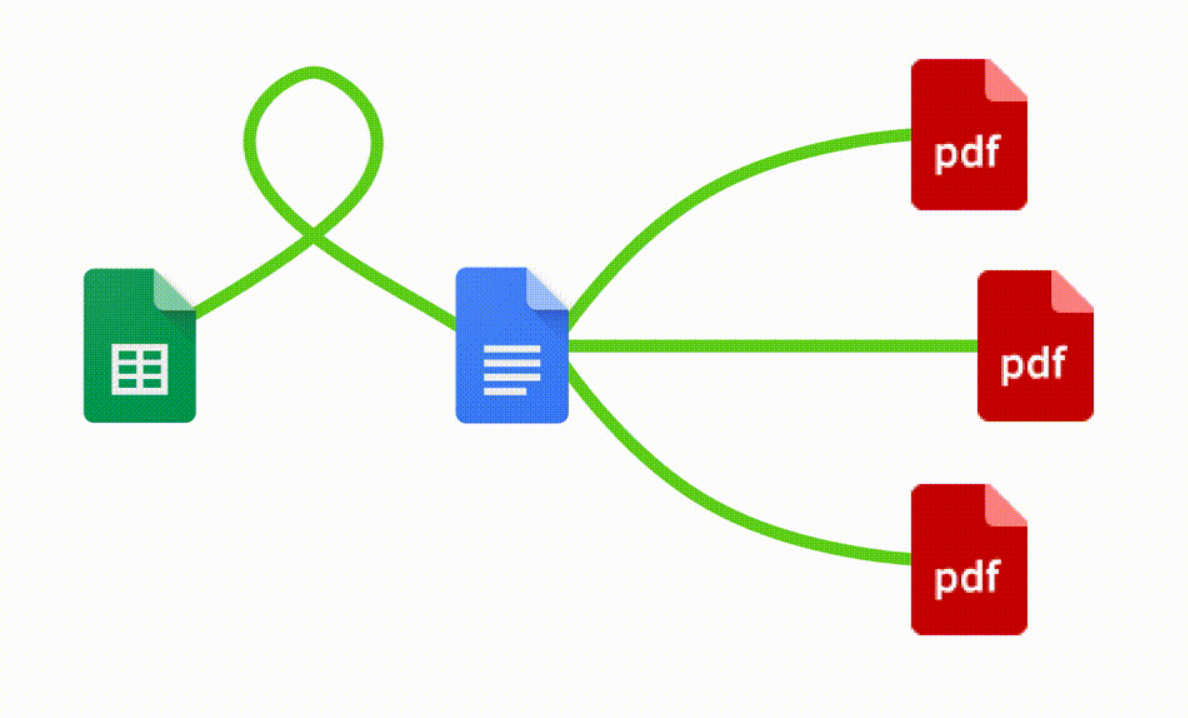
You can create invoices automatically from Google Sheets in a few easy steps. It is simple to use Portant as a free Google Sheets invoice template which contains all kinds of different elements including your logo, unique invoice numbers, payment terms and contact information. After you've opened Portant Workflow, select your Google Sheet, then connect a Google Docs invoice template, customise your blank invoice template with column tags, attach it to an email and finally click 'Start automation', and voila!, you’ve automated your invoicing from Google Sheets!
We know how painful and monotonous it can be to copy and paste invoice data into invoice templates, double check all the information is correct, save it as a pdf and then send the invoice to your customers. That’s why we’ve come to the rescue.
With Portant, you can connect a Google Sheet to an invoice template, click a few buttons and invoices will be magically generated and sent whenever you need to. You can also customise the email and who it's sent from (e.g accounts@portant.co). It's easy to place your invoicing on autopilot.
How to automate an invoice in Google Sheets

Step 1
Open Sheet
Select the Google Sheet you want to use as the data source for your invoices. Portant connects directly to your spreadsheet to pull in the data it needs.

Step 2
Connect Template
Connect your Google Docs, Slides, or Sheets invoice template. Portant will link it to your spreadsheet data source so it knows which fields to merge.

Step 3
Customize
Customize your invoice with merge tags like {{Company Name}}, {{Amount Due}}, and {{Due Date}}. Format it with your branding, colours, and layout.

Step 4
Create
Create invoices automatically when new rows are added to your sheet, or generate them manually in batches. Send via email or save to Google Drive.
Watch Video Headline
How it works
Step 1
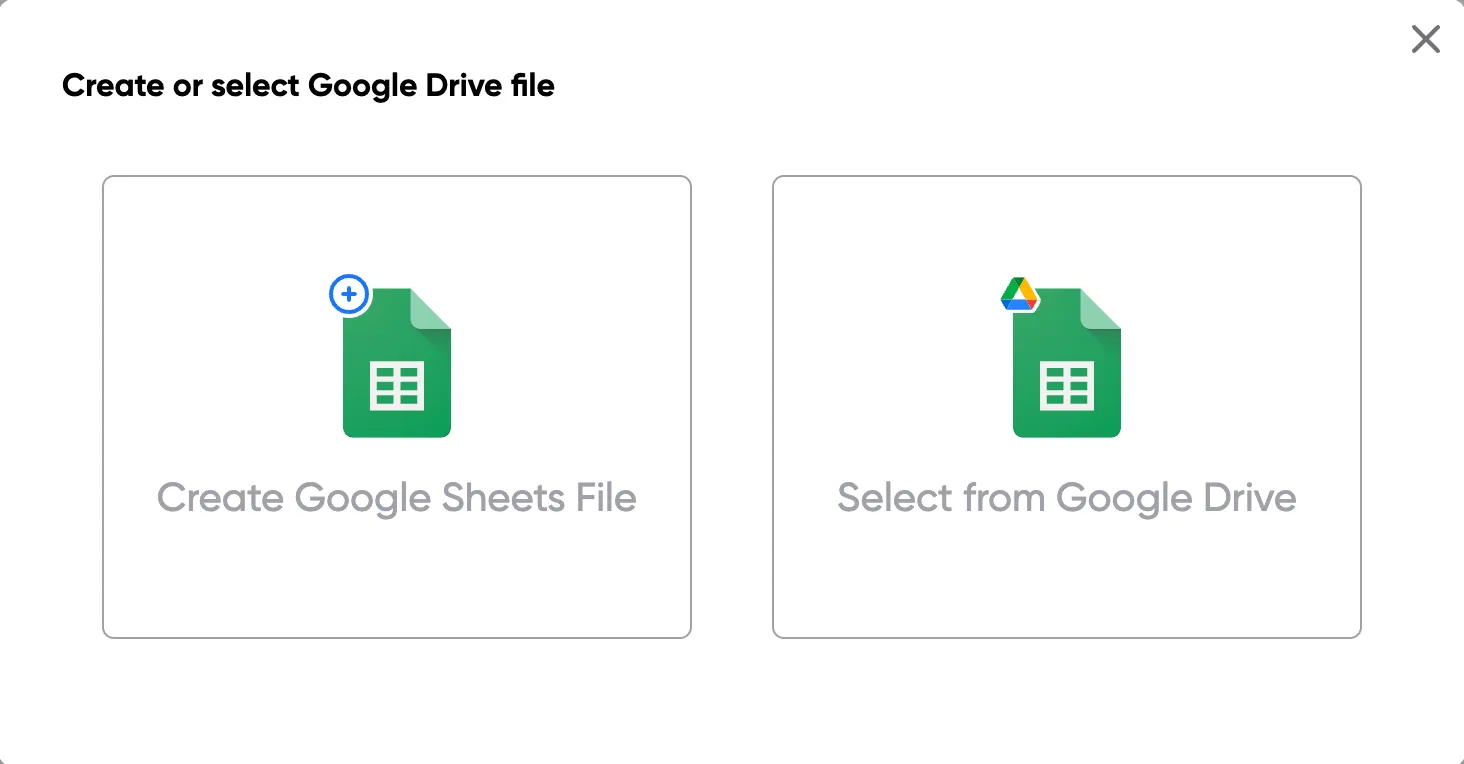
Step 1: Open a Google Sheet
Open a Google Sheet that contains the data for your invoices. This could be customer details, invoice numbers, amounts, and due dates. If you don't have one yet, create a new sheet and add your column headers.
Step 2
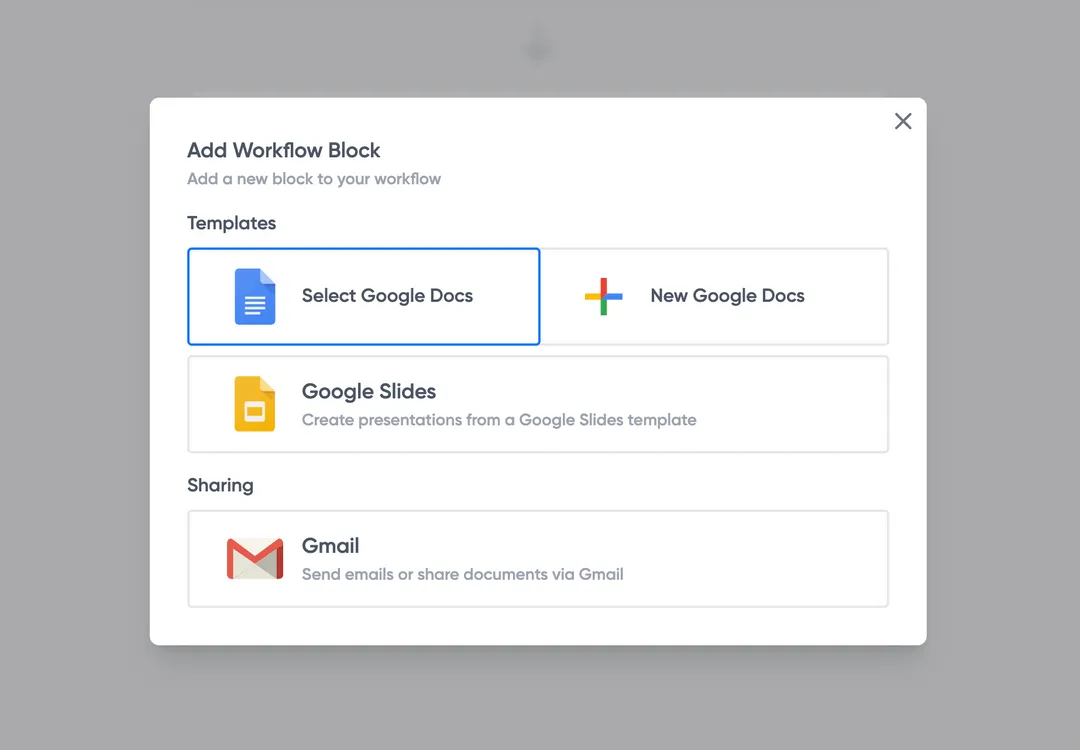
Step 2: Connect your invoice template
Open the Portant add-on from the Extensions menu and connect your Google Docs or Slides invoice template. Portant will scan the template for merge tags and map them to columns in your sheet.
Benefits
Eliminate unnecessary manual work
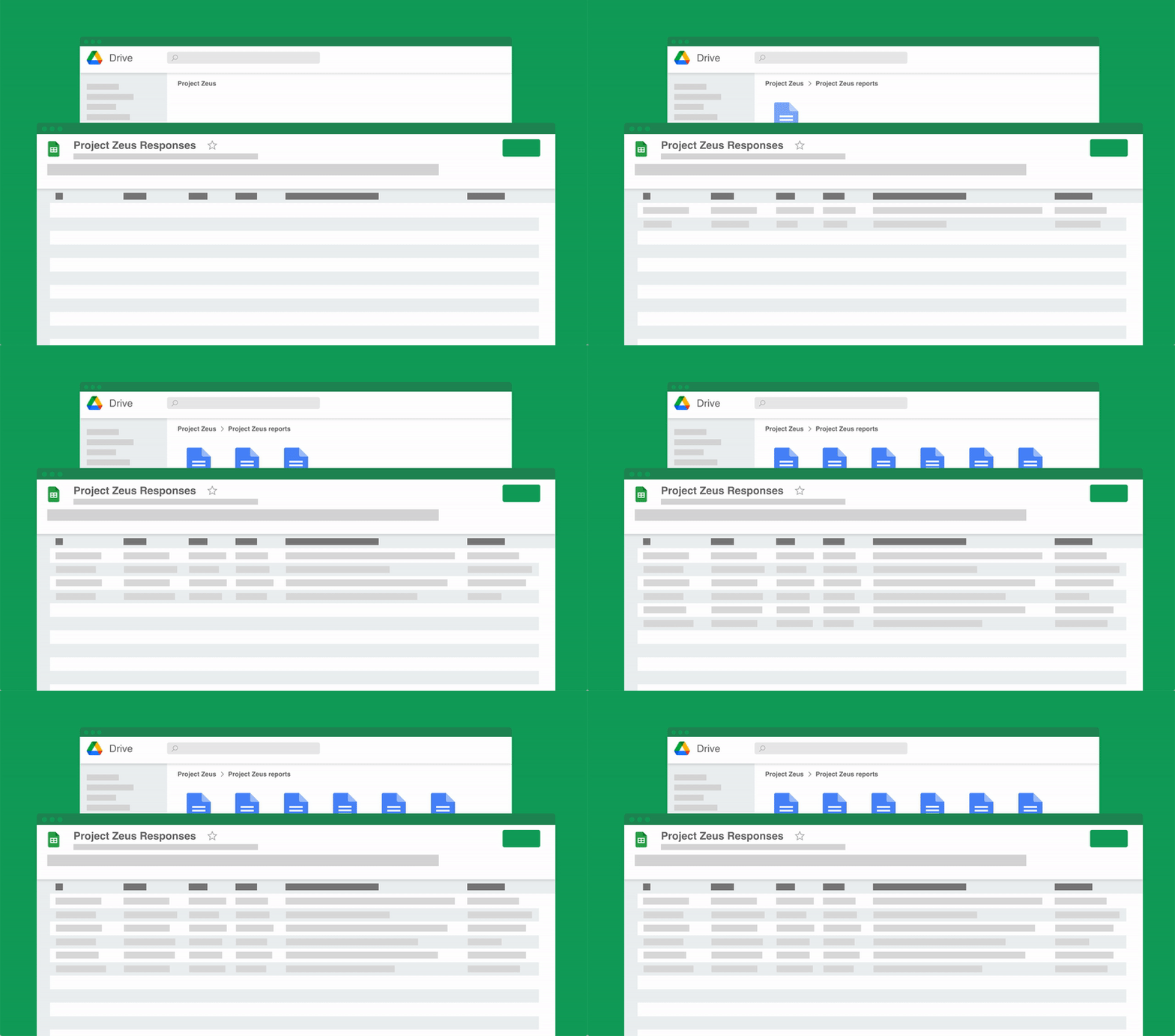
Stop spending hours copying and pasting data from spreadsheets into documents. Portant automates the entire process, pulling data directly from your source and generating completed documents in seconds. Focus on the work that matters, not repetitive formatting tasks.
Make your documents more accurate
Manual document creation leads to errors, from wrong names to outdated figures. Portant maps data fields directly to your template, eliminating typos and ensuring every document is accurate and consistent. Your team sends fewer corrections and your clients get the right information every time.
Built into Google Workspace
Portant works natively with Google Docs, Sheets, Slides, and Gmail. There is no new interface to learn, no data to export, and no switching between tools. Your team stays in the apps they already use while Portant handles the document generation in the background.
What teams say about Portant
“Portant has been a game-changer for Clipboard! It's saved our sales team countless hours every week by generating order forms, proposals and contracts with info from HubSpot automatically filled in.”
“This product is a gamechanger for all of those painful manual document merges. Love what you and the team have built!”
“This software brilliantly takes over the tedious process of creating and sending invoices. This not only saves time but massively reduces errors of data entry.”
“Love this product. Have been using it for over a year and the integration to Google Workspace is awesome. Lots of credit for listening to your users!”
“Truly a gamechanger! Portant streamlines these tasks and allows me to focus on the things that require my attention and problem-solving!”
“Portant has been a game-changer for Clipboard! It's saved our sales team countless hours every week by generating order forms, proposals and contracts with info from HubSpot automatically filled in.”
“This product is a gamechanger for all of those painful manual document merges. Love what you and the team have built!”
“This software brilliantly takes over the tedious process of creating and sending invoices. This not only saves time but massively reduces errors of data entry.”
“Love this product. Have been using it for over a year and the integration to Google Workspace is awesome. Lots of credit for listening to your users!”
“Truly a gamechanger! Portant streamlines these tasks and allows me to focus on the things that require my attention and problem-solving!”
Frequently asked questions
If you reach the document limits, you’ll still be able to use your invoicing workflows. They will notify you about the overage and give you a grace period to find a template that fits your needs!
Portant offers a limited trial free of charge, so you can decide if you want to opt for one of the paid plans, which include features like google docs and google sheets integrations.
Invoicer AI doesn’t offer a free plan, but you can try it free of charge for 14 days. During the trial, you'll have access to customizable invoice templates.
The Pro plan is $42/month for a yearly subscription or $49/month for a monthly one. The Team plan is $149/month or $125/month for a yearly subscription. Enterprise plan pricing is custom and can be discussed with their sales team. These plans include professional invoices and support for small business clients.
Yes, Google offers free invoice templates through Google Docs and Google Sheets. These templates can be accessed directly from the Template Gallery and are ideal for freelancers, small businesses, and anyone needing a simple, editable invoice.
How to Find Them:
- Open Google Docs or Google Sheets.
- Click on “Template gallery” at the top right.
- Look under the “Work” section for invoice templates.
While the built-in templates are a great starting point, many businesses choose to use customized templates that better match their branding, industry requirements, or specific formats like PDF, Word, or editable Google Docs versions.
💡 If you need an invoice or more flexible features like automated totals or CRM integration, consider using a customizable invoice template built for your workflow.
Yes, Google Sheets provides several receipt templates that can be customized for your needs. You can also add your company information and total amount.
You can either use a pre-existing template or create one from scratch. Enter the necessary information such as invoice number, payment terms, and client details. Customize with your logo and services provided. Use formulas to automate calculations and ensure accuracy.
An invoice and a receipt are two different documents used in business transactions. An invoice is a document issued by a seller to a buyer, detailing the services provided, total amount, and requesting payment. A receipt confirms that payment has been received. Both documents are crucial in the invoicing process.
Yes, Google Sheets has invoice templates available. You can find various templates directly within Google Sheets or through external sites offering downloadable options. Here's how you can access and use them:
1. Google Sheets Template Gallery:
- Open Google Sheets.
- Click on "Template Gallery" at the top if available.
- Look for invoice templates within the gallery.
2. Search for Templates Online:
- Use specific search queries like "google sheets invoice template", "invoice template google sheets free", or "free downloadable invoice template" to find a wide variety of templates available online.
- Websites often provide these templates to be downloaded and opened directly in Google Sheets.
3. Customization:
- Once you've selected a template, you can customize it according to your needs, including adding your business details, logo, and specific line items.
4. Additional Resources:
- Google Docs and Google Forms might also offer related templates, such as receipts or other types of invoices that can be used interchangeably.
5. Create Your Own:
- If none of the existing templates meet your requirements, you can create your template by designing a spreadsheet layout that includes your necessary details such as client info, services/products, quantities, rates, and totals.
Access to these templates and the flexibility to modify or create new ones makes Google Sheets a convenient tool for generating invoices.
Yes, Google offers free invoice templates that can be accessed via Google Sheets and Google Docs. These templates are designed to facilitate quick and easy creation and management of invoices. Some notable options include:
- Google Sheets invoice templates: These are specifically designed for creating invoices in spreadsheet format. They allow for customization and automatic calculations, useful for managing invoices efficiently.
- Google Docs invoice templates: These templates provide a text-based format that's easily customizable for simple invoice creation.
- Free invoice templates can be found in Google Drive's template gallery under both Sheets and Docs or by searching online for downloadable templates that are compatible with Google Sheets or Docs.
These templates provide a convenient way to create professional invoices without the need for specialized software.
To create a bill calendar in Google Sheets, follow these steps:
1. Open Google Sheets:
- Go to Google Sheets and create a new spreadsheet.
2. Set Up the Calendar Layout:
- Label Column A as "Date" and Column B as "Bill/Payment."
- Enter the dates of the month in Column A. You can use formulas to auto-generate dates:
- In A2, enter the first date of the month (e.g., "2023-11-01").
- In A3, enter
=A2+1, and drag this formula down to fill in the rest of the month.
- Optionally, add more columns for "Amount," "Due Date," "Status," etc.
3. Enter Bill Details:
- In Column B and any additional columns, enter details of bills due for each date.
- Include the bill or payment description, the amount due, and the status (e.g., "Paid," "Pending").
4. Apply Conditional Formatting:
- Highlight upcoming bills: Select the range in Column A that includes your dates. Go to Format > Conditional formatting.
- Set up a custom formula like
=A2=TODAY()to highlight today's date or=A2-TODAY()<=7to highlight bills due within the next week. Choose formatting styles that help visualize urgency.
5. Create a Summary:
- Use a separate area or sheet to summarize the total bills for different periods (e.g., weekly, monthly).
- Use formulas like
=SUMIF(B:B, "Paid", C:C)to calculate totals based on status.
6. Add Filtering and Sorting:
- Apply Data > Filter to organize bills by due date, amount, or status.
7. Automation with Google Sheets Functions:
- Use Functions like
GOOGLEFINANCEif you want to automatically update exchange rates for international bills. - Use reminders with Google Calendar if integrated with due dates.
This setup creates a clear and interactive bill calendar to manage and track your financial obligations efficiently in Google Sheets.
To convert a Google Sheet into an invoice, follow these steps:
- Create or Open a Google Sheet Invoice Template:
- If you already have a Google Sheets invoice template or want to create one from scratch, make sure it includes necessary invoice components such as the business name, client details, invoice number, date, itemized list of products/services, total amount due, and payment terms.
- Input Invoice Details:
- Populate the template with the specific details for each invoice. This includes:
- Your business information and logo
- Customer’s details, including their name and contact information
- An itemized list of the products or services provided, including descriptions, quantities, rates, and any applicable taxes
- The invoice number and issue date
- The payment terms and due date
- Ensure Formatting and Appearance:
- Adjust the format to ensure that everything is legible and professional. Use Google Sheets’ formatting tools to bold headers, adjust fonts, and apply borders if necessary.
- Calculate Totals and Taxes:
- Use Google Sheets' built-in functions to automatically calculate totals:
- Sum up the total amount using formulas like
=SUM() - Calculate taxes by using a formula, e.g.,
=Total*Tax_RatewhereTotalis the sum of the itemized items, andTax_Rateis the applicable tax rate
- Convert to PDF:
- Go to
File>Download>PDF document (.pdf). This will download your Google Sheet as a PDF, which is a standard, easy-to-send invoice format.
- Go to
- Review the PDF:
- Check the resulting PDF to ensure all information is correct and well-presented. Make sure there are no formatting issues or missing information.
- Send the Invoice:
- You can now email the PDF invoice to your client directly or use a file-sharing service to send it.
By following these steps, you can effectively convert your Google Sheet to a professional invoice. Make sure all the necessary information is included and correctly formatted to provide clarity and professionalism.
To create an invoice using Google Sheets, follow these steps:
- Open Google Sheets: Go to Google Sheets by visiting sheets.google.com and sign in with your Google account.
- Start a New Spreadsheet: Click on the “Blank” option to open a new spreadsheet.
- Insert a Template: You can create your own invoice design or use a pre-made template. To use a template, go to the "Template Gallery" and search for "invoice templates" like "Google sheet invoice templates" or "invoice templates for Google Sheets".
- Customize the Template:
- Fill in the Business Information: Enter your company name, address, and contact details.
- Add Client Information: Input your client’s name, address, and contact details.
- List Products/Services: Include a detailed description of the products or services provided, along with quantities and rates.
- Calculate Totals: Ensure you have fields for item totals, taxes, and final total. Use formulas like
=SUM()to calculate automatically.
- Format the Invoice:
- Adjust fonts, colors, and add your business logo if needed.
- Ensure the invoice appears professional and easy to read.
- Save and Share:
- Save the invoice by clicking "File" > "Download" and choose your preferred format (e.g., PDF for sharing).
- Share it directly via email by clicking "Share" in the top right corner and entering the recipient's email address.
- Automate Future Invoices: For regular use, consider creating a master template. Make a copy for each new invoice by clicking "File" > "Make a Copy".
By following these steps, you can efficiently create and manage invoices using Google Sheets, which provides flexibility and easy customization to suit different invoicing needs.
Google does not have dedicated invoicing software, but it offers tools that can be used to create and manage invoices through Google Sheets and Google Docs. Here are the options available:
- Google Sheets: You can create invoice templates using Google Sheets, which is a versatile tool for organizing data and formatting documents similar to Excel. Several free invoice templates are available for Google Sheets, which can be customized to fit your business needs. These templates facilitate easy management of financial transactions and record-keeping.
- Google Docs: Although primarily a word processor, Google Docs can also be used to design invoice templates. Users can download free invoice templates tailored for Google Docs, or create custom ones to suit their requirements. It's ideal for creating more detailed invoices, such as those needing text-heavy sections or custom branding.
- Integration with Google Forms: For those who need to capture data from clients or customers, Google Forms can be used to gather information, which can then be exported to Google Sheets for invoice creation.
- Google Drive: Templates stored in Google Drive can be easily accessed and shared, making it simple to collaborate with others or retrieve past invoices.
- Extensions and Add-ons: While Google suite itself does not offer specialized invoicing software, there are third-party tools and add-ons available in the Google Workspace Marketplace that integrate with Google Sheets and can enhance invoice creation and management capabilities.
Overall, Google’s suite of tools provides a flexible and cost-effective solution for creating and managing invoices, especially for small businesses and freelancers looking for basic invoicing features.
You can obtain Google invoice templates in several places:
- Google Sheets Template Gallery:
- Go to Google Sheets.
- Click on "Template Gallery" to explore available templates, including invoice templates.
- Google Docs:
- Some invoice templates are available in Google Docs that you can easily edit and customize.
- Third-party Websites:
- Websites like Vertex42 and Templatelab offer downloadable Google Sheets invoice templates.
- Search for specific terms like "free downloadable invoice template" or "invoice template Google Sheets" on these sites.
- Built-in Templates in Google Drive:
- Go to Google Drive, click on "New," then choose "Google Sheets." Once there, select "Template Gallery" to find invoice templates.
- Online Template Resources:
- Use platforms like Smartsheet, PandaDoc, or Invoice Home which offer customizable invoice templates for Google Sheets.
These resources will provide you with various invoice templates that you can edit according to your business needs. Ensure you explore the templates offered by Google and third-party providers to find one that fits your specific requirements.
Google Forms cannot directly generate an invoice by itself, but it can be part of a workflow to create invoices using Google Sheets and other Google Workspace tools. Here's how you can use Google Forms to facilitate the generation of invoices:
1. Create a Google Form:
- Design a Google Form to collect the necessary invoice details from clients or internal team members. Include fields for customer name, contact information, items or services provided, quantities, and prices.
2. Link to Google Sheets:
- Set the form responses to be automatically saved in a Google Sheet. This can be done by clicking on the "Responses" tab in Google Forms and selecting the "Create Spreadsheet" option.
3. Use Google Sheets for Calculation and Formatting:
- In the linked Google Sheet, use formulas to calculate totals, taxes, and any other fees.
- Design an invoice template within the Google Sheet using formatting tools to make it look professional.
4. Automate Invoice Generation:
- You can use Google Apps Script to automate the creation and emailing of invoices. Scripts can extract data from the Sheet, input it into the template, and email the completed invoice to the correct recipient.
- Alternatively, use add-ons like Autocrat that can help with document generation and email distribution.
5. Finalizing the Invoice:
- Once the invoice is generated in Google Sheets, you can convert it to a PDF using built-in Sheets functionality.
- Email the completed PDF to the client directly from Google Sheets or through Gmail.
Although Google Forms itself cannot generate invoices, it plays an essential role in gathering data quickly and efficiently, which can then be used to automate the invoice creation process within Google Sheets.
Zoho Invoice offers a free plan that allows users to manage invoices with certain limitations. It is suitable for small businesses and freelancers, providing basic features without charge. The free plan typically includes:
- The ability to manage a limited number of customers.
- Basic invoicing functionality to create and send invoices.
- Access to predefined invoice templates.
- Integration with popular payment gateways for receiving payments.
- Basic reporting features to track invoice status and payments.
- Limited automation features.
For more advanced features, higher customer capacity, or expanded customization options, Zoho offers paid plans. Users can upgrade to these if their business needs grow or require more comprehensive invoicing solutions.
Zoho offers a range of products, and while some are completely free, others have free versions with limited features. Specifically, Zoho Invoice is one of their products that is free for individual use and small businesses:
- Zoho Invoice offers a free plan that includes basic invoicing features, allowing users to create and manage invoices, track expenses, and receive online payments. This free option is especially suitable for freelancers and small business owners who do not require advanced features.
- Other Zoho products, like Zoho CRM or Zoho Books, offer free tiers as well, but they might have limitations on the number of users or contacts.
- Always check Zoho’s website for the most current offerings and to understand which features are included in their free plans.
Zoho Invoice is a well-regarded invoicing software solution that offers several benefits for businesses.
- Ease of Use: Zoho Invoice is designed with a user-friendly interface and intuitive navigation, making it accessible even for those without much accounting experience.
- Customization: Users can create invoices tailored to their brand by customizing templates, logos, and colors. This flexibility is ideal for businesses that want their invoices to reflect their unique identity.
- Automation: It offers automation features, including recurring invoices, payment reminders, and workflow automation, which can save businesses time and reduce manual errors.
- Integrations: Zoho Invoice integrates seamlessly with other Zoho products and third-party applications, enhancing its functionality. This integration ensures that users can manage finances efficiently alongside other business operations.
- Multiple Payment Gateways: Zoho Invoice supports multiple payment gateways, making it easier for businesses to receive payments from clients through various channels.
- Support for Multiple Currencies: For businesses dealing with international clients, Zoho Invoice handles multiple currencies, allowing for the conversion and management of different currency transactions.
- Mobile Access: The mobile app version allows users to create, send, and manage invoices on the go, which is convenient for business owners and freelancers who need to manage their finances away from their desks.
- Reporting and Analytics: Zoho Invoice provides detailed reporting and analytics, enabling users to track income, expenses, and outstanding invoices, thus offering insights into business performance.
Overall, Zoho Invoice is a comprehensive and flexible tool that serves the invoicing needs of freelancers, small businesses, and larger enterprises alike, with features that can streamline billing and payment processes.
One free invoice app you can consider is Google Sheets, which allows you to create and customize invoice templates without any cost. Here’s how it can be utilized effectively:
- Google Sheets Invoice Template: You can find various invoice templates designed specifically for Google Sheets. These templates are flexible and can be tailored to suit different business needs.
- Free Downloadable Invoice Templates: Many websites and resources offer downloadable invoice templates that can be imported into Google Sheets, providing you with a starting structure to build on.
- Editable Features: Google Sheets allows you to edit and customize the invoice format to include all necessary details such as client information, service descriptions, amounts, and payment terms.
- Accessibility: Since Google Sheets is cloud-based, invoices can be accessed, shared, and edited from any device with an internet connection.
For a more specific and tailored invoicing solution, you can also explore Google Docs for invoice templates or other specialized free invoice template providers compatible with Google Sheets.
Explore related templates
Proforma Invoice Template
Copy our Proforma Invoice Template, and automate your invoice process.
View template Invoice templateSales Invoice Template
Copy our Sales Invoice Template, automate your invoice process, and create professional invoices using customizable invoice templates.
View template Invoice templateIndependent Contractor Invoice Template
Download our Independent Contractor Invoice Template to streamline your invoicing process. Customize, save time, and ensure accurate payment terms.
View template Invoice templateRental Invoice Template
Copy our customizable Rental Invoice Template to streamline your billing process, track rent payments, and automate your invoicing for rental business.
View template Invoice templateBusiness Invoice Template
Copy our Business Invoice Template, and automate your invoice process.
View template Invoice templateCommercial Invoice Template
Copy our Commercial Invoice Template and automate your invoice process for accurate commercial value.
View template Invoice templateConsulting Invoice Template
Copy our Consulting Invoice Template and automate your consulting business invoice process with ease.
View template Invoice templateService Invoice Template
Copy our Service Invoice Template, and automate your invoice process.
View template Invoice templateFreelance Invoice Template
Copy our Freelance Invoice Template, customize it for your self employed business, and automate your sales invoice template process.
View template Invoice templateContractor Invoice Template
Copy our Contractor Invoice Template, and automate your invoice process.
View template Invoice templateConstruction Invoice Template
Use our Construction Invoice Template as a versatile contractor invoice template or construction invoice form.
View template