
Invoice template
Consulting Invoice Template
Copy our Consulting Invoice Template and automate your consulting business invoice process with ease.
Trusted by teams at










Consulting Invoice Template
You can create consulting invoices automatically from Google Sheets in a few easy steps. It is simple to use Portant as a free invoice template in Google Sheets which contains all kinds of different elements including your company logo, unique invoice numbers, payment terms, available online payment methods, and contact information. After you've opened Portant Workflow, select your Google Sheet, then connect a Google Docs invoice template, customize your blank invoice template with column tags, attach it to an email, and finally click 'Start automation', and voila!, you’ve automated your invoicing from Google Sheets!
We know how painful and monotonous it can be to copy and paste invoice data into invoice templates, double check all the information is correct, save it as a pdf, and then send the invoice to your customers. That’s why we’ve come to the rescue to help with your consulting business.
With Portant you can connect a Google Sheet to a professional consulting invoice template, click a few buttons, and professional invoices will be magically generated and sent whenever you need to. You can also customize the email and who it's sent from (e.g., accounts@portant.co). It's easy to place your invoicing on autopilot.
How to automate your consulting invoices

Step 1
Open Sheet
Select the Google Sheet you want to use as the data source for your invoices. Portant connects directly to your spreadsheet to pull in the data it needs.

Step 2
Connect Template
Connect your Google Docs, Slides, or Sheets invoice template. Portant will link it to your spreadsheet data source so it knows which fields to merge.

Step 3
Customize
Customize your invoice with merge tags like {{Company Name}}, {{Amount Due}}, and {{Due Date}}. Format it with your branding, colours, and layout.

Step 4
Create
Create invoices automatically when new rows are added to your sheet, or generate them manually in batches. Send via email or save to Google Drive.
How to automate your consulting invoices with a template
How it works
Step 1
Step 1: Open a Google Sheet
Open a Google Sheet that contains the data for your invoices. This could be customer details, invoice numbers, amounts, and due dates. If you don't have one yet, create a new sheet and add your column headers.
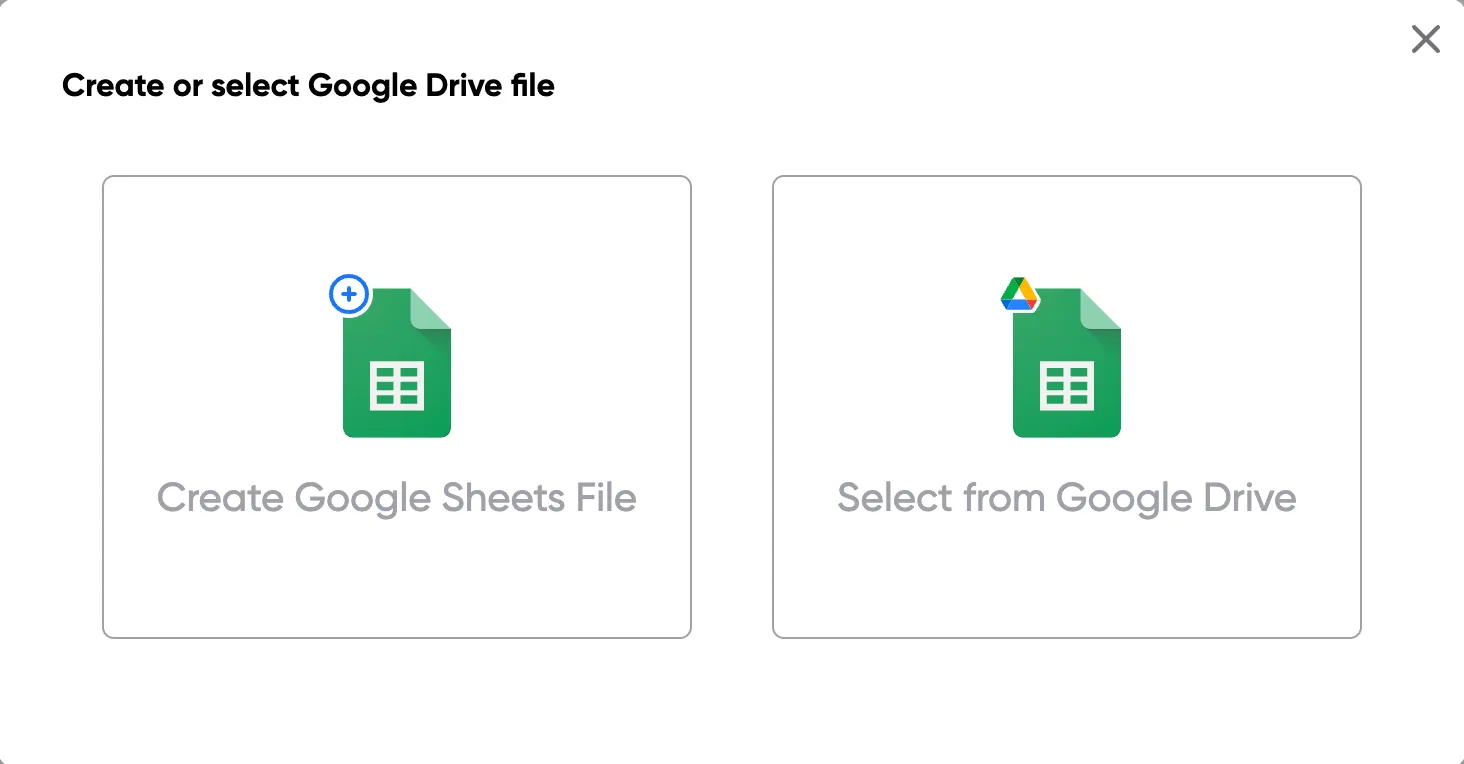
Step 2
Step 2: Connect your invoice template
Open the Portant add-on from the Extensions menu and connect your Google Docs or Slides invoice template. Portant will scan the template for merge tags and map them to columns in your sheet.
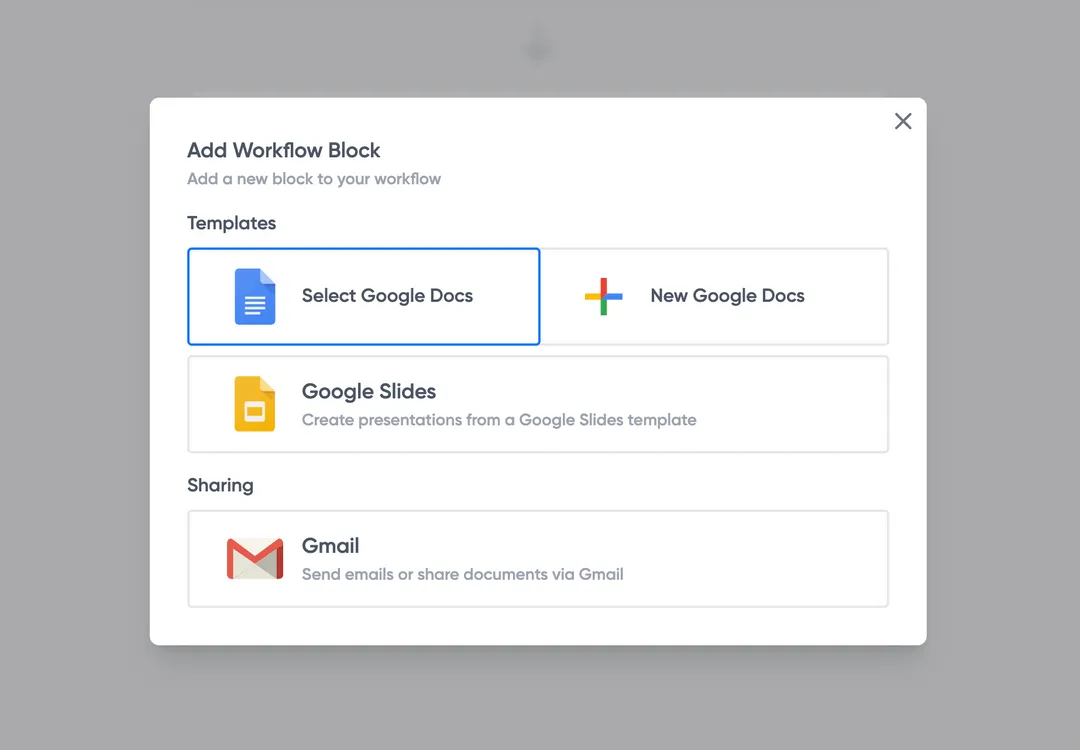
Step 3
Step 3: Customize your output
Choose how you want your invoices to be delivered. You can email them directly to customers, save them as PDFs in Google Drive, or both. Customize the email subject and body with merge tags too.
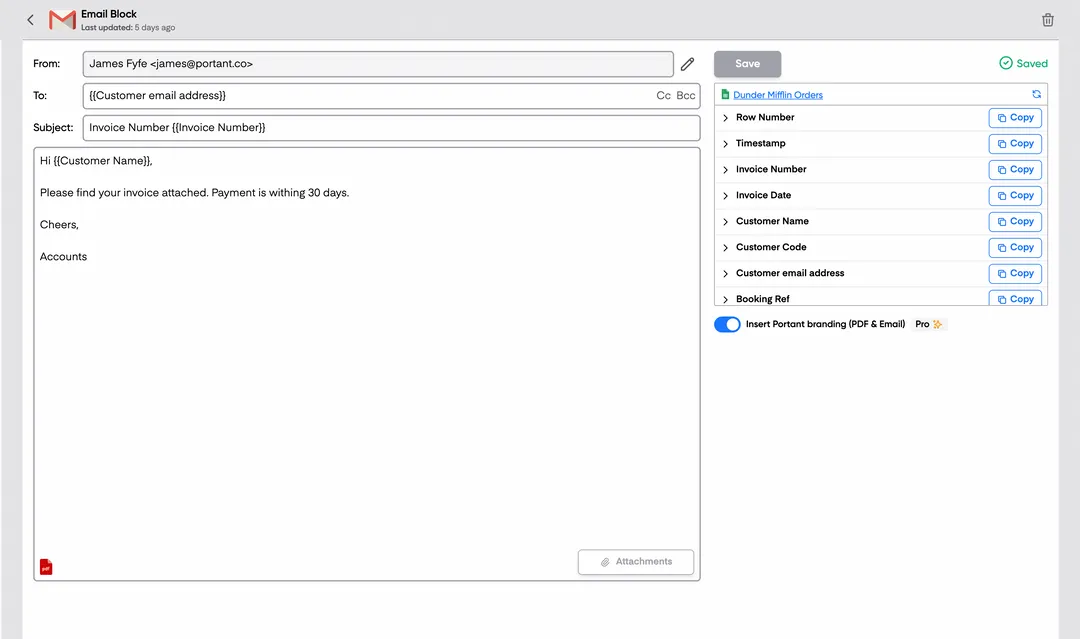
Step 4
Step 4: Automate your invoices
Turn on auto-create to generate invoices every time a new row is added to your sheet. You can also run the workflow manually to process all rows at once, or schedule it to run at specific times.
Benefits
Eliminate unnecessary manual work
Stop spending hours copying and pasting data from spreadsheets into documents. Portant automates the entire process, pulling data directly from your source and generating completed documents in seconds. Focus on the work that matters, not repetitive formatting tasks.
Make your documents more accurate
Manual document creation leads to errors, from wrong names to outdated figures. Portant maps data fields directly to your template, eliminating typos and ensuring every document is accurate and consistent. Your team sends fewer corrections and your clients get the right information every time.
Built into Google Workspace
Portant works natively with Google Docs, Sheets, Slides, and Gmail. There is no new interface to learn, no data to export, and no switching between tools. Your team stays in the apps they already use while Portant handles the document generation in the background.
What teams say about Portant
“Portant has been a game-changer for Clipboard! It's saved our sales team countless hours every week by generating order forms, proposals and contracts with info from HubSpot automatically filled in.”
“This product is a gamechanger for all of those painful manual document merges. Love what you and the team have built!”
“This software brilliantly takes over the tedious process of creating and sending invoices. This not only saves time but massively reduces errors of data entry.”
“Love this product. Have been using it for over a year and the integration to Google Workspace is awesome. Lots of credit for listening to your users!”
“Truly a gamechanger! Portant streamlines these tasks and allows me to focus on the things that require my attention and problem-solving!”
“Portant has been a game-changer for Clipboard! It's saved our sales team countless hours every week by generating order forms, proposals and contracts with info from HubSpot automatically filled in.”
“This product is a gamechanger for all of those painful manual document merges. Love what you and the team have built!”
“This software brilliantly takes over the tedious process of creating and sending invoices. This not only saves time but massively reduces errors of data entry.”
“Love this product. Have been using it for over a year and the integration to Google Workspace is awesome. Lots of credit for listening to your users!”
“Truly a gamechanger! Portant streamlines these tasks and allows me to focus on the things that require my attention and problem-solving!”
Frequently asked questions
There is a free invoice template in Google Sheets that you can copy. However, Portant recommends accurately track your invoice data in Google Sheets and generating pdf invoices from a well designed invoice in Google Docs using Portant. Portant has a simple template workflow that you can use.
Yes, there is a consulting invoice templates in Google Sheets available. However, Portant suggests using Google Sheets for storing invoice details and generating invoices from a consulting invoice template in Google Docs. You can automate invoices to be generated from a client’s company spreadsheet of data using Portant.
To write an invoice for consulting services, include your company name, the client's company details, an invoice number, and dates for issuance and payment due. Itemize the services provided, listing descriptions, hours worked, hourly rates, and total amounts. Clearly state the total price due, payment terms, and accepted payment methods. Add relevant notes or additional information, such as applicable taxes or contact details for queries. Ensure the layout is clear and professional for easy understanding and prompt payment.
Consultants can be paid either before or after providing consulting services, depending on the agreement and project nature. Some require advance payments or retainers, especially for large projects or new clients, while others might be paid after specific milestones or project completion. Payment terms should be clearly outlined in the contract.
Common methods include hourly billing, project-based fees, retainer fees, or milestone-based billing. Hourly billing charges for each hour worked, project-based billing sets a fixed fee for the entire project, retainers are advance payments securing services over time, and milestone-based billing involves payments at specific stages. The chosen method should be detailed in the contract.
Start by determining your desired annual income, then factor in business expenses, taxes, and profit margin to get your target revenue. Estimate billable hours per year, then divide your target revenue by these hours to find your hourly rate. Consider industry standards and the value you provide, adjusting to remain competitive while covering expenses and meeting financial goals.
A consulting invoice template typically includes the consultant's business name, business address, and contact information at the top, followed by the invoice number, date of issue, and payment due date. The main body lists consulting services provided, with a description of each service, the number of hours worked, the hourly rate, and the total cost for each line item. The invoice concludes with the subtotal, any applicable taxes, the total amount due, and payment instructions or terms.
To politely invoice, use a professional and courteous tone. Start with a friendly greeting or thank you message, outline services provided, amounts due, and payment terms politely, and conclude with gratitude for prompt payment, providing contact details for any questions.
To write an invoice for consulting services, follow these steps:
- Header:
- Include your business name, logo, and contact information (address, phone number, email).
- Add the client’s business name and contact details.
- Invoice Information:
- Clearly label the document as "Invoice" at the top.
- Assign a unique invoice number for tracking.
- Specify the invoice date.
- Include the payment due date for clarity.
- Service Details:
- List the services provided with a brief description for each.
- Mention specific dates or timeframes during which services were rendered.
- Specify the rate for each service (hourly, per project, etc.).
- Indicate the quantity (number of hours, sessions, etc.).
- Cost Breakdown:
- Calculate the total cost per line item (rate multiplied by quantity).
- Add any applicable taxes or fees separately.
- Total Amount Due:
- State the subtotal, total tax (if applicable), and the overall total amount due at the bottom.
- Payment Instructions:
- Provide payment terms and methods accepted (bank transfer, credit card, PayPal, etc.).
- Include any late payment fees or discounts for early payments if applicable.
- Mention necessary account numbers or payment links.
- Additional Notes:
- Include any additional information or notes for the client, such as a thank you message or clarification on payment terms.
- Terms and Conditions:
- Outline key terms and conditions related to the invoice, like cancellation policies or limitations of liability.
Ensure accuracy and clarity to facilitate prompt payment and maintain professionalism with your clients.
Yes, you can generate your own invoice for consulting services. Here are some steps and tips to help you create an effective consulting invoice using relevant keywords:
1. Choose a Template:
- Consider using a consulting invoice template or consultant invoice template available in formats like Google Docs, Excel, or PDF. These templates provide a structured format to input your details.
- Options include a free consulting invoice template, sample invoice for consulting services, or invoice template for consulting services.
2. Include Essential Details:
- Make sure to include your business name, address, and contact information.
- Add the client's name and contact information.
- Use a consulting invoice number for tracking purposes.
3. Service Description:
- Clearly describe the services provided. An invoice description for consulting services should detail the type of consulting service, such as IT consulting or HR consultancy, and the period of service.
- If applicable, include a sample bill for consulting services to guide the format.
4. Determine Payment Terms:
- Clearly state the payment terms, including the due date for the invoice and acceptable payment methods.
- Specify any late payment penalties if applicable.
5. List Charges Accurately:
- Break down charges for each service or product. This could be an hourly rate if using a freelance consultant invoice template or a flat fee.
- For those providing professional services, an invoice format for consultancy services might include consultancy charges and taxes.
6. Customization and Branding:
- Customize the template to match your branding, adding your logo if applicable.
- Modify a template for consulting invoice or invoice template consultancy services to reflect your business style.
7. Utilize Software or Tools:
- Explore using accounting software or online platforms that offer invoice template consulting options.
- Tools like template consultant invoice in Google Sheets can streamline the process.
8. Sample and Examples:
- Refer to sample consulting invoices or consultant invoice examples to ensure completeness and accuracy.
- Review sample of invoice for professional services as a guide to know what to include.
9. Template and Format Options:
- Consider different formats such as a consultant invoice template doc for easy editing or sample invoice for consulting services word for a more formal document.
- Choose between a simple consulting invoice template or a more detailed consultancy invoice template.
By following these steps, you can effectively create and manage your own consulting invoices, ensuring clarity and professionalism in your billing process.
As a freelance consultant, invoicing is a crucial part of ensuring you get paid for your services. Here's a step-by-step guide on how to invoice effectively:
1. Select a Template: Choose an invoice template that suits your needs, such as consulting invoice template, free consulting invoice template, or consultant invoice template excel. Many online platforms offer templates you can easily download, like consulting invoice template google docs or invoice template for consultants.
2. Add Personal Information: Include your name or business name, address, phone number, and email. You should also include the client's details, such as their name, business name, and contact information.
3. Invoice Number and Date: Assign a unique invoice number for tracking purposes and include the date of issuance. This helps maintain organized records for you and your client.
4. Detail Your Services: Clearly describe the consulting services provided. Use terms that were agreed upon with the client. Keywords could include sample invoice for consulting services, invoice description for consulting services, or invoice for consulting services.
5. Insert Payment Details: Specify the payment terms, including the due date and accepted payment methods like bank transfer or PayPal. Make sure to mention late payment fees if applicable.
6. Breakdown of Costs: List out your charges, either hourly, daily, or per project. Clearly show the rates, total hours or days, and the final amount. You might refer to terms like consulting fees invoice template or consultant hourly invoice template.
7. Total Amount Due: Clearly state the total amount that the client needs to pay. It is crucial for transparency and to avoid any payment disputes.
8. Include Tax Information: If applicable, include any taxes such as VAT/GST. Provide your tax ID if required.
9. Personal Touch: Add a note thanking your client for their business. It personalizes the invoice and fosters positive client relationships.
10. Attach Supporting Documents: Attach any documents or reports that support your charges, if necessary.
By following these steps, you ensure that your invoice is professional, clear, and easy for your clients to process. This facilitates prompt payments and reduces the likelihood of misunderstandings.
A consulting invoice is a formal document used by consultants to request payment for their services from clients. It outlines the details of the work performed, the associated costs, and the terms of payment. Here’s what an effective consulting invoice typically includes:
- Consultant Information: Name, address, contact details, and business logo.
- Client Information: Name, address, and contact details of the client.
- Invoice Number: Unique identifier for the invoice for record-keeping and reference.
- Invoice Date: The date on which the invoice is issued.
- Payment Terms: Clarification of when the payment is due (e.g., upon receipt, net 30 days).
- Service Description: Detailed breakdown of the services provided, including the date and description of each service.
- Rate and Hours: For services billed by the hour, include the hourly rate and the number of hours worked. For flat rate or project-based billing, list the total fee.
- Subtotal: The total amount before taxes and additional charges.
- Taxes and Fees: Any applicable taxes or additional fees.
- Total Amount Due: The final amount the client needs to pay.
- Payment Instructions: Details on how payments can be made (e.g., bank account details, PayPal).
- Additional Notes: Any extra information the consultant wishes to convey, such as thank you notes or specific payment instructions.
- Terms and Conditions: Any relevant legal terms, refund policies, or service guarantees.
Consulting invoices ensure clear communication between the consultant and client, facilitating timely payment processing and financial management. Using templates for consulting invoices can streamline the invoicing process and maintain consistency across multiple clients.
To raise an invoice as a consultant, follow these steps:
- Invoice Format: Choose a consulting invoice template that suits your needs. You can find templates in formats such as PDF, Word, Excel, or Google Docs. Ensure it has space for all the necessary details.
- Header Information: Include your business name, address, contact details, and logo at the top. Underneath, provide the client's details, including their name, company, and contact information.
- Invoice Number and Date: Assign a unique invoice number for tracking and include the invoice date to mark when it was issued.
- Detailed Description of Services: Break down the consulting services provided. Include specific tasks, consulting hours, or project phases. Make sure it's clear so the client understands what they are being billed for.
- Rates and Charges: Clearly state your consulting rates – whether hourly, per project, or another pricing model. Specify quantities where applicable (e.g., number of hours) and calculate the total cost for each line item.
- Subtotal and Discounts: Sum up the individual charges to show the subtotal. If offering any discounts, list these separately and subtract from the subtotal.
- Taxes: If applicable, calculate and include any relevant taxes. Be specific about the type of tax and the rate applied.
- Total Amount Due: Highlight the total invoice amount after all taxes, discounts, and charges to make it easily noticeable.
- Payment Terms: Specify payment terms, including the due date for payment and preferred payment methods (e.g., bank transfer, PayPal). Include any late payment fees or interest charges.
- Additional Notes: Provide any additional information as needed, such as next steps, a thank you message, or your refund policy.
- Send the Invoice: Once the invoice is complete, send it to the client via their preferred method, whether that's email or mail, ensuring it's in a format they can easily access and process.
By following these steps, you ensure that your consulting invoice is clear, professional, and provides all necessary details for prompt payment.
To generate a professional invoice, especially for consulting services, consider the following steps and elements typically included in invoice templates:
1. Header Information:
- Business Name or Logo: Make your invoice identifiable and professional.
- Contact Information: Include your business address, phone number, and email address.
- Date: The date on which the invoice is created.
2. Client Information:
- Client's Name: The name of the person or company being invoiced.
- Client's Contact Details: Their address, phone number, and email.
3. Invoice Details:
- Invoice Number: A unique identifier for the invoice for reference and record-keeping.
- Payment Terms: Clearly state the terms of payment, including the due date and any late fees.
4. Service Description:
- List of Services Provided: Be specific about what consulting services were rendered.
- Quantity/Hours: Indicate how much service was provided (e.g., 10 hours of consulting).
- Rate: The rate per unit of service provided (e.g., $100 per hour).
- Total: Calculate the total amount for each line item based on the rate and quantity.
5. Subtotal and Total:
- Subtotal: Sum up the total amount before taxes or additional charges.
- Taxes: Include any applicable taxes, specifying the type and rate.
- Discounts: If applicable, apply any discounts and clearly state them.
- Total Amount Due: The grand total that the client needs to pay.
6. Payment Instructions:
- Accepted Payment Methods: Specify how clients can pay (e.g., bank transfer, credit card, PayPal).
- Bank Details: If applicable, provide bank account details for wire transfers.
7. Additional Information:
- Additional Notes: Add any personalized message or instructions, such as a thank-you note or next steps.
- Terms and Conditions: If needed, include terms related to refunds, disputes, or other conditions.
Consider using software like Microsoft Word, Excel, Google Docs, or Sheets, which offer templates to create or download customizable consulting invoice templates, simplifying the process while maintaining professionalism and accuracy.
There are several excellent free invoice generators available that can cater to the needs of consultants. Here are some top options:
1. Wave:
- Offers a completely free invoicing service.
- Allows for unlimited invoices, customers, and products.
- Features customizable invoice templates.
- Provides accounting and receipt scanning features.
2. Zoho Invoice:
- Provides free invoices with no restrictions on features.
- Includes time tracking, expense management, and multiple currency support.
- Offers customizable invoice templates.
3. Invoicely:
- Free version allows for simple invoice creation and delivery.
- Enables basic client management and invoice customization.
- Provides access to various business reports.
4. PayPal Invoicing:
- Simple tool for creating and sending invoices.
- Allows payment collection through PayPal.
- Custom templates and recurring billing options available.
5. Invoice Ninja:
- Open-source and free version allows for up to 100 clients.
- Time tracking and product management tools included.
- Invoice customization with the ability to handle multiple currencies and languages.
6. AND.CO:
- Offers free invoicing along with contract and proposal features.
- Provides project and task management tools.
- Ideal for freelancers and independent consultants.
When choosing an invoice generator, consider the features that best align with your business needs, such as customization capabilities, compatibility with accounting systems, and the ability to track time or expenses.
Google offers various invoice templates through its Google Docs and Google Sheets platforms. These templates can be customized to meet the needs of consultants and other service providers. Here’s how you can access and use them:
1. Google Docs Invoice Template:
- Go to Google Docs.
- Click on "Template Gallery" in the top right corner.
- Browse through the templates to find an invoice template suitable for consulting services.
- Select the template to open it, then customize it with your business details.
2. Google Sheets Invoice Template:
- Go to Google Sheets.
- Select "Template Gallery" at the top right.
- Browse for an invoice template that fits consulting needs.
- Open the template and adjust the fields for your specific consulting services.
3. Google Drive:
- Search directly within Google Drive for invoice templates in both Docs and Sheets format that are shared by other users.
If these built-in options do not meet your requirements, there are also numerous free and premium third-party templates available on the internet designed specifically for Google Docs and Sheets. These can often be found by searching within template marketplaces or productivity tool add-ons associated with Google Workspace.
To make simple invoices, follow these steps and incorporate relevant keywords to ensure your invoice aligns with standard consulting invoice templates:
- Header Information:
- Include your business name or your name if you’re an independent consultant.
- Add your logo for a professional touch (optional).
- Provide your contact information, including address, phone number, and email.
- Client Details:
- Clearly display the client's name and contact information.
- Invoice Number and Date:
- Assign a unique invoice number for tracking purposes.
- Add the invoice issue date and include the payment due date.
- Service Details:
- List the services provided, using descriptions that match those commonly found in consulting invoice templates.
- For each service entry, specify the quantity (e.g., hours worked), rate per unit, and total per line item.
- Subtotal and Total:
- Calculate the subtotal of all services provided.
- Include any applicable taxes or discounts.
- Clearly display the total amount due.
- Payment Terms and Methods:
- State the payment terms, such as net 30 days.
- Specify acceptable payment methods (e.g., bank transfer, check).
- Additional Notes:
- Add any additional comments or instructions, such as a thank you note or detailed payment instructions.
Utilizing these elements, you can craft a straightforward and professional invoice suitable for consulting services. Consider using an invoice template for consulting to streamline the process and ensure all necessary components are included. You can explore options like free consulting invoice templates or download templates in formats such as Word, PDF, or Excel to find one that best suits your needs.
Zoho offers a variety of plans for its billing and accounting software, known as Zoho Books. Zoho Books provides a free plan with essential features suitable for freelancers and small businesses. Under this free plan, users have access to:
- Basic invoicing capabilities.
- Managing expenses.
- Tracking projects and tasks.
- Support for one user and one accountant.
While the free plan offers essential features, more advanced features such as multi-currency support, recurring transactions, and advanced reporting are available in their paid plans. Users looking for additional features or handling more complex operations may consider upgrading to one of the paid subscription tiers that Zoho offers.
Yes, it is legal to make your own invoice, and many independent contractors, freelancers, and self-employed individuals do so. Creating your own invoice can provide flexibility and ensure that the document meets your specific needs and business requirements. Here are some key points to consider:
1. Essential Components: To ensure legality and professionalism, your invoices should include essential components such as:
- Business name and contact information
- Client's name and contact details
- Unique invoice number
- Date of invoice
- Description of goods or services provided
- Quantity and rate for services rendered
- Total amount due
- Payment terms and due date
- Any applicable taxes or fees
2. Template Usage: Utilizing a contractor invoice template can help provide a consistent format that includes all necessary components. Templates are available for different formats, including Word, Excel, PDF, and Google Docs.
3. Customization Options: Whether you're using a blank contractor invoice template or an independent contractor invoice template tailored for specific industries, customization allows you to adjust the layout, fields, and branding to suit your business's unique identity and needs.
4. Digital and Printable Options: You can create invoices digitally using software like Microsoft Excel or Google Sheets, or prepare a printable independent contractor invoice template if you prefer traditional paper invoices.
5. Industry Standards: Ensure your invoice adheres to any industry-specific standards or client requirements for invoicing. For instance, if you are a construction or software contractor, you might need a template that addresses specific aspects of your services.
6. Legal Considerations: It’s essential to ensure that your invoices comply with any local laws, especially regarding taxes and business practices. Including all relevant information and maintaining accurate records will help demonstrate your professionalism and legal compliance.
By using invoice templates and understanding the legal requirements, you can efficiently manage your billing process and maintain a good reputation with clients.
Explore related templates
Proforma Invoice Template
Copy a free proforma invoice template as a Google Doc, or download it for Word. Fill in your details and send buyers an estimated bill before goods ship.
View template Invoice templateSales Invoice Template
Copy our Sales Invoice Template, automate your invoice process, and create professional invoices using customizable invoice templates.
View template Invoice templateIndependent Contractor Invoice Template
Download our Independent Contractor Invoice Template to streamline your invoicing process. Customize, save time, and ensure accurate payment terms.
View template Invoice templateRental Invoice Template
Copy our customizable Rental Invoice Template to streamline your billing process, track rent payments, and automate your invoicing for rental business.
View template Invoice templateBusiness Invoice Template
Copy our Business Invoice Template, and automate your invoice process.
View template Invoice templateCommercial Invoice Template
Copy our Commercial Invoice Template and automate your invoice process for accurate commercial value.
View template Invoice templateService Invoice Template
Copy our Service Invoice Template, and automate your invoice process.
View template Invoice templateFreelance Invoice Template
Copy our Freelance Invoice Template, customize it for your self employed business, and automate your sales invoice template process.
View template Invoice templateContractor Invoice Template
Copy our Contractor Invoice Template, and automate your invoice process.
View template Invoice templateConstruction Invoice Template
Use our Construction Invoice Template as a versatile contractor invoice template or construction invoice form.
View template Invoice templateGoogle Sheets Invoice Template
Connect your Google Sheet to a customizable invoice template and streamline your invoicing process effortlessly.
View template