
Quote template
Contractor Quote Template
Copy our Contractor Quote Template to automate your construction quote process, manage client information efficiently, and ensure accurate material costs seamlessly.
Trusted by teams at










Contractor Quote Template
You can create contractor quotes automatically from Google Sheets in just a few simple steps using Portant, a free Google Sheets contractor quote template. This tool includes essential elements such as your company name, company logo, unique quote numbers, payment terms, labor costs, unit prices, and contact details. Once you've opened Portant Workflow, select your Google Sheet and connect it to a customizable Google Docs quote template. Add a detailed breakdown of your construction work, materials, pricing, and the final quote. Customize the template to fit your needs, attach it to an email, and click 'Start automation' to send your contractor quotes quickly and accurately.
Managing contractor quotes can be time-consuming, especially when you need to ensure that material costs, labor costs, and client information are accurate. Portant simplifies this process by allowing you to generate and send quotes directly from Google Sheets with just a few clicks. You can even personalize the sender’s email (e.g., accounts@portant.co) and automate the entire process, ensuring you always provide accurate free contractor quotes, including detailed unit prices and total costs.
Using Portant, you can streamline the quote generation for your construction company, saving valuable time and reducing errors in your invoicing. Automate your workflow, reduce manual effort, and ensure your contractor quotes are professional, detailed, and delivered promptly.
How to automate your contractor quotes

Step 1
Open Sheet
Select the Google Sheet you want to use as the data source for your quotes. Portant connects directly to your spreadsheet to pull in the data it needs.

Step 2
Connect Template
Connect your Google Docs, Slides, or Sheets quote template. Portant will link it to your spreadsheet data source so it knows which fields to merge.

Step 3
Customize
Customize your quote with merge tags like {{Contact Name}}, {{Line Items}}, and {{Total}}. Format it with your branding, colours, and layout.

Step 4
Create
Create quotes automatically when new rows are added to your sheet, or generate them manually in batches. Send via email or save to Google Drive.
How to automate your contractor quotes with a template
Step 1
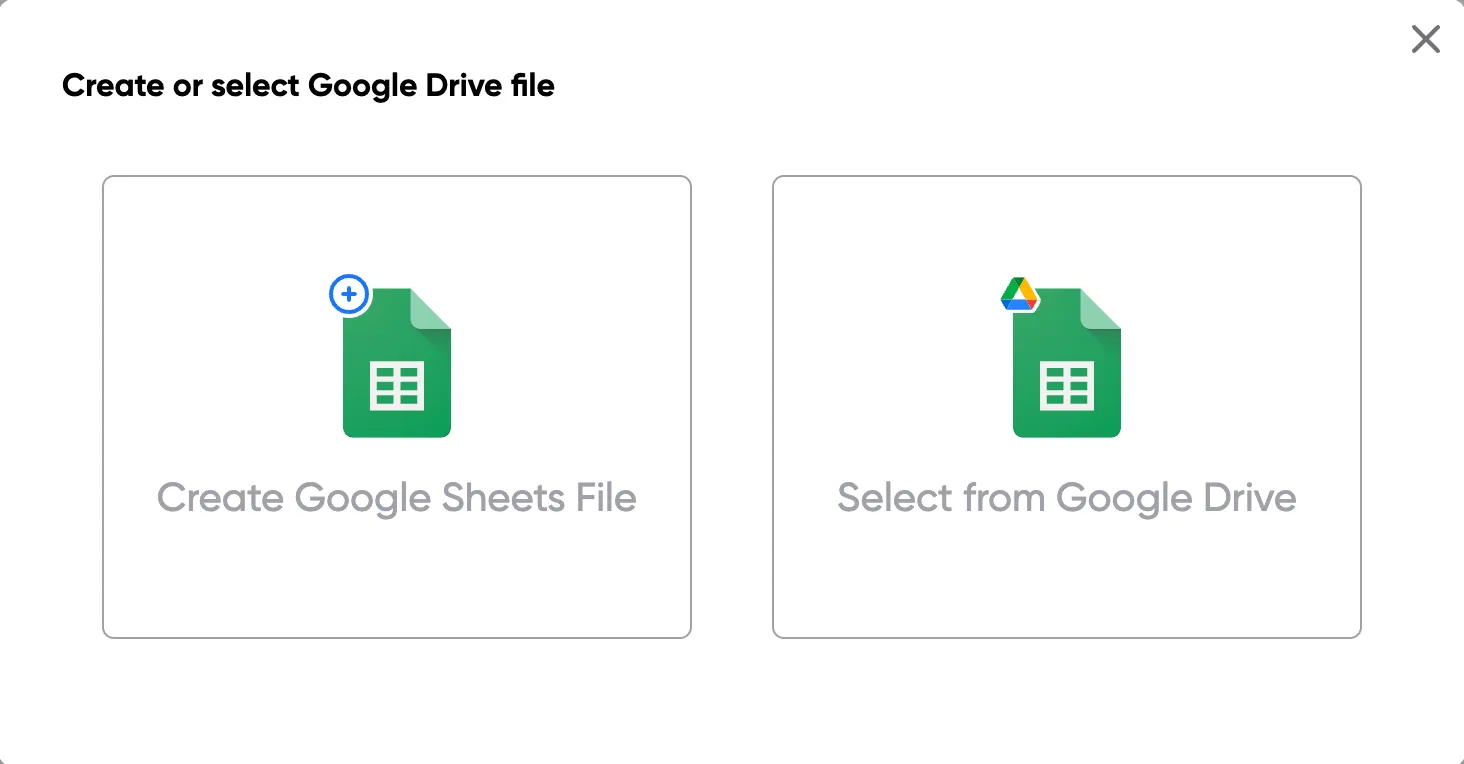
Step 1: Open a Google Sheet
Open a Google Sheet that contains the data for your quotes. This could include customer details, product names, quantities, pricing, and discount information. Create a new sheet if you don't have one yet.
Step 2
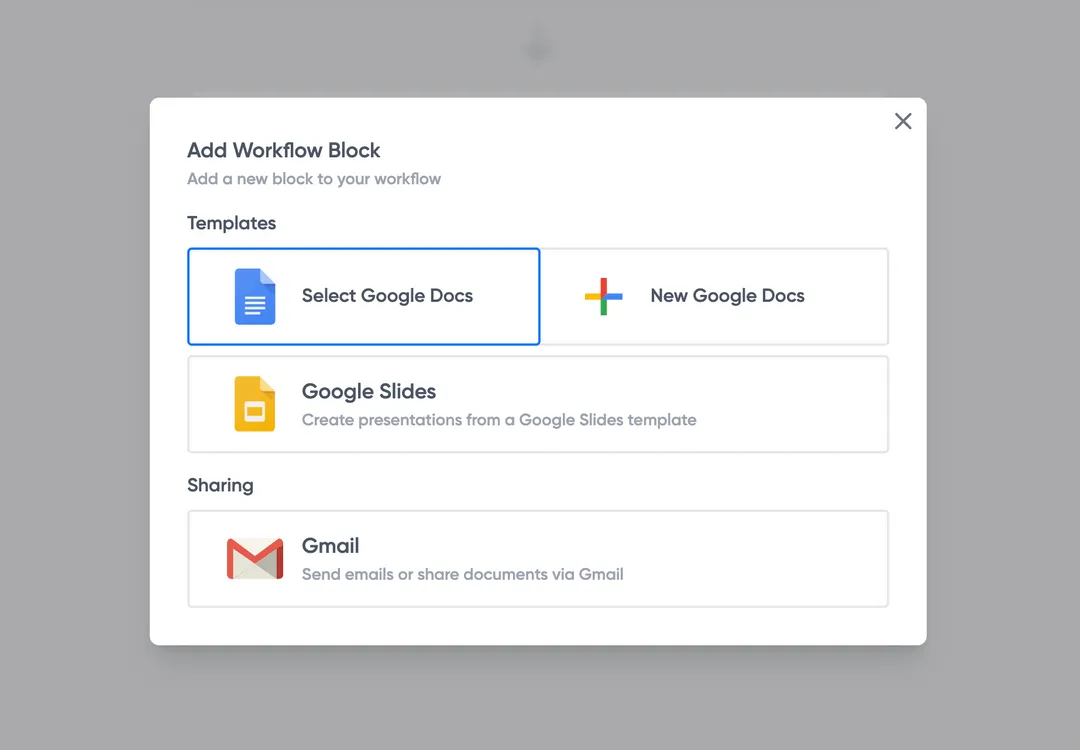
Step 2: Connect your quote template
Open the Portant add-on and connect your Google Docs or Slides quote template. Portant will scan for merge tags and match them to your sheet columns automatically.
Step 3
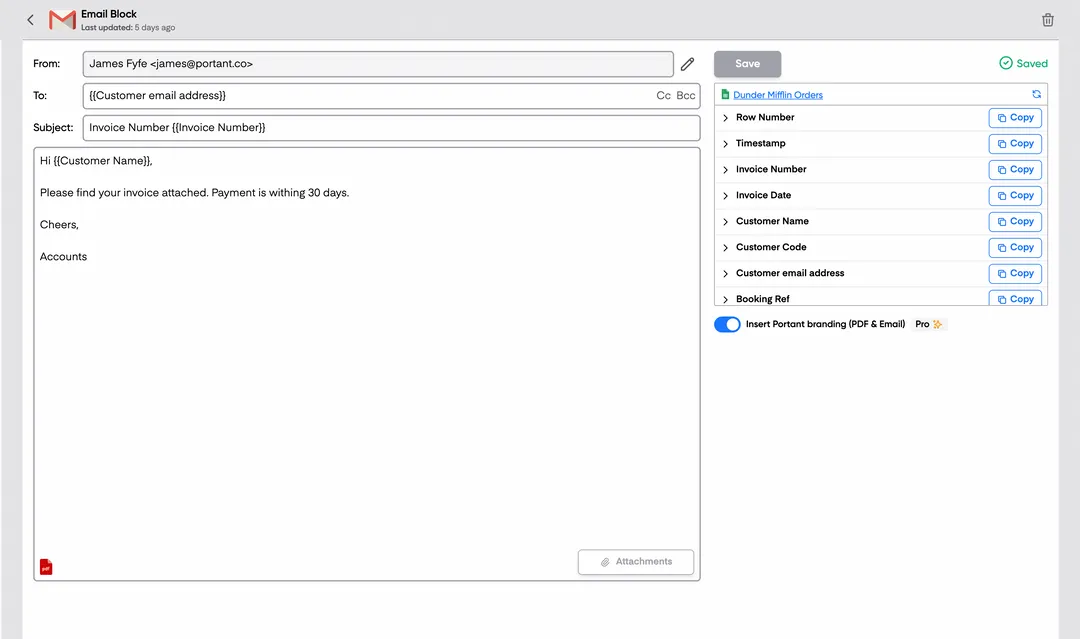
Step 3: Customize your output
Choose how your quotes are delivered. Send them directly to customers via email, save as PDFs to Google Drive, or both. Add merge tags to the email subject and body for a personal touch.
Step 4
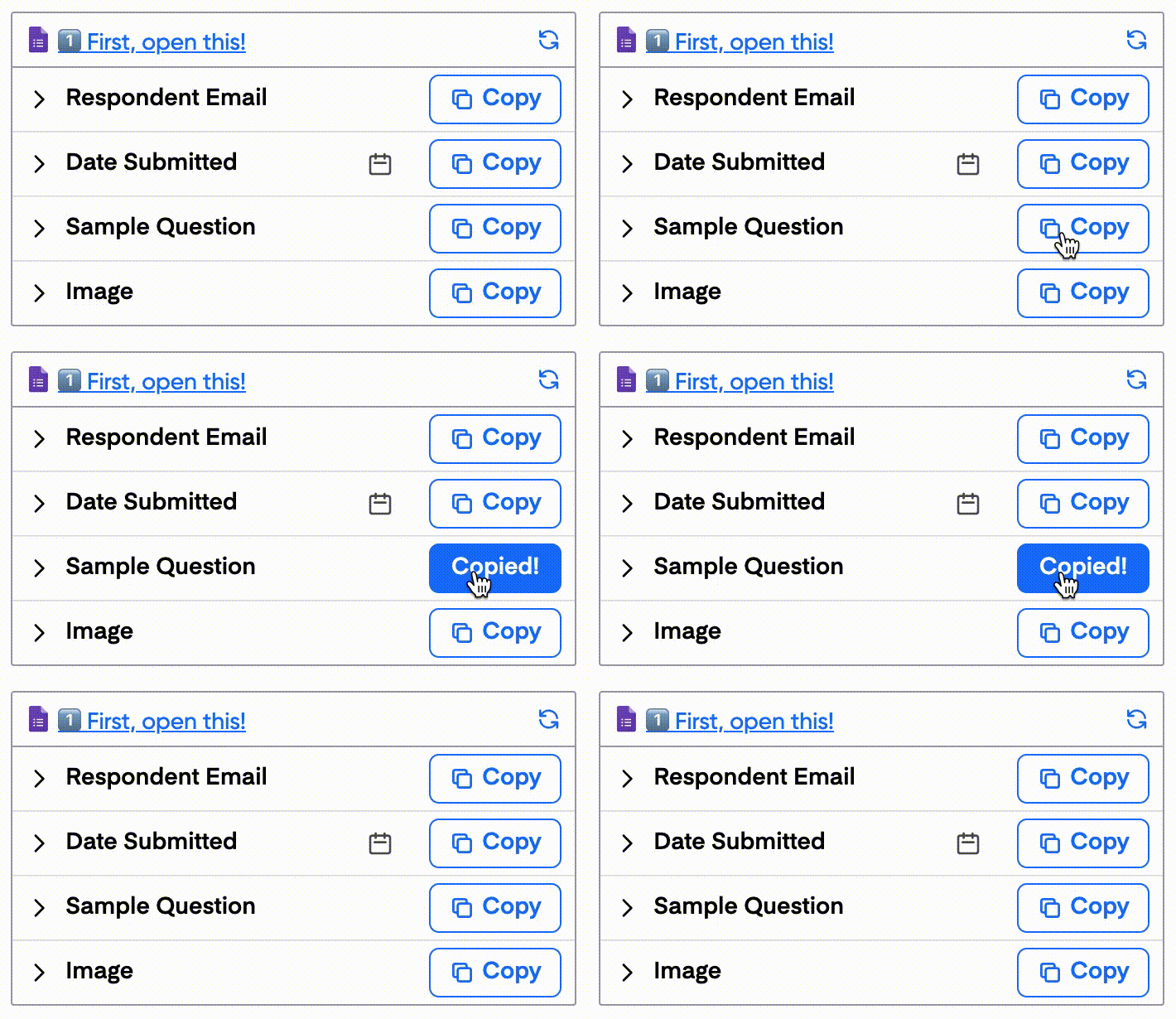
Step 4: Automate your quotes
Turn on auto-create to generate quotes every time a new row is added. Run the workflow manually for batch processing, or schedule it to run at specific intervals.
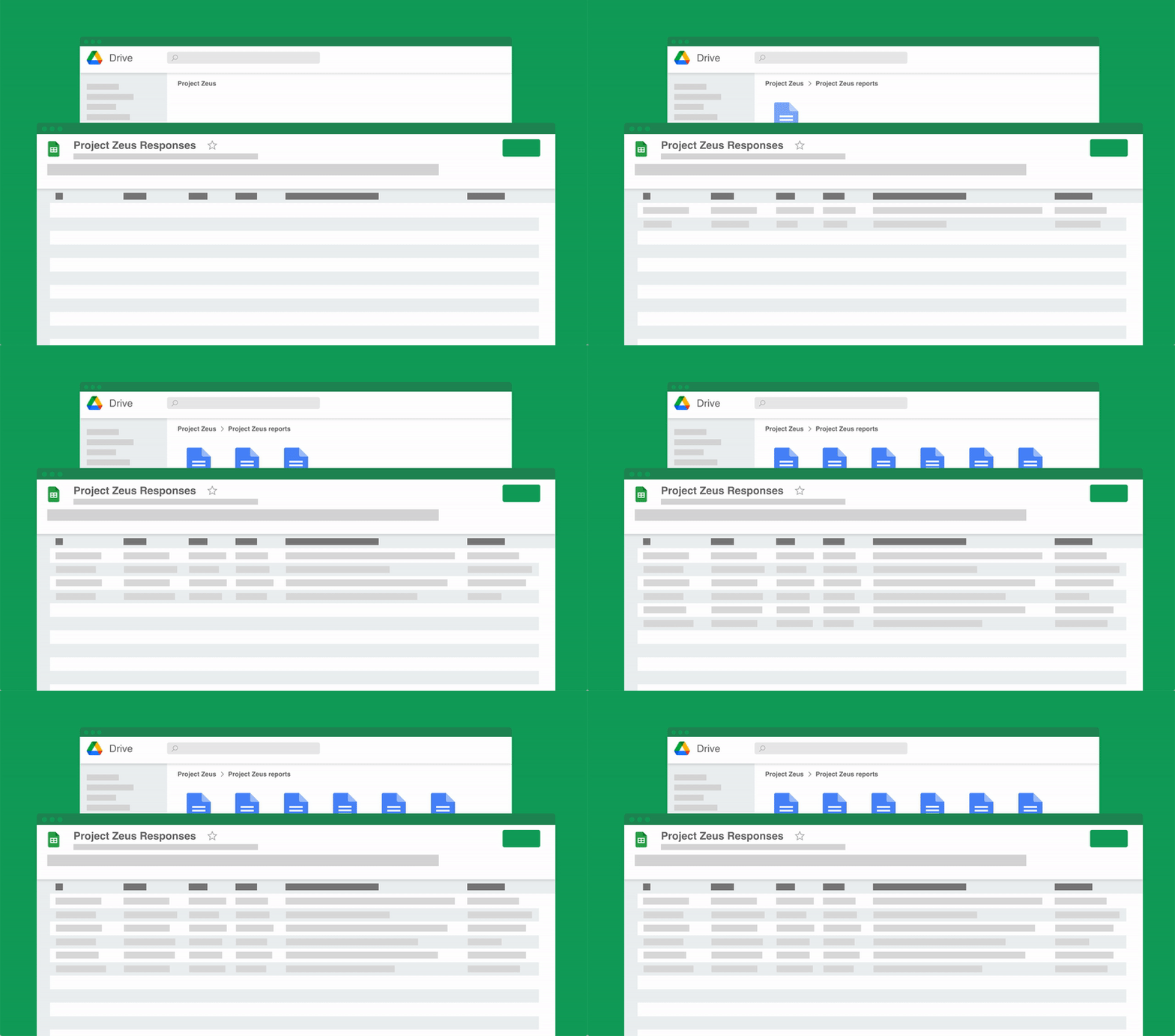
Eliminate unnecessary manual work
Stop spending hours copying and pasting data from spreadsheets into documents. Portant automates the entire process, pulling data directly from your source and generating completed documents in seconds. Focus on the work that matters, not repetitive formatting tasks.
Make your documents more accurate
Manual document creation leads to errors, from wrong names to outdated figures. Portant maps data fields directly to your template, eliminating typos and ensuring every document is accurate and consistent. Your team sends fewer corrections and your clients get the right information every time.

Built into Google Workspace
Portant works natively with Google Docs, Sheets, Slides, and Gmail. There is no new interface to learn, no data to export, and no switching between tools. Your team stays in the apps they already use while Portant handles the document generation in the background.
What teams say about Portant
“Portant has been a game-changer for Clipboard! It's saved our sales team countless hours every week by generating order forms, proposals and contracts with info from HubSpot automatically filled in.”
“This product is a gamechanger for all of those painful manual document merges. Love what you and the team have built!”
“This software brilliantly takes over the tedious process of creating and sending invoices. This not only saves time but massively reduces errors of data entry.”
“Love this product. Have been using it for over a year and the integration to Google Workspace is awesome. Lots of credit for listening to your users!”
“Truly a gamechanger! Portant streamlines these tasks and allows me to focus on the things that require my attention and problem-solving!”
“Portant has been a game-changer for Clipboard! It's saved our sales team countless hours every week by generating order forms, proposals and contracts with info from HubSpot automatically filled in.”
“This product is a gamechanger for all of those painful manual document merges. Love what you and the team have built!”
“This software brilliantly takes over the tedious process of creating and sending invoices. This not only saves time but massively reduces errors of data entry.”
“Love this product. Have been using it for over a year and the integration to Google Workspace is awesome. Lots of credit for listening to your users!”
“Truly a gamechanger! Portant streamlines these tasks and allows me to focus on the things that require my attention and problem-solving!”
Frequently asked questions
A contractor quote template is a preformatted document that helps contractors and construction companies provide potential customers with an estimate of costs for a particular project. It typically includes sections for labor and material costs, timelines, and other project specifics. These construction templates streamline the quoting process by ensuring that all necessary details are included consistently, which helps construction businesses maintain accuracy and professionalism.
A comprehensive construction quote template should include the client's contact details, a clear description of the work, a breakdown of costs (labor, materials, and any other relevant expenses), terms and conditions, and a section for signatures and approvals. This ensures clarity and helps avoid embarrassing mistakes or misunderstandings, especially when it comes to calculating material costs.
While a contractor quote itself is not a legally binding contract, it can become enforceable if accepted by the client under specific conditions. For instance, if the customer accepts the quote and the construction business agrees to proceed, this can form the basis of a legally binding construction contract. It’s essential to ensure that any quotes sent to clients reflect the agreed terms.
Customization typically involves adding your company logo, changing fonts and colors to match your branding, and adjusting the layout to suit your specific needs. Some templates allow for easy modification, making it simple to reflect your construction business identity while ensuring that all project-specific details, such as labor and material costs, are accurately represented.
Accuracy is key to maintaining professionalism and avoiding costly mistakes. Take time to thoroughly research material costs, labor rates, and any additional expenses before finalizing the quote. It’s advisable to review the quote after a few hours or even the next day to catch any errors or omissions in your construction estimate. Regularly updating your templates will also help improve accuracy.
Once a construction quote is sent, the client reviews it and either accepts it as is, requests modifications, or declines it. If accepted, the quote can form the basis for a formal contract. It’s important to follow up with the client to clarify any questions they might have, especially regarding costs, and to proceed with the next steps of the construction project.
To make your construction quote stand out, ensure it’s professional, clear, and detailed. Including a cover letter or an introductory paragraph can set a positive tone and emphasize why your services are the best choice. Utilizing digital tools for signatures and payments can also streamline the process and make your quote more appealing to potential customers.
If the scope of the construction project changes after the quote has been accepted, it’s crucial to update the quote and have the client re-approve the changes. This prevents any disputes later on regarding the total cost or scope of work. Always communicate any adjustments to your construction quotes clearly and promptly.
Writing a contractor's quote involves several key components to ensure clarity, professionalism, and detailed information for both parties. Here’s a step-by-step guide:
- Contact Information:
- Include the contractor's business name, address, phone number, email, and website if applicable.
- Add the client's name and contact information.
- Quote Number and Date:
- Assign a unique quote number for tracking and reference.
- Specify the date the quote is issued and its expiration date.
- Project Description:
- Clearly describe the project scope, including specific tasks, materials, and services to be provided.
- Use simple language to avoid misunderstandings.
- Itemized Cost Breakdown:
- Provide a detailed list of costs, including labor, materials, equipment, and any other relevant expenses.
- Include tax if applicable.
- Timeline:
- Provide an estimated timeline, stating when the project will start and end.
- Mention any critical deadlines or phases in the project.
- Payment Terms:
- Describe payment terms, including deposit requirements, payment schedule, and acceptable payment methods.
- Clarify any late payment penalties or discounts for early payment.
- Terms and Conditions:
- Include any legal terms, obligations, warranties, or guarantees.
- Outline the process for change orders and how additional work or changes will be billed.
- Exclusions and Inclusions:
- Clearly state what is included in the quote and what is excluded.
- Mention any potential additional costs or responsibilities outside the initial scope.
- Acceptance Signature:
- Provide space for both contractor and client to sign and date, indicating acceptance of the quote terms.
- Additional Notes:
- Add any other relevant information or conditions specific to the project.
Using a contractor quote template can streamline this process, ensuring consistency and professionalism in your documentation.
Writing a freelance quotation involves clearly outlining the services you offer, the costs involved, and any specific terms or conditions. Here is a step-by-step guide to creating an effective freelance quotation:
- Introduce Your Services and Business Information:
- Start with your business name, logo, and contact information.
- Include the client's name and contact details.
- Mention the date of the quotation.
- Provide a Comprehensive Description of Services:
- List all the tasks or projects you will complete for the client.
- Describe each service thoroughly to avoid any confusion.
- Detail the Pricing Structure:
- Clearly itemize the cost for each service or task.
- Mention any additional fees such as materials or special services.
- Specify whether the prices are fixed or hourly rates.
- Include Timelines and Deadlines:
- State the duration required for each task.
- Provide overall project timelines and completion dates.
- Terms and Conditions:
- Outline payment terms such as deposits, due dates, and acceptable payment methods.
- Mention any penalties for late payments or changes in scope.
- Include terms related to changes in project scope.
- Add a Validity Period:
- Specify how long the quotation is valid. This encourages timely responses and minimizes outdated requests.
- Contact Information:
- Provide details on how the client can reach you for questions or clarifications.
- Optional Sections:
- Add testimonials or credentials if relevant, to build trust.
- Include a signature line for both parties to sign upon agreement.
By following these steps, you ensure clarity and professionalism, facilitating a smooth transaction process with your clients.
To write a contract quotation effectively, follow these steps:
- Header Information:
- Include your company name, logo, and contact information.
- Add the client's information, including their name, address, and contact details.
- Title:
- Clearly state the purpose of the document with a title such as "Contractor Quote" or "Construction Quote Template".
- Quote Number & Date:
- Assign a unique quote number for easy reference.
- Include the date the quote was created and an expiration date if applicable.
- Description of Services:
- Provide a detailed list of the services or tasks to be performed. Be specific about the scope of work to avoid any misunderstandings.
- Materials and Labor:
- List any materials required for the project along with their costs. If applicable, provide a breakdown of labor costs, showing hourly rates or totals.
- Cost Breakdown:
- Provide a comprehensive cost summary, including materials, labor, and any additional charges.
- Include any possible discounts or promotions that might apply.
- Terms and Conditions:
- Clearly state the terms and conditions of the service, including payment terms, deadlines, and dispute resolution procedures.
- Validity:
- Mention the validity period of the quotation to inform the client of how long the offer is available.
- Total Cost and Taxes:
- Present the total cost, including taxes or VAT if applicable, to give the client a clear final price.
- Additional Notes:
- Add any other relevant notes or conditions that might be specific to the project or client.
- Signature Line:
- Provide space for your signature and date, and also for the client's acceptance signature and date.
- Attachments:
- Attach any additional documents that provide further detail or justification for the quote, like a project timeline or subcontractor details if necessary.
Creating a professional quote template involves several key elements that ensure clarity, accuracy, and professionalism. Here's how to design one using the provided keywords:
1. Header Section:
- Include your business name, address, contact details, and logo at the top of the quote template for branding and recognition.
- Add "Quote" or "Quotation" prominently to distinguish it from other documents.
2. Client Information:
- Provide a section for client details including name, address, and contact information to ensure it’s directed at the right recipient.
3. Quote Details:
- Use headings like "Construction Quote Template," "Contractor Quote Form," or "Subcontractor Quote Template" as applicable to specify the type of quote.
- Assign a unique quote number and date for easy tracking and reference.
4. Project Description:
- Clearly describe the construction or contracting services being offered. Include details like scope of work, materials, and any deliverables using terms like "Material Quote Template" or "Construction Job Quote Template."
- Incorporate a section for additional notes or special requirements that might affect the quotation.
5. Itemized Costs:
- Break down the costs into categories such as labor, materials, and other expenses using terms like "Labor Quote Template" or "Builders Quote Template."
- Provide clear, itemized pricing to ensure transparency.
- Include a total cost at the bottom of the table to summarize the quote.
6. Terms and Conditions:
- Incorporate essential terms and conditions such as payment terms, validity of the quote, and delivery timelines.
- Use specific language to prevent misunderstandings and include clauses that protect both parties.
7. Acceptance Section:
- Provide a space for client signatures to confirm their acceptance of the quote, facilitating smooth transitions into project commencement.
8. Footer:
- Reiterate contact details for further inquiries or clarifications, ensuring accessibility.
Reference free resources or sample templates like "Free Contractor Quotes" or "Free Construction Quote Template" to get a better understanding or inspiration for formatting and styling.
To format a contractor quote example effectively, you can follow these steps using relevant keywords:
1. Header:
- Include your company name, logo, and contact information at the top of the construction quote form.
- Add a title such as "Contractor Quote Template" or "Construction Quote Template."
2. Client Information:
- Provide space for the client's name, address, and contact details, ensuring clarity and completeness.
3. Quote Number and Date:
- Assign a unique quote number and include the date of issuance to help track and reference the quote.
4. Project Description:
- Briefly describe the nature of the project or service the quote is covering, using specific terms like "remodeling quote template" or "building quote templates."
5. Itemized List of Services and Materials:
- List all the items or services to be provided, including a detailed description, quantity, unit price, and total cost.
- Use terms like "material quote template" or "builders quote template" for organization.
6. Cost Summary:
- Provide a subtotal for all services and materials.
- Include applicable taxes, discounts, or additional fees to compute the final quote amount.
7. Terms and Conditions:
- Outline the terms of service, including payment terms, timelines, and conditions for modifications or cancellations.
- Reference "contractor quote sheet" or "general contractor quote template" components as needed.
8. Signature Section:
- Allow space for both the contractor’s and client's signatures to confirm acceptance of the quote.
- The section should facilitate an agreement and understanding of the quoted terms.
9. Validity Period:
- Clearly state how long the quote is valid to prompt a timely response from the client.
By following this structured format and incorporating key elements, you can create a thorough and professional contractor quote that meets industry standards and client expectations.
Yes, there is a quote template available in Word, which can be particularly handy for contractors and freelancers who need to prepare professional quotes for their clients. Here are some ways to find and use quote templates in Word:
1. Built-in Templates:
- Open Microsoft Word.
- Click on ‘File,’ then select ‘New.’
- Use the search bar to type “quote” or “quotation template.”
- Browse through the available templates and select the one that best fits your needs.
2. Online Resources:
- Microsoft Office’s website offers a variety of templates, including contractor and freelance quote templates, which can be downloaded for free and used in Word.
- Other websites may also offer free downloadable Word templates for specific needs, such as construction quotes, remodeling quotes, and job quotes.
3. Customization:
- Once you’ve downloaded a template, you can customize it by adding your company’s logo, adjusting the layout to include necessary fields such as client information, detailed descriptions of goods or services, pricing, and terms and conditions.
- Save your customized template for future use to ensure consistency across all quotes.
4. Using a Template for Specific Industries:
- For construction companies, there are templates such as construction quote forms or construction job quote templates that are specially formatted to include fields relevant to construction projects.
- Freelancers can use templates like freelance quote templates or freelance project quotation templates tailored for project-based work.
5. Available Formats:
- If you are looking for a specific format like a Word template, you can search for "contractor quote template Word" to find options that are in the Word format, ready to be downloaded and edited.
These resources should help you prepare professional quotes efficiently, saving time and ensuring you present a polished image to your clients.
To create a quote in Microsoft Word, you can follow these steps:
- Open a New Document: Launch Microsoft Word and open a new blank document.
- Set Up the Document: Set the page layout, margins, and any necessary headers or footers.
- Insert a Header: You can include your company name, logo, contact information, and the title "Quote" at the top using the Header function.
- Add Client Details: Include client information such as name, address, and contact details at the top left corner.
- Quote Number & Date: Allocate a unique quote number for reference and add the date. These can be placed near the top right corner.
- Itemized List: Create a table to list the items or services being quoted. Include columns for:
- Description of work or material
- Quantity
- Unit price
- Total cost
- Calculate Totals: Include a row at the bottom of the table for subtotal, applicable taxes, and final total. Use Word’s table functions to automatically calculate these if needed.
- Terms and Conditions: At the bottom of the quote, add any terms and conditions. This might include payment terms, validity period of the quote, and any other relevant information.
- Signature Line: Leave space for a signature and date, to be filled by the client upon acceptance of the quote.
- Save the Template: To reuse the layout for future quotes, save the document as a template.
Using Microsoft Word’s template feature, you can save this setup, and it will be available to generate new quotes efficiently. This allows you to maintain consistency and professionalism across all client communications.
A quote template is a pre-designed format used by businesses to present a detailed estimate of the costs for products or services to a potential customer. It includes essential components that help in standardizing the process of creating quotes, ensuring consistency and professionalism. Key elements of a quote template often include:
- Contact Information: Details of both the business providing the quote and the customer receiving it.
- Quote Number: A unique identifier to track and reference the specific quote.
- Date: The date when the quote is issued.
- Itemized List: A detailed breakdown of the products or services being offered, including quantities, unit prices, and subtotal for each line item.
- Total Cost: The total amount that the customer would need to pay, sometimes including discounts, taxes, or additional fees.
- Terms and Conditions: Information on payment terms, validity period of the quote, and other relevant conditions.
- Notes or Special Instructions: Any additional information specific to the quote, such as delivery timelines or special considerations.
Using a quote template allows businesses to efficiently create accurate and professional-looking quotes, reducing manual errors and facilitating better communication with clients. There are various online platforms and software available that can help businesses create quotes and invoices, often offering templates to customize as needed. These templates can also streamline the process of converting a quote into an invoice once a customer accepts the terms, enhancing operational efficiency and customer experience.
Yes, Excel offers a variety of templates, including invoice templates. These templates are beneficial for independent contractors, subcontractors, freelancers, and construction professionals who need to generate quotes and invoices efficiently. Excel's templates can be customized to fit different needs, making it easier to prepare standardized documents.
Key features of Excel invoice templates include: - Pre-designed layouts for professional-looking invoices. - Editable fields to input specific details such as client information, services provided, cost breakdown, and total amounts. - Mathematical functions to automatically calculate subtotals, taxes, and total costs. - Customizable formats to suit your specific design preferences or business branding. - Multiple options that might include designs for different industries, such as construction, freelancing, or general contracting.
To access Excel's invoice templates: 1. Open Excel and go to the "File" menu. 2. Select "New" to open the template library. 3. In the search bar, type "invoice" to find various invoice templates. 4. Browse through the selection to find one that best suits your business needs. 5. Click on the chosen template to download and open it in Excel for customization.
These built-in templates can save time and ensure accuracy in billing clients, providing a streamlined way to manage financial paperwork.
To write a good quote format, consider the following components, which will ensure clarity and professionalism:
1. Company Information: Include your business name, logo, address, phone number, and email at the top of the document. This helps recipients quickly identify your business.
2. Client Information: Add the customer's name, company (if applicable), address, phone number, and email. This personalizes the document and clearly states who the quote is for.
3. Quote Number and Date: Assign a unique quote number for tracking purposes and include the date when the quote is issued.
4. Heading: Clearly label the document as a "Quotation" to distinguish it from other documents, like invoices.
5. Description of Products or Services: Provide a detailed list of the goods or services being offered. Be clear and specific to avoid misunderstandings.
6. Itemized Pricing: Break down the cost per item or service along with quantities, allowing the client to see the price structure.
7. Subtotal, Taxes, and Total: Calculate the subtotal, add applicable taxes, and provide the grand total. Break down taxes clearly to show transparency in pricing.
8. Terms and Conditions: Specify the terms and conditions, including payment terms, validity of the quote, and delivery timelines. If applicable, differentiate between a quotation and an invoice depending on when the payment is due.
9. Additional Notes: Include any other relevant details or options available for the client, like discounts or early payment incentives.
10. Contact Information: Provide a direct contact person who can answer any questions related to the quote. This could be a sales representative or account manager.
11. Acceptance Signature: Leave space for the client to sign and date the document as an acceptance of the quote. This is helpful for record-keeping and acknowledgment.
By including these elements, your quote will be comprehensive, professional, and effective in communicating your offer to potential clients.
To format a direct quote effectively, follow these guidelines:
1. Use Quotation Marks:
- Enclose the exact words of the source in quotation marks.
2. Cite the Source:
- Include an in-text citation with the author's last name and the page number (if applicable) immediately after the quote. For online sources without page numbers, include the paragraph number if possible.
3. Integrate into Your Text:
- Introduce the quote with a signal phrase that includes the author's name, and make sure the quote fits grammatically into your sentence.
4. Maintain the Original:
- Do not change the original text, including grammar or spelling, unless indicating with brackets for minor changes or ellipses for omitted sections.
5. Block Quotes:
- For quotes longer than four lines of prose or three lines of poetry, format as a block quote: start the quote on a new line, indented 0.5 inches from the left margin, without quotation marks.
6. Punctuation:
- Periods and commas that are part of the quote go inside the closing quotation mark; other punctuation marks such as colons and semicolons should be outside unless they are part of the quoted material.
7. Attribution:
- Always attribute the quote to the original author to avoid plagiarism and to give credit.
By adhering to these guidelines, you ensure that direct quotes are clearly identified and seamlessly integrated into your writing.
Quoting for a contract involves several key steps to ensure accuracy and professionalism:
1. Understand the Project Requirements: Carefully review the project details and specifications provided by the client. Thoroughly understanding these requirements is critical to create an accurate quote.
2. Calculate Costs:
- Materials: Determine the types and quantities of materials needed for the project. Use a material quote template to itemize these costs.
- Labor: Estimate the number of hours required for the work and multiply by the hourly rates for your team. You can utilize a labor quote template for detailed breakdowns.
- Subcontractors: If using third-party specialists, obtain subcontractor quote templates to include their costs in your estimate.
3. Include Overheads and Profits: Factor in overhead costs such as administration, equipment, and insurance. Add a margin for profit to ensure viability.
4. Use a Professional Template: Choose a construction quote template, contractor quotation template, or construction estimate quote template to structure your quote. This adds professionalism and ensures all necessary details are included.
5. Provide a Clear Breakdown: Clearly detail each cost element, using a contractor quote form or a contractor quote sheet. Clients appreciate transparency, and it reduces potential disputes later.
6. Terms and Conditions: Clearly state any terms and conditions, including the payment schedule, timeline, and any contingencies. This might be included in a construction quote form.
7. Present Your Quote: Ensure the quote is easy to understand, professional, and comprehensive. You can use a quote template construction or construction job quote templates to enhance presentation.
8. Flexibility and Adjustments: Be prepared to discuss and adjust your quote based on client feedback or changes in project scope.
By following these steps and utilizing the appropriate templates, you can provide a detailed and professional quote that meets client expectations and secures business.
To format a freelance quote, follow these steps:
- Header:
- Include your business name, logo, and contact information.
- Add a unique quote number and date of issue.
- Client Information:
- Include the client's name, company, and contact details.
- Quote Title:
- Clearly state that it is a quote, e.g., 'Freelance Quote for [Project Name]'.
- Project Description:
- Provide a brief description of the project or services to be provided.
- Itemized List:
- List each service or item with a description, quantity, and rate.
- Include a section for additional costs or expenses if applicable.
- Total Costs:
- Provide a subtotal of all services and items.
- Include any taxes or discounts.
- Clearly state the total amount due.
- Payment Terms:
- Specify payment methods, terms (e.g., payment upon completion, installments), and due dates.
- Validity Period:
- Indicate how long the quote is valid, e.g., 'This quote is valid for 30 days.'
- Terms and Conditions:
- Briefly outline any important terms and conditions related to the project or payment.
- Signature Section:
- Include a space for your signature and a space for client acceptance.
This format ensures clarity and professionalism, helping both parties understand the scope and cost of the freelance work.
A quotation is a formal document that provides potential clients with a detailed cost estimate for a project or service. For contractors, a quotation should include several key elements to ensure clarity and professionalism. Here is an official format for a contractor quotation using relevant keywords:
1. Header Information:
- Contractor's Business Name
- Address
- Contact Information (phone number, email)
- Logo (optional)
2. Title:
- "Quotation" or "Quote"
- Reference Number or Quote Number
3. Date:
- Issue Date
- Expiry Date (the date until which the quote is valid)
4. Client Information:
- Client's Name
- Client's Address
- Client's Contact Information
5. Project Description:
- Brief description of the project or services to be performed
6. Quotation Details:
- Itemized list of materials and services
- Quantity required for each item
- Unit price for each item
- Total price for each item or service
7. Summary of Costs:
- Subtotal of all listed items
- Any applicable taxes
- Discounts or surcharges (if any)
- Grand Total
8. Terms and Conditions:
- Payment terms (e.g., deposit required, payment upon completion)
- Warranty information
- Delivery or project start and end dates
- Other terms specific to the project or industry
9. Signature Section:
- Space for the contractor's signature
- Space for the client's approval signature
10. Additional Notes:
- Any additional comments or special instructions relevant to the quotation
This structured approach ensures all essential information is presented clearly to avoid misunderstandings and supports the professional image of the contractor's business.
To start a quote sample, follow these steps:
- Header Information:
- Include your company name, logo, address, and contact details.
- Add the client's name, company (if applicable), and contact information.
- Quotation Number:
- Assign a unique number or code to the quotation for tracking purposes.
- Date:
- Clearly state the date when the quotation is issued.
- Subject/Title:
- Provide a clear and concise title or subject line, such as "Rental Quotation for [Service/Item]."
- Introduction:
- Briefly introduce the purpose of the quotation, stating what the quotation is for (e.g., car rental, equipment rental, house rental).
- Details of Goods/Services:
- Provide a detailed description of the items or services being quoted. Include quantity, specifications, and any other relevant details.
- Pricing:
- List the cost for each item or service, including any applicable taxes or fees.
- Clearly indicate the total amount at the end.
- Validity:
- Specify the validity period of the quotation (e.g., "This quote is valid for 30 days from the date of issue").
- Terms and Conditions:
- Outline any relevant terms and conditions, including payment terms, delivery details, warranty information, or cancellation policies.
- Contact Information:
- Provide contact information for further inquiries or clarifications.
- Signature:
- Include a space for your signature or the responsible person's signature.
Example:
- "Rental Quote for [Service] in [Location] - Subject: Rental Quotation Format"
- Detailed list of services such as "House Rent Quotation Sample" or "Equipment Rental Quote Template"
- End with "For any questions, please contact us at [Your Contact Information]".
To write a business quote, follow these steps:
- Header Information:
- Use a business quote template, which can often be found as free quote templates online, or create your own in Word, Excel, or Google Docs.
- Include your company's name, logo, address, contact information, and the date of the quote.
- Quote Number:
- Assign a unique number to each quote for easy tracking and reference.
- Client Information:
- Include the client's name, company, and contact details. Consider using a professional quote template for consistency.
- Introduction:
- Briefly introduce the quote by referencing any prior discussions or agreements with the client. This can be customized in the business quote template you are using.
- Itemized List of Products or Services:
- Clearly list each product or service, using a format similar to a business quote template PDF or an online quote template.
- Provide a detailed description, quantity, unit price, and total price for each item.
- Subtotal and Total:
- Calculate the subtotal for all items.
- Include any applicable taxes or discounts.
- Provide the final total cost. Templates for quotes can help format this section accurately.
- Terms and Conditions:
- Outline payment terms, delivery timelines, and any other important conditions. Many free sales quote templates provide sections for this.
- Validity:
- State how long the quote is valid. It's common practice to use terms like "valid for 30 days" in a professional quotation template.
- Additional Notes:
- Add any necessary notes or disclaimers that the client should be aware of. This could be a good place to personalize or include specific instructions.
- Thank You and Contact Information:
- Conclude with a thank you note and provide your contact details for any queries or follow-up.
Review the document before sending it to ensure accuracy and professionalism. Utilize a free business quote template for easy editing and formatting adjustments.
Good quote starters for creating contractor and construction-related quotes can be structured to clearly and effectively communicate the essential details. Here are several starter approaches tailored to the provided keywords:
1. Construction Quote Template:
- Begin with a detailed description of the construction project scope, including specific tasks and timelines.
- Include a breakdown of labor and materials, each with individual cost estimates.
- Specify any terms and conditions, such as payment schedules and warranties.
2. Contractor Quote Template:
- Start with a brief overview of the services offered and the client’s request.
- Detail the pricing for each service aspect, including subcontractor involvement if applicable.
- List potential additional costs and project contingencies.
3. Remodeling Quote Template:
- Open with a summary of the remodeling goals and the expected impact on property value.
- Provide an itemized list of required renovations and associated costs.
- Offer options for different materials or design elements that affect the total estimate.
4. Subcontractor Quote Template:
- Initiate with the specific role and responsibilities of the subcontractor within the larger project.
- Clearly outline deliverables and deadlines.
- Break down payment terms, highlighting milestones or phases linked to specific tasks.
5. Builders Quote Template:
- Introduce with a comprehensive overview of the building specifications and timeline.
- Detail all costs related to materials, labor, permits, and any design services.
- Include optional upgrades with their respective costs and impacts on the timeline.
6. Free Contractor Quote Template:
- Start with an introduction to the free services offered and their limitations.
- Highlight the estimate for the standard service package and clearly state what is included.
- Offer premium options as a separate section to manage customer expectations.
7. Material Quote Template:
- Begin by listing the materials required by category, such as wood, concrete, or finishing products.
- State costs per unit, total required units, and their summed-up cost.
- Include lead times for material delivery to manage project timeline expectations.
Effective use of these starters not only helps in structuring the quote but also in ensuring clarity and understanding between the contractor and the client.
Explore related templates
Design Quote Template
Copy our Design Quote Template, automate your quotes process, and create professional quotes using customizable templates.
View template Quote templatePrice Quote Template
Copy our Price Quote Template, automate your quotes with customizable templates like a service or business quote template, and create professional, accurate quotes quickly.
View template Quote templateQuote Invoice Template
Copy our Quote Invoice Template, automate your quoting process, and create professional quotes with customizable templates, including options for pricing, business logos, and service details.
View template Quote templateWord Quote Template
Connect your Word to a customizable quote template to streamline your quotation process, easily add client details, unit prices, and service quotes, and generate professional quotes effortlessly.
View template Quote templateExcel Quote Template
Connect your Microsoft Excel to a customizable quote template or price quote template and streamline your sales quote or service quote process effortlessly for small businesses and specific clients.
View template Quote templateQuote template google docs
Use our Google Doc Quote Template to customize and streamline your process with accurate, professional price quotes.
View template Quote templateGoogle Sheets Quote Template
Connect Google Sheets to a customizable quotation template and streamline your price quote process, ensuring accurate costs and service details for clients.
View template Quote templateSales Quote Template
Copy our Sales Quote Template, automate your quotes process, and create professional quotes using customizable templates.
View template Quote templateIndependent Contractor Quote Template
Download our Independent Contractor Quote Template to streamline your invoicing process. Create professional quotes, add material costs and labor costs, and ensure accuracy with every quote total.
View template Quote templateRental Quote Template
Copy our customizable rental quotation template to streamline your billing process, track rent payments, and automate your rental quotations for your rental business. Easily manage vehicle rentals, lease rental quotations, and more with our professional template.
View template Quote templateProforma Quote Template
Copy our Proforma Quote Template to create professional quotations easily. Automate your quote process using Google Sheets or Google Docs for a streamlined, customizable experience.
View template Quote templateBusiness Quote Template
Copy our free business quote template and easily automate your quoting process. Customize your professional quotes in pdf format using google sheets or excel templates, and streamline your workflow for faster, more accurate price quotes.
View template