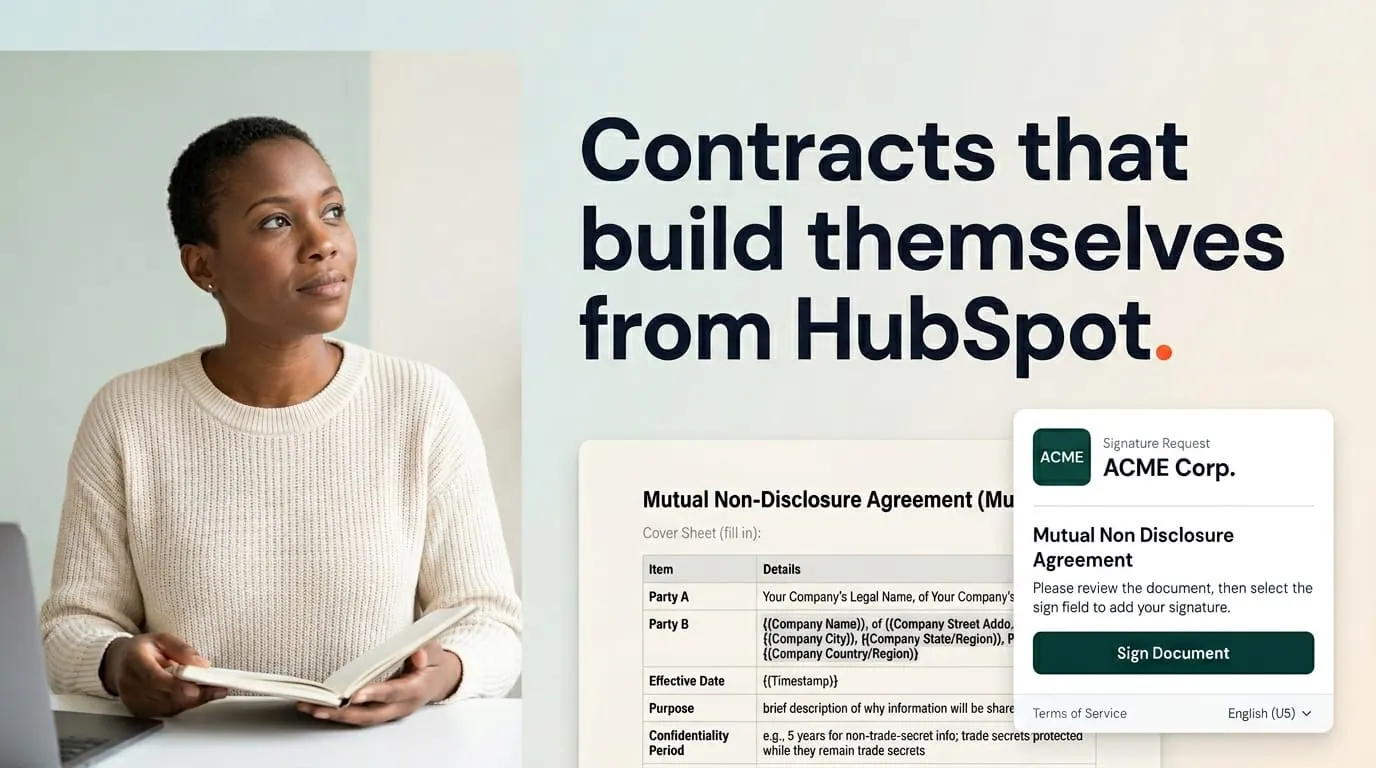


Portant automates HubSpot contracts by merging deal, company and contact properties into your own contract template, routing the draft through review and approval inside HubSpot, then collecting legally binding e-signatures and attaching the signed PDF back to the record. Party names, dates and commercial terms come straight from CRM data, so no one retypes them into a document.
A wrong party name in a contract isn't just embarrassing. It can void the agreement. I've watched deals stall for weeks because legal found a stale entity name that got copied from a previous version. I've seen reps lose momentum waiting for a counter-signature while the buyer's CFO moves on to other priorities. And I've seen version control across MSAs, order forms, and amendments turn into an operational risk that nobody owns until something breaks.
Contracts sit at the intersection of sales velocity and legal liability. That makes them the hardest document type to automate well, and the most rewarding when you get it right. This playbook walks through how to build a contract workflow in HubSpot using Portant: template design, CRM data merge, internal review, e-signatures, compliance, and post-signature storage. It's the same architecture we see working across HubSpot sales teams running MSAs, SOWs, NDAs, and order forms.
For the product positioning, see contract automation for HubSpot. For pipeline context, one thread from discovery to signed contract pairs well with this guide. And if you're earlier in the deal cycle, start with automate your proposals in HubSpot or automate your quotes in HubSpot.
More from the blog: automating contract renewals in HubSpot, electronic signatures in HubSpot workflows, and eSignature fields in Google Docs contracts.
Why does contract automation matter for HubSpot teams?
Most HubSpot teams don't have a contract problem. They have five contract problems stacked on top of each other.
The first is data accuracy. When a rep copies a company name from a HubSpot record into a Google Doc, they might grab the trading name instead of the legal entity. Or they type the address from memory. Or they paste last quarter's pricing because the template still has a hardcoded number from the previous deal. Every manual transfer is a chance for the agreement to say something the parties didn't agree to.
The second is review friction. Contracts need legal review. But legal teams don't live in HubSpot, and they don't want to learn another tool. So the contract gets emailed as an attachment, edits happen in a separate thread, and by the time it comes back the rep has lost track of which version is current. Pipeline reporting becomes unreliable because the deal stage says "Contract Sent" but nobody knows if the sent version is the approved one.
The third is signature logistics. Getting a contract signed means getting the right document to the right person with the right signing experience. Counter-signatures add another layer. Sequential signing order matters when your legal team wants to review the buyer's signature before the CEO countersigns. Every additional step is a place where the process can stall.
The fourth is storage and retrieval. Six months after a deal closes, someone needs to find the signed MSA. If the PDF is in a rep's personal Drive folder with a filename like "Contract_Final_v3_SIGNED(2).pdf", good luck. Contracts need consistent naming, consistent storage, and a link back to the CRM record.
The fifth is compliance. E-signatures are legally valid in most jurisdictions, but "most" is doing heavy lifting. Your legal team needs to know which laws apply, what the audit trail captures, and whether your signing process meets regulatory requirements for your industry.
Contract automation solves these by keeping the entire lifecycle inside the CRM. The template pulls live data so names and terms are always current. Review happens where the deal lives. Signatures are collected without bolting on another silo. And the signed copy lands in a predictable place with a predictable name. That's the architecture this playbook builds.
What does the contract lifecycle in HubSpot look like?
Before jumping into setup steps, it helps to see the full lifecycle. A contract workflow in HubSpot touches six stages:
- Template creation. Build the agreement template in Google Docs (for text-heavy contracts) or Google Slides (for visual SOWs). Add merge tags for CRM properties.
- CRM data merge. When a rep triggers the workflow from a Deal, Company, Contact, or Ticket, Portant pulls live property values into the template. The output is a complete, deal-specific document.
- Internal review and approval. Legal, finance, or leadership reviews the merged document before it goes to the buyer. The document sits in Draft status on the HubSpot record until someone approves.
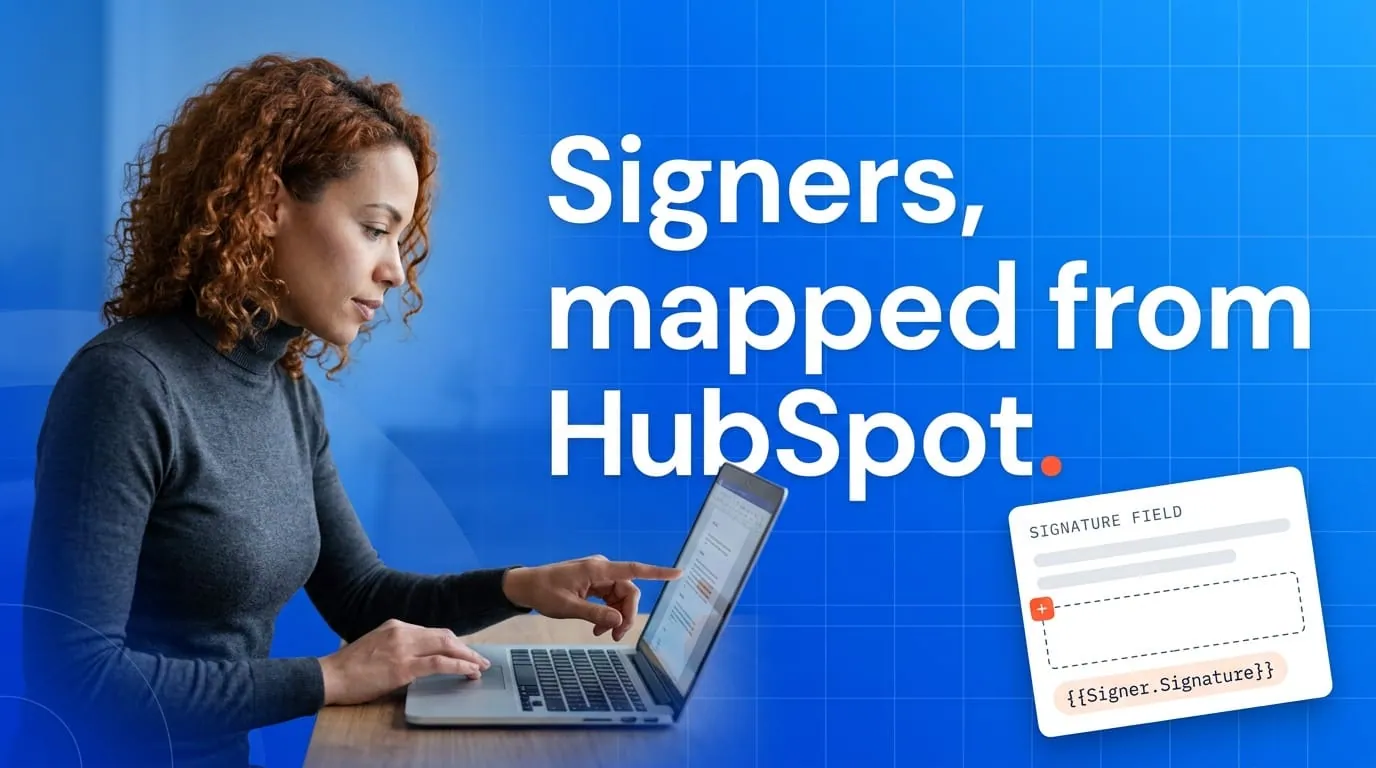
- E-signature collection. After approval, Portant sends the document for signature. Signers are mapped from deal associations. Counter-signatures can follow in sequence.
- Signed copy storage. The signed PDF is filed in Google Drive with a consistent naming convention. A link appears on the HubSpot record.
- Status tracking and renewal. Custom Portant properties on the deal record let you report on contract status, trigger renewal reminders, and build dashboards for legal ops.
Keeping this lifecycle inside HubSpot (instead of spreading it across five tools) matters for three reasons. Compliance gets simpler because there's one audit trail. Reporting gets honest because deal stages reflect real document status. And rep experience improves because they never leave the CRM to generate, review, or send a contract.
For the broader architecture of keeping all deal documents in one place, see the complete guide to document automation in HubSpot.
The same Portant workflow fills a two-page NDA and a forty-page MSA alike: each party name, date and commercial term is a token mapped once to a HubSpot property, so updating the template updates every future contract without touching the mapping.
How do you design a contract template for HubSpot merges?
Contracts are structurally different from proposals and quotes. A proposal is persuasive. A quote is commercial. A contract is binding. That changes how you design the template.
Legal language needs precision that survives a data merge. Defined terms (like "Company" or "Client") should be consistent throughout the document. If your template defines "Company" as the entity in the first paragraph, the merge tag for that entity needs to appear in that exact definition, and every subsequent reference should use the defined term, not a re-merged value.
Signature blocks need structure. A contract signature block typically includes the legal entity name, the signer's printed name, their title, and a date line. Each of those can be a merge tag, but the layout matters. Portant's e-signature feature will overlay signing fields on the document, so the template needs clear space for those fields.
Exhibit references are common in MSAs. The master agreement references "Exhibit A" for pricing or "Exhibit B" for an SOW. If those exhibits are separate documents in separate workflows, the template should reference them by name. If they're part of the same document, page breaks and clear headings keep them readable.
Google Docs works well for text-heavy agreements: MSAs, NDAs, service agreements, and anything where the substance is paragraphs of legal language. Google Slides works better for visual SOWs where you want to include diagrams, timelines, or branded layouts alongside the terms.
For the mechanics of setting up merge tags, see template customization. For tag syntax and formulas, tag formulas covers conditional logic and formatting.
Generate the contract from HubSpot
Connect your template workflow to the HubSpot object that owns the agreement. For contracts, that's usually a Deal with associated Company (for the legal entity) and Contact (for the signer). The deal carries the commercial terms: pricing, term length, effective date. The company carries the legal details: registered name, address, jurisdiction. The contact carries the signer: name, title, email.
This three-object pattern matters because contracts reference all three. A proposal might only need the deal and contact. A quote might only need the deal and line items. But a contract needs the legal entity from the company, the commercial terms from the deal, and the signer details from the contact. Portant pulls from all associated objects in a single merge.
Which properties matter most
For contract generation, these HubSpot properties do the most work:
- Company: legal entity name. Not the "Company name" field that reps type casually. The formal registered name. If your HubSpot doesn't have a dedicated legal entity property, create one. It's the single most important field for contract accuracy.
- Company: billing address. Full address including country. Contracts reference governing law, and the address often determines jurisdiction.
- Deal: amount and currency. The commercial value of the agreement.
- Deal: close date or effective date. When the contract takes effect. Some teams use a custom "Contract Effective Date" property instead of the deal close date.
- Deal: term length. How long the agreement runs. A custom property (e.g., "Contract Term Months") makes this explicit.
- Contact: full name and title. For the signature block.
- Contact: email. For the e-signature request.
When a required property is empty, Portant merges a blank. The document renders with a gap where the value should be. This is why the review step matters: it catches empty merges before the contract reaches the buyer. For data hygiene best practices, audit HubSpot data for accurate documents covers what to check before automating.
Open the record in HubSpot, use the Portant panel, and start the workflow. Pick associated contacts when the modal asks so the right signers and billing contacts flow into tags.
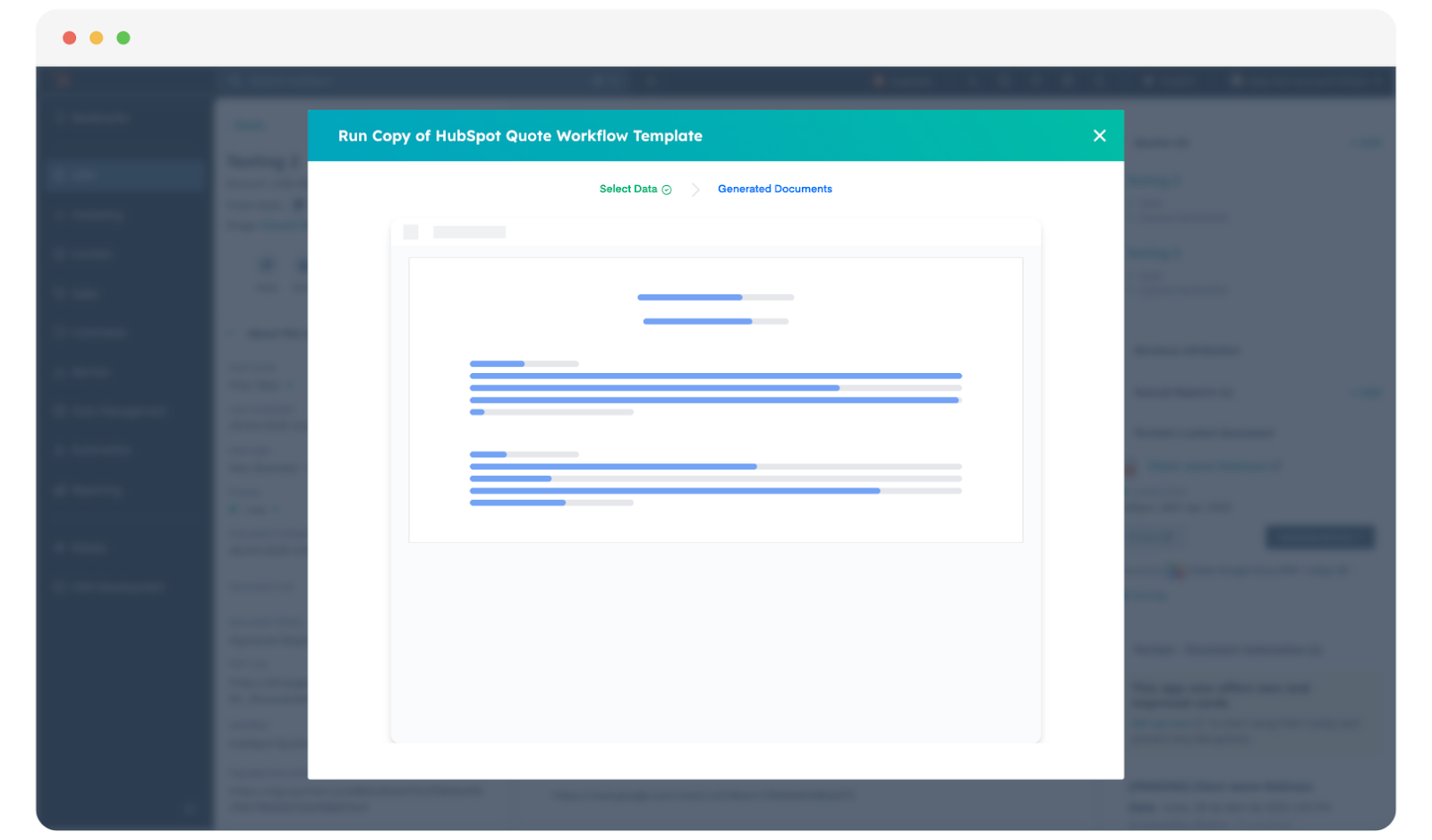
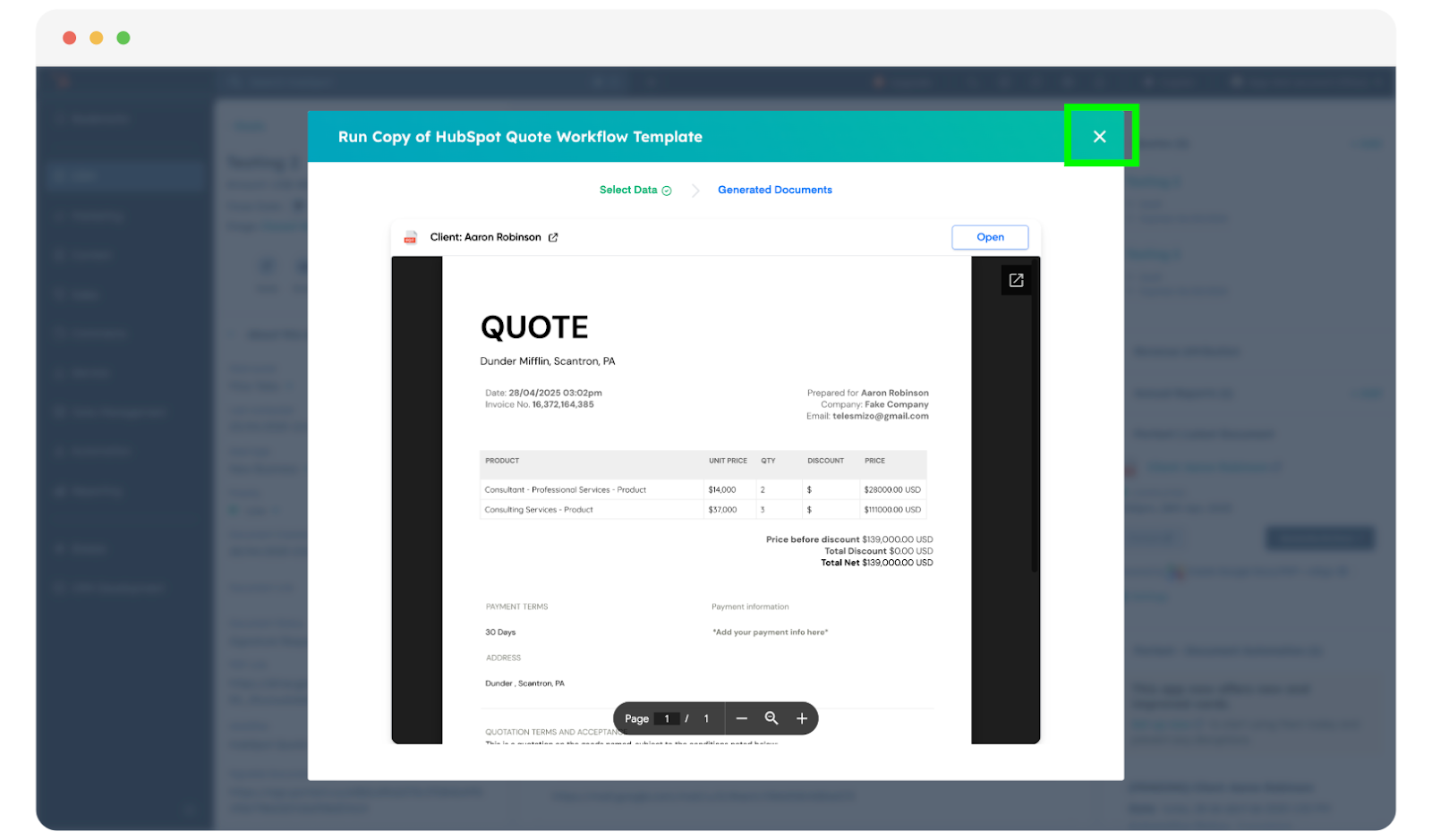
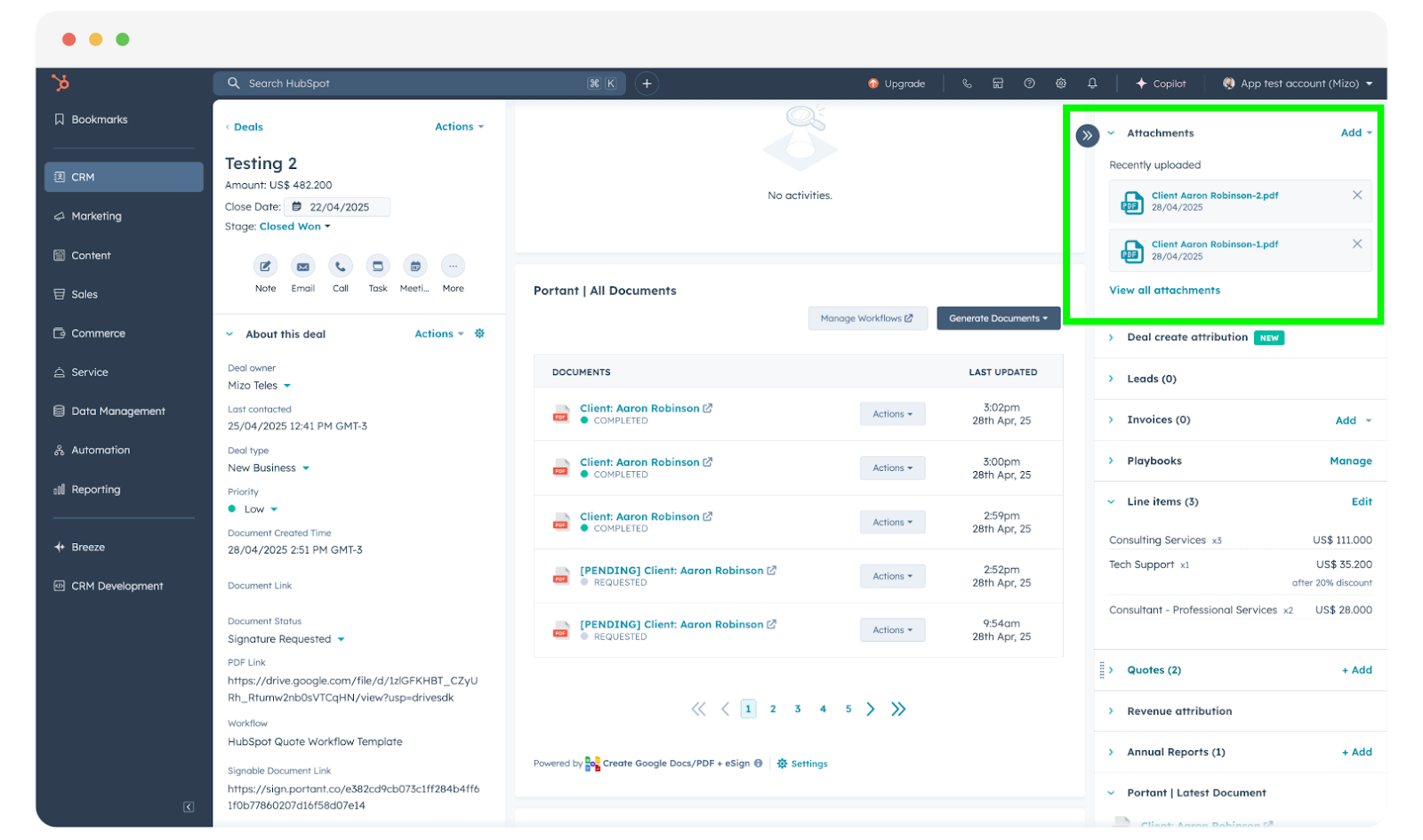
Step-by-step reference: Create a document in HubSpot. Custom properties Portant writes back can trigger follow-on HubSpot workflows; see Trigger HubSpot workflows from Portant.
How does review and approval work for contracts?
Contracts need stricter review than proposals or quotes. A proposal with a typo is awkward. A contract with a wrong clause creates legal liability. A quote with stale pricing loses margin. A contract with stale pricing creates a binding obligation at the wrong number.
That's why the review step in a contract workflow isn't optional. It's the gate between "document generated" and "document sent for signature."
Why contracts need multi-approver flows
Most sales documents need one reviewer. Contracts often need two or three:
- Legal reviews language, defined terms, liability clauses, and compliance requirements.
- Finance reviews commercial terms: pricing, payment terms, revenue recognition implications.
- Sales leadership reviews non-standard terms: discounts beyond threshold, custom SLAs, extended payment terms.
Portant's review block supports multiple approvers with two modes. "Require all" means every assigned approver must approve before the workflow continues. "Any one" means a single approval releases the document. For contracts, "require all" is almost always the right choice. You don't want legal approving language while finance hasn't reviewed the commercial terms.
How draft status works
When a review block is active, the document sits in Draft status. This status is visible on the HubSpot record through Portant's custom properties. That matters for pipeline reporting: if your deal stage is "Contract Sent" but the document is still in Draft, your pipeline is overstating progress. The Draft status makes this visible to managers and RevOps without anyone having to check a separate tool.
Until the review is approved, subsequent workflow blocks (like e-signature requests) are held. The contract won't go to the buyer until someone with authority says it's ready. This is the behavior you want for legal documents.
For detailed review configuration, see Review and approve documents. For approval design patterns in revenue operations, HubSpot document approval workflow guide covers multi-step approval architecture.
Approve inside HubSpot
Legal teams don't want to learn another tool. They want to review the document and approve it from the place they already work. If your approvers live in HubSpot, the native review flow lets them do exactly that.
The Portant card on the deal record shows the document's current status. When a document is pending review, the approver opens the modal directly from the record, reads the contract, and approves or rejects. No context switching. No "check your email for a link to another platform."
This matters especially for legal teams at companies where the lawyers aren't daily HubSpot users but do check specific deal records when asked. They can open the deal, review the contract in the modal, and approve without navigating away. The deal record serves as the single source of truth for the contract's status.
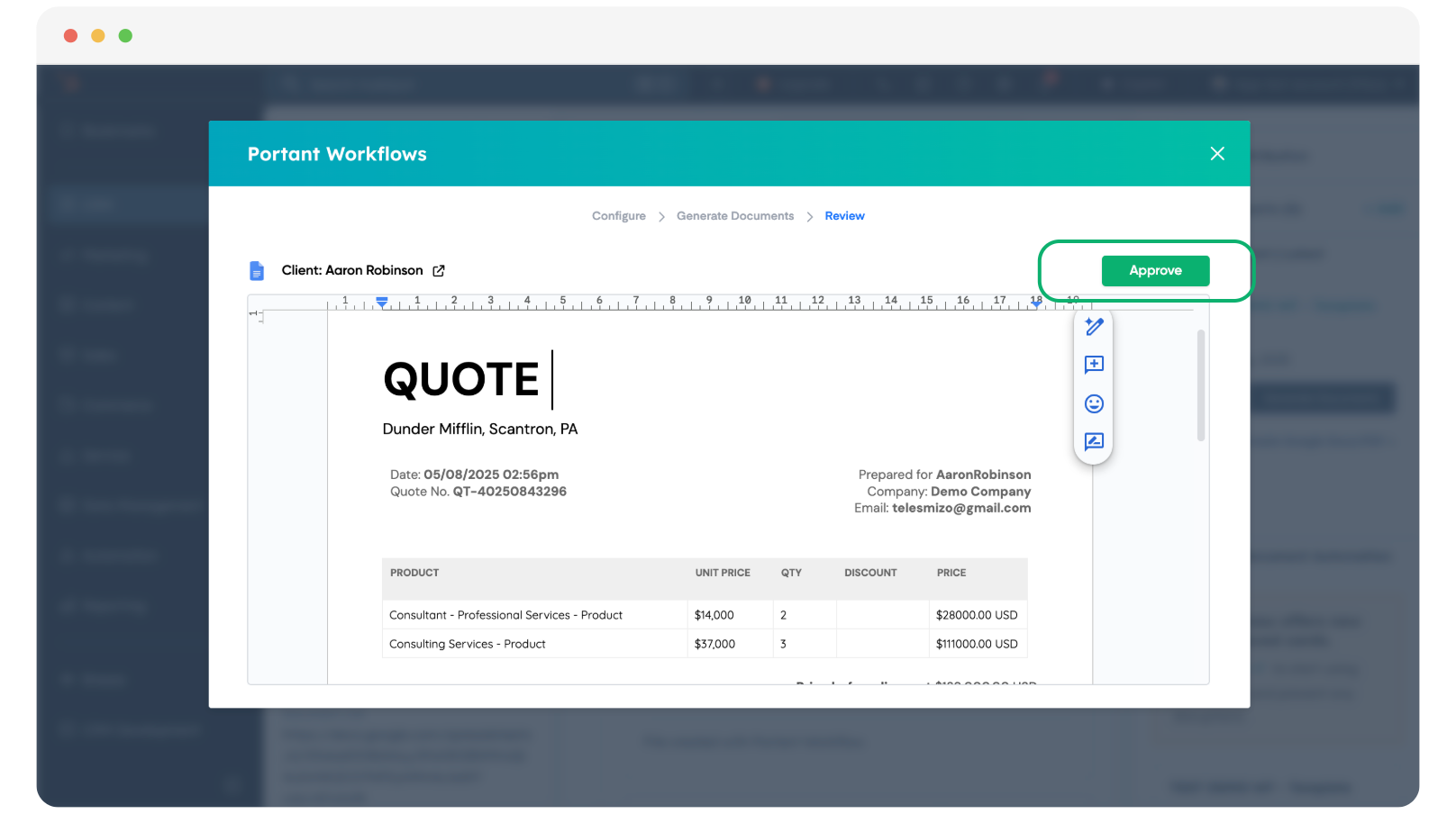
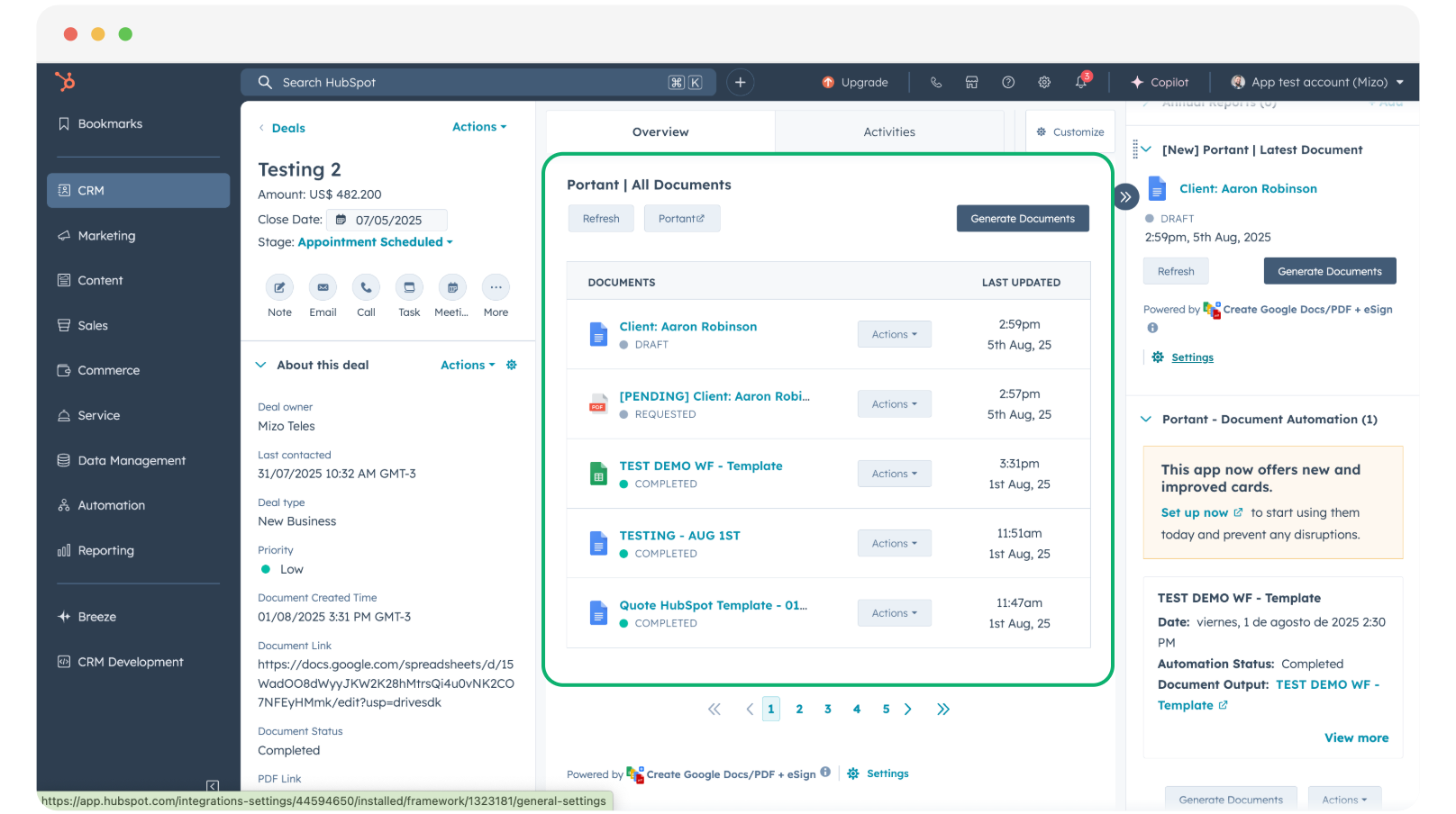

Full walkthrough: Review and approve documents in HubSpot.
How do e-signatures work for HubSpot contracts?
Contract signing is different from other signature use cases. A proposal might need one signature from a buyer. A contract often needs multiple signatures in a specific order, with legal entity requirements attached to each.
Mapping signers from deal associations
The signer's email address comes from the deal's associated contacts. In a typical contract flow, the primary contact on the deal is the buyer's signer. But contracts often need a counter-signature from your own team: the CEO, VP of Sales, or whoever has signing authority.
Portant supports sequential signing. The buyer signs first, then the counter-signer receives the document. Or you can reverse the order if your internal process requires your signature before the buyer sees the executed version. The signing order maps to how your legal team thinks about execution, not how the tool happens to work.
What the signing experience looks like
When a signer receives the request, they get an email with a link to the document. They can review the full contract before signing. The signing interface shows exactly where to sign, initial, and date. After signing, a confirmation email goes to the signer with a copy of the executed document.
For the buyer, this is straightforward. They don't need to create an account. They don't need to download software. They click the link, review, sign, and receive confirmation. The fewer steps between "contract received" and "contract signed," the faster your deals close.
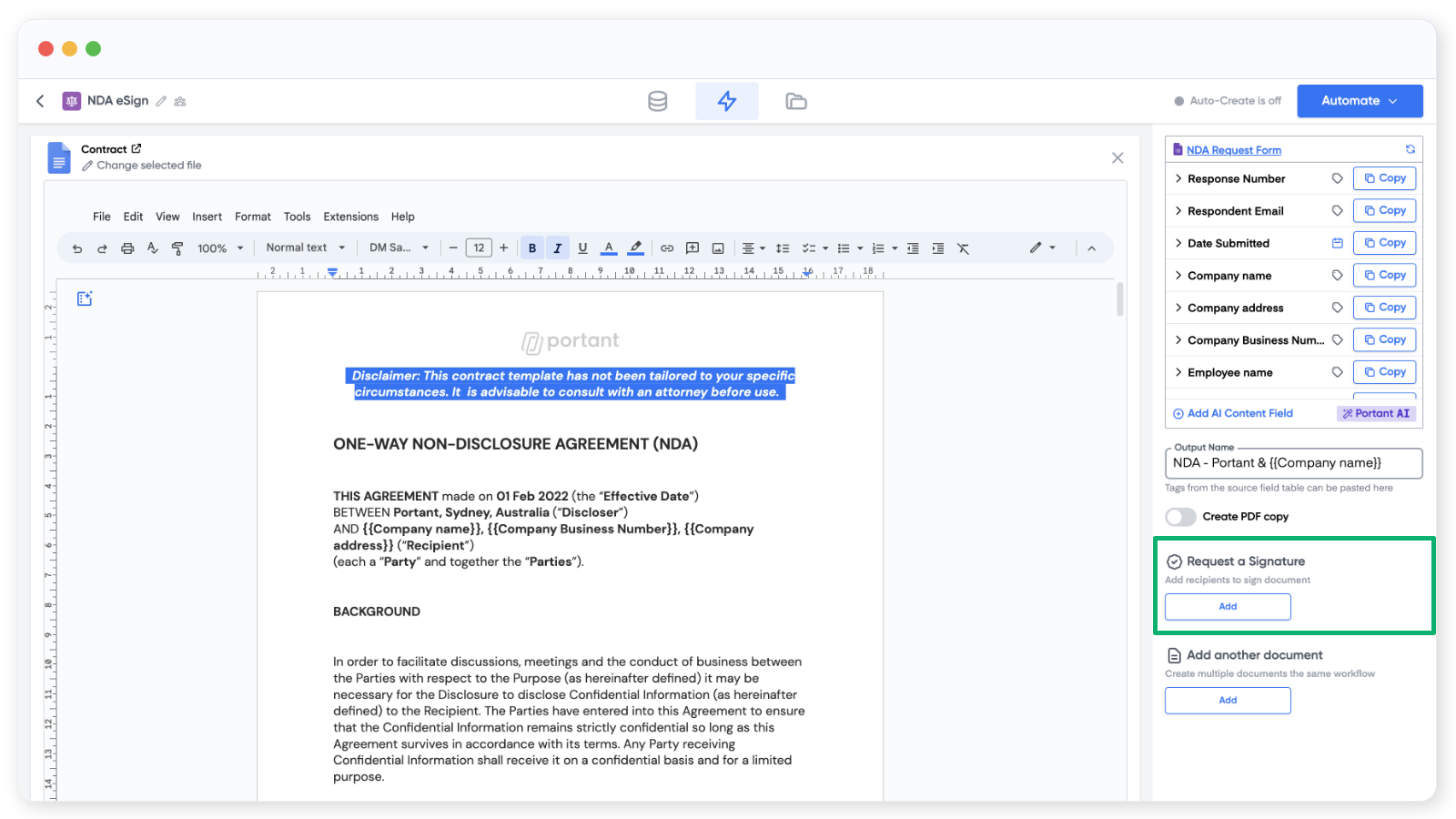
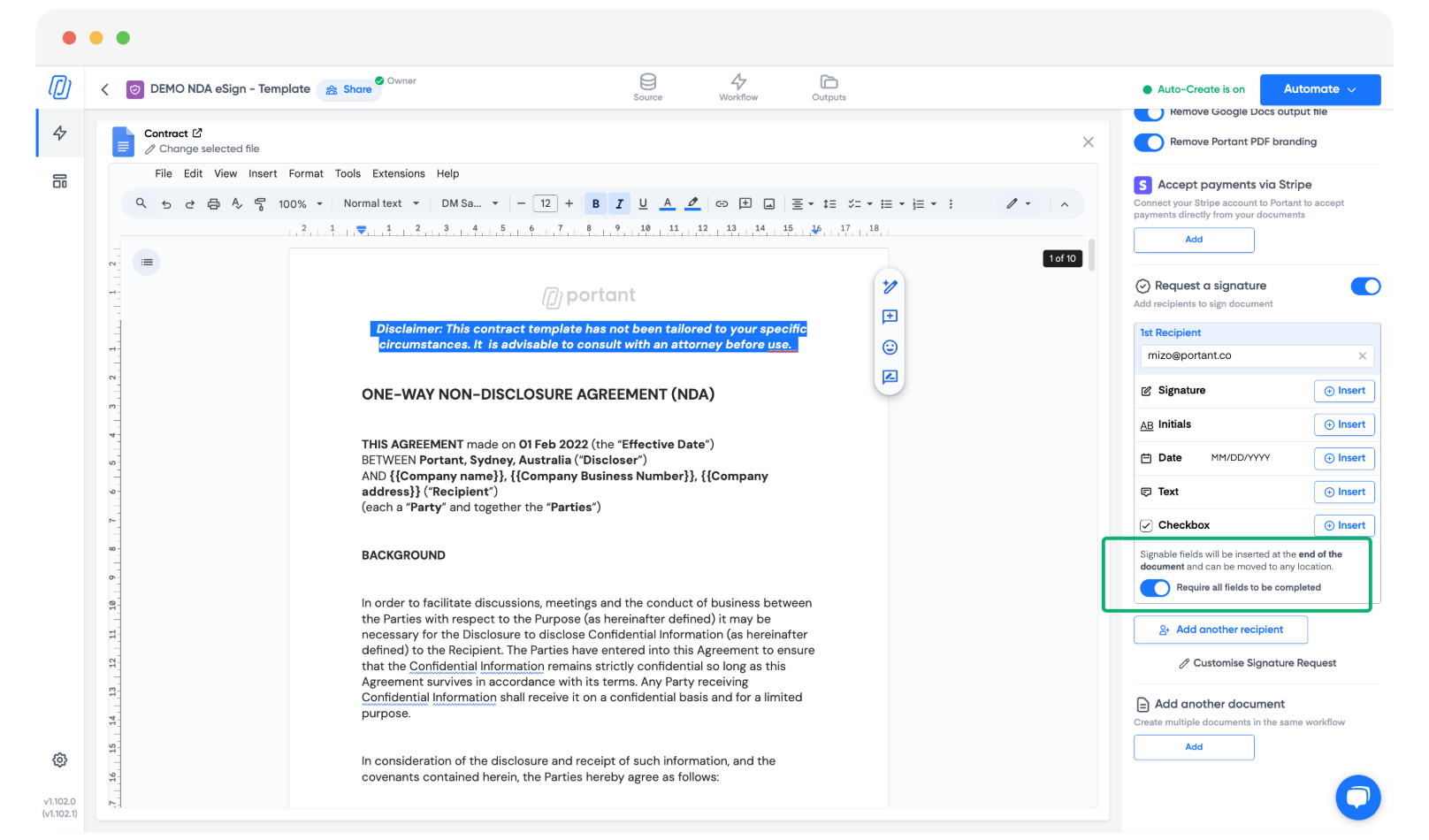
For sequential signing, multi-signer configuration, and confirmation email customization, see eSignatures Requests. For multiple signers specifically, request multiple signatures covers the setup. The broader e-signatures overview links to all signing features including preview links, resend, and audit trails.
What do legal teams need to know about compliance?
I'm not your lawyer, and neither is a blog post. But I can point your legal team to the right references and explain what the platform captures.
E-signatures are legally valid in most major jurisdictions. The US has ESIGN and UETA. The EU has eIDAS. The UK, Canada, Australia, and New Zealand each have their own frameworks. The short version: for standard commercial contracts (B2B SaaS agreements, service contracts, NDAs), electronic signatures are generally enforceable. There are exceptions for specific document types in specific jurisdictions, which is exactly why your legal team should review the relevant framework.
We maintain regional compliance reference articles under eSigning laws and compliance, covering Australia, Canada, the EU, Israel, New Zealand, the UK, and the US. When counsel asks about e-sign validity, send them there. Your policy team can map those references to your own risk assessment.
Audit trails
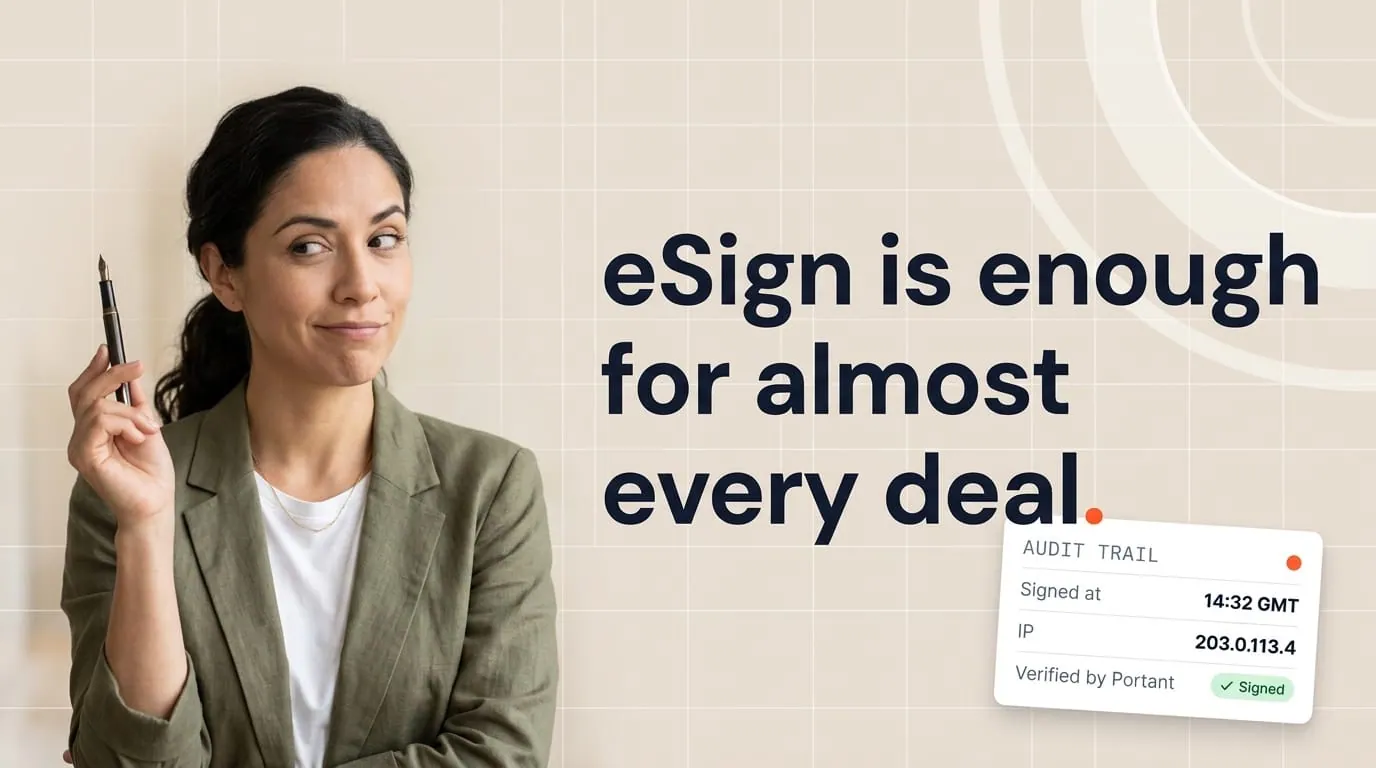
An audit trail captures who signed, when they signed, their IP address, and the document hash at the time of signing. This creates a forensic record that proves the document wasn't altered after execution. For regulated industries (healthcare, financial services, government contracting), the audit trail is often a compliance requirement, not a nice-to-have.
Portant's audit trail attaches to the signed document. Your legal team can verify the signing sequence, timestamps, and signer identity for any contract. See add audit to e-signatures for configuration details.
For regulated industries: If your contracts require specific authentication levels (like qualified electronic signatures under eIDAS), review the compliance references with your legal team before going live. Standard e-signatures cover the vast majority of commercial contracts, but your industry may have additional requirements.
Which contract types can you automate, and when?
Not all contracts are the same, and the automation pattern changes depending on the contract type. Here are the common patterns HubSpot teams automate:
Master Service Agreements (MSAs)
MSAs are the foundation of an ongoing relationship. They contain the general terms: liability, indemnification, governing law, IP ownership, confidentiality. The commercial specifics (pricing, scope, timeline) live in separate order forms or SOWs that reference the MSA.
Because MSAs have few deal-specific fields, the template is mostly static legal language with merge tags for party names, addresses, effective date, and governing law. The review step is critical here because the MSA sets the legal framework for everything that follows. See SaaS contract management for how MSAs fit into the broader contract architecture.
Statements of Work (SOWs)
SOWs define scope and pricing for a specific engagement under an existing MSA. They change with every deal: deliverables, timelines, resource allocation, milestones, payment schedules. SOW templates tend to be heavier on merge tags and lighter on boilerplate legal language.
Google Slides works well for SOWs that need visual elements like project timelines or architecture diagrams alongside the terms. Google Docs works for text-heavy SOWs that read more like a detailed project plan.
Non-Disclosure Agreements (NDAs)
NDAs are simple, high-volume, and often triggered early in the pipeline. A rep qualifies a prospect and needs mutual NDA coverage before sharing product details or pricing. The template is short (2-4 pages), the review is often skipped for standard mutual NDAs, and the signature flow is straightforward.
Because NDAs are high-volume and low-variation, they're good candidates for full automation: trigger from a deal stage change, generate, and send for signature without manual review. For more on NDA patterns, see elements of a contract.
Order Forms
Order forms pair with an existing MSA. They're mostly commercial terms: products, quantities, pricing, payment schedule, term. They reference the MSA by date and add the deal-specific numbers. The template is heavy on line item merge tags and light on legal language.
Line items from HubSpot deals flow directly into order form templates. For line item configuration, see line items in Portant.
Amendments
Amendments modify an existing agreement. They reference the original contract by date and parties, then specify what changes. Common amendments: pricing adjustments, term extensions, scope modifications, additional products.
Amendment templates need properties from both the current deal and the original agreement. If you store the original contract date and reference number as custom properties on the deal, the amendment template can pull them automatically.
How do you automate contract generation from deal stages?
Manual generation from the Portant card works for low-volume teams. But when your team runs 50+ contracts a month, you want generation to trigger automatically from deal stage changes.
The common pattern: when a deal moves to "Contract" stage (or whatever your pipeline calls it), a HubSpot workflow enrolls the deal and triggers Portant to generate the contract. The contract is created, held at the review step, and the assigned approvers are notified.
Timing matters
Contracts typically follow proposal acceptance. The buyer says yes to the proposal, the rep updates the deal stage, and the contract generates. Getting this timing right prevents contracts from generating prematurely (before the buyer has agreed to terms) or too late (after the buyer expected to see the agreement).
Some teams use a two-stage trigger. The deal moves to "Verbal Agreement" and the contract generates in Draft. Then the deal moves to "Contract Sent" only after legal approves and the signature request goes out. This keeps your pipeline stages honest and prevents the "Contract Sent" stage from containing documents that haven't been reviewed.
The generate-then-hold pattern
The most reliable contract automation pattern is: generate, then hold at review until legal approves. This means the workflow creates the document automatically (saving the rep from manual generation) but doesn't send it automatically (preserving the legal review gate).
The rep's job becomes: update the deal stage, verify the preview looks right, and notify legal that a contract is ready for review. Legal's job stays the same: review language, check terms, approve or reject. The automation handles everything between those human checkpoints.
For workflow automation configuration, see automation features. For HubSpot workflow triggers specifically, trigger HubSpot workflows from Portant covers the integration.
How do you handle storage, tracking and renewal after signature?
Getting a contract signed is only half the job. What happens after signing determines whether your legal ops actually work at scale.
Where the signed copy lives
Portant stores signed PDFs in Google Drive using the output folder and naming convention you configure. The signed document also links back to the HubSpot deal record through Portant's custom properties. So you have two access paths: browse Drive for the file, or open the deal record and click the link.
For teams using OneDrive, Portant supports that too. See save to OneDrive for the configuration.
Naming conventions matter
Six months from now, someone will need to find a specific contract. If every file is named "Contract.pdf," they'll be opening documents one by one. A naming convention that includes the company name, contract type, and date makes contracts findable without opening them.
Portant lets you build output file names from merge tags. A pattern like "{Company Name} - MSA - {Date}" produces files like "Acme Corp - MSA - 2026-03-15.pdf." This works for both the Drive folder structure and the HubSpot record reference. See customize output file names for the setup.
Contract status reporting
Portant writes custom properties back to the HubSpot deal: document status, signature status, signed date. These properties enable HubSpot reporting on contract activity. Your RevOps team can build dashboards showing contracts pending review, contracts awaiting signature, contracts signed this month, and average time from generation to signature.
That last metric (generation to signature time) is one of the best indicators of contract workflow health. If it's creeping up, something in the review or signing process is slowing down. The HubSpot properties make this visible without custom reporting tools.
Renewal reminders
If your contracts have fixed terms, the deal close date (or a custom "Contract End Date" property) can drive renewal reminders. A HubSpot workflow triggered 90 days before the end date creates a task, sends a notification, or enrolls the deal in a renewal pipeline. The renewal contract can use the same template with updated dates and terms.
This closes the loop on the contract lifecycle: from generation through signing to renewal, everything stays on the HubSpot record.
For output management and storage options, see outputs documentation. For auto-filing contracts into organized Drive folders, auto-filing output files covers the setup.
What are the most common contract automation mistakes?
I've helped enough teams set up contract workflows to see the same mistakes repeat. Here's what to watch for:
Hardcoded dates and names in templates. The most common mistake. Someone builds the template, types "Acme Corp" in the party name field, and forgets to replace it with a merge tag. The next 20 contracts all say "Acme Corp." Use merge tags for every piece of deal-specific data. If it changes between contracts, it's a merge tag.
Skipping review on "standard" contracts. Teams sometimes skip review for contracts they consider routine. And it works fine until an AI-assisted clause generates unexpected language, or a merge pulls a stale property value. Standard contracts still need at least one set of eyes. If you want to speed up review for standard agreements, use a single approver instead of three. Don't skip review entirely.
Not testing with edge cases. Your template works perfectly when the deal has one contact, a complete company record, and all custom properties filled. But what happens when the deal has two contacts? When the company address is empty? When the term length property hasn't been set? Test with incomplete data before going live. The preview step catches these, but only if someone looks.
Wrong legal entity name. The HubSpot "Company name" field is often a casual name ("Acme") rather than the registered legal entity ("Acme Corporation, Inc."). If your contract template pulls from the wrong property, the agreement might not be enforceable against the correct legal entity. Use a dedicated "Legal Entity Name" property and enforce data quality on it. See HubSpot properties for cleaner sales documents for property design patterns.
Sending without counter-signature setup. If your contracts require a counter-signature from your side, make sure the signing flow includes that step. A contract signed only by the buyer may not be binding until your authorized signer also executes it. Configure the counter-signer in the workflow before going live.
Audit trail gaps. If your legal team requires audit trails and you haven't enabled them, the signed document lacks the forensic record they need. Enable audit trails before sending contracts, not after. Retrofitting audit trails onto already-signed contracts isn't possible.
Inconsistent file naming. When every rep uses a different naming convention, finding contracts later becomes a search project. Set the naming convention in the workflow template so it applies automatically. Don't rely on reps to name files consistently.
Frequently asked questions
How do I generate a contract from a HubSpot deal?
Connect HubSpot as a source in a Portant workflow and map deal, company and contact properties into your contract template as tokens. From the deal record, open the Portant card, pick the contract workflow and run it: Portant merges the CRM data into the template, routes it for review and approval if configured, then sends it for e-signature and attaches the signed PDF back to the record.
Can we sign a PDF uploaded without a source?
Yes. You can upload a PDF directly and send it for signature without running it through a merge workflow. This works for contracts that originate outside your template system, like agreements drafted by the other party's legal team. See manual signature request via PDF upload for the walkthrough.
How do multiple signers work?
Portant supports multiple signers in sequence or parallel. Sequential signing means Signer 1 receives the request, signs, and then Signer 2 receives it. This is the standard pattern for contracts where the buyer signs first and the seller counter-signs. You configure the signing order in the workflow. See request multiple signatures.
Where does the signed file get stored?
Signed outputs flow to Google Drive (or OneDrive) using the output folder and naming convention from your workflow. A link also appears on the HubSpot deal record through Portant's custom properties. This gives you two ways to find the signed contract: through the CRM record or through the file system. Align your naming convention with your legal team's filing expectations.
Can I use Word templates instead of Google Docs?
Portant's merge works with Google Docs and Google Slides templates. If you have existing Word templates, you can import them into Google Docs and convert the merge fields to Portant tags. The formatting usually transfers well for text-heavy contracts. For output format, Portant can generate PDFs, Word files (.docx), and other formats from Google Docs templates. See Microsoft Word output for details.
How do we handle contract amendments?
Create a separate amendment template that references the original agreement by date and parties. Store the original contract date and reference number as custom properties on the HubSpot deal so the amendment can pull them via merge tags. The amendment workflow follows the same generate, review, sign pattern as the original contract. Some teams create a new deal for the amendment and associate it with the same company; others use the existing deal with updated properties.
What happens if a signer's email bounces?
If the signature request email can't be delivered, the signing status reflects the failure. You can update the contact's email on the HubSpot record and resend the signature request. See resend signature requests for how to handle delivery failures and re-send to updated addresses.
For more context on how contracts fit into the broader deal cycle, contract lifecycle management covers the strategic view. And for teams earlier in their HubSpot document automation journey, how Portant's HubSpot integration works explains the technical foundation.