

Portant automates HubSpot proposals by connecting HubSpot Deals as a data source and merging deal properties into a Google Docs proposal template, with optional AI fields that draft summary sections from CRM context. Reps generate the proposal from the deal record, or a HubSpot workflow triggers it at a chosen deal stage, and every output is tracked and attached to the deal.
Your rep just had a great discovery call. The prospect is interested, budget is there, timeline is tight. Now they need a proposal. So the rep opens a Google Doc, copies last quarter's version, starts replacing company names, and spends 40 minutes pulling deal data out of HubSpot and pasting it into sections that never quite line up. By the time the proposal goes out, the prospect has already taken another call.
I've watched this play out at dozens of teams. The sales motion is sharp, the CRM is clean, and then everything stalls at the document. Proposals sit half-finished in Drive folders. Three people touch the same file and nobody knows which version went to the client. Reps who should be selling are formatting tables at 9pm.
This playbook fixes that. I'll walk you through the same workflow our docs team maintains for the Dynamic Proposal Template: copy a workflow, connect Deals, use AI where it adds value, keep a human in the loop, and trigger the whole thing manually or automatically from HubSpot. The screenshots below come straight from our product docs so you can see exactly what the UI looks like.
For the positioning side of proposal automation, see proposal automation for HubSpot. For the integration story, how Portant's HubSpot integration works is a useful companion read.
More from the blog: a thirty day playbook from manual to automated proposals, Google Docs mail merge for sales teams, and ten HubSpot workflow ideas for sales documents.
Why does proposal automation matter?
The average B2B proposal takes a rep 45 minutes to an hour when they're building from a template in Google Docs or Word. That's not writing time. That's copy-paste time, data-lookup time, and formatting time. Multiply that by 10 proposals a week across a five-person team and you're burning 40+ hours of selling capacity on document assembly.
But time isn't even the biggest cost. Speed to proposal correlates directly with win rate. The team that gets a clean, personalised proposal to the prospect within hours of a discovery call has a real advantage over the team that takes three days. Deals go cold fast. Momentum matters more than most CRM dashboards will tell you.
Then there's version chaos. When reps duplicate a Google Doc and edit it locally, you lose control of what's being sent. Pricing gets stale. Legal language drifts. Brand guidelines erode. One rep's "quick fix" becomes the template for the next quarter. RevOps spends half their time policing documents instead of improving the process.
Proposal automation solves all three: it's faster (seconds, not hours), it pulls live data (so nothing's stale), and it keeps templates under central control (so brand and legal stay consistent). The rest of this guide shows you how to build that.
What does a good proposal workflow look like?
Before we get into the steps, here's the end state you're building towards.
A rep finishes a discovery call. HubSpot already has the deal record with company context, meeting notes, and line items. Portant pulls that data into a branded template. AI fields personalise the introduction paragraph and tailor the problem statement to what this specific prospect cares about. The draft pauses at a review step so a manager or the rep can scan the AI-generated sections before anything goes out. Once approved, the proposal emails to the prospect as a PDF, optionally with an e-signature block. The completed document links back to the HubSpot deal record so anyone on the team can see what was sent and when.
That's the full loop. Data flows from HubSpot, the template stays branded, AI handles the personalisation that would take a rep 20 minutes, a human checks it, and the output lands where it belongs. You can run this manually from any deal, or trigger it automatically after a meeting.
Before you start: You'll need HubSpot connected in Portant, a template library account, and (for the automated path) meeting notes or internal notes you trust on the deal. Many teams use a note-taking integration to sync meeting notes into HubSpot automatically.
One Dynamic Proposal template serves every deal size: deal properties fill the commercial sections, AI fields draft the summary from CRM context, and a deal with one product or fifteen renders through the same workflow with no manual editing.
Copy the Dynamic Proposal workflow
Open the Portant Template Library and find the Dynamic Proposal Template. When you copy it, you get three things in your workspace: the document block (a Google Doc with pre-built layout and tokens), the AI field configuration (prompts already wired to HubSpot properties), and the automation logic (source, review step, and output settings). It's a working workflow, not a blank canvas.
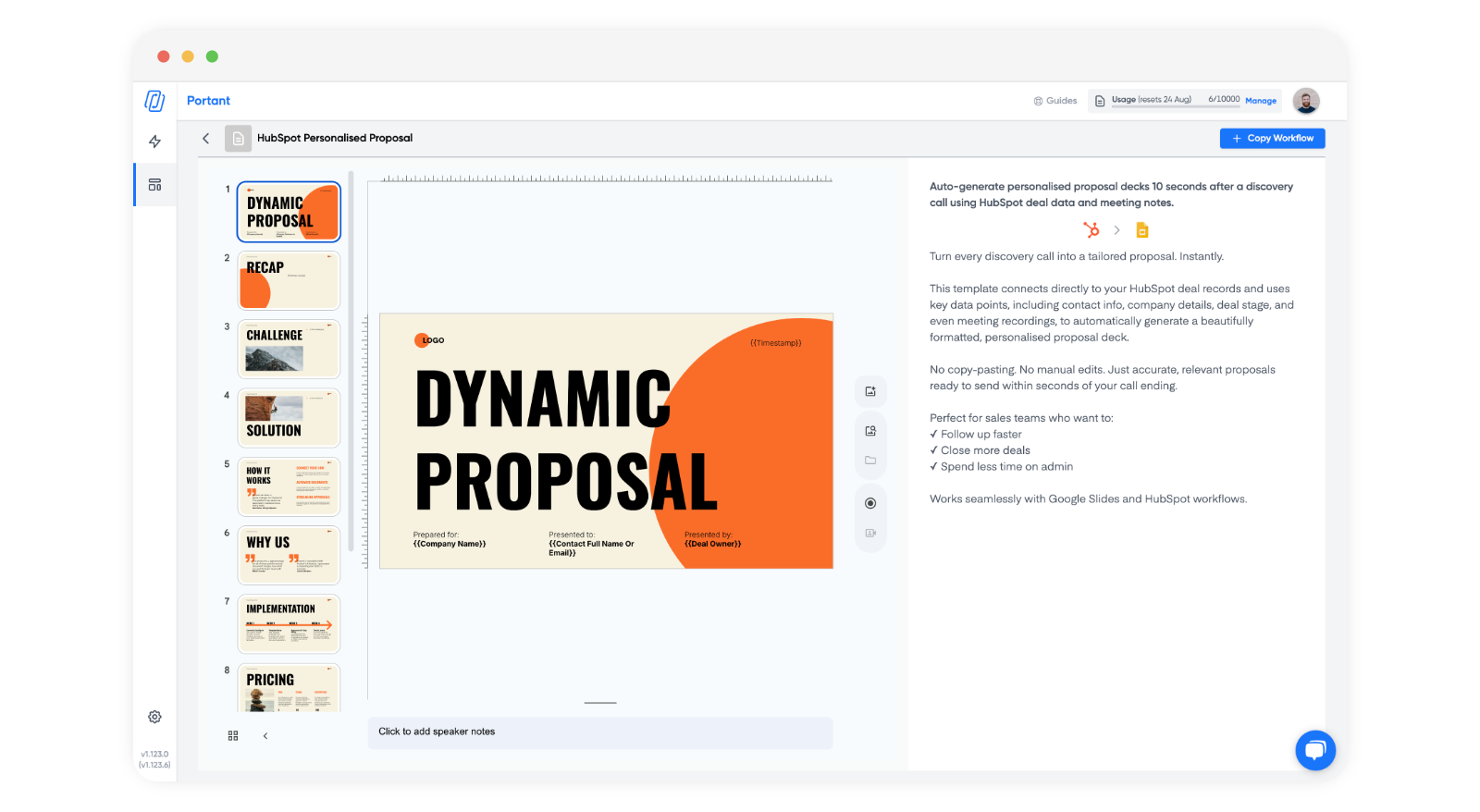
Starting from the library template beats building from scratch for one reason: the AI prompts are already structured and tested. Writing good AI prompts for proposals is an iterative process. The library version gives you a working baseline you can adapt, rather than starting with an empty prompt field and guessing at the format.
Video learners can follow along on YouTube as well. The written path here mirrors our Dynamic Proposal Template step-by-step guide.
Connect HubSpot Deals as your source
The template ships with HubSpot Deals as the data source. That's the right choice for most proposal workflows because Deals hold the properties you need in one place: amount, stage, close date, line items, and owner.
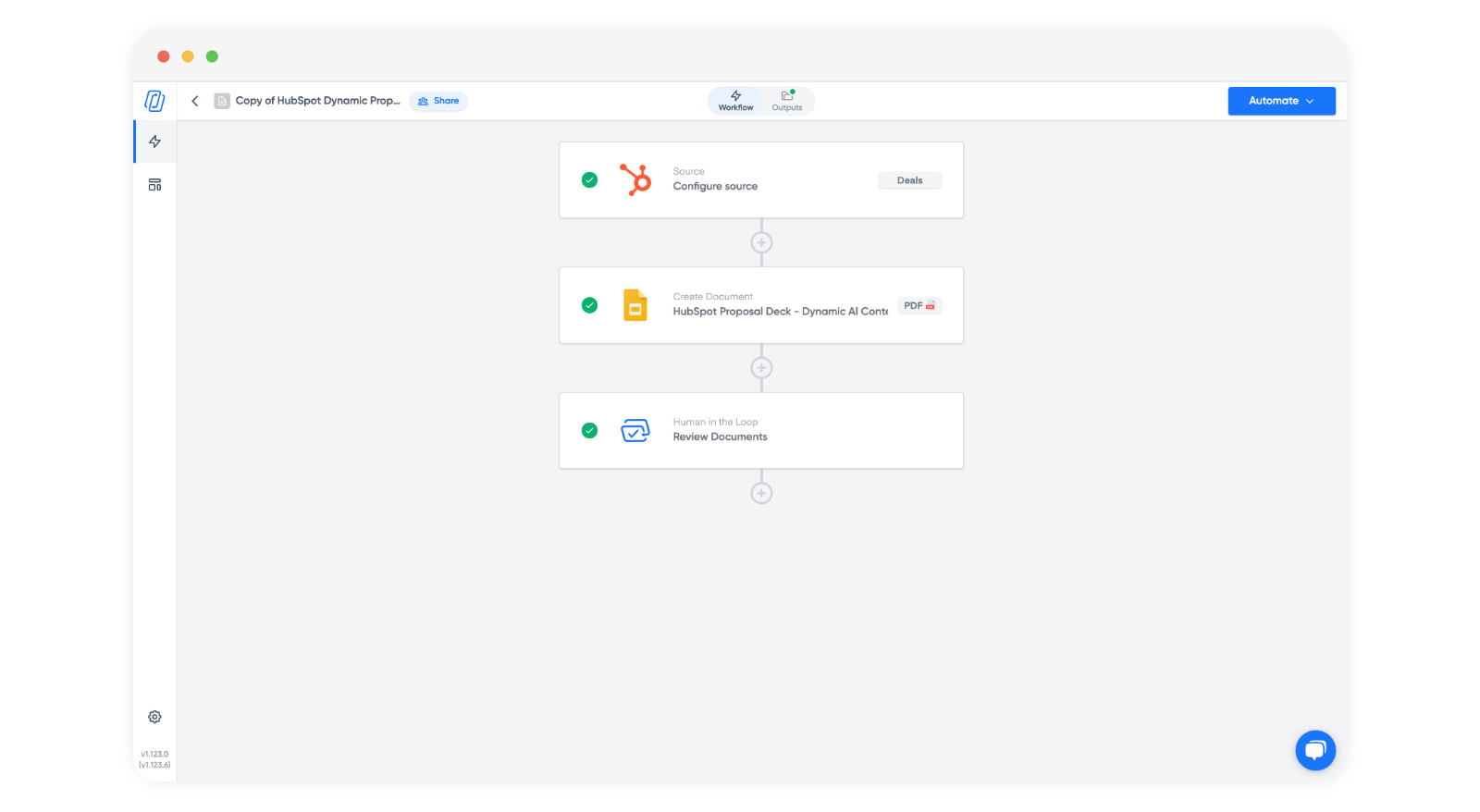
What matters more than the primary object is the associated objects you pull in. For proposals, three associations do most of the work:
- Company: gives you the prospect's name, industry, size, and website for context paragraphs and AI personalisation.
- Contacts: gives you the recipient's name and email for delivery. If you're sending to multiple stakeholders, the primary contact on the deal determines the "To" address.
- Meetings: gives you meeting notes, which are the richest input for AI fields. Without meeting context, AI personalisation falls back to company-level data only.
You can change the primary object to Companies, Contacts, Tickets, or a custom object if your process differs. Some teams run proposals from Companies when deals aren't created until after the proposal is accepted. But for most sales-led processes, Deals is the right anchor because it keeps the proposal tied to pipeline reporting.
How do AI fields and the two prompt patterns work?
This is where the template gets interesting. Open the document and you'll see two types of placeholders: standard merge tokens (like company name or deal amount, which pull data directly from HubSpot) and AI fields that sit in the source table. AI fields hold prompts that call the model with your HubSpot tokens as context, then insert the generated output into the document.
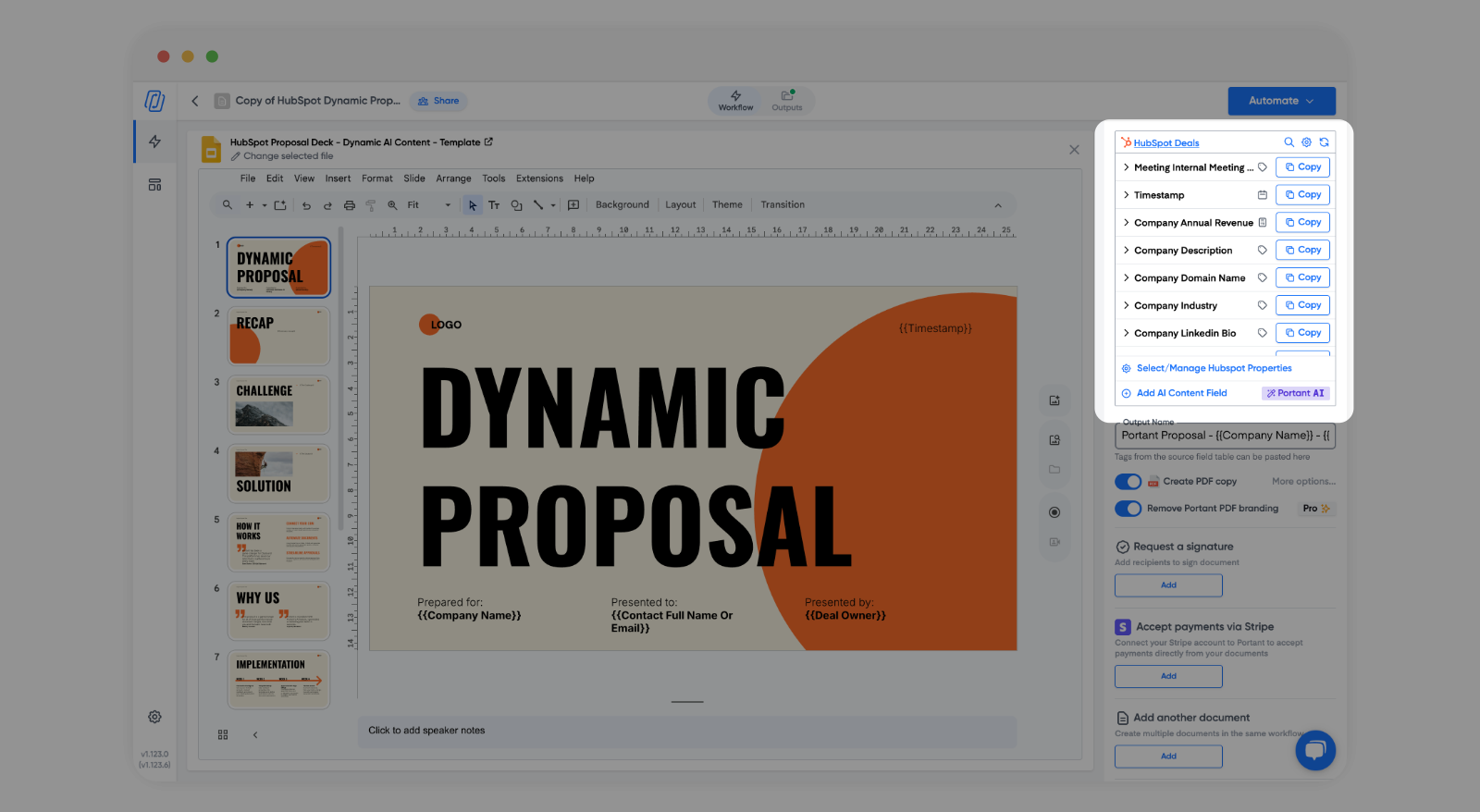
Two prompt patterns cover most proposal sections. Understanding both will help you adapt them to your own templates.
Personalised paragraphs
This pattern takes a draft paragraph (your default proposal intro, for example) and asks the model to adapt it for a specific prospect. The prompt follows a four-part structure:
- Company context: tell the model who the prospect is. Include HubSpot tokens for company name, industry, size, and any relevant properties. The more context, the better the output.
- Meeting notes: pass in the meeting notes token so the model knows what was discussed. This is what makes the output feel genuinely personalised, not just mail-merged.
- Draft paragraph: give the model a baseline paragraph to adapt. This anchors the style, length, and messaging so the output matches your template's tone.
- Output rules: constrain the response. Tell the model to match the approximate character length of the draft, maintain a professional but conversational tone, and output only the paragraph text with no labels or formatting.
The output rules are the part most people skip, and they matter. Without a character-length constraint, the model might return three sentences where your layout expects one, or a 400-word paragraph where the design has room for 150 characters. That breaks your template.
Smart bullet selection
This pattern works for sections like "Key challenges," "Proposed solutions," or "Next steps." You supply a master list of 10-15 possible bullets, and the prompt asks the model to pick and personalise the 3-5 most relevant ones for this prospect based on company context and meeting notes.
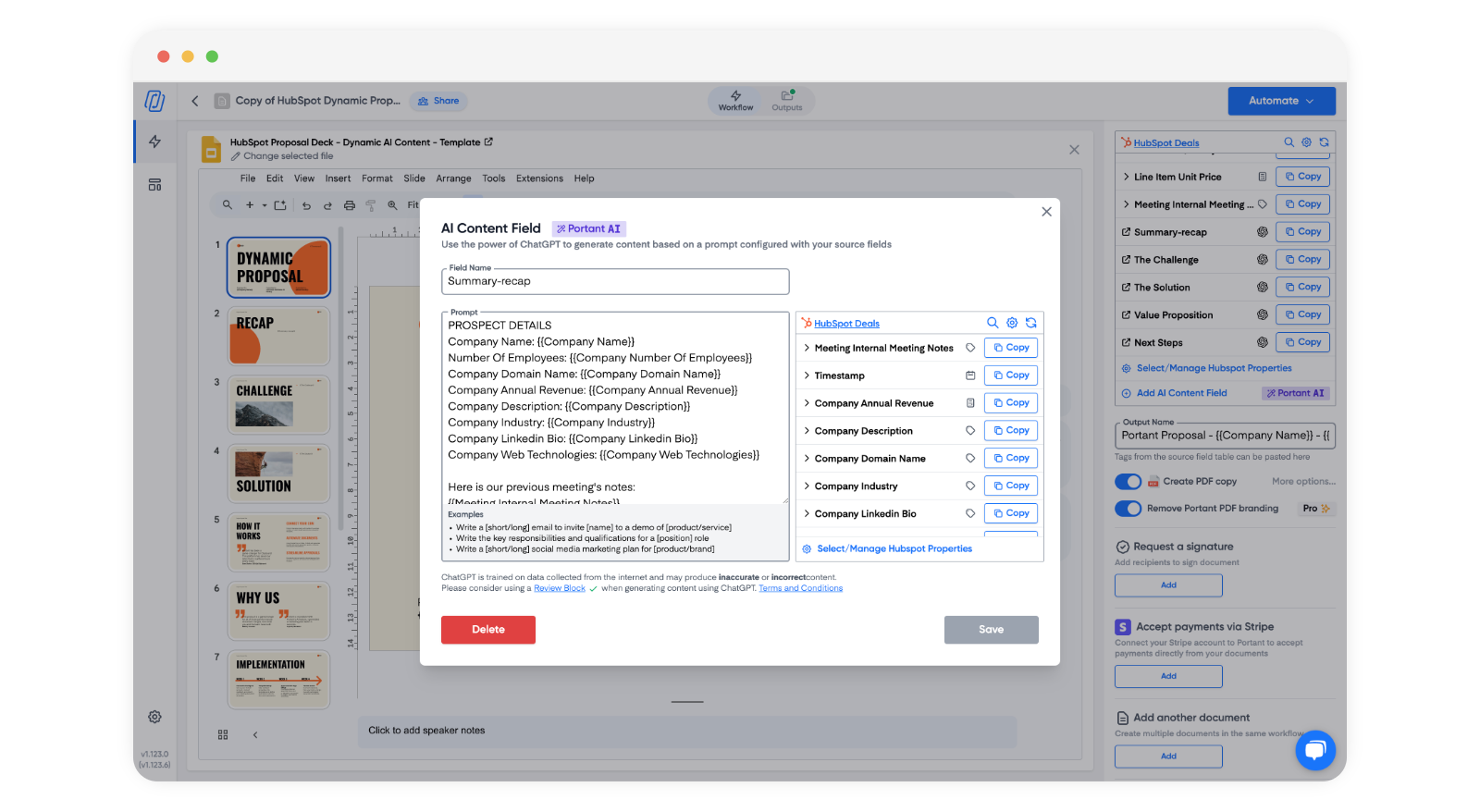
The advantage over writing custom bullets per deal is obvious: reps don't have to decide which three of your twelve solution points matter most for this prospect. The model reads the meeting notes and picks for them. But the master list keeps control with you. The model can only select from bullets your team has already written and approved.
For more prompt examples and patterns, see AI example prompts in our docs. The full prompt library gives you starting points you can copy and adapt.
Swap in your own template
The library template is a starting point. Once you understand how tokens and AI fields work, replace the sample file with your branded Google Doc or PowerPoint.
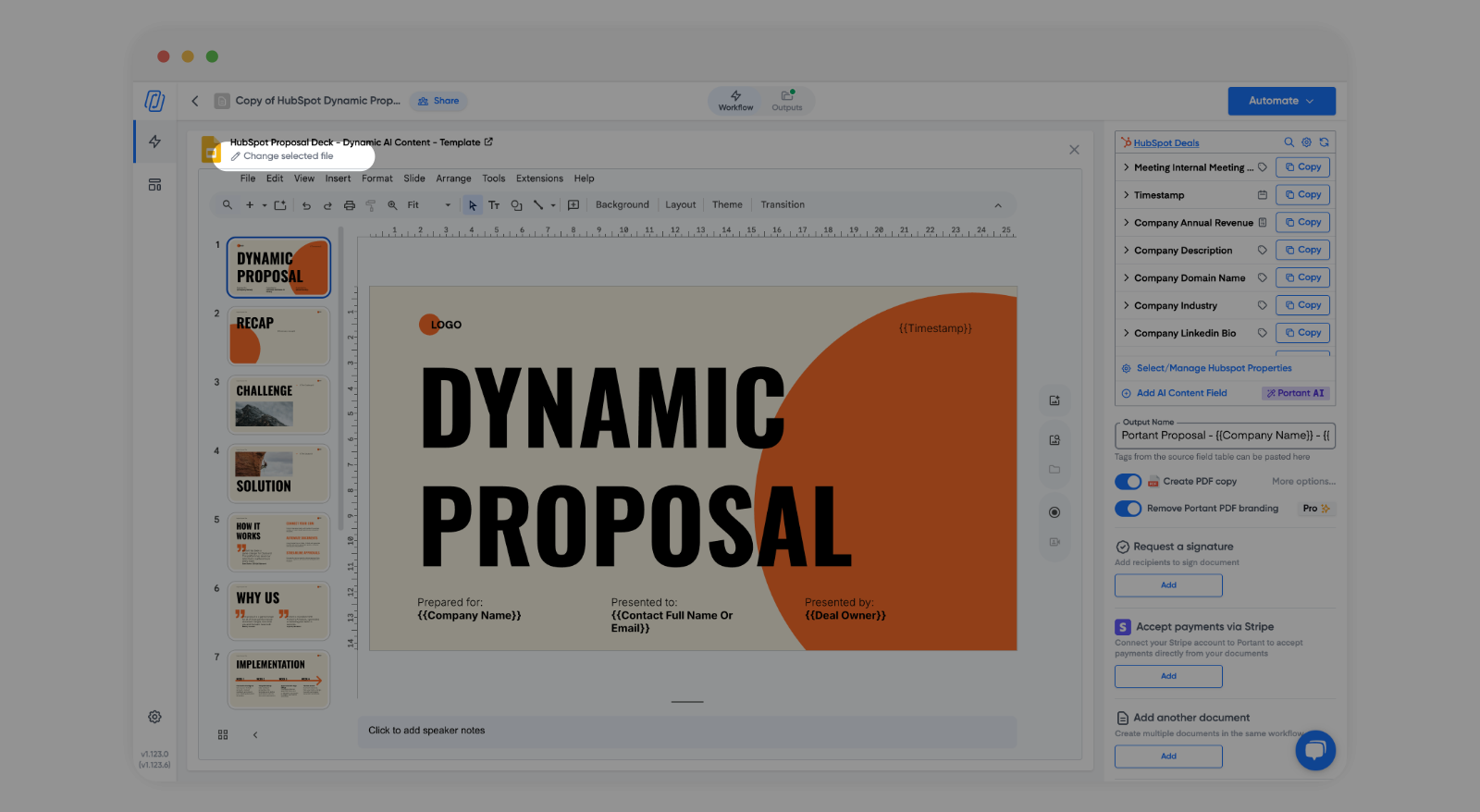
A few things to keep in mind when you swap files:
- Character-length matching: if your AI field prompts were written for the library template's layout, check that your own template has similar space for the AI output. A section that fits 200 characters in the library doc might only have room for 120 in yours. Update the output rules in your prompts to match.
- Pricing tables vs AI sections: keep these separate. Pricing tables should use standard merge tokens and tag formulas for calculations, not AI fields. AI is for prose sections (intros, problem statements, next steps). Mixing them leads to unpredictable formatting in the table.
- Token re-mapping: when you change the template file, any tokens that existed in the library doc won't automatically transfer. You'll need to insert the same HubSpot tokens into your new document. The AI field prompts in the source table stay intact, but the merge tokens in the document body need to be placed where you want them.
For details on building templates with custom tag names and formulas, see custom tag names in our docs.
Add a review step before delivery
AI-assisted proposals still need a human check. Place a Review block after the document block in your workflow. Approvers can open the draft, edit if needed, then approve so the downstream steps (email, PDF, e-signature) only run on the version you're happy with.
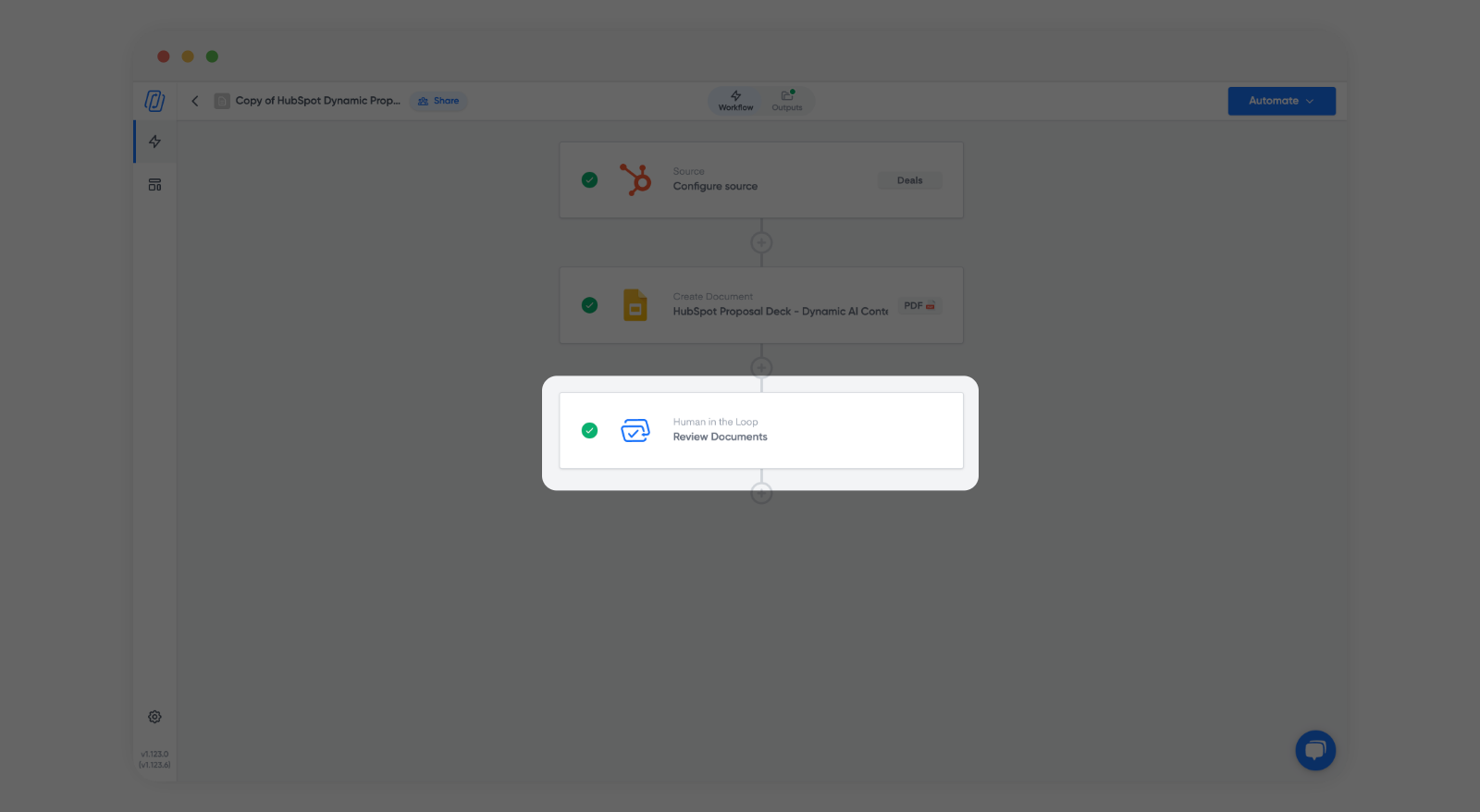
When to use review vs when to skip it:
- Always review when the proposal contains AI-generated content, when the deal value is above a threshold your team cares about, or when you're in a regulated industry where compliance needs to sign off on outbound documents.
- Consider skipping for low-value, highly templated documents where AI fields aren't used and the data is entirely merge-token driven. If every field is pulled straight from HubSpot with no AI interpretation, the risk of an error is much lower.
For approver workflows, you can set up parallel approvers (any one can approve) or sequential approvers (must approve in order). The "require all" option means every approver must sign off before the proposal moves forward. This is useful for deals that need both a sales manager and a legal review.
Configuration details are in Review and approve documents. If you want approvals without leaving HubSpot, read Review and approve documents in HubSpot next.
Generate manually from a deal
Manual generation is the right choice when reps want control over timing. Maybe they need to add context to the deal before generating, or they want to pick a specific workflow for a specific deal type.
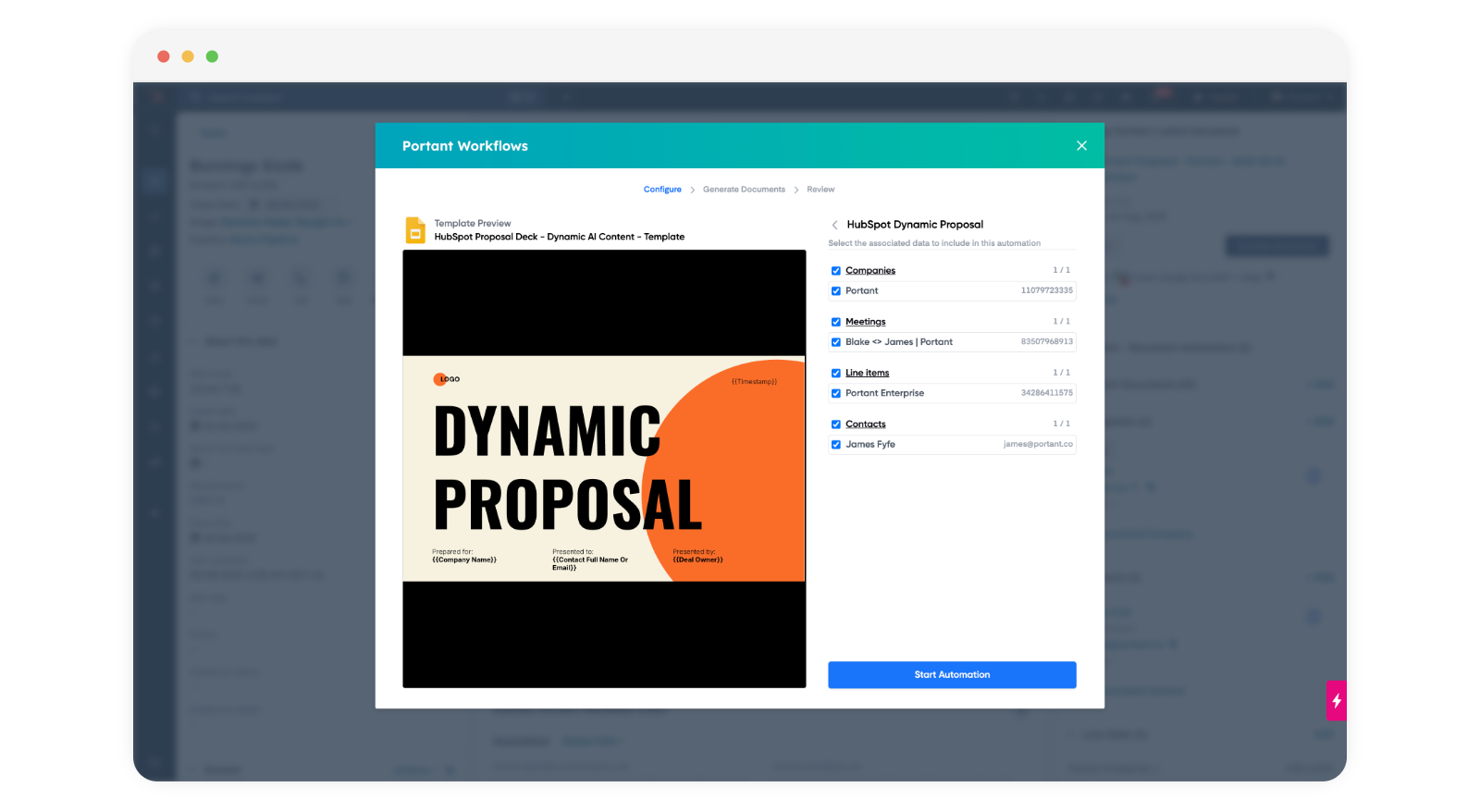
On the deal record, open the Portant card in the right sidebar, choose the proposal workflow, and generate. Before running, make sure the deal has what the template needs:
- Associated company: without this, any AI field that references company context will produce generic output or fall back to placeholder text.
- Meeting notes or internal notes: these feed the personalisation prompts. If the notes field is empty, the AI fields still run, but they'll work from company and deal properties only. The output will be less specific.
- Line items: if your template has a pricing section, line items need to be on the deal. Missing line items mean an empty pricing table.
The general CRM steps (the generate modal, selecting associated objects, checking the Outputs tab) are covered in Create a document in HubSpot.
Automate with a HubSpot workflow
For a hands-off first draft, use a HubSpot workflow to trigger proposal generation automatically. The most common pattern is the meeting trigger: when a meeting is associated with a deal and internal meeting notes are present, the workflow fires.
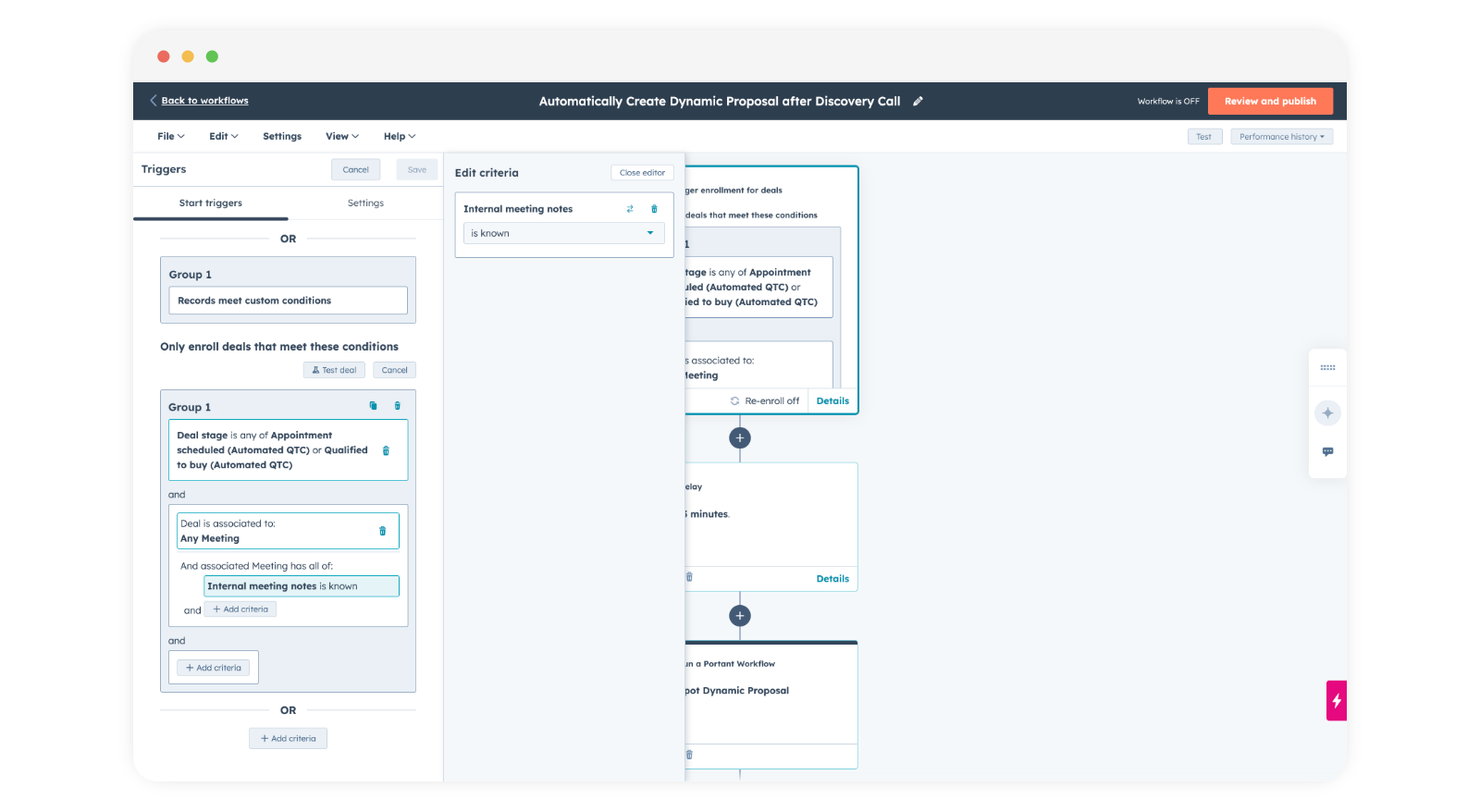
A few details that matter in the workflow setup:
- Add a delay: insert a short delay (1-2 minutes) between enrollment and the Portant action. HubSpot properties sometimes take a moment to settle after a meeting is logged. Without the delay, the workflow might fire before the meeting notes have synced, and your AI fields will generate from incomplete data.
- Turn off re-enrollment: unless you want a new proposal every time a meeting is updated on the same deal, disable re-enrollment. Otherwise, editing a meeting note could trigger a duplicate proposal.
- Enrollment filters: be specific. "Meeting is associated with deal" plus "internal meeting notes is known" is a solid baseline. You might also add deal stage filters (only trigger in "Discovery" or "Proposal" stage) to prevent proposals from generating on deals that aren't ready.
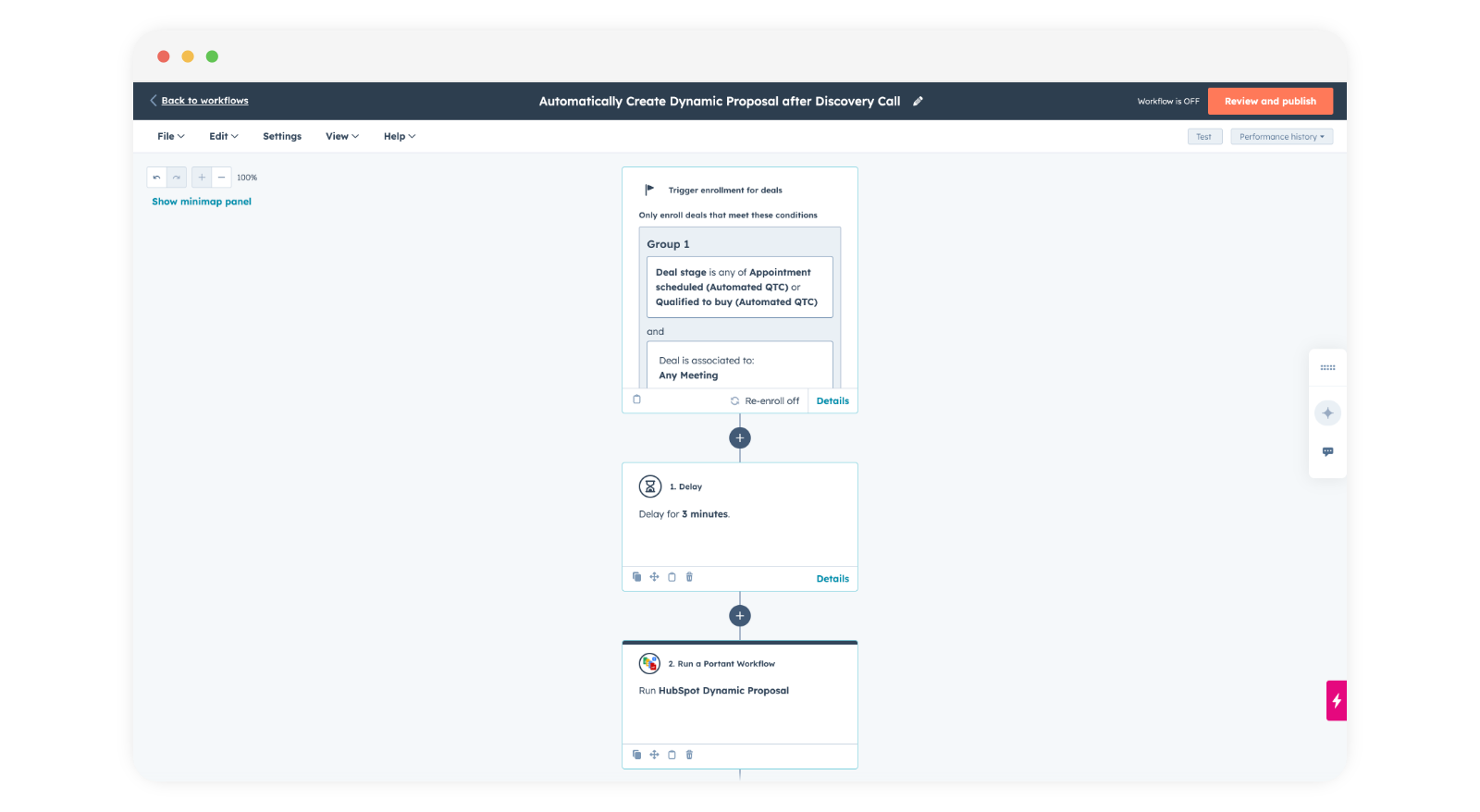
Alternative triggers: the meeting pattern is the most common, but it's not the only option. You can trigger on deal stage change (e.g., when a deal moves to "Proposal Sent"), on a form submission, or on a custom property update. The right trigger depends on when in your sales process the proposal should be generated. For teams that don't use meeting notes, a deal stage trigger with a manual notes field works just as well.
For more on structuring your deal pipeline around document triggers, see deal stages for document workflows.
How do delivery and tracking work?
Once the proposal passes review, the remaining workflow steps handle delivery. You have several options, and you can combine them:
- Email with PDF attachment: Portant sends the proposal directly to the primary contact on the deal. The email content is customisable, and the proposal attaches as a PDF. You can personalise the email body with HubSpot tokens the same way you personalise the document. See share a doc via email for setup details.
- E-signature: if the proposal needs a signature before it becomes binding, add an e-signature block to the workflow. The signer receives the document with signature fields already placed. No need for a separate signing tool.
- Document link on the deal record: every generated document links back to the HubSpot deal automatically. Anyone on your team can open the deal, see the Portant Outputs tab, and access the proposal. No more asking "did we send that proposal?" in Slack.
For the full output lifecycle (where files live, how to find them, what lands on the HubSpot record), see how to view created documents in HubSpot.
What are the best proposal template design tips?
A good proposal template is more than a nice-looking document. It needs to work with automation and AI without breaking when inputs vary. Here's what I've learned from teams that run this well.
Keep sections modular. Each section of your proposal (intro, problem statement, solution, pricing, next steps) should be self-contained. If AI personalises the intro paragraph, that change shouldn't cascade into the layout of the pricing table below it. Use page breaks or fixed-height sections to isolate the impact of variable-length content.
Use consistent token naming. Name your custom tags descriptively: {{proposal_intro}} is better than {{ai_field_1}}. When you have 8-10 tokens in a template, clear names save you time when debugging why a section is blank. See custom tag names for naming conventions.
Test with edge cases. Run your workflow with a deal that has a very long company name (40+ characters). Run it with a deal that has no meeting notes. Run it with a deal that has no line items. Each of these edge cases will show you where your template breaks or where AI output goes off-script. Fix the template and the prompts before you go live.
Version control your templates. When you update your Google Doc template, the change applies to all future proposals. But you can't undo it for proposals already generated. Before making significant layout changes, duplicate the template file and test the new version on a few deals before swapping it into the live workflow.
What are the most common proposal automation mistakes?
I've seen enough proposal workflows go sideways to know the patterns. Here are the ones that catch teams most often.
- Vague prompts: "Write a good intro paragraph" tells the model nothing. Specify the tone, the length, the context tokens, and the output constraints. The more specific the prompt, the more consistent the output.
- Missing CRM data: AI fields don't fail gracefully when the input data is empty. If the meeting notes token is blank, the model generates from nothing, and you get generic filler that sounds like it could be about any company. Train your reps to fill in the data the template needs before they generate.
- Not testing with real deals: testing with a dummy deal that has "Test Company" and "Lorem ipsum" in every field doesn't tell you how the proposal will look with real data. Use an actual closed deal to test. The output will be much more representative.
- Skipping review on AI content: AI is good, not perfect. I've seen proposals go out where the model hallucinated a product feature the company doesn't offer. Review exists to catch this. Use it.
- Templates that break with variable-length output: if your AI prompt can return anywhere from 50 to 500 characters, your template needs to handle that range. Fixed-height text boxes in Slides or tightly packed layouts in Docs will break when the output is longer or shorter than expected. Build in flexibility, or constrain the output length in your prompt.
- No fallback for missing associations: if your template references a company name token and the deal has no associated company, that token resolves to nothing. Consider using tag if-statements to insert fallback text when a property is empty.
Frequently asked questions
How do I generate a proposal from a HubSpot deal?
Copy the Dynamic Proposal workflow from Portant's template library, connect HubSpot Deals as the source, and map deal properties (plus optional AI fields for summary sections) into the template. Reps then generate a proposal from any deal record, or a HubSpot workflow triggers it automatically at a chosen deal stage, and the finished document is tracked and attached to the deal.
Do I have to use the library template?
No. The library version gives you a tested starting point with working AI prompts and a sensible layout. But you can build the same workflow from scratch with your own Google Doc or PowerPoint, your own tokens, your own AI fields, and your own review step. The library just saves you the first couple hours of prompt iteration.
What if we don't use meeting notes?
AI fields can still personalise from company and deal properties. Meeting notes give the richest context for intros and problem summaries, but they're not required. If your team captures discovery notes in a custom HubSpot property or in a CRM note instead, point your AI prompts at that field. The prompt structure stays the same. You're just changing which token feeds the "context" section.
Where do outputs live?
Generated files save to your connected Google Drive folder (configurable per workflow) and optionally attach as a PDF on the HubSpot deal record. You can also view all outputs in Portant's Outputs tab. See How to view created documents in HubSpot for the full loop.
Can I use PowerPoint instead of Google Docs?
Yes. Portant supports Google Docs, Google Slides, Microsoft Word, and Microsoft PowerPoint as template formats. The token and AI field system works the same way across all of them. PowerPoint is popular for proposal decks where the visual layout matters more than text density. The output can be generated as the original format or converted to PDF.
How do AI fields handle missing data?
If a HubSpot token referenced in the prompt resolves to an empty value, the model still runs. It just has less context. The output will be more generic and may include placeholder-style language. To prevent this, use workflow filters to only generate proposals when the required fields are populated. That way, you never send a proposal with AI output that wasn't grounded in real deal data.
How do I measure proposal speed improvement?
Compare two numbers: the time from deal stage change (or meeting completion) to proposal sent, before and after automation. Most teams track this in HubSpot by looking at the timestamp on the deal stage that triggers the proposal and the timestamp on the document creation in Portant's output log. Teams we work with typically see this drop from 2-3 days to under 2 hours, with most of that time being the human review step rather than document assembly.
Next step: if you're also automating contracts and quotes alongside proposals, the contract playbook and quote playbook follow the same pattern. Build all three from the same workflow architecture and your reps only need to learn the system once.