

Portant automates HubSpot quotes by merging deal properties and line items directly into a Google Docs or Slides template, then exporting a PDF. A rep triggers the workflow from the open deal record, the pricing table expands automatically to match however many line items the deal has, and every generated quote traces back to HubSpot data, so no one retypes numbers into a spreadsheet.
A pricing error on a quote costs more than a pricing error on a proposal. Proposals are persuasion documents. Quotes are commitment documents. If the number is wrong, you either eat the margin or you start a negotiation you already lost. And yet most HubSpot teams still build quotes the same way: copy a spreadsheet, paste in line items, adjust the formatting, export to PDF, email it, and hope nobody changed the price list since Tuesday.
I've watched this pattern break in three predictable ways. First, the quote takes two or three days to assemble because the rep is chasing down current pricing or waiting on a manager to confirm a discount. The buyer goes quiet. Second, multiple versions float around because the rep sent v2 but the buyer is reviewing v1 and finance approved v3. Third, the numbers in the quote don't match what's in HubSpot, so when the deal closes, revenue reporting is off from day one.
This playbook shows how to eliminate all three problems. You'll build a quote workflow in Portant that pulls deal data and line items directly from HubSpot, merges them into a branded template, outputs a PDF, and optionally routes through review before the buyer ever sees it. Every number traces back to the CRM. Every quote is versioned. Every output is filed.
For the commercial story on why teams automate quotes, start at quote automation for HubSpot. For CRM hygiene before you automate, audit HubSpot data for accurate documents is worth the time.
More from the blog: HubSpot line items for accurate quotes, when native HubSpot quotes stop being enough, and replace native quotes without losing control.
What does a good HubSpot quote workflow look like?
Before the step-by-step, it helps to picture the end state. Here's what a working quote workflow does:
- A rep opens a deal in HubSpot. The deal has line items (products, quantities, unit prices, discounts) and header-level properties (deal amount, close date, owner name, payment terms).
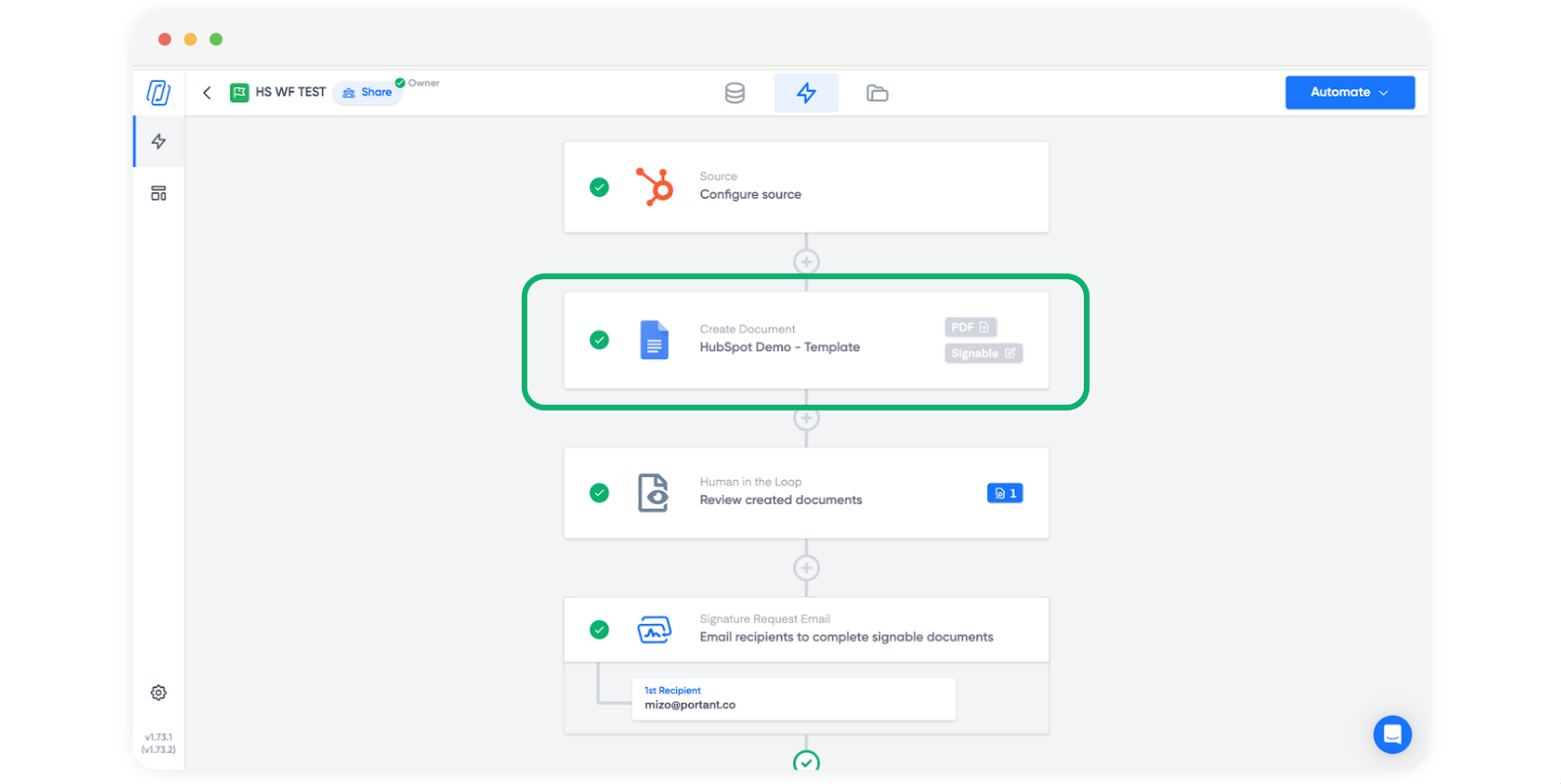
- From the deal record, the rep triggers a Portant workflow. Portant reads the deal properties and every associated line item.
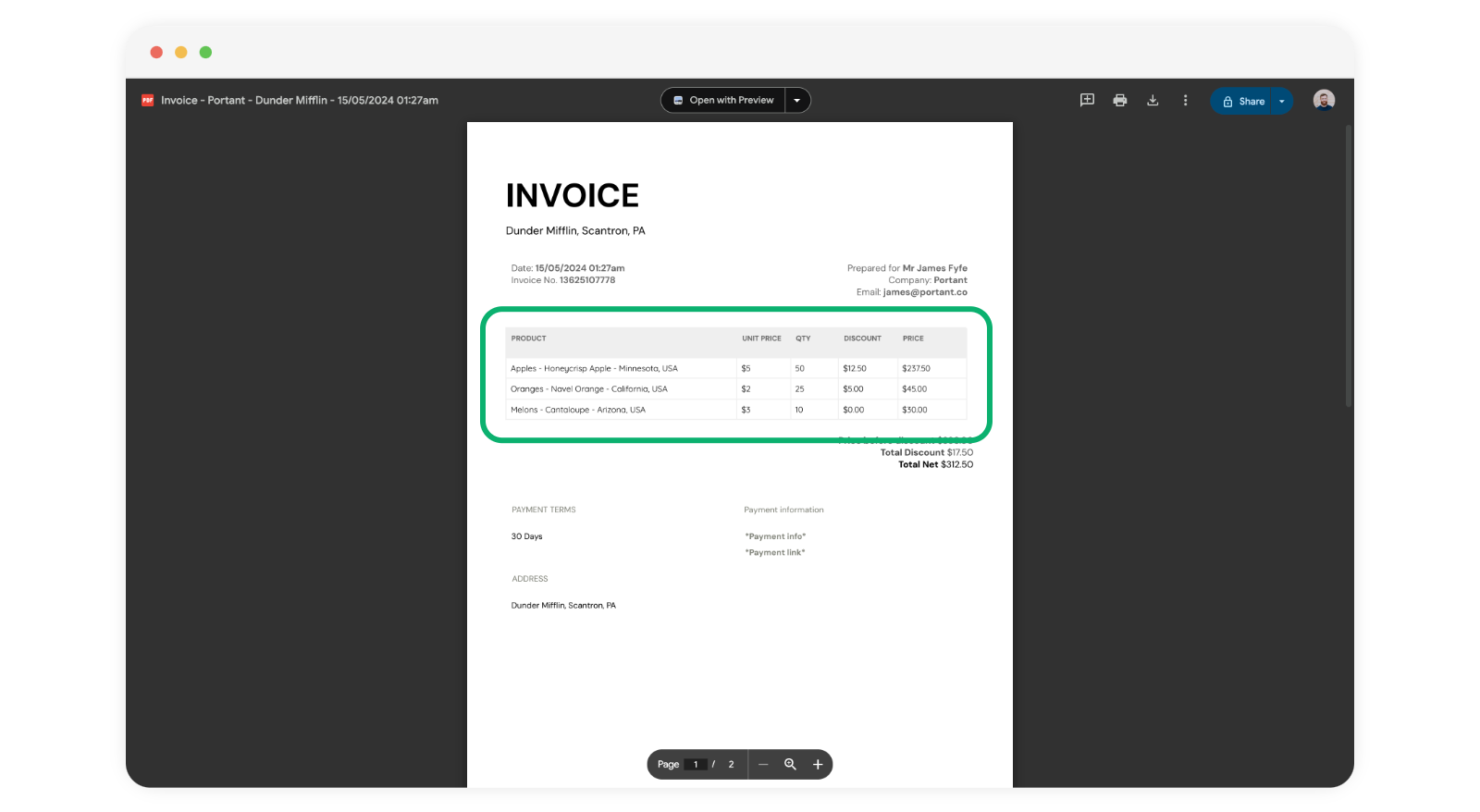
- Those values merge into a Google Docs or Slides template. Header fields fill the top of the document. Line items expand into a pricing table, one row per product, with columns for quantity, unit price, discount, and line total.
- The output is a PDF. The buyer gets a fixed-layout file they can forward to procurement or attach to a PO. The editable Doc stays in your Drive if you need to make manual adjustments before re-exporting.
- The HubSpot record shows exactly what was sent and when. The PDF attaches to the deal. The Portant outputs page logs every version.
That's the target. No spreadsheets, no copy-paste, no version confusion. The CRM is the single source of truth and the document reflects it exactly.
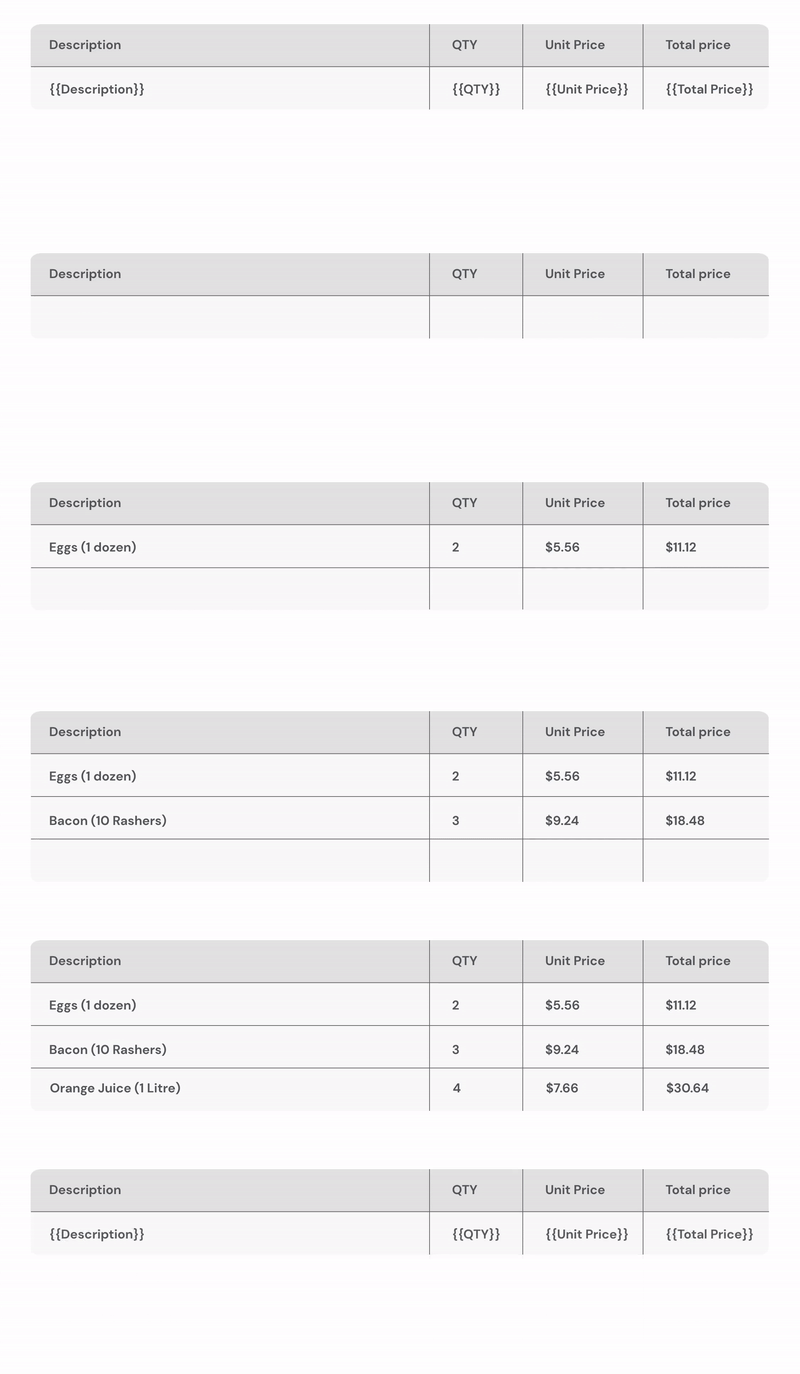
A HubSpot deal with 1 line item and a deal with 15 line items run through the same Portant template: the pricing table repeats its data row automatically to match whatever HubSpot returns, so the template never has to change size by hand.
What does this playbook cover?
- Mapping deal properties and line item properties into a single template
- Rendering multiple line items in one table, with automatic row expansion
- Sorting and selecting line item properties so the quote reads the way buyers expect
- Generating the quote from the HubSpot deal record
- Producing PDF output for customer-ready files
- Adding review gates for non-standard pricing
- Automating quote generation from deal stage changes
- Handling edge cases: multi-currency, custom line item properties, empty fields
Before you start: Connect HubSpot in Portant and make sure your deals have line items with populated pricing fields. If your line items are sparse or inconsistent, run through the data audit guide first. Bad data in, bad quotes out.
Step 1: Design the quote template around the deal
Create a workflow in Portant with HubSpot Deals as the source. This connects the workflow to your deal records and makes all deal properties, associated contact and company properties, and line item properties available as merge tokens.
Your template has two zones: the header and the pricing table.
Header fields
The header is everything above the line items table. For most quotes, you need:
- Company name from the associated company object
- Contact name and email from the associated contact
- Deal name as the quote title or reference
- Deal amount as the quoted total
- Close date as the quote validity date or expected decision date
- Deal owner name so the buyer knows who to call
- Payment terms if you store these as a deal property (Net 30, Net 60, etc.)
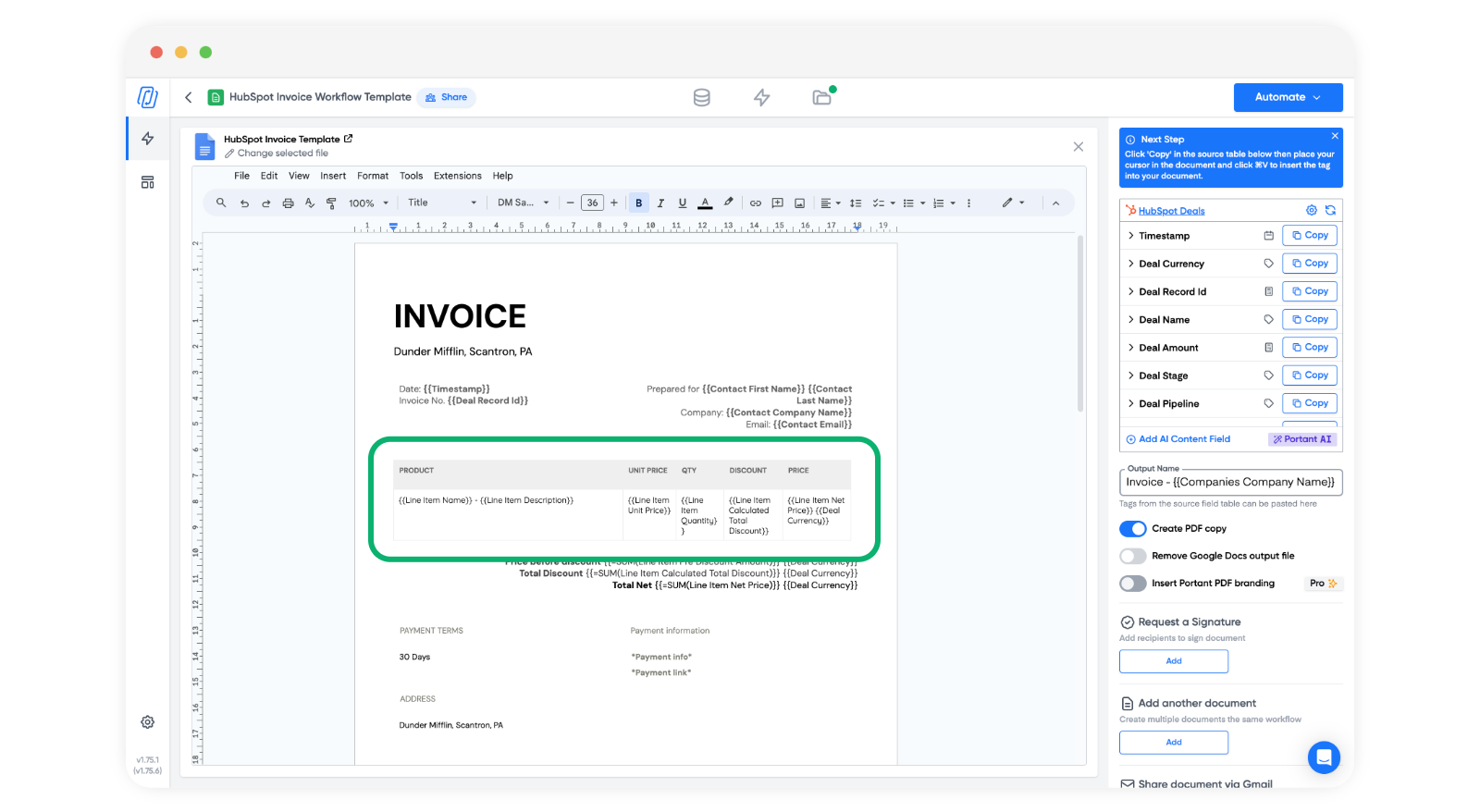
Place these as tokens in the top section of your Google Doc or Slides template. Each token maps to a HubSpot property, so the values fill automatically when the workflow runs.
Choosing Google Docs vs Slides
Google Docs works well for text-heavy quotes where the pricing table is the star. You get natural page flow, easy formatting, and the table expands cleanly as line items increase. Google Slides works better when your quote is more visual, like a designed PDF with branded backgrounds, logos in fixed positions, and a layout that needs to look exactly the same regardless of content length.
For most quote workflows, I'd recommend Docs. The table expansion behaviour is more predictable, and quotes are fundamentally about the numbers, not the layout.
If this is your first HubSpot-sourced workflow, skim HubSpot source docs and data merge for property selection patterns.
Step 2: Add multiple line items to one document
This is the step that makes quote automation actually work. When a deal has several products, Portant repeats table rows so each line item gets its own row in the output. The docs article Add multiple line items into a single document shows the exact layout.
How table expansion works
In your template, you create a table with two conceptual parts:
- The header row: Static column labels like "Product," "Qty," "Unit Price," "Discount," "Total." These don't contain merge tokens. They stay fixed in every output.
- The data row: A single row below the header containing line item tokens. One token per column: the product name token, the quantity token, the unit price token, and so on.
When the workflow runs, Portant reads how many line items are on the deal. If there are five products, it duplicates that data row four more times, filling each copy with the values from the corresponding line item. A deal with one product produces a one-row table. A deal with fifteen products produces a fifteen-row table. The template stays the same either way.
Which columns to include
A typical quote table has five to seven columns. Here's a solid default:
- Product name: What the buyer is getting
- Description: One-line summary (optional, skip if your product names are self-explanatory)
- Quantity: How many units
- Unit price: Price per unit before discounts
- Discount: Percentage or flat amount off (if applicable)
- Line total: The net amount for that line
If you sell recurring and one-time items on the same deal, add a "Billing frequency" column so the buyer can see which charges repeat.
Common gotchas with table expansion
Merged cells break expansion. If you merge cells in the data row of your template table, Portant can't reliably duplicate that row. Keep the data row as simple, unmerged cells. You can merge cells in the header row or in summary rows below the table, but the repeating row needs to be clean.
Formulas in template tables don't carry over. If you put a Google Sheets-style formula in a Docs table cell, it won't calculate in the output. The values come from HubSpot. If you need a calculated total row, use the deal-level amount property below the table rather than trying to sum line item rows in the template.
Empty line items produce empty rows. If a line item exists on the deal but has no price or quantity, you'll get a row with blank cells. Clean up orphan line items in HubSpot before running the workflow, or accept that the output might need a quick manual cleanup for edge cases.
Step 3: Control row order with property management
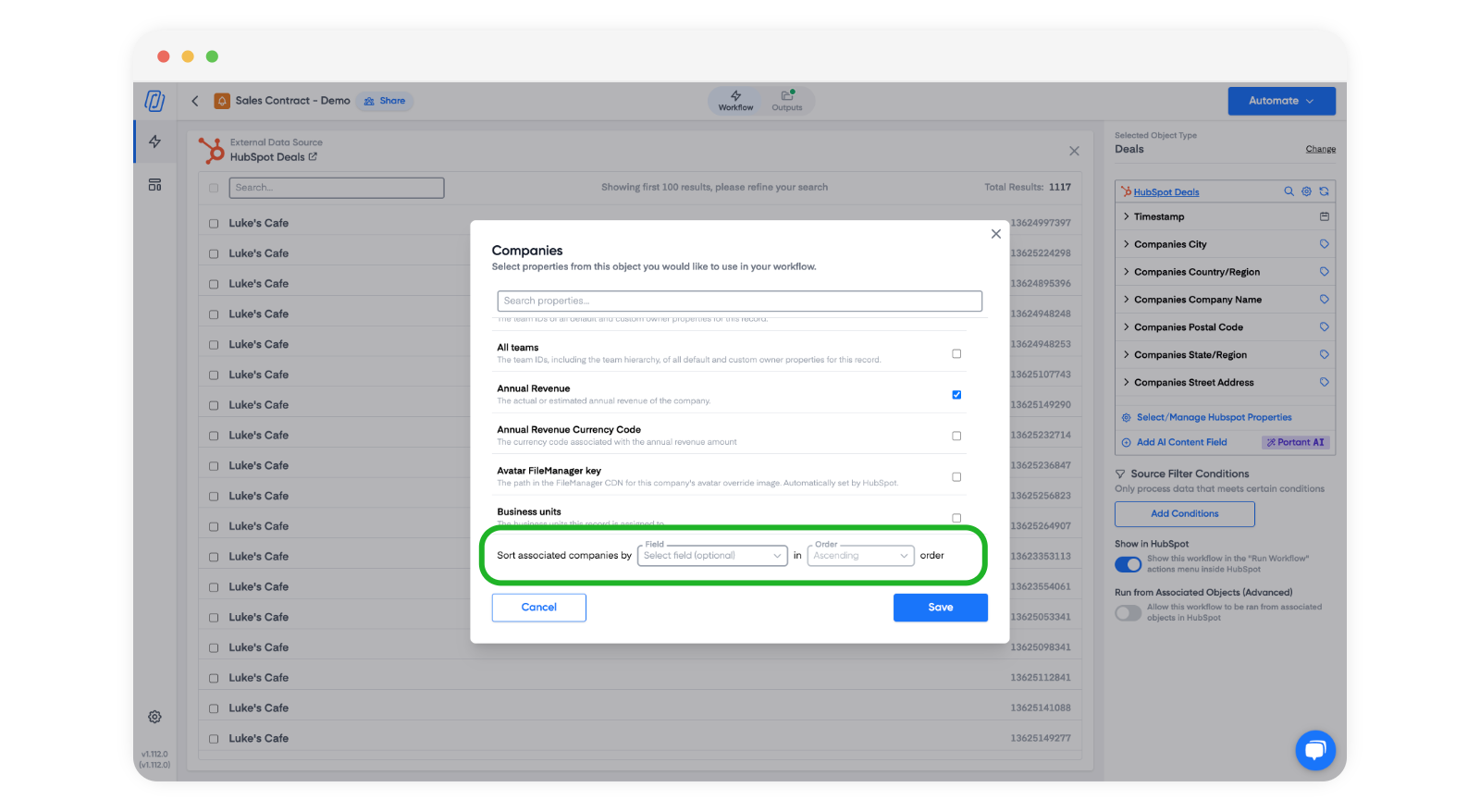
Row order matters more on quotes than on any other document type. Buyers read quotes top to bottom and form expectations about what the total will be before they reach it. If your line items show up in a random order, the quote feels sloppy. If discounts appear before the items they apply to, the pricing story doesn't track.
A good default sort order
For most B2B quotes, this order reads well:
- Core products or platform fees first. These are the main thing the buyer is purchasing.
- Add-ons or per-seat licenses next. Secondary items that extend the core.
- Implementation or onboarding fees below that. One-time charges grouped together.
- Discounts last. The buyer sees what they're getting before they see what you're taking off.
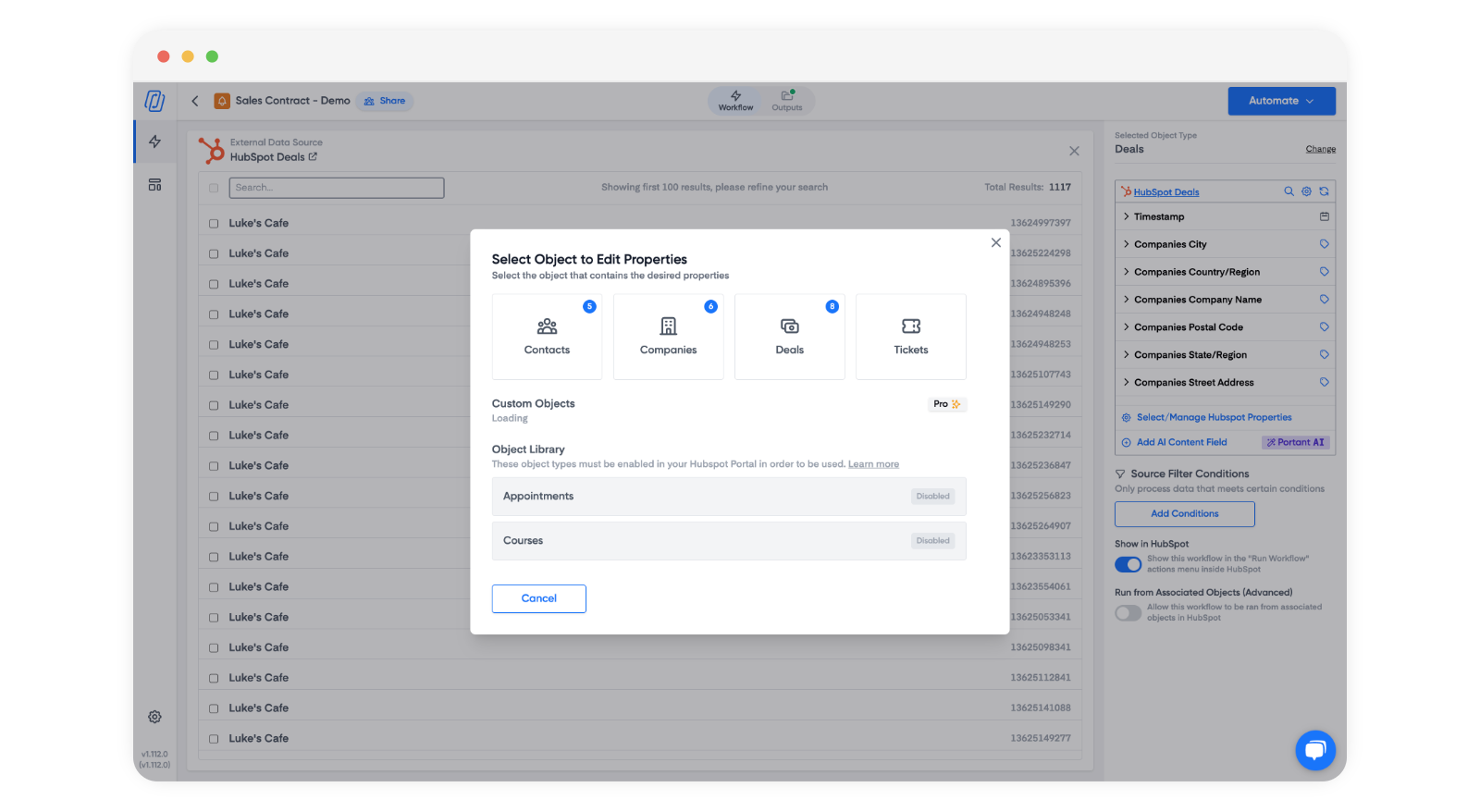
Use the HubSpot property management UI in Portant to sort line items the way you want them to appear. The docs pair the line item guide with screenshots from How to manage and select HubSpot properties.
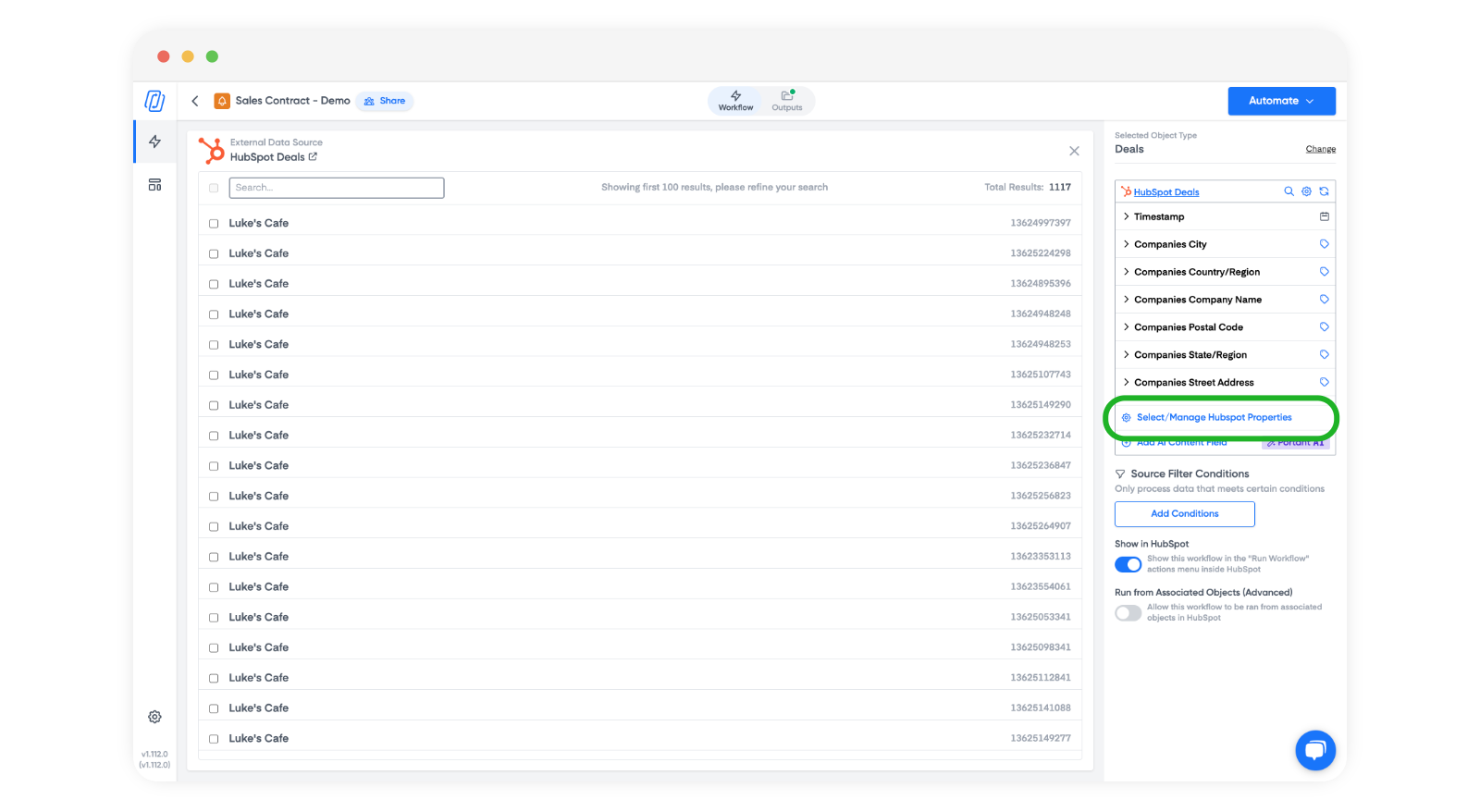
Selecting the right properties
Only expose the properties your template actually uses. If your template has six columns, select six line item properties. If you expose twenty properties but only use six, the Portant builder gets cluttered with tokens you'll never drag into the template. Worse, if a rep accidentally uses an unintended token, you get data in the document you didn't plan for.
On the flip side, selecting too few properties is an easy mistake. If your template references a "Billing Frequency" token but you didn't select that property in the source settings, the token renders as blank text in the output. The document looks broken and the rep has to figure out why.
Step 4: Generate the quote from the deal record
Reps should not leave HubSpot to build a quote. The whole point of CRM-driven documents is that the rep stays in their workspace.
Here's what the flow looks like from the rep's perspective:
- Open the deal record in HubSpot.
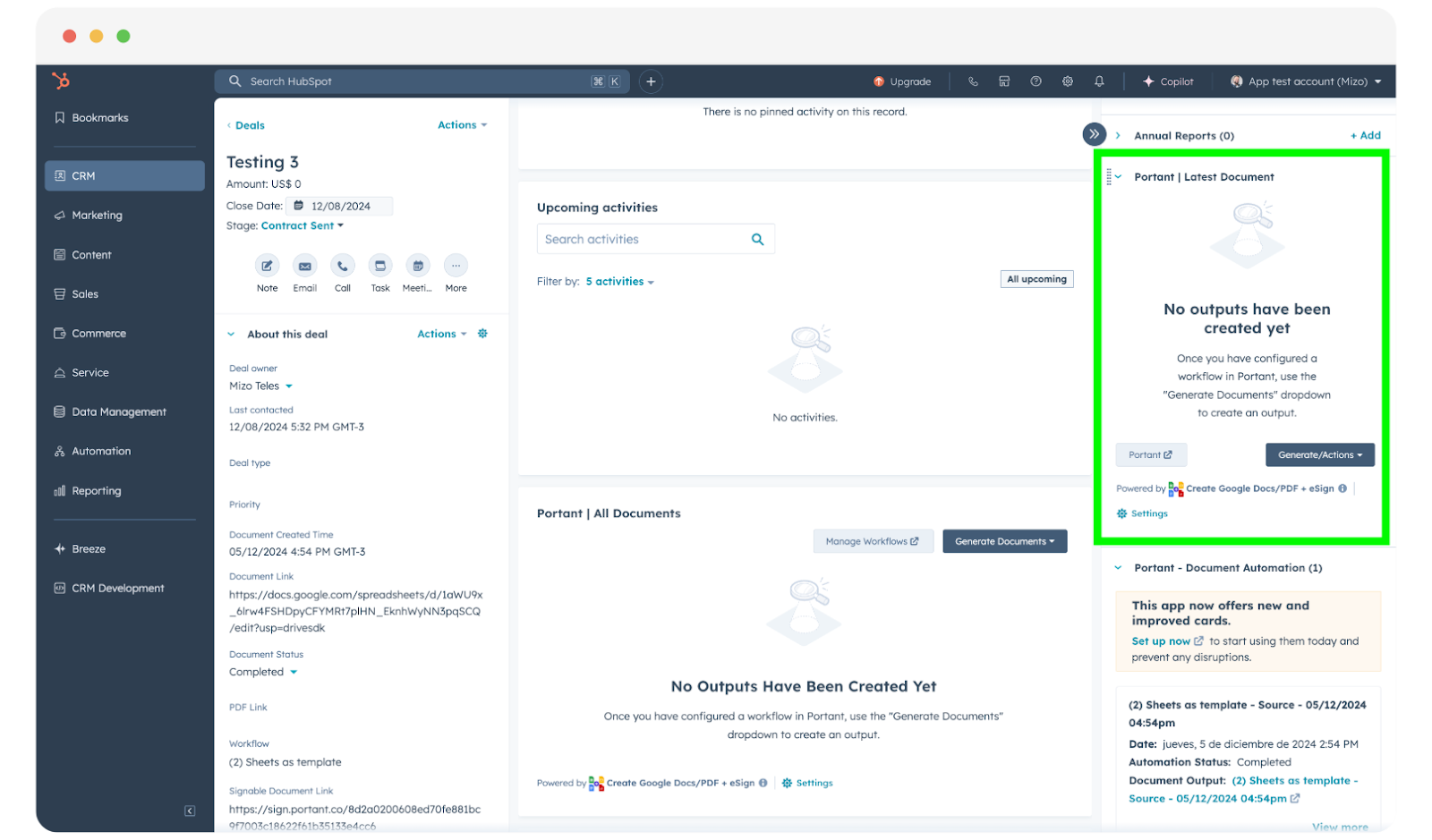
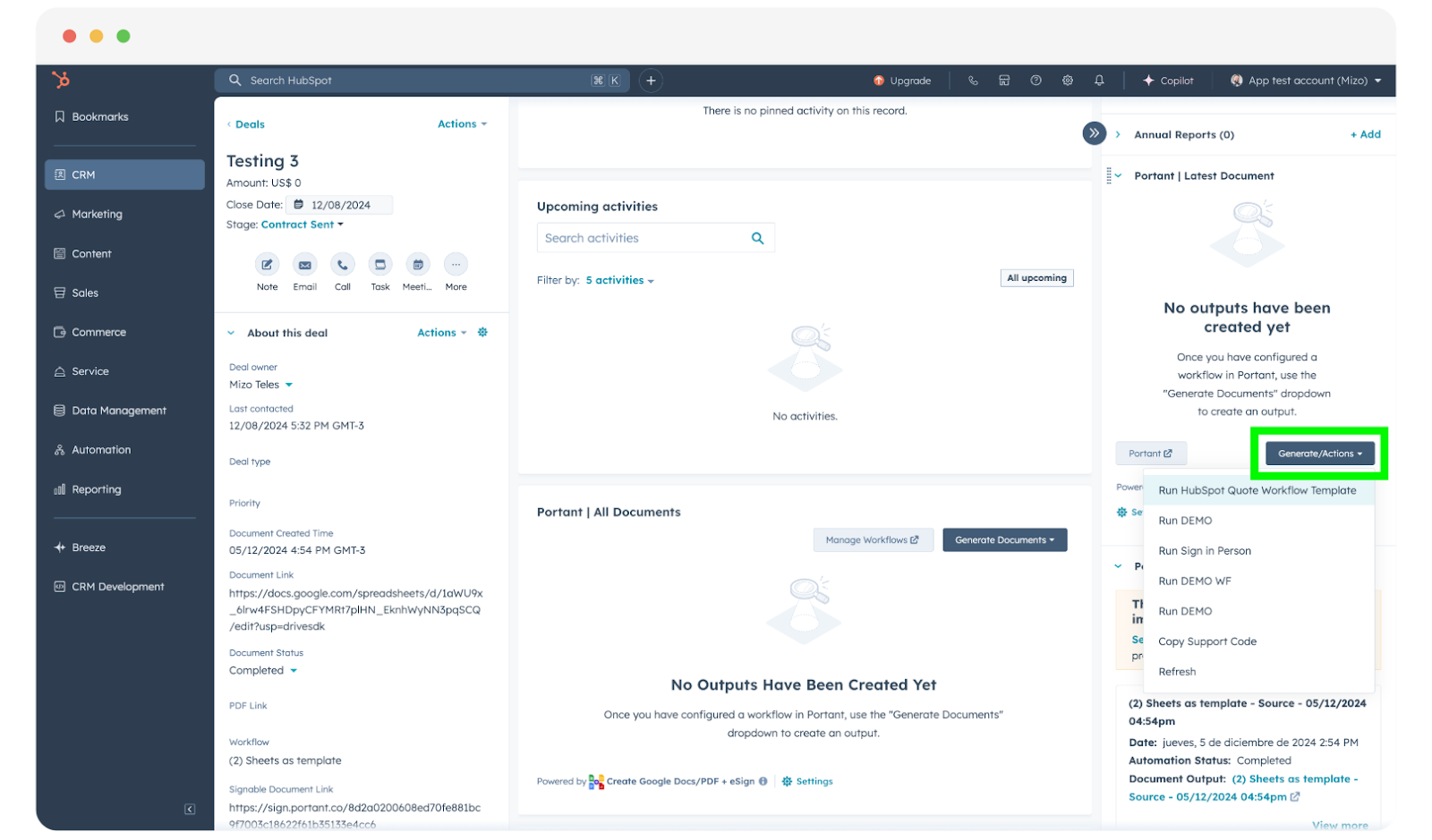
- In the right sidebar, find the Portant card and choose the quote workflow.
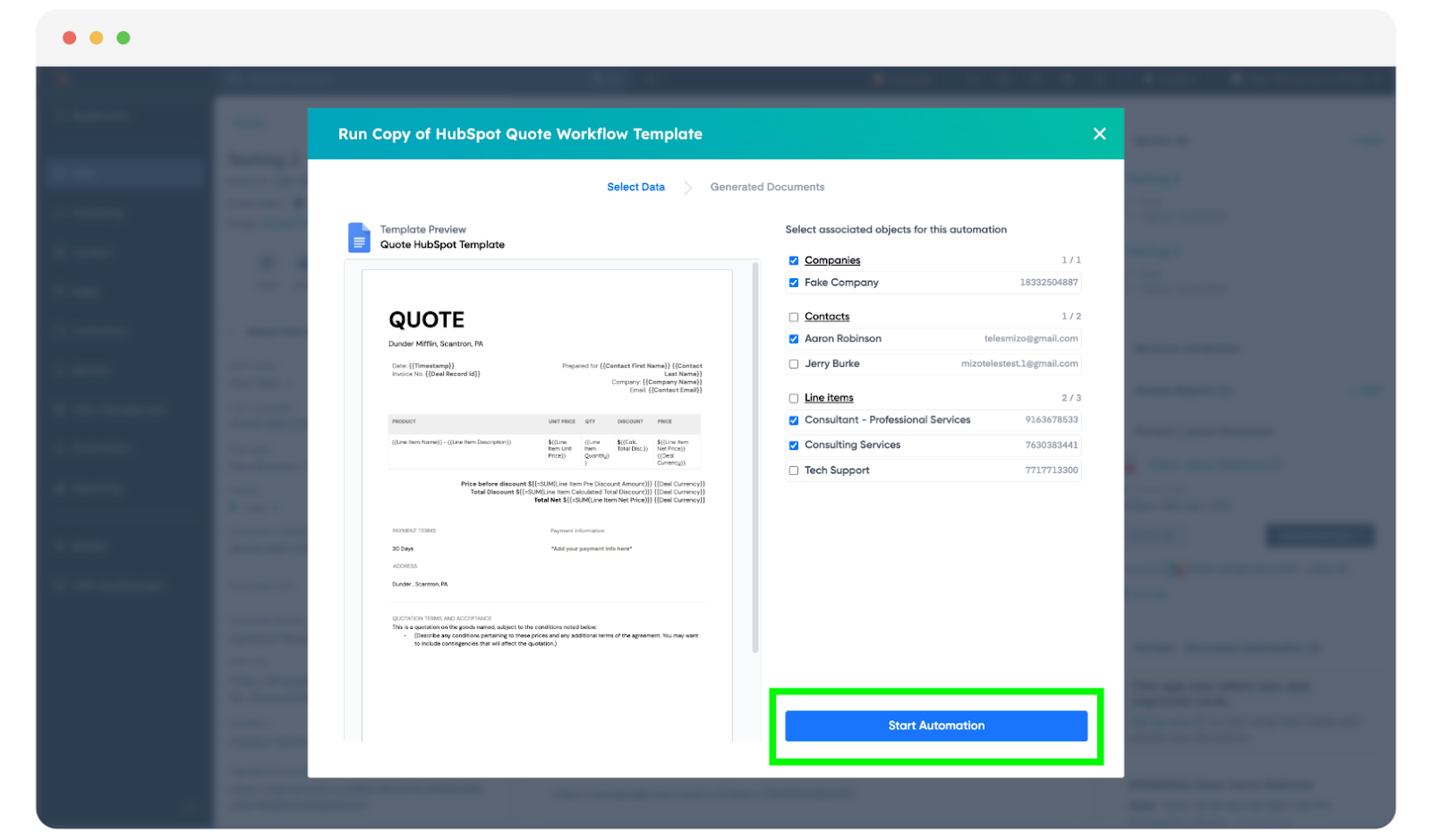
- If the deal has multiple associated contacts, pick the right one. This matters for quotes: you might have a technical contact, a billing contact, and a decision maker on the same deal. The contact you select determines whose name and email appear on the quote header.
- Confirm and run. Portant reads the deal, pulls line items, merges everything into the template, and produces the output.
- The completed quote appears in the Portant card on the deal. The rep can preview it, download the PDF, or send it directly.
Associated objects in practice
"Associated objects" sounds abstract until you're staring at a deal that has three contacts and two companies on it. For quotes, the association choice is practical: who is this quote addressed to?
If the deal has a single primary contact, Portant uses that contact's data automatically. If there are multiple contacts, you pick one. The contact you select fills any contact-level tokens in your template: name, email, phone, title. The company association works the same way.
A common pattern for B2B quotes: the deal is associated with the company (for the billing address and legal name) and a specific contact (for the "Attention" line). Make sure both associations exist on the deal before you generate.
Full step list: Create a document in HubSpot.
Step 5: Turn on PDF output for customer ready files
Quotes should arrive as PDFs. A Google Doc link feels internal. A PDF feels official. Buyers expect a fixed-layout document they can forward to procurement, attach to a purchase order, or file in their own systems.
PDF only vs PDF plus editable Doc
You have two options:
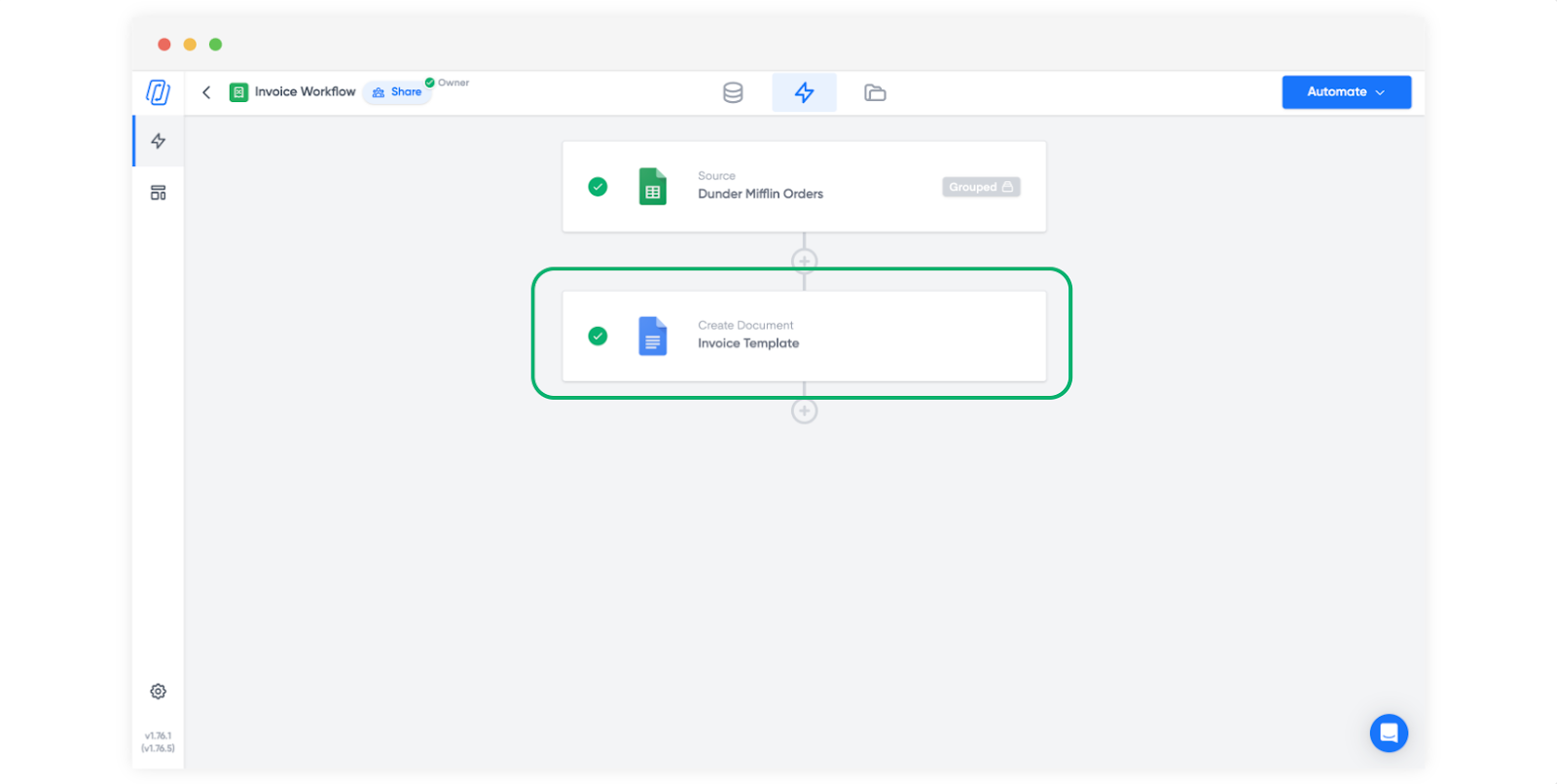
- PDF plus editable Doc (default): Portant generates both. The PDF goes to the customer. The editable Doc stays in your Drive in case you need to make a manual tweak before re-exporting. This is the safer option for teams that occasionally adjust quotes after generation.
- PDF only: Portant generates only the PDF. Use this when your quotes are fully standardized and you never edit after generation. It keeps your Drive cleaner.
Either way, the PDF attaches to the HubSpot deal when the workflow is configured for it. That means anyone on your team who opens the deal can see exactly what was sent.
File naming conventions
Name your output files so they're findable later. A good pattern is [Company Name] - Quote - [Deal Name] - [Date]. You can set this in the Portant workflow using tokens, so each output names itself from CRM data. When a rep searches Drive or looks at the HubSpot activity timeline six months later, the file name tells them what they're looking at without opening it.
Avoid generic names like "Quote" or "Document1." You'll have hundreds of them within a quarter and no way to tell them apart.
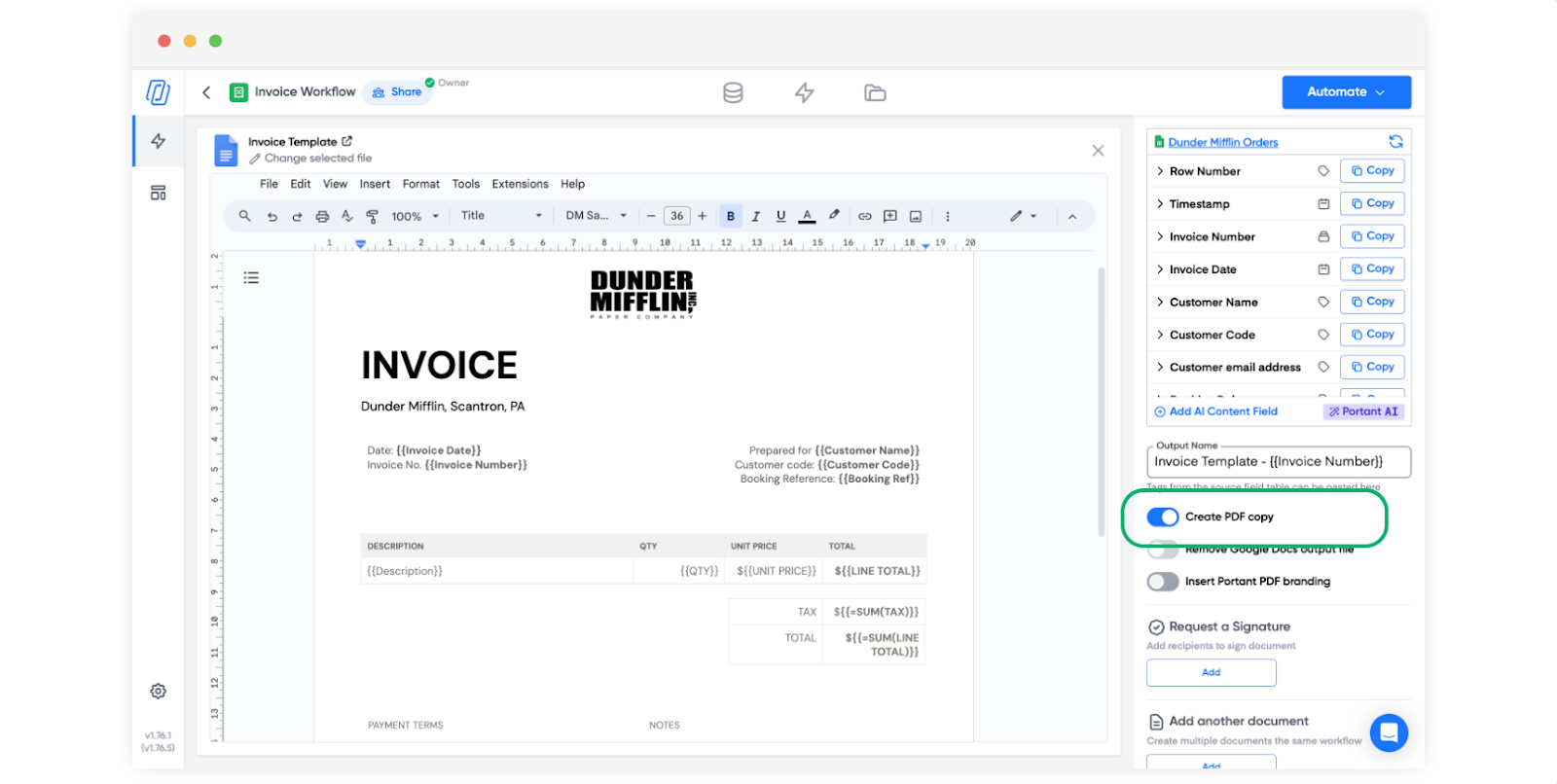
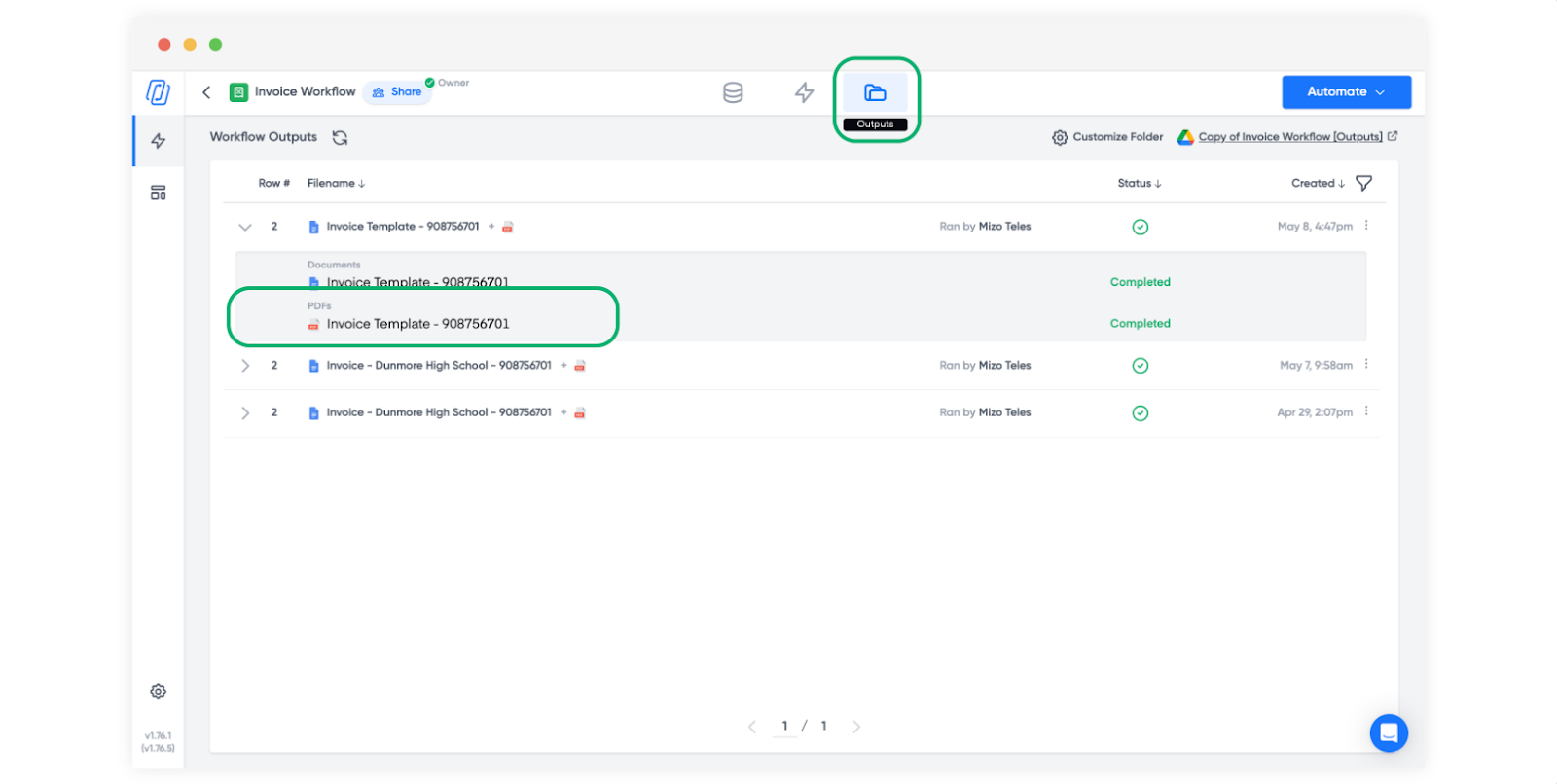
Step-by-step UI and PDF-only modes: Create PDF outputs.
Step 6: Add review for discounts and non-standard terms
Not every quote needs review. If your pricing is standard, your discounting policy is strict, and the template is well-tested, reps can generate and send without a gate. But certain quotes should never go out without a second pair of eyes.
When review matters
- Non-standard discounts: Anything above the pre-approved discount threshold
- Custom terms: Payment terms that differ from your standard Net 30
- Large deal values: Quotes above a certain dollar amount that need VP or finance sign-off
- New products or custom bundles: Line items that haven't been through a standard quote before
Add a Review block after the document block in your Portant workflow. Assign approvers, and require all approvers when both sales leadership and finance need to clear the file. The document sits in a "pending review" state until everyone signs off. Only then does it become available to send.
Setting up approval thresholds
The simplest approach: create two quote workflows. One for standard pricing (no review, reps generate and send immediately) and one for non-standard pricing (review required). Reps pick the right workflow based on the deal. You can also use workflow filters to route deals based on deal amount or other properties.
For teams that want a single workflow with conditional review, the deal amount or discount percentage can determine whether the review block activates. This keeps one template but adds a gate only when the numbers warrant it.
Product behaviour is documented in Review and approve documents. For approvers who live in HubSpot all day, Review and approve documents in HubSpot covers the modal and Draft status flow.
How do you automate quote generation from HubSpot deal stages?
Manual generation from the deal card is the right starting point. But once your template is stable and your data is clean, you can trigger quotes automatically when deals reach a specific stage.
Triggering from deal stage changes
In HubSpot, create a workflow that enrolls deals when they enter your "Quote Requested" or "Proposal Sent" stage (whatever stage means "the buyer wants pricing"). Add a Portant action that targets your quote workflow. When a rep moves a deal to that stage, the quote generates automatically.
A few guardrails to set:
- Turn off re-enrollment. You don't want a new quote every time someone bumps the deal back and forth between stages. One trigger per deal is usually right.
- Add a short delay. Give reps 30 to 60 seconds after the stage change to make sure line items and contact associations are final. A five-second delay means the quote might generate before the rep finishes adding that last product.
- Keep review on. Automated generation plus no review means quotes go out without anyone looking at them. That's fine for totally standard deals. For everything else, keep the review gate.
When to automate vs keep manual
Automate when your deals are standardized: fixed price list, consistent line items, clean CRM data, and a well-tested template. Keep manual when deals are complex, custom, or when reps need to choose which contact the quote addresses.
Many teams do both. Standard deals (under a certain size, standard products, standard terms) trigger automatically. Complex deals (enterprise pricing, custom bundles, multi-year commitments) stay manual so the rep has full control over timing and associations.
For more on deal stage discipline across document types, read deal stages for document workflows.
What edge cases does HubSpot quote automation need to handle?
The basic flow works for 80% of quotes. The remaining 20% is where teams get stuck. Here's how to handle the common edge cases.
Multi-currency deals
If your HubSpot portal supports multiple currencies, line item prices are stored in the deal's currency. Portant merges whatever value HubSpot returns, so a deal in EUR will produce a quote with EUR amounts. The thing to watch: make sure your template shows the currency symbol or code. A quote that says "5,000" without "EUR" or "$" is ambiguous. Use the deal's currency property as a token in the template header or next to the total.
Custom line item properties
HubSpot lets you create custom properties on line items. Implementation fees, support tiers, billing frequency, contract length. These all work as merge tokens in Portant as long as you select them in the property management step. If you've added a custom "Implementation Fee" property to your line items, select it in Portant's source settings and add a column for it in your template table.
The gotcha: custom properties are often inconsistent. One rep fills them in, another doesn't. When the property is empty on a line item, the column in the output is blank for that row. Decide upfront whether your custom properties are required for quoting, and enforce that in HubSpot with required fields or validation rules.
Recurring vs one-time line items
Deals that mix recurring and one-time charges need a quote that makes the distinction clear. Two approaches work:
- Add a billing frequency column to your table. Each line item shows "Monthly," "Annual," or "One-time" so the buyer sees the difference inline.
- Split into two tables. One table for recurring charges, one for one-time charges. This requires a more complex template but reads better for enterprise buyers who need to route different charges to different budget lines.
Company data not on the deal
Sometimes you need data on the quote that lives on the company record, not the deal. Billing address, legal entity name, VAT number. In Portant, when the deal is associated with a company, company-level properties are available as tokens. You don't need to copy them to the deal. Just make sure the association exists and select the company properties in your source settings.
Empty fields and missing data
If a deal property is empty, the token in the output renders as blank text. For a header field like "Payment Terms," that means a blank line where the terms should be. For a line item column like "Discount," that means an empty cell in the table row.
This isn't always a problem. Not every deal has a discount. But for required fields like company name or deal amount, a blank value means something is wrong upstream. The fix is data hygiene, not template logic. Make sure your CRM processes enforce required fields before the deal reaches the quoting stage.
What are HubSpot quote template design best practices?
A well-designed template scales from one line item to twenty without breaking. Here's what to keep in mind.
Consistent column widths
Set your table column widths to handle the longest plausible values. Product names can be long ("Enterprise Platform License, Annual Subscription, 50-Seat Bundle"). If your product name column is too narrow, text wraps awkwardly and the table looks cramped. Give the product name column 40-50% of the table width. Numeric columns (quantity, price, total) can be narrower since numbers are compact.
Testing with different deal sizes
Before you go live, test with three deals:
- A deal with one line item. Does the quote look right with a single-row table? Does it feel too empty?
- A deal with five line items. The average case. Does the table flow cleanly?
- A deal with fifteen to twenty line items. Does the table spill to a second page? If so, is the page break in a reasonable spot? Do the header fields on page one still make sense when the pricing table continues on page two?
This three-deal test catches most layout problems before a real buyer sees them.
Terms and conditions
Many teams want T&Cs on the quote itself rather than in a separate document. You can add a static section below the pricing table with your standard terms. For deals where terms vary (enterprise vs standard, different jurisdictions), consider using conditional sections or maintaining two template variants.
Summary section
Below the line items table, add a summary block with the deal-level total, any deal-level discounts, tax if applicable, and the grand total. Pull these from deal properties, not from line item math in the template. The deal amount in HubSpot should be the authoritative number. If it doesn't match the sum of line items, that's a data problem to fix in the CRM, not in the template.
What are the most common mistakes in HubSpot quote automation?
I've seen these trip up teams that have the basic flow working but hit problems in production.
Wrong line item properties selected
The most common mistake. You build the template with "Amount" in the line total column, but you selected "Price" in the source settings. "Price" is per-unit. "Amount" is quantity times price. The numbers in the output are correct by HubSpot's definition, but they're not what the rep intended. Double-check that the properties you select match what your template columns expect.
Sort order that confuses buyers
Default sort order is often alphabetical or by creation date. Neither makes commercial sense. A buyer who sees "Annual Support Fee" before "Platform License" wonders what they're paying support for. Always set an intentional sort order in property management.
Missing deal properties
A template that references "Payment Terms" when most deals don't have that field populated produces quotes with a blank line where terms should be. Either make the field required in your deal pipeline, add a default value, or remove it from the template.
PDF formatting issues
Google Docs to PDF conversion is generally faithful, but some things shift. Tables with very tight margins can clip text. Colored backgrounds sometimes render slightly differently. Always download and open the actual PDF output rather than relying on the preview. What the buyer receives is the PDF, not the Doc.
Sending without review on custom pricing
A rep adds a 40% discount to win a deal, generates the quote, and sends it without review. Finance finds out when the invoice doesn't match the rate card. If you allow discounts above a threshold, review is not optional. Build this into the workflow, not into rep discipline.
Frequently asked questions
How do I generate a quote from a HubSpot deal?
Connect HubSpot as a source in a Portant workflow, then design a Google Docs or Slides template with deal properties (company, contact, deal amount) in the header and a repeating line-item row for the pricing table. From any deal record, open the Portant card in the sidebar, pick the quote workflow, confirm the associated contact, and run it. Portant merges the deal and line-item data into the template and outputs a PDF in seconds, no spreadsheet or manual copy-paste required.
Can quotes trigger from deal stage?
Yes. Use HubSpot workflows with Portant actions once the template is stable. Set enrollment criteria to the deal stage where pricing is finalized, add a short delay for data to settle, and point the action at your quote workflow. See deal stages for document workflows for sequencing ideas.
What if we use a CPQ tool?
If your CPQ writes pricing back to HubSpot deal line items, Portant can merge those values the same way. Map whatever fields CPQ populates into tokens. If numbers live only in the CPQ and never sync to HubSpot, you'll need to get that data onto the deal before the merge workflow can use it. The principle is simple: Portant reads HubSpot. If the data is in HubSpot, it works.
How do I debug wrong totals?
Compare the deal's line items in HubSpot to the merge preview in Portant. Nine times out of ten the issue is one of three things: a stale property value that hasn't been updated, a custom line item field that wasn't selected in the source settings, or a sort order you didn't expect. Less common: the deal amount doesn't match the sum of line items because someone edited the deal amount manually. Fix it in HubSpot, then re-run the workflow.
Does Portant support multi-currency?
Portant merges whatever values HubSpot stores on the deal and line items. If your HubSpot portal uses multi-currency and a deal is in EUR, the line item prices are in EUR and Portant outputs those EUR values. Make sure your template includes the currency code or symbol so the buyer knows what they're looking at. Portant doesn't convert between currencies. That's HubSpot's job.
Can I include terms and conditions in the same document?
Yes. Add a static text section below the pricing table in your template with your standard T&Cs. This text won't change per deal since it's not tokenized. For deals that need different terms (enterprise vs SMB, different regions), maintain separate template variants or use conditional sections to show the right terms based on a deal property.
How do I version quotes when pricing changes mid-negotiation?
Every time you run the workflow, Portant generates a new output. It doesn't overwrite previous outputs. So if a buyer asks for revised pricing, update the line items on the deal in HubSpot, then re-run the quote workflow. You now have two outputs: the original quote and the revised quote. Both are logged in Portant's outputs and attached to the HubSpot record. Name your files with a date or version indicator so everyone can tell which is current.
Next step: When quotes graduate to contracts, follow the same pattern with legal review and e-signatures. Read Automate your contracts in HubSpot for the full contract workflow.