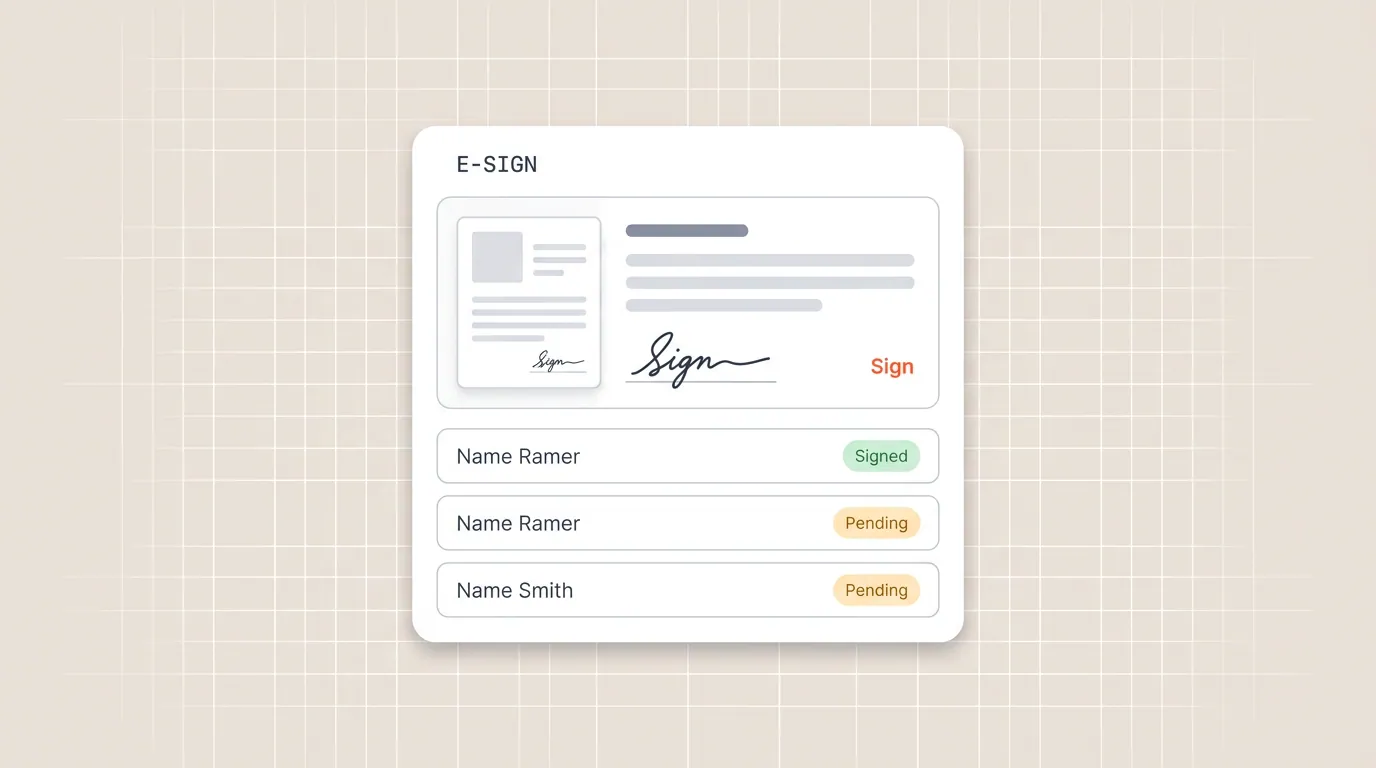


Adding a signature to a Microsoft Word document is one of the most common last steps before a contract, letter or form goes out the door. The tricky part is that "signature in Word" can mean three different things: a formal signature line that someone signs later, a picture of your own handwritten signature dropped onto the page, or a quick, legally valid electronic signature you add yourself.
This guide covers all three, with step by step instructions for Word on Windows, Mac and the web. If you just need to sign the document and send it, the fastest route is usually to skip Word's clunky signature tools entirely and sign it online instead.
Need to sign a document now?
Drop your Word file straight into our free tool, add your signature and download the signed file. No signup, no watermark.
Can you electronically sign a Word document?
Yes. Word has a built in Signature Line feature, you can paste in an image of your handwritten signature, and you can sign an exported PDF copy with any free signing tool. Each method suits a different need:
- Signature line: best when you want a formal placeholder that you or someone else will sign later.
- Picture of your signature: best when you want your own signature to appear on the page right now.
- Sign as a PDF: best when you just need to sign and send, especially from a phone or a computer that does not have Word installed.
Method 1: Add a signature line in Word
A signature line inserts a visible line with the signer's name and title, plus the underlying fields Word uses for a digital signature. Use it for documents that need a clear "sign here" marker.
- Click where you want the signature to go.
- On the Insert tab, in the Text group, click Signature Line, then Microsoft Office Signature Line.
- In the dialog, type the signer's name, title and email so the line is labelled correctly.
- Click OK. Word drops the signature line into the document.
- To sign it, double click the line, then type your name or select a signature image and click Sign.
This method is only available in the desktop versions of Word, not Word for the web. If you are working in a browser, use Method 2 or sign the document as a PDF instead.
Method 2: Insert a picture of your handwritten signature
If you want your actual signature on the page, the simplest approach is to sign a blank sheet of paper, photograph or scan it, and insert it as an image.
- Sign your name on a clean sheet of white paper.
- Take a clear photo or scan it, then crop the image tightly around the signature.
- In Word, click Insert then Pictures, and choose your signature file.
- Drag the corner handles to resize it, and position it over the signature line.
- For a cleaner look, select the image, open Picture Format then Color, and set the background to transparent if your version of Word supports it.
This works in Word on Windows, Mac and the web. The downside is that a pasted image is easy to copy and reuse, so it is fine for internal documents but weaker for anything that needs to be tamper evident. For that, create a proper digital signature instead.
Method 3: Sign it online for free (fastest, nothing to install)
For most people the goal is not "a signature inside Word", it is "a signed document I can send". The quickest way to get there is to drop the Word file straight into a free online signing tool, which converts it for you, so you never touch export settings. The result is a clean PDF, the standard format for signed business documents, that works on every device.
- Open the free signing tool in your browser.
- Drag in your Word file (.docx). It is converted to a PDF on your device and processed in your browser, with no signup and no watermark.
- Draw or type your signature, drag it onto the page and resize it to fit.
- Download the signed PDF, ready to email or file.
Because everything happens in the browser, this method works the same on a laptop, a Chromebook or a phone, and you do not need Word installed at all.
Is an electronic signature in Word legally binding?
In most countries, including the United States under the ESIGN Act and the EU under eIDAS, electronic signatures are legally binding for the vast majority of business documents. What matters is intent to sign and a clear record of who signed what, not whether the signature was added in Word or a PDF. For agreements that involve more than one party, you will usually want a tool that records each signer and timestamps the document. See our guide to signing contracts online for how that works end to end.
Need signatures from other people?
The three methods above are for adding your own signature. If you need to collect signatures from clients or colleagues, a single shared image will not cut it. Portant lets you turn a Word or Google Doc into an agreement, add signature fields, and send signature requests so each party signs their own copy and you get the finished document back automatically. Learn more about eSignatures with Portant.
Frequently asked questions
How do I add a signature line in Word on a Mac?
Open the Insert menu, choose Signature Line, fill in the signer details and click OK. The steps match the Windows version.
Can I sign a Word document on my phone?
The easiest way is to open the free online signing tool in your mobile browser and drop your Word file straight in. The Word mobile app does not support signature lines.
How do I remove the background from my signature image?
Select the image, open Picture Format, click Color then Set Transparent Color, and click the white area around your signature.
The fastest way to sign a Word document
Word's signature line is handy for formal placeholders, and a pasted image works for casual documents. But when you simply need a clean, signed file to send, signing it online is faster, works on any device, and looks more professional. Drop your Word file into the free signing tool and sign it in your browser in under a minute.